

Settings — /settings
Everything Humanize remembers is in one place: /settings, a screen of its own. It holds what is true of this machine, the accounts agents run as, where a turn goes when it cannot run, the machines a flow's environments go on, and what this directory remembers. It works with the keys and with the mouse alike.
At a glance
- You will change how Humanize behaves on this machine and in this directory, and manage the accounts, machines and nous your flows use.
- Use it when you want to see the working, add an API key or a second account, put a flow on another machine, or keep a run going when a model fails.
- You need
hmzopen. Nothing has to be running.
Try it
/settings
/settings accounts
/settings runtimes
How it works
/settings opens on nine pages and nothing else, each a card saying what is in it. The first eight run from the broadest to the nearest: what is true wherever you run Humanize and which of its epics it tells you of, which machines it reaches, who your agents are and what takes over when one fails, where their work goes and where its epics are kept, and the one directory open now. The last is what the epics spent. enter, → or a click goes into one; esc, backspace, ←, or a click on /settings across the top, comes back out. /settings <page> goes straight into the one named, and the word is offered as you type it:
| Page | /settings … | What it holds |
|---|---|---|
| General | general | whether the screen shows the working, what Ai-chan thinks with by default, and whether Humanize reports what goes wrong |
| Notifications | notifications | which epics on this machine you are told of, and whether the terminal's bell and your system tell you too |
| Daemons | daemons | this machine's daemon and other machines', reached over ssh or EasyTier, and how each stands |
| Accounts | accounts | every account an agent may run as, under a heading per CLI |
| Nous | nous | what agents think with, and where a turn goes when one cannot take it |
| Runtimes | runtimes | the machines a flow's environments go on: ssh hosts, docker daemons, docker swarms, Apple containers and Slurm clusters |
| Backup | backup | the repositories epics are backed up to, and which are defaults |
| Workspace | workspace | the flow last set up here, the chat agent, and forgetting them |
| Usage | usage | what the epics spent, by day and by flow |
The names they had still open them: settings and everywhere open General, directory opens Workspace, and environments opens Runtimes. The flowverses are on /flow now, and /settings flowverses opens them there. A card marked ● unsaved holds a change you have not saved yet.
The web page has the same pages, under Daemon, for whichever daemon it reaches -- this machine or an ssh host -- with Batch apply to copy one to several; its App pages, themes, daemons and notifications, belong to the page and this machine alone; its notifications are the same settings as hmz's Notifications page.
How a page is laid out
Inside a page, the line across the top says where you are (hmz › /settings › Accounts), each step of it a click back there, the list fills the screen, and under it is a bar of buttons. Every page is one of two kinds, and each kind is laid out the same way wherever it is. So is every other menu of hmz -- /flow, /epics, an agent, a form -- with the same keys (TUI › Menus).
A page of settings (General, Workspace) is a row per setting under a heading of what it is about: its name, what it means under it, and its value at the far end. The one you change most is first, and the arrows step over the headings. enter or a click on a value marked ▾ drops every value it can take under the row, the one in force ticked; ↑ ↓ and enter, or a click, pick one, and esc or a click off the list picks none. An on/off switch's list opens on the answer it is not, so enter twice turns it round. A row marked ▸ opens something.
A page that is a list (Accounts, Nous, Runtimes, Backup) is the list, under a heading per group where it has groups, and under it the buttons for what is done about the list: one Add … first, then anything else that brings one in, then Search…, and Save at the far end where the page holds anything until it is saved. Runtimes holds nothing, so it has no Save.
tab moves from the list to the buttons, ← → along them, and ↑ or tab back. / or Search… opens a box above the list: what you type narrows it as you type, and the cursor goes to the first thing it finds; enter goes back to the list, and esc clears it. On a page with nothing listed yet, the focus opens on Add …. enter or a click on something listed opens its own menu: what can be done to that one thing, with taking it away as a red Remove button under its rows.
A form is what adding or correcting something opens: a row per question, and under them a Done button that answers it, saying what answering will do when you point at it or it has the focus. Type on a written row to write it, no enter first; enter keeps it and moves the cursor on to the next row still to be answered, and after the last the focus moves to Done, so one more enter answers the form. A row marked ▾ drops its values under it, as on a page of settings; one marked ▸ opens a list to choose from. What a form can guess is written in for you (a name, a region): the first letter you type replaces it, and backspace trims it instead. A secret is drawn as bullets and never shown back. esc out of a form you wrote in asks whether to keep it.
The line under the list says what became of the last thing done on that page, and it is still there when you go back into the page, as is the row the cursor was on.
The last line of the screen always names the keys that work where the focus is, such as enter open / search tab actions esc back on a list, enter save ←/→ move tab list esc back on the buttons, and type to edit tab actions esc back on a form's written row.
When a change lands
What every page holds lands together, when you save: press Save, on any page or on the pages. Leave /settings with esc and unsaved changes, and a box in the middle of the screen asks Save or Discard; esc or a click off it takes you back. Save cannot be pressed until something is changed, and ● unsaved changes across the top says when something is.
A few things happen as you ask rather than on save: making an account, signing one in, and everything on the Daemons and Runtimes pages. And a few that are saved cannot take hold at once, because something already running started without them. The row says when while the change is held, and the transcript says it again once saved:
| Change | Takes hold |
|---|---|
| error reports, details, nous | at once |
| correcting an account, taking it away | from the next agent session: a session already running keeps the account it started with |
| forget | from the next launch: the interface open now keeps what it opened with |
Example: turn Details on
By default the transcript shows what each turn said and nothing of how it got there. Here you switch on Details, so every tool call and every line of thinking shows, and save.
1. Open /settings. Type /settings and press enter:
  hmz › /settings
  Every setting Humanize keeps. What you change is held until you save it.

  ╭────────────────────────────────────────────────────────────────────────╮
   ⚙  General                                    details off · reports off  1
     this machine: details, Ai-chan's nous, chat $, error reports
   ────────────────────────────────────────────────────────────────────────
   ◉  Accounts                                                0 accounts
     what agents sign in as, under each CLI
   ────────────────────────────────────────────────────────────────────────
   ↻  Nous                                                        0 nous
     what agents think with, and where a failed turn goes
   ────────────────────────────────────────────────────────────────────────
   ▦  Runtimes                                                0 machines
     ssh hosts, docker daemons, swarms, Apple containers and Slurm
   ────────────────────────────────────────────────────────────────────────
   ⇪  Backup                                                   0 targets
     repositories epics are backed up to
   ────────────────────────────────────────────────────────────────────────
   ⌂  Workspace                                   demo · flow ralph_loop
     this directory: its flow, its chat agent, and forgetting it
  ╰────────────────────────────────────────────────────────────────────────╯

                                                                     Save  2

  enter open   esc close
2. Go into General and drop Details' values. enter on the first card, and enter again on Details, the first row:
  hmz › /settings › General
  How Humanize behaves on this machine, in every directory.

  ╭────────────────────────────────────────────────────────────────────────╮
   Display
   Details                                                         ○ off ▾  3
     show every tool call and all of the thinking
                                      ╭─ Details ────────────────────────╮
   Agents                             │ on  show tool calls and thinking │ 4
   Ai-chan                            │ off ✔  show turn responses only  │
     the nous a new conversation     ╰──────────────────────────────────╯

   Privacy
   Error reports                                               ○ off ▾
     send error reports to Humanize
   ────────────────────────────────────────────────────────────────────────
   What is sent                                                      ▸
     what error reports include and exclude
  ╰────────────────────────────────────────────────────────────────────────╯

                                                                     Save

  enter choose   esc back
3. Pick on, and save. enter picks on. Then tab to the buttons and enter on Save:
  hmz › /settings › General                         ● unsaved changes 5
  How Humanize behaves on this machine, in every directory.
  …
   Details                                                      ● on ▾
     show every tool call and all of the thinking
  …
                                                                     Save  6

  enter save   ←/→ move   tab list   esc back
What to look at, by number:
- The card's summary. Each card says what it holds right now at its right-hand end, so the nine cards are a status page before you open any of them:
details off · reports offhere, the number of accounts, machines and rules on the others. - Save. Nothing has changed yet, so it cannot be pressed.
○ off ▾. The row's value;▾says enter drops its values under it.- The dropped list. Every value the row can take, with
✔on the one in force. An on/off switch opens on the answer it is not, so the cursor is already onon. ● unsaved changes. The change is held, not applied. Leaving now asks Save or Discard.- Save, under the cursor. tab moved the focus from the list to the buttons; the last line changed to the keys that work there.
Check it worked
Saving closes the screen, and the transcript says what changed:
showing details: tool calls, thinking, and backend outputThe status line under the prompt now starts with details ·, and it stays that way in the next hmz too. Open /settings again and the first card reads details on · reports off.
General
What is true of this machine, for every project on it, under a heading of what each row is about.
| Heading | Row | What it is |
|---|---|---|
| Display | Details | whether the screen shows the working: every tool call and all of the thinking |
| Agents | Ai-chan | the nous a new conversation with Ai-chan thinks with unless you pick another: none, the one you chose, another nous, or another…, which chooses its CLI, account, model and effort. With none, each new conversation asks for one. It takes effect from the next conversation made; one already made keeps its own. |
| Chat | Chat prefers for $ | what $<name> in a chat starts where the chat's agent has a skill of that name and a flow is called it too: native, the skill (the default), or flow, the flow. A chat can say otherwise for itself with /prefer. |
| Privacy | Error reports | whether Humanize reports what goes wrong to its developers |
| Privacy | What is sent | what a report carries and what it never does. enter reads it out. |
Details
By default the screen shows what each turn said and nothing of how it got there. Turn Details on to see every tool call, every line of thinking, and whatever a flow or backend prints along the way. Reach for it when a turn is slow or does something you did not expect.
It is off until you turn it on, and it is remembered: the next hmz opens the way you left it. While it is on, the status line starts with details.
Here is one turn of rlar's actor, both ways:
The default: who is working, what each turn said, and how long it took.
With details on, look for:
- Every tool call, with what it was called on in dim.
- The thinking, in dim italics, where the backend reports it.
detailsat the front of the status line, for as long as it is on.
Turning it on shows what arrives from then on. What scrolled past while it was off stays hidden, but the run's trace has all of it.
A yellow ● line is Humanize saying what it is doing about a turn: waiting out a rate limit, carrying on as another account, cutting a turn off. It shows either way, because it is what tells a turn that is waiting apart from one that has hung.
It changes only the screen. The agents are not told, and they do not work any differently. The run and its trace are the same either way.
| Turn it on | Leave it off |
|---|---|
| The first time you run a flow, to see what its turns do | For a long run you only check on now and then |
| When a turn takes far longer than it should | When you want each answer without scrolling past its tools |
A flow can watch its agents' tool calls itself. See Hooks.
Notifications
Which epics on this machine hmz tells you of, while you are not on them: one that ends -- done, failed or stopped -- a flow asking you something, and a chat waiting for its next turn, in any directory. Each is a card in the corner of the screen for a few seconds, and a ● on its epic in /epics until you open it there. The epic on your screen -- this directory's, while its log or the monitor is up -- is never told of.
| Heading | Row | What it is |
|---|---|---|
| Kinds | Done | an epic finished, or a chat turn did |
| Kinds | Failed | an epic failed, crashed, ran out of budget or was refused |
| Kinds | Stopped | an epic was stopped |
| Kinds | Questions | a flow asks you something |
| Kinds | Waiting | a flow waits for what you say next; a chat's finished turn is told as Done |
| Shown | System | also ring the terminal's bell and show a system notification, which iTerm2, Ghostty, WezTerm, kitty and Windows Terminal show as your system's own |
Every row is on until you turn it off. They are kept in ~/.hmz/settings.yaml under notifications; the web page keeps its own, in your browser.
Daemons
Every other machine whose epics you want to read and run from here, each reached by its routes: Local, this machine, is always first. A daemon is added on one form, in a mode: Pairing code, the code hmz daemon pair printed on that machine, claimed at once, which gives its id and routes; SSH Config, a Host of your ssh config picked from a list; Custom, its host, user, port, identity file, proxy jump and ssh options typed in, or filled from a host of your ssh config with its import row; or Routes, typed in the order they are tried (stdio:ssh://…, tcp://host:port, …), a route other than ssh needing the id a pairing code gives. Editing one opens it in the mode its routes are in, and keeps its id. Hosts of your ssh config can also be brought in with Import…, those added already left out. It is written at once, to this machine's settings; the web page keeps a list of its own, in your browser.
Each row says its routes and how it stands: idle until it is asked for, then connecting, installing while this hmz is put there, up, hmz <version>, or failed, with what was said last. m, enter or a click on one is its menu: connect, edit…, remove, copy name, and while it is up pair a device…, which copies a code another device adds it from, and devices…, the devices paired with it, one revoked after you confirm. Local's menu has those last two.
/epics @<name> lists that daemon's epics, and goes on listing them until you turn the list back with its Daemon… button, or with /epics @local. From another daemon's list an epic is exported here, backed up there, or has its name, task or workspace copied. n there starts a new epic on that machine -- a directory there, a flow, a task, and its agents where that directory has not run the flow before -- and follows it; follow on one going there does the same for it. It is followed on the interface's own screen, as an epic of this machine is, with @<name> on the status line: you read it, answer what it asks, say a line to it or stop it, and esc leaves it going there and comes back to the list.
Batch apply… writes this machine's settings to other daemons: switch on the pages -- general, nous, runtimes, backup -- and the daemons, and each says whether they were applied. Accounts stay where they are, since only a secret sets them, and a backup target whose URL signs in has to be added there by hand.
Accounts
An account, or provider, is one named sign-in for one coding agent CLI, kept apart from the CLI's own sign-in and from every other account. You make one on this page, then name it after an @ when you pick an agent. Reach for one when an agent should run on another subscription, key or gateway than the one you are signed in with, or when two agents of one CLI should run as two accounts in the same run.
Try it
In hmz:
Type
/settings accounts. With no accounts yet the focus is on Add an account, the first button under the list; with some, tab goes to it, or click it. Press enter.The form opens on the first CLI installed here and its first way in:
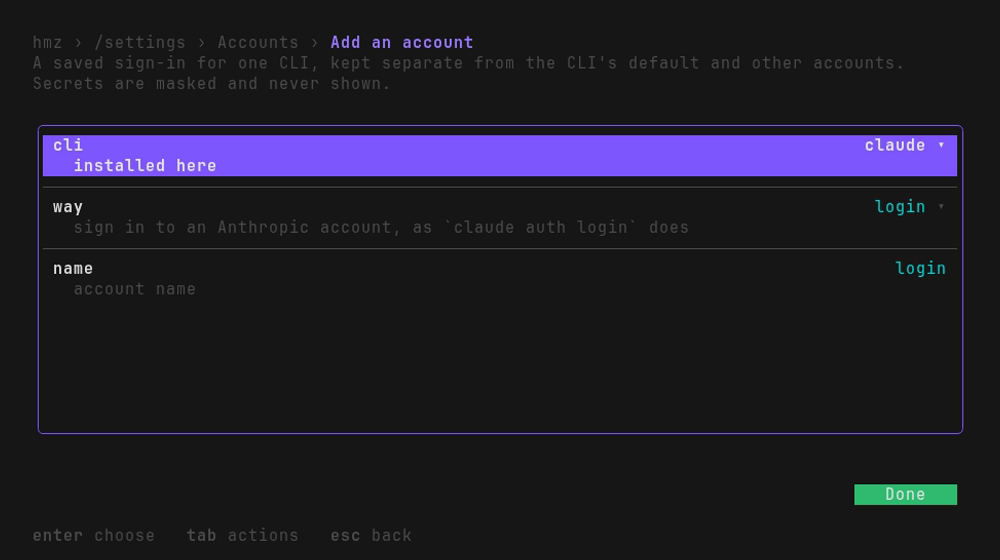
Choose the way: ↓ to
way, enter (or click it), and pick, say,anthropic-gatewayfrom the list dropped under it. The rows under it change to what that way asks, and the cursor goes to the first of them. Type each answer and press enter; a secret shows as bullets. The name is written in for you (the way's own, unless an account is already called that); type over it to call it something else,deepseekhere.Once the last answer is kept, the focus is on Done, and the line under the list says what it will do: press enter. A way that is a login hands the terminal to the CLI's own login until it is done.
Name the account after the CLI in
-a:
hmz exec -f flame_chase \
    -a first_chaser=claude/claude-opus-5-5:max \
    -a second_chaser=claude@deepseek/deepseek-chat:high \
    -p budget.cost=20 "fix the build"
flame_chase has two agents take turns on one task. Here both run the same Claude Code: the first as you are signed in, the second as deepseek.
Example: an Anthropic API key
From /settings accounts with no account yet, an Anthropic API key is a dozen key presses and the key itself: enter on Add an account, ↓ enter to drop the ways, ↓ ↓ enter to pick key, type the key, and enter. Nothing is left to answer, so the focus has moved on to Done:
  hmz › /settings › Accounts › Add an account             ● unsaved changes
  A saved sign-in for one CLI, kept separate from the CLI's default and
  other accounts. Secrets are masked and never shown.

  ╭────────────────────────────────────────────────────────────────────────╮
   cli                                                            claude ▾
     installed here
   ────────────────────────────────────────────────────────────────────────
   way                                                               key ▾ 1
     an Anthropic API key, from the console
   ────────────────────────────────────────────────────────────────────────
   name                                                                key 2
     account name
   ────────────────────────────────────────────────────────────────────────
   ANTHROPIC_API_KEY                                        ••••••••••••••  3
     the API key
   ────────────────────────────────────────────────────────────────────────
   also for pi                                                      ● on ▾ 4
     installed here
   ────────────────────────────────────────────────────────────────────────
   also for omp                                                     ● on ▾
     installed here
   ────────────────────────────────────────────────────────────────────────
   also for opencode                                                ● on ▾
     installed here
   ────────────────────────────────────────────────────────────────────────
   also for mimo                                                    ● on ▾
     installed here
  ╰────────────────────────────────────────────────────────────────────────╯
   adds claude/key, for pi, omp, opencode, mimo too

                                                                      Done  5

  enter done   ←/→ move   tab list   esc back
way. Each CLI has its own ways in; picking one replaces the rows under it with what that way asks.keyasks for one variable.name, written in for you. The way's own name, since no account has it yet. Type over it to call the account something else; it is what goes after the@.- The secret, as bullets. It is never drawn back, here or on any later screen.
also for …. The same key works in the other CLIs that take an Anthropic key, and each one installed here startson. See One account, several CLIs.- Done, with the focus. The line under the list says what pressing it will do. Read it before you press enter.
enter on Done makes the account at once; there is nothing to save. The Accounts page now lists it under claude, and under each CLI it was copied to, beside as local:
claude
key                       key · ANTHROPIC_API_KEY
as local                  the account signed in on this machine
The line under the list says key is also saved for pi, omp, opencode, mimo, and then how many models the account's CLI named for it, or why it named none. esc esc goes back to the prompt.
Choosing one for an agent
-a builder=claude@work/claude-opus-5-5:max
           ^^^^^^ ^^^^ ^^^^^^^^^^^^^ ^^^
CLI account model effort/flow, choose the flow, enter on a role, then its account row:
hmz › /flow › Installed › ralph_loop › agent › Select the account to run as
╭──────────────────────────────────────────────────────────────────────────╮
│ as local ✔ use the account signed in on this machine │
│ deepseek anthropic-gateway · ANTHROPIC_AUTH_TOKEN, │
│ ANTHROPIC_BASE_URL │
│ work login │
╰──────────────────────────────────────────────────────────────────────────╯
Add an account Search…
enter choose / search tab actions esc back- An agent with no account runs
as local: the CLI signed in the way you signed it in yourself. The list opens with the cursor on the account in force, ticked. - At the prompt, that list's Add an account button makes an account without leaving it. It is the same form as on the Accounts page, without the row that asks which CLI, and the new account comes back chosen. The agent's sheet then asks its CLI what it runs, without holding you up.
- An account belongs to one CLI. What signs in to Claude Code is not what signs in to codex, so the list only offers that CLI's accounts.
An agent never quietly runs as you instead. An account that is not there is refused before anything runs, naming it, and so is a bare @:
$ hmz exec -f ralph_loop -p budget.duration=1h \
    -a agent=claude@gone/claude-opus-5-5:max "…"
hmz exec: error: ralph_loop: 'agent' names no claude account called 'gone'; make it on the accounts page of /settings
The ways in
A way is one kind of sign-in: the CLI's own login, an API key, a gateway, a cloud account. Pick a CLI to see what each of its ways asks for.
Claude Code16 ways in
loginsign in to a Claude subscription
runs
consolesign in to an Anthropic Console account, billed per token
runs
tokena long-lived token, as claude setup-token prints one
asksCLAUDE_CODE_OAUTH_TOKEN · secret
keyan Anthropic API key, from the console
asksANTHROPIC_API_KEY · secret
wifWorkload Identity Federation: a token another identity provider issues, traded for Anthropic’s
asksANTHROPIC_FEDERATION_RULE_IDANTHROPIC_ORGANIZATION_IDANTHROPIC_SERVICE_ACCOUNT_IDANTHROPIC_IDENTITY_TOKEN_FILE
anthropic-gatewayan endpoint speaking Anthropic’s Messages API: a proxy, a router, another vendor
asksANTHROPIC_BASE_URLANTHROPIC_AUTH_TOKEN · secret
bedrock-gatewayan endpoint speaking Amazon Bedrock’s API, which holds the AWS credentials itself
asksANTHROPIC_BEDROCK_BASE_URLANTHROPIC_AUTH_TOKEN · secretand setsCLAUDE_CODE_USE_BEDROCK=1CLAUDE_CODE_SKIP_BEDROCK_AUTH=1
vertex-gatewayan endpoint speaking Vertex AI’s API, which holds the Google Cloud credentials itself
asksANTHROPIC_VERTEX_BASE_URLANTHROPIC_AUTH_TOKEN · secretANTHROPIC_VERTEX_PROJECT_IDCLOUD_ML_REGION · us-east5, filled inand setsCLAUDE_CODE_USE_VERTEX=1CLAUDE_CODE_SKIP_VERTEX_AUTH=1
bedrockAnthropic’s models on an AWS account of yours
asksAWS_PROFILEAWS_REGION · us-east-1, filled inand setsCLAUDE_CODE_USE_BEDROCK=1
bedrock-keyAnthropic’s models on Amazon Bedrock, by a Bedrock API key
asksAWS_BEARER_TOKEN_BEDROCK · secretAWS_REGION · us-east-1, filled inand setsCLAUDE_CODE_USE_BEDROCK=1
mantleAnthropic’s models on Amazon Bedrock’s Mantle endpoint, on an AWS account of yours
asksAWS_PROFILEAWS_REGION · us-east-1, filled inand setsCLAUDE_CODE_USE_MANTLE=1
vertexAnthropic’s models on a Google Cloud project of yours
asksANTHROPIC_VERTEX_PROJECT_IDCLOUD_ML_REGION · us-east5, filled inand setsCLAUDE_CODE_USE_VERTEX=1
foundryAnthropic’s models on a Microsoft Foundry resource of yours
asksANTHROPIC_FOUNDRY_RESOURCEANTHROPIC_FOUNDRY_API_KEY · secretand setsCLAUDE_CODE_USE_FOUNDRY=1
awsClaude Platform on AWS: Anthropic’s API, billed through AWS
asksANTHROPIC_AWS_WORKSPACE_IDAWS_REGION · us-east-1, filled inANTHROPIC_AWS_API_KEY · secretand setsCLAUDE_CODE_USE_ANTHROPIC_AWS=1
google-cloudClaude Platform on Google Cloud: Anthropic’s API, billed through Google Cloud
asksANTHROPIC_GOOGLE_CLOUD_PROJECTANTHROPIC_GOOGLE_CLOUD_LOCATION · global, filled inANTHROPIC_GOOGLE_CLOUD_WORKSPACE_IDand setsCLAUDE_CODE_USE_ANTHROPIC_GOOGLE_CLOUD=1
envvariables of your own: whatever this CLI reads a key or an endpoint under
asksNAME=VALUE one per line
A lookup of what Humanize offers, not a live screen. The Accounts page of /settings on your machine is the list to trust.
A way that runs a command hands it the terminal: its browser or device code owns the screen until it is done, and what it writes lands in the account rather than in the CLI's own sign-in. A way that only asks keeps your answers as the variables the CLI reads. env takes whichever variables you type, one NAME=VALUE per line.
A CLI that can be put through LiteLLM, such as claude, also has every way litellm has in: an OpenAI key, OpenRouter, Bedrock, Vertex, Azure and the rest, each named litellm- and the litellm way it is. They come last in the list of ways, under the heading LiteLLM, on the form in hmz and in the web page alike. Without the [litellm] extra they are not offered, and that heading says what is missing and the command that installs it instead:
LiteLLM
litellm is not installed; run: uv pip install --python /path/to/python 'hmz[litellm]==…'; then reopen hmz
Managing accounts
The Accounts page lists every account under a heading per CLI: its name, the way it was made by, and the names of the variables it sets. It never shows a value. Under the list are Add an account, Add a custom CLI (one that speaks ACP), Search… and Save.
enter, → or a click on an account opens what you can do with it, a menu of its own (hmz › /settings › Accounts › claude/work):
| On its menu | What it does |
|---|---|
| edit settings | Asks its way's questions again, on the same form it was made on. Secrets are never shown back: leave one blank to keep it, or type a new one. Once saved, the account is asked again what models it runs, so a gateway moved offers the new one's. |
| sign in again | Runs its login again. It owns the terminal while it does. |
| Remove, the button under them | The account and its credentials. Once held, the button reads Cancel removal, which keeps it after all. |
Making an account and signing one in happen at once. Correcting and taking away are held until you save the menu, and while one is held its row says from the next agent session: an agent picks the change up when it next opens a session, and a session already running keeps the account it started with.
Under a CLI that has accounts, the last row is as local: the CLI as you signed it in yourself. Humanize keeps no credentials for it, so its menu offers nothing and says why.
One account, several CLIs
An API key belongs to the vendor, not to the CLI. An Anthropic key works in Claude Code, pi, Oh My Pi, opencode and mimocode alike. So when the account you are making is one other CLIs could run as, the form has a row for each of them, also for pi, also for opencode and so on:
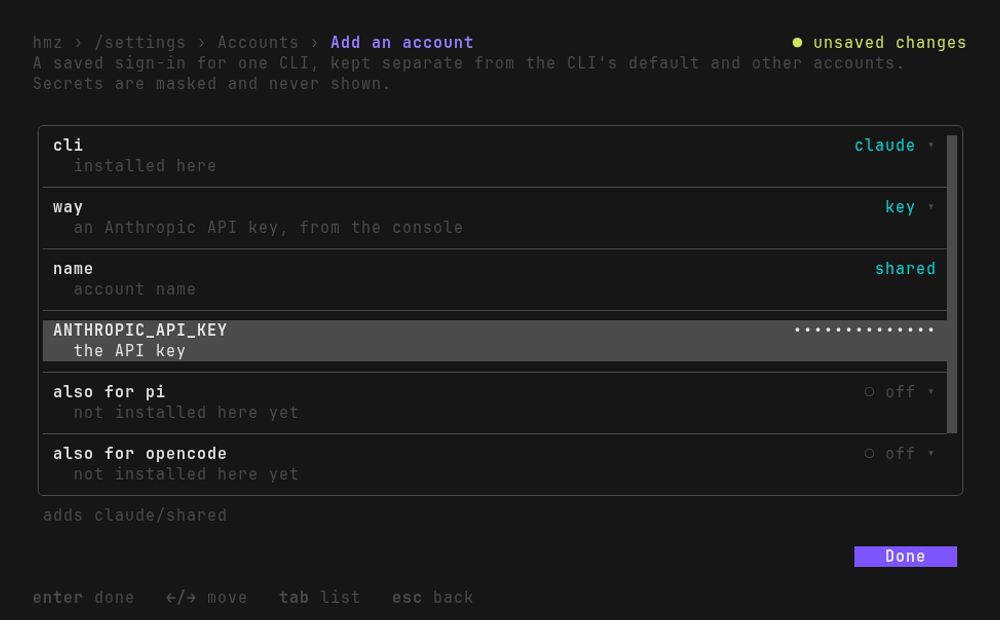
- Each starts on where that CLI is installed here, and off where it is not. Change one as any
▾row: enter dropsonandoffunder it, the other one under the cursor, and enter takes it. Done says which it will be copied to. - A copy takes the same name, so
claude/sharedbecomespi/sharedandopencode/sharedtoo. The name written in for you is one no account of any CLI has, so a copy never writes over another account; where you type one that does, the row says so. - Correcting the account asks again, with each CLI that already holds a copy switched on, so a rotated key is typed once and written over every copy.
- Only variables travel. An account made by a login stays with its CLI, and asks nothing.
Which models an account can run
Which models a turn may name depends on the subscription, key or gateway behind it, so a new account's CLI is asked what it runs as soon as the account is made. On the Accounts page that happens in the background: the account's row says checking models…, you can carry on, and the line under the list says how many models it named, or why it named none (a login that has not finished, a key it refused). A gateway account lists what the gateway itself serves.
The list is what the model row offers at /flow. Check again under it asks again: do it when the model you want is missing, or when a failed turn says the list is out of date.
When an account fails
An account does not say where a failed turn goes. That is said on the Nous page, against a nous: a CLI, an account, a model and an effort together. To carry on under another account of the same CLI, give claude@subscription/claude-opus-5 a then of claude@key/claude-opus-5, or balance the two in a virtual nous. A fallback key an older Humanize wrote into an account's provider.json is ignored, and dropped the next time the account is saved.
Good to know
- Only the credentials belong to the account. Sessions, settings and skills stay the CLI's own, so a turn under an account still shows up in a trace, still counts towards the cost readout, and still has your skills.
- Other accounts' variables are unset. A turn under an account runs without every variable that CLI would read an account from, unless this account set it. An
ANTHROPIC_API_KEYleft in your shell profile cannot quietly win over the account you chose.
From Python
Every row of the form is a call on Hmz().accounts:
from hmz.sdk import Hmz

accounts = Hmz().accounts
shared = accounts.make("claude", "shared", accounts.way("claude", "key"), {
    "ANTHROPIC_API_KEY": key,
})

accounts.serves(shared)                     # ('pi', 'omp', 'qwen', 'opencode', 'mimo', 'litellm')
accounts.copies(shared, "pi")               # pi/shared, holding the same key
make writes an account down. For a way that runs a login, sign_in(account, way) runs it. See SDK › Accounts.
Nous
A nous is what an agent thinks with. The plain kind, a concrete nous, is the four things an agent spec names after its role: CLI[@ACCOUNT]/MODEL[:EFFORT], for example claude@work/claude-opus-5-5:high. A virtual nous is a name you make up, such as smart, that stands for a small graph of other nous. An agent takes either: -a coder=smart works just like -a coder=claude/claude-opus-5-5:high.
Every nous, concrete or virtual, has the same three settings for when a turn fails, and one place to go after:
| Set as | What it does | |
|---|---|---|
| Trying again | tries, policy, timeout | takes the failed turn again here, in the same conversation |
| Then | a graph | where the turn goes once those tries are spent, in a new conversation |
| Graph (virtual only) | a graph | what the nous is: the nous its turns are taken at |
A nous with nothing written about it is tried once and fails as it always did.
Graphs
A graph is a few nodes and the edges a failure follows between them. A walk starts at the start node; the first nous to answer ends it.
- A use node takes the turn at one nous. That nous may be virtual, so a graph can hold another graph, and it brings its own tries and
thenwith it. - A balance node picks one of several nous by a strategy, and if that one fails, picks another it has not tried yet, up to
spreadof them (0 means all). Each member has a weight. - An edge is named after a kind of failure (
throttled,refused,retired… see What went wrong) or*for any. A node that fails follows the edge for its failure, else its*edge; with neither, the graph fails.
| Strategy | Picks |
|---|---|
shuffle default | at random, a member of weight 2 twice as often |
round-robin | each in turn, as often as its weight says |
least-busy | the one taking the fewest turns right now |
latency | the one whose turns have answered fastest lately |
usage | the one that spent the fewest tokens in the last minute |
cost | the one whose model is cheapest per token |
A member that was rate-limited or out of quota in the last minute is picked only once nothing else is left. A balance node remembers, per conversation, which member answered, and tries it first next turn: changing nous loses the conversation, so a conversation stays where it is until it fails there.
The simplest graph is a list: then: [codex/gpt-5.6-sol, dsh/deepseek-v4-flash] tries each in turn, which is exactly the old fallback chain.
Try it
- Type
/settings nous(or open Nous in the web page's settings). - Add a nous. For a concrete one, pick the model and effort, set tries and policy, and add the nous of its then, in order.
- For a virtual one, give it a name, then add its nodes: a balance node over two accounts of the same model, and a use node for another CLI, with an edge from the balance node for
spentto it. - Save. A graph that cannot be (an edge that comes round, a node nothing reaches, a nous that names itself) is refused with the reason.
The same settings, written in settings.yaml:
nous:
  claude@work/claude-opus-5-5:
    tries: 2
    policy: linear
    then: [codex/gpt-5.6-sol, dsh/deepseek-v4-flash]
  smart:
    graph:
      start: pool
      nodes:
        pool:
          balance: least-busy
          among: {claude@work/claude-opus-5-5:high: 1, claude@team/claude-opus-5-5:high: 2}
          on: {spent: other, '*': cheap}
        other: {use: codex/gpt-5.6-sol:high, next: cheap}
        cheap: {use: dsh/deepseek-v4-flash}
A rule written against a concrete nous without an effort, like the first one, holds for every effort of it.
Trying again
tries, policy and timeout set how a failed turn is retried before then. On a concrete nous each try is the same turn again in the same conversation; on a virtual one it is the whole graph walked again, so it is 0 unless you set it.
| Setting | Choices | What it is |
|---|---|---|
| tries | none, 1, 2, 3, 5, 8, 13, 21 | how many more times a failed turn is taken here |
| policy | the six below | how long to wait between tries |
| timeout | no limit, 30s, 1m, 5m, 15m, 60m | the longest the retrying may go on |
| Policy | Waits before the 2nd, 3rd, 4th… try |
|---|---|
none | no wait at all |
constant | 1s, 1s, 1s |
linear | 1s, 2s, 3s |
exponential | 1s, 2s, 4s, 8s |
exponential-jitter default | anywhere from 0 up to the exponential wait. Use it when several agents fail at once, so they do not all retry on the same second. |
fibonacci | 1s, 1s, 2s, 3s, 5s |
No wait is ever longer than 60 seconds. The timeout is checked before each wait, so a retry never starts once its time is up; a virtual nous's timeout also bounds every nous inside it.
What went wrong
A failed turn first works out what kind of failure it was, from what the CLI said and how it exited. Each kind gets its own answer:
| What happened | Tried again here | Then goes to |
|---|---|---|
Too many requests: 429, a quota spent, RESOURCE_EXHAUSTED, overloaded | at least once, after 30 s or more | its edge |
| Credentials refused: 401, an expired login, a revoked key | never | its edge |
Model refused for this account: key not allowed to access model | never | its edge |
| No such model: 404, a retired model | never | its edge |
| CLI not installed | never | its edge |
Sandbox would not start: bwrap: setting up uid map: Permission denied | never | its edge |
Its own store was busy: opencode's database is locked, codex's failed to initialize sqlite state runtime | at least 3 times, 1 s apart | its edge |
Lost the connection: ECONNRESET, 502, 503, a timeout | at least once, in the same conversation | its edge |
Killed: out of memory, SIGKILL | at least once, after 1 s | its edge |
| Anything else | as the nous says | its edge |
"At least" because a nous that asks for more tries gets them; "never" holds whatever the nous asks. its edge is where the nous's then, or the graph it is a node of, sends that kind of failure: the edge named after it, or else *. If there is nowhere left, the turn fails as it would with nothing written. A later turn starts at the top of the agent's nous again; a balance node picks first what answered last time, so a conversation stays where it landed.
Each move shows in the transcript as it happens, even with details off, so a run that is recovering does not look hung:
claude is rate-limited (the service asks it to slow down, with no quota spent; a wait is what answers it); trying again in 30s (1 of 1)
claude is rate-limited (the service asks it to slow down, with no quota spent; a wait is what answers it); carrying on as claude@key/claude-opus-5-5
Where there is something to do about it, the line says so in brackets: an account that needs signing in again, a CLI to install, or a model list to refresh with Check again. Under hmz exec --json, these lines are notice events.
Antigravity (agy) fails with nothing said
agy exits with Agent execution terminated due to error and writes the real status only to its own log, ~/.gemini/antigravity-cli/cli.log or ~/.gemini/antigravity-cli/log/cli-*.log. Humanize reads the end of that log when the output says nothing, so a rate-limited agy turn is still treated as one. Look there yourself when an agy turn fails with no reason given.
What comes across the step
A step to another concrete nous changes its CLI, account and model, and its effort where it names one. Everything else about the agent comes along unchanged:
- its effort, where the nous names none, on the nearest rung the new CLI has;
- its permission level, and whether it may search the web;
- the skills and callbacks the flow gave it;
- the run's budget, which goes on counting.
Settings that only one CLI understands come along when the step stays on the same CLI, and are left behind when it moves to another.
What it will not do
- Carry the conversation. Another concrete nous starts a new conversation and reads the repository, not the history. That conversation is then kept for the rest of the run.
- Go round in circles. A graph's edges cannot come round, and nous cannot name one another round through their graphs and
then; either is refused where it is written. - Remove a virtual nous in use. One that another nous names cannot be removed; renaming one renames it everywhere it is named.
- Drop a setting quietly. If the next CLI cannot be told something this agent was told, such as web search off, or cannot take the flow's callbacks, that nous is skipped as if it had failed.
- Retry what no retry can fix. A prompt longer than the model's context window fails once, whatever the graph says.
- Share counts between processes. What
least-busy,latencyandusagecount is this process's own turns.
Settings an older Humanize wrote under fallbacks are read as each place's then, and moved under nous the next time a nous is saved.
From Python
The nous you save at the prompt are the ones Hmz().nous reads and writes:
from hmz.sdk import Hmz

book = Hmz().nous
book.then("claude@work/claude-opus-5-5", ["codex/gpt-5.6-sol", "dsh/deepseek-v4-flash"])
book.retrying("claude@work/claude-opus-5-5", 2, "linear", 0)  # tries, policy, timeout in s
book.write("smart", graph={
    "start": "pool",
    "nodes": {
        "pool": {"balance": "least-busy", "among": ["claude@work/m", "claude@team/m"],
                 "on": {"spent": "other"}},
        "other": {"use": "codex/gpt-5.6-sol"},
    },
})
book.entry("smart")  # 'claude@work/m', where an agent at `smart` is built
book.strategy("first", "always the first", lambda members: members[0].name)
book.clear("smart")
The rest is in the SDK reference.
Runtimes
A runtime is a machine a flow's environment roles can be put on, saved under a name: an ssh host with everything ssh has to be told to reach it, a docker daemon with what it may hand out, a docker swarm with where its tasks may go and what they may reserve all told, this Mac's Apple containers with what they may have between them, or a Slurm cluster with the partition and account its jobs are submitted under. Save one here, then choose it for a role at /flow, or name it after the @ of -e:
hmz exec -f onbox -e box=ssh@gpu -p budget.duration=1h "run the benchmarks"ssh@gpu with no directory works where gpu was saved to work. Reach for one when a machine needs more than its name to be reached (a login, a port, a key, a jump host), or when it is a docker daemon, a swarm or a Slurm cluster.
Try it
Type /settings runtimes:
  hmz › /settings › Runtimes
  Saved ssh hosts, docker daemons with the resources each may hand out, docker
  swarms with what their tasks may reserve, this Mac's Apple containers, and Slurm
  clusters with what their jobs are submitted under, used by name as flow
  environments in -e and /flow. Changes take effect immediately.

  ╭──────────────────────────────────────────────────────────────────────────────────╮
    ssh
    box                       me@box.example.com:2200 · key ~/.ssh/id_box · working
                              directory: ~/proj
    gpu                       from ~/.ssh/config · working directory: ~/work

    docker
    local                     local · 16 CPUs, 64G, GPUs 0
  ╰──────────────────────────────────────────────────────────────────────────────────╯

    Add a runtime…    Import ~/.ssh/config    Search…

  enter open   / search   tab actions   esc back
- Import the hosts you already have. Press Import ~/.ssh/config. Each host your ssh config names is listed as
ssh -Gresolves it (the machine, the login, the port, the key, the jump host), switched on unless it is saved already, and the focus is on Done: press enter. From an empty page, where the focus opens on Add a runtime…, that is three key presses, → enter enter, however many hosts there are -- or two clicks. - Add one by hand. Press Add a runtime…: it drops the five kinds,
ssh host,docker host,docker swarm,apple containersandslurm cluster, over the button. Pickssh host, typeme@box.example.com:2200, and press Done (tab enter, or a click). The login and the port go to their own rows, and the name is written in for you (box, the host's first label). - Add a docker daemon. Press Add a runtime… and pick
docker host, then Detect (tab from the list): the daemon's CPUs, memory and GPUs are written in and the cursor is on the first of them. Type16, enter,64G, enter,0, enter, and the focus is on Done: enter. From an empty page that is nine key presses and what you typed.
Everything on this page happens as you ask, so it has no Save. What you add or correct is asked what it has as it lands, in the background, and the line under the list says what it answered, or why it could not be reached.
An ssh host
| Row | What it is |
|---|---|
| host | The machine: a name or an address. user@host:port is taken apart into the rows below. |
| name | What -e and /flow call it. Written in after the host until you type one; never one already saved. |
| user, port | Who to log in as, and the port. Blank is your ssh config's, or ssh's own. |
| identity file | The key, by its path. Humanize never reads what is in it. |
| proxy jump | The host it is reached through (ProxyJump). |
| options | Anything else ssh is told, KEYWORD=VALUE with a comma between two: ServerAliveInterval=15, Compression=yes. A setting with a row of its own is refused here. |
| workdir | Where it works when -e names no directory: /abs/path, or ~/path under the login's home. |
| harness runs on | Where the CLI of an agent working on it runs, and nowhere else: env (on this host, the CLI installed there), local (here), or another saved runtime as ssh:<name>, docker:<name>, swarm:<name>, apple-container:<name> or slurm:<name>. Blank is env. Where it cannot hold the CLI, the run is refused. See Where the agent runs. |
Whatever is set is passed to ssh ahead of your own config, so what is written here wins.
Importing from an ssh config
Import ~/.ssh/config opens one form: the config to read, then a switch per host it names.
fromis your own config. Type another file's path over it to read that one instead; its hosts are then saved with that file named, andsshis told to read it for them.- A host already saved starts switched off and says
already imported; switched on, it is imported again, keeping its workdir and where its harness runs. One you typed in by hand is never written over. - An imported host is saved under its
Hostand keeps pointing at it, sosshresolves it through the config every time: editing the config edits the host. Nothing here writes to the config. - What was imported, and what was left switched off, is said under the list.
A docker host
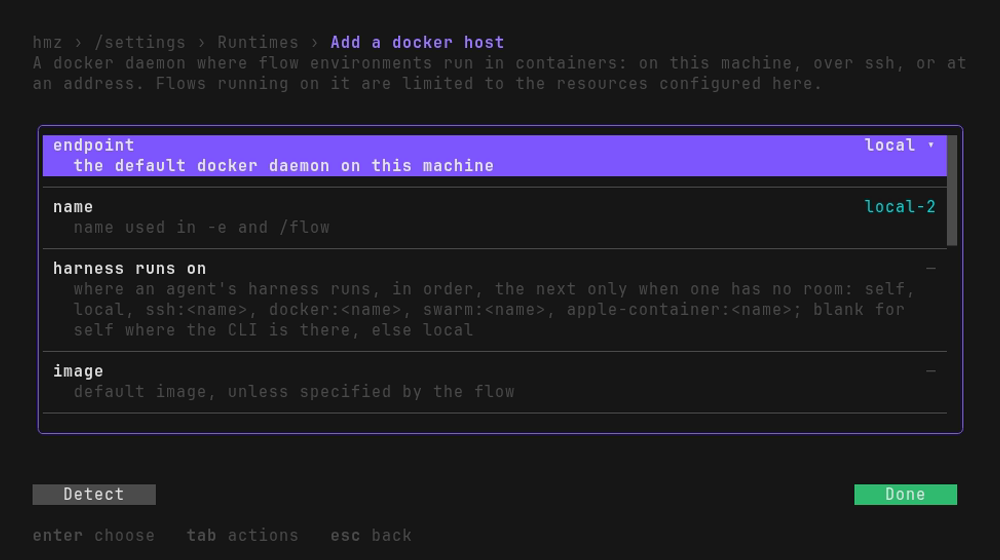
endpoint is where the daemon is, picked from the list enter drops under it. The row under it is what that way asks:
| endpoint | Asks | Saved as |
|---|---|---|
local | nothing: whatever docker on this machine reaches | local |
socket | its path | unix:///run/docker.sock |
tcp | host:port, and a directory of ca.pem, cert.pem and key.pem for TLS | tcp://10.0.0.5:2376 |
saved ssh host | which ssh host saved here the daemon is on, from a list | ssh:gpu |
ssh address | [user@]host[:port] of any host ssh reaches | ssh://me@box |
context | a docker context's name | context:remote |
Then name, image (what a container starts from when the flow names none), OCI runtime (nvidia; blank for the daemon's own), run args (anything else docker run is told), max containers (how many containers it may run together), workdir, harness runs on (as for an ssh host: local keeps each agent's CLI here, which an image without one needs; docker:spare puts it in a container of its own on spare), and what it may hand out:
| Row | Takes | Blank is |
|---|---|---|
| cpus | a number, 16 or 0.5 | all it has |
| memory | a number and a unit, in docker's units of 1024: 64G, 512M, 1.5T | all it has |
| gpus | device ids: 0, 1 | all it has |
Detect, a button beside Done, asks the daemon what it has and writes it into those three rows, for you to type less over; the first letter typed replaces what it wrote. Only the GPUs that answer are written in: a GPU that has failed since docker was set up for it is listed by the daemon still, and said in yellow (1 of 2 GPUs answer; GPU 1 does not). Where the daemon has less than a runtime is saved to hand out (more CPUs than it has, a GPU it does not have or that does not answer, an OCI runtime it does not offer), the line under the list says so in yellow when it is checked.
A docker swarm
docker swarm under Add a runtime… opens the docker host's form for a swarm's manager: the same endpoint rows, local being the swarm this machine manages, then name, image (every node a task may land on pulls it) and run args (anything else docker service create is told). No OCI runtime and no gpus: a service is told neither. In their place, where a task may go:
| Row | Takes | Blank is |
|---|---|---|
| constraints | placement constraints, a comma apart: node.labels.gpu==true, node.role!=manager | anywhere |
| max tasks | how many tasks it may run together | no limit |
| nodes | HOSTNAME=SSH-HOST, a comma apart: a node's host name and the ssh host saved here, or the [user@]host[:port], that reaches it | each node at ssh:// its address |
| workdir | where it works when -e names no directory, at the same path on every node | none |
| gpu resource | the generic resource its nodes advertise GPUs as: NVIDIA-GPU | no GPUs |
| cpus, memory | what all of its tasks together may reserve | no quota |
Detect writes in the CPUs and memory of the nodes that may take a task, all told. A check says which those are -- 12 nodes: node01, node02, … and 4 more -- and, in yellow, a quota more than they have or a GPU resource none of them advertises.
Apple containers
apple containers under Add a runtime… opens a docker host's form less its endpoint, OCI runtime and gpus: Apple's container runs this Mac's containers and no other's, and gives them no GPU. name is written in as local unless that is taken, run args is anything else container run is told, and cpus and memory are what its containers may have between them, each blank for all of this Mac's. detect writes those in from container system status and the Mac's memory. See Containers › Apple containers on a Mac.
A Slurm cluster
slurm cluster under Add a runtime… opens a form for the cluster this machine's sbatch submits to: there is no daemon to name. Each job it submits is one environment, on whichever node the cluster gives it.
| Row | Takes | Blank is |
|---|---|---|
| partition | where its jobs go; the name follows it until you type one | the cluster's default |
| account, qos | what sbatch is told as --account and --qos | your defaults |
| time | how long a job may run, as --time takes it: 4:00:00 | the partition's |
| constraint | the node features a job needs: a100 | any node |
| python | nothing: it is kept so that runtimes saved before still load, and is not used | |
| via | srun, a step of the job per connection, which every cluster allows; or tcp, a port the job serves, which needs this machine to reach the nodes | srun |
| run args | anything else sbatch is told | nothing |
| max jobs | how many jobs it may have at once, waiting or running | no limit |
| max wait | seconds a job may wait for a node before the role falls back or the run stops | as long as it waits |
| workdir | where it works when -e names no directory, on a shared filesystem at the same path on every node | none |
| cpus, memory | what all of its jobs together may hold | no quota |
A check asks sinfo which nodes of the partition may take a job, and says which those are and what they have all told. What via and python are for: Remote execution › A Slurm cluster.
On one runtime
enter, → or a click on a runtime opens what can be done to it, all of it at once:
| On its menu | What it does |
|---|---|
| edit | Its form again, less the name. An imported host also has an alias row, the Host it is resolved through. It is checked again as it lands. |
| check | An ssh host is reached the way a run reaches it, with nobody there to type a password, and says its home, CPUs, memory and GPUs. A swarm's manager is asked which of its nodes may take a task, and what those have; a Slurm cluster, with sinfo, which nodes of its partition may take a job. A docker daemon is asked docker info, and which of the GPUs it lists answer: a short container of the runtime's image per GPU, which may take a moment the first time an image is pulled. A failed GPU is said in yellow: 1 of 2 GPUs answer; GPU 1 does not. Each is given 30 seconds, in the background: the row says checking… until it answers. |
| Remove, the button under them | It is saved no more. A run already on it keeps what it read as it started. A docker host that reached its daemon through it is named, since it now reaches nothing, and so is a swarm whose manager or one of whose nodes it reached. |
Choosing one for a role
At /flow, enter on an environment role opens where it is:
  hmz › onbox › Environment for box
  The machine and working directory for this environment role. Choosing a
  machine saved on the runtimes page of /settings by name includes its saved
  working directory.

  ╭────────────────────────────────────────────────────────────────────────╮
   backend                                                           ssh ▾
     a machine reached over ssh
   ────────────────────────────────────────────────────────────────────────
   host                                                              gpu ▸
     from ~/.ssh/config · working directory: ~/work
   ────────────────────────────────────────────────────────────────────────
   workdir                                                          ~/work
     leave blank to use saved default: ~/work
   ────────────────────────────────────────────────────────────────────────
   as -e                                                           ssh@gpu
     full -e spec: typing one sets the rows above
  ╰────────────────────────────────────────────────────────────────────────╯
   sets box to ssh@gpu when the flow is saved

                                                                      Done

  enter done   ←/→ move   tab list   esc back
backendis every backend-etakes, dropped under the row by enter or a click, each with what it is. It starts on the first one anything is saved for, and the cursor on the first thing still to answer.host(daemonfor a docker backend, once-etakes one) opens the runtimes of that backend saved here, with Add an ssh host under them (the same form, and the new one comes back chosen) and, for ssh, Name a host…: any hostsshreaches, as you would type it, saved nowhere, and spelled in brackets (ssh@[me@box:2222]/…). For docker, a swarm, Apple containers or Slurm, left empty it is this machine's (docker/…).workdirstarts from where the runtime was saved to work. Left as it is, the spelling leaves it out (ssh@gpu), so the role goes on following the runtime when its workdir is corrected; type over it for another directory there (ssh@gpu/~/other).as -eis all of it, as-espells it. Type a whole spec there instead and the rows above take it apart; one-ewould refuse is refused on Done, in the words-erefuses it in.
What Done holds is saved with the flow, from the Save button of /flow, and it is what the flow starts with here from then on.
From Python
Every row of this page is a call on Hmz().runtimes: new, add, write, remove, hosts, import_ssh and check. See Machines › Runtimes.
Backup
The git repositories epics are backed up to, which Backing epics up explains. Each target is a row: its name, ✔ where it is a default, its URL with any credential struck out, its branch, and when an epic is backed up there. Add target opens the form one is written on, and enter on one opens it again, with Remove under its rows:
| Row | What it is |
|---|---|
| name | one short word, which --backup takes |
| URL | the repository, as your own git reaches it |
| branch | where epics are committed; main unless you say |
| On session close | back an epic up as each of its sessions closes |
| Every N minutes | off, or how many minutes apart while an epic runs |
| On epic end | back an epic up once it has ended |
| Default | a new epic goes here unless it is told otherwise |
A target with none of the three switched on is backed up to only when you ask. The page holds what you change until it is saved, and writes backup in ~/.hmz/settings.yaml (Settings reference).
Choose the targets of one flow's epics on /flow, on its backup row: the defaults until you switch others on there and save, then what you chose, remembered for that flow in this directory. Back an epic up by hand from /epics: enter on it, then upload, which goes to the targets it was started with, else the defaults, and says how its last backup to each went. Neither holds anything up; hmz waits up to 15 seconds for the backups it started once you close it.
Download…, under the list once a target is saved, lists every epic a target holds: under the machine it was backed up from, then the directory it ran in, newest first, ✔ and here on the ones this machine has. It is fetched afresh as it opens; fetch fetches again, and target… picks another target where there is more than one. enter on an epic downloads it as an import lands one, under the directory it ran in, and says where -- and, for a directory this machine has not got, why it cannot be resumed here. Open it on /epics.
Usage
What the epics spent, as each one says: the whole of it, how many epics, their output tokens, how long their agents worked and how they ended; then each day with an epic in it, newest first, in UTC, with a bar as long as its share of the costliest day; then each flow, the costliest first, with its share of the whole. Range looks back 7, 30, 90 or 365 days, and Workspace is this directory's epics or every directory's on this machine. Nothing on it is saved; it is read again as either is picked. The web page's Usage is the same reckoning.
Flowverses
The flowverses, the indexes flows are installed from, are on /flow now, beside the flows installed from them: type /flow, press ←, and open Flowverses. /settings flowverses still takes you there, and says so. See Flowverses › Managing flowverses.
Workspace
Run hmz in a directory you have used before and it opens on a chat with the agent you last chatted with there, and every flow you saved there starts as you set it up. This page shows what this directory remembers, and is where you make it forget. The line across its top names the directory.
| Heading | Row | What it is |
|---|---|---|
| Flow | Default flow | the flow last set up here, and how many agents that flow was set up with |
| Chat | Chat agent | the agent a new chat in this directory talks to: enter sets up its CLI, account, model and effort, as a flow's agent is set up. It takes effect from the next chat. |
| Reset | Forget | a switch: turned on and saved, it forgets everything this directory remembers. Its line says how many flows that is. |
Forget clears this directory only. Every other directory, and everything on the other pages, stay as they were. The next hmz here opens as it did the first time; the one open now carries on with what it opened with.
What a directory remembers
- The flow it last ran.
- The chat agent: the agent of the last chat started here, or changed by
/modelor/effortin one, kept apart from every flow's setup. - For each flow it has run:
Each flow's setup is kept under the name the flow is offered by: ralph_loop for one Humanize ships, @local/twice for a project flow, @user/twice for a personal one. Within a flow, each agent is kept under its role name. A flow that gains a new role does not hand an existing role's model to it.
When the flow changes, what was saved is checked against it again. A setting the flow has since dropped or renamed is asked for again, rather than carried over.
Where each environment role works is kept as -e spells it. One kept as local@/srv/x, docker@local/srv/x, swarm@local/srv/x, apple-container@local/srv/x, slurm@local/srv/x or an ssh host nobody saved out of brackets is read, and kept from then on, as local/srv/x, docker/srv/x, swarm/srv/x, apple-container/srv/x, slurm/srv/x or ssh@[host]/… -- the @local ones only while no runtime of theirs is saved as local, and an ssh host only while none is saved by its name.
Changing it
Change it where you set it: in /flow. Choose the flow, set each agent and environment, what an epic may spend and whether it is profiled, and save. That save is what $<flow> and /flow <flow> <task> start the flow with from then on. Nothing runs until you send one. The chat agent is changed on this page, or by /model and /effort in a chat.
Saving checks the lot before any of it is kept. The flow is loaded, every role is checked against what the flow declares, and a flow that refuses a combination of its own settings says why. You fix it in the menu, not half an hour into a run.
Whether a run of it is profiled
Profiling is not a setting of this page. It is chosen per run, like the budget, on the profile flow and profile environment rows of /flow just under budget -- the flow's own Python, and the programs its agents start -- and remembered with the rest of that flow's setup here. An hmz exec run is profiled only with --profile-flow or --profile-environment. What is recorded, and how to read it, is Tracing.
hmz exec starts from none of this
What an hmz exec line runs is what the line says: -f, -a, -e, -p, --profile-flow and --profile-environment. An unattended run inherits nothing from how this directory was last set up. It reads only one thing from here: whether you said yes to reporting. hmz chat given no -a reads one more, the chat agent, and writes nothing.
The first time
hmz always opens on a new chat. With no chat agent remembered here, it talks to the first installed CLI that can run without further setup, at the first model that CLI lists, at effort high where the model offers it.
Where it is kept
General and Workspace are one file, ~/.hmz/settings.yaml (under $HUMANIZE_HOME if you set that). Deleting it makes every directory start over, turns details off, and asks the reporting question again.
Troubleshooting
hmz: /settings has no page '…'
The word after /settings names none of the nine pages. The message lists the ones there are: general, notifications, daemons, accounts, nous, runtimes, backup, workspace and usage. Type /settings with a space and pick one from the list offered.
Save cannot be pressed
Nothing is held to save. Making an account, signing one in, and everything on Runtimes happened as you asked, so there is nothing left for Save to do.
esc did not close the screen
A page opened with /settings <page> is still a page of /settings: the first esc goes back to the five cards, and the second closes the screen. With unsaved changes, the second asks Save or Discard first.
could not get models for claude as key: …
The new account was made, but its CLI could not list models with it: a key it refused, a login not finished, or a network that did not answer. The rest of the line is what the CLI said. Fix that, then press Check again under the models of an agent that runs as the account.
Every turn fails with no claude provider called '…'
An agent names an account that is not there, perhaps one you removed. Humanize never runs it as you instead. Choose another account on the agent's account row in /flow, or put the account back on the Accounts page.
A flow says its flowverse has not been fetched yet
Type /flow, press ← and open Flowverses, put the cursor on the flowverse, and press Fetch. If the fetch fails, the line under the list says why.
A change did not reach the run that is going
Some changes wait for something to start again: a corrected account for the next agent session, forgetting for the next launch. The table in When a change lands lists which.
Next steps
- History: the other thing kept between starts
- Tracing: what a profiled run is drawn into
- Providers reference: every way in, every field, and adding a CLI
- Remote execution: what an environment on another machine is, and what it needs there
- Accounts, drawn: trying again, then a chain of places, step by step
- Unattended runs: where a place to fall back to earns its keep
- TUI › /settings: the menu, row by row