Use Humanize from a browser and your phone
Serve the Humanize page from your computer, open it in a browser and on your phone, turn on notifications, and connect a second machine.
What you need
- A computer with
hmzinstalled and one coding agent signed in. See Install and update and Finish your first task in the terminal. - A project directory. This page uses
~/shop. - A phone and a private network to reach your computer. This page uses Tailscale on both.
- For step 6 only: a second machine with
hmzinstalled, calleddevbox.
1. Serve the page
Start the web server in your project on a port you choose:
cd ~/shop
hmz web --port 8420 --no-open
The command prints an address and stays running. Without --no-open, hmz web opens the address in your default browser. Press ctrl+c to stop the server; active chats and epics keep running.


The string after key= is a secret token that grants access. Every run of hmz web generates a new key.
2. Open it in a browser
Open the printed address in a browser on your computer. You see the same interface as Humanize Desktop. Type a message and press enter to start a chat.
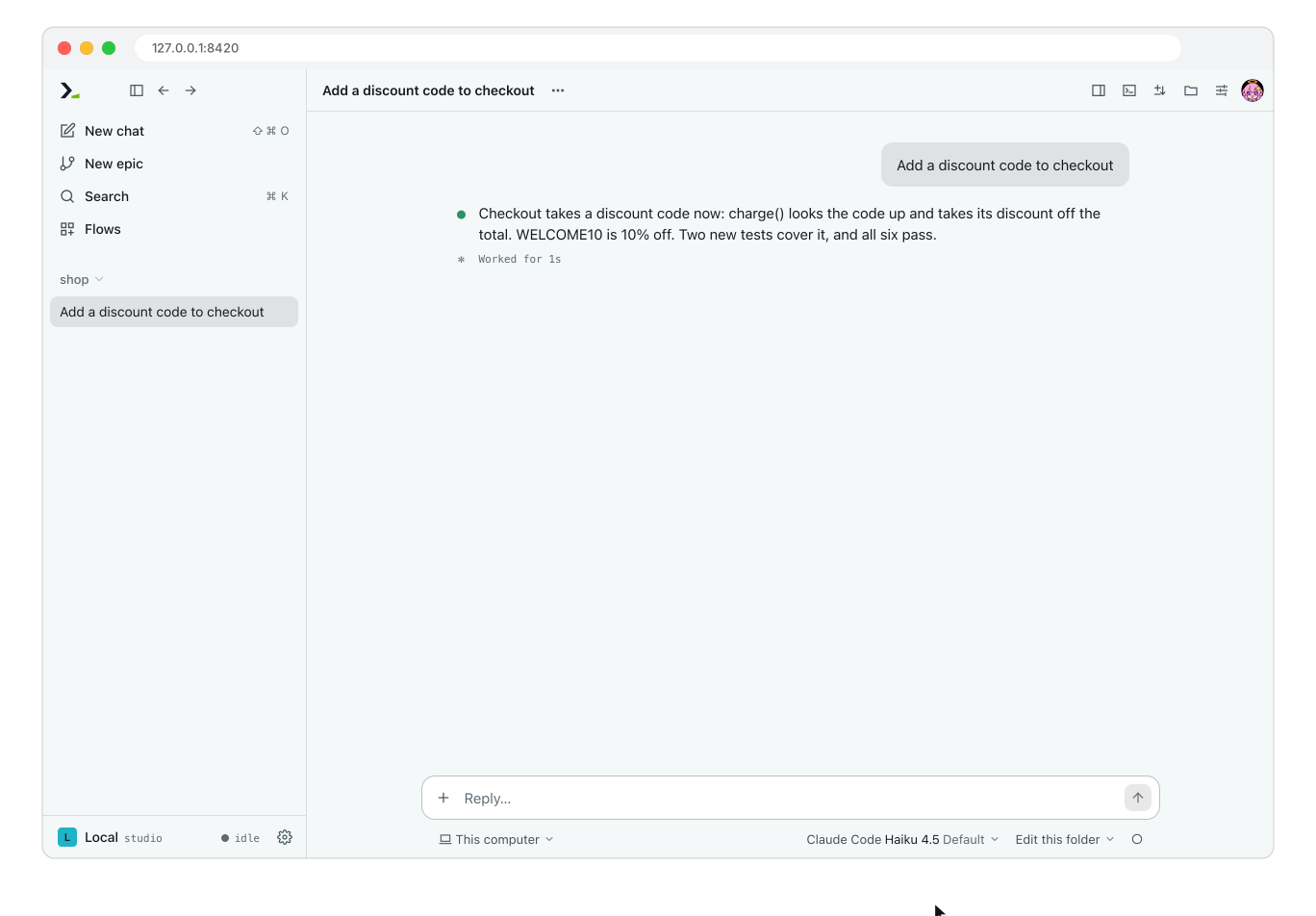
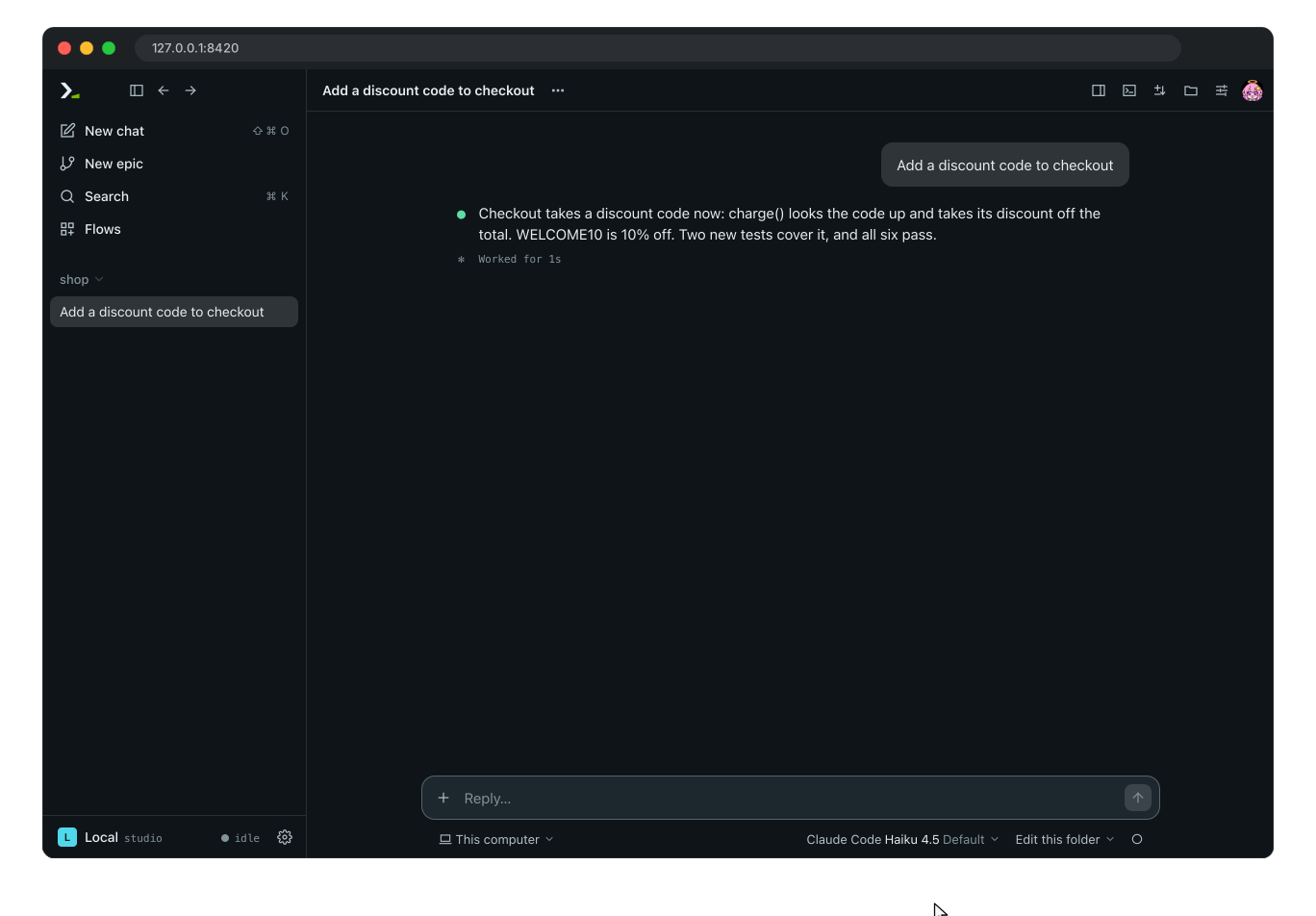
The browser stores the key in a cookie and strips it from the address bar.
3. Open the page on your phone
hmz web only accepts connections from its own computer. Forward a port on your computer to it, so your phone's traffic arrives as a local connection.
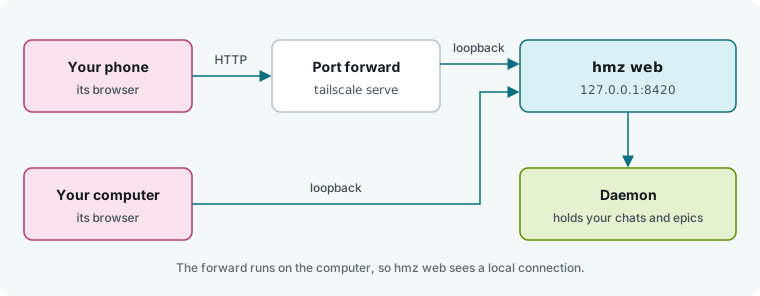
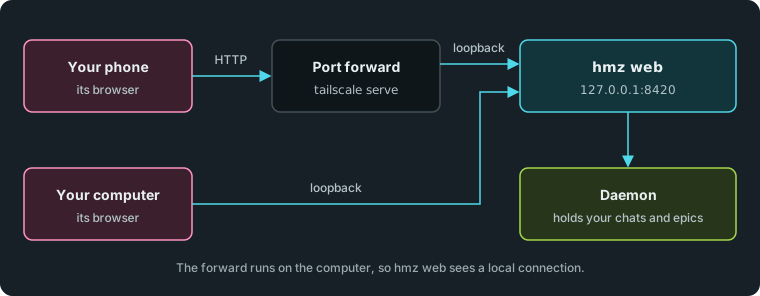
In a second terminal on your computer, forward the port with Tailscale:
tailscale serve --bg --tcp 8420 tcp://localhost:8420On your phone, open the address from step 1 with 127.0.0.1 replaced by your computer's Tailscale name or address. For example, if hmz web printed http://127.0.0.1:8420/?key=abc and your computer is studio, open http://studio:8420/?key=abc.
Any port forward works if it runs on the same computer as hmz web and keeps the address http://. Behind an HTTPS proxy, such as tailscale serve --bg 8420, Chrome cannot connect to the daemon.
WARNING
Anyone who can reach the forwarded port and has the key can run agents on your computer. Keep the port on a private network, and do not share the address.
4. Navigate on a small screen
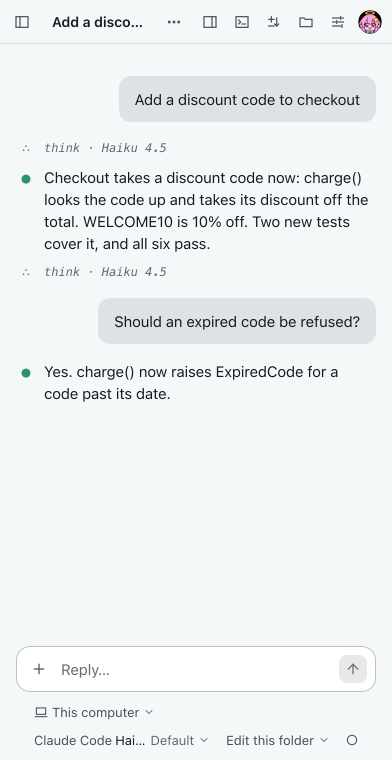
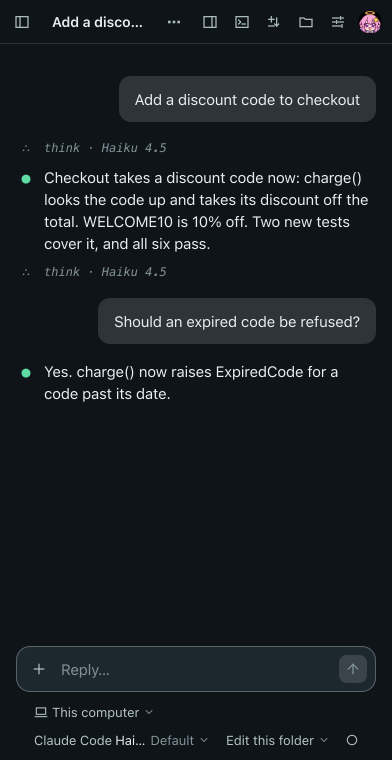
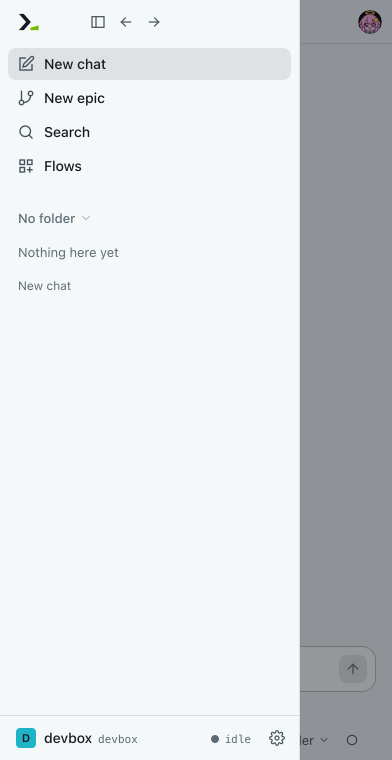
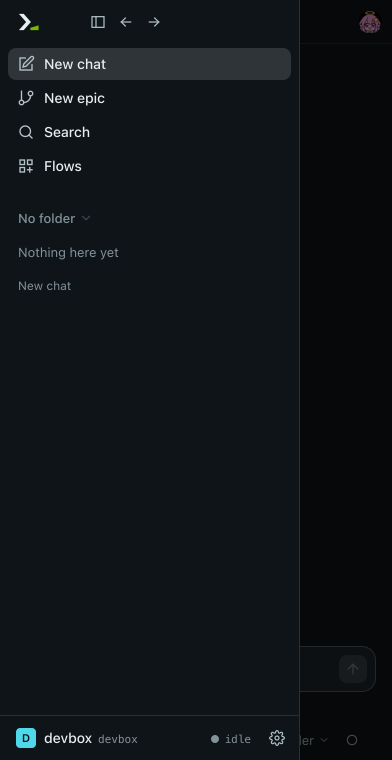
Tap Show sidebar at the top left to open the navigation drawer, which appears on screens 860 pixels wide or narrower. Tap a chat to open it, or tap the dimmed area to close the drawer.
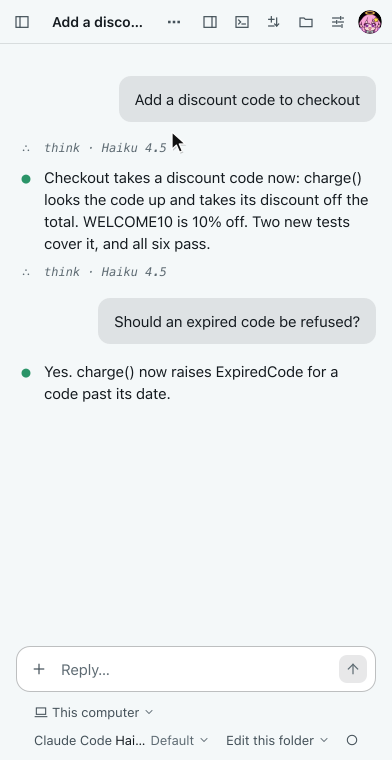
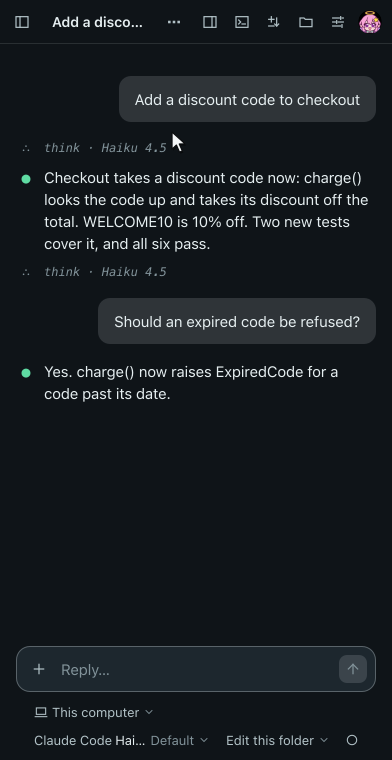
Tap More options at the end of a chat's row for its actions. Over a plain http:// address the copy actions answer Copy failed, because the phone's browser withholds its clipboard.
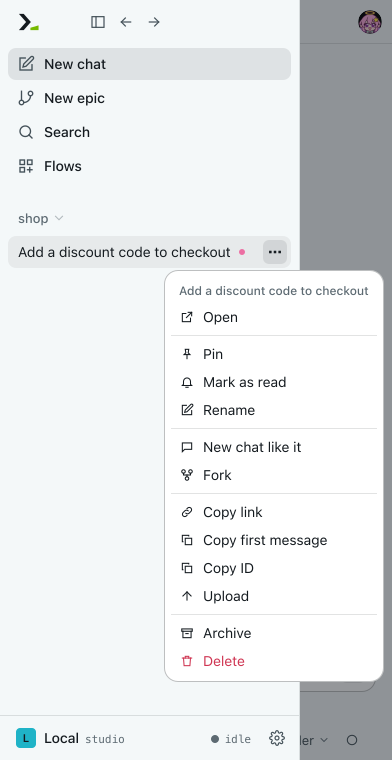
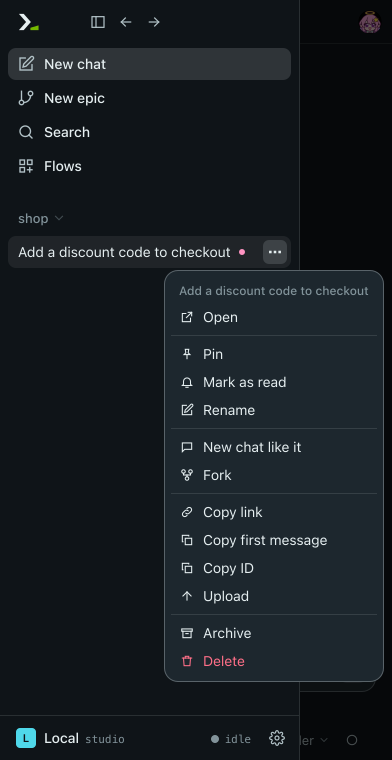
Both browsers talk to the same daemon, so messages sync live. On your phone, search and settings fill the screen, and a panel opens as a sheet from the bottom.
5. Turn on notifications
Start a chat and switch to another view. When the agent replies, a dot appears next to the chat in the sidebar. Open the chat to clear the dot.
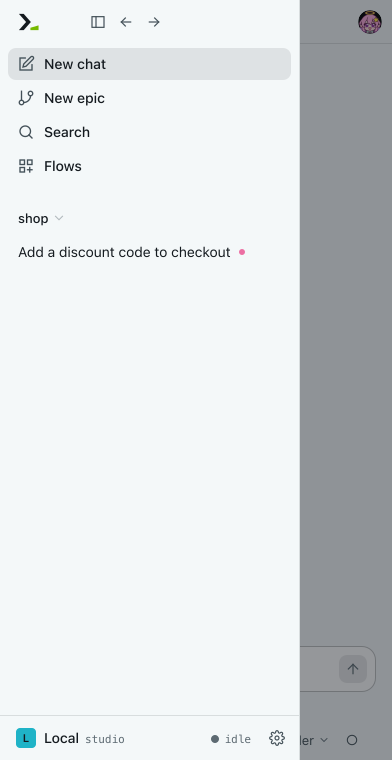
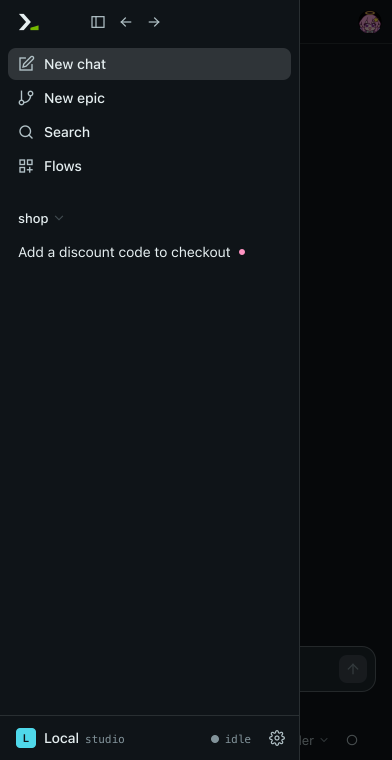
To get system notifications in the browser on your computer, click the gear (Settings) at the bottom of the sidebar, then Notifications. Click Allow and accept the browser prompt.
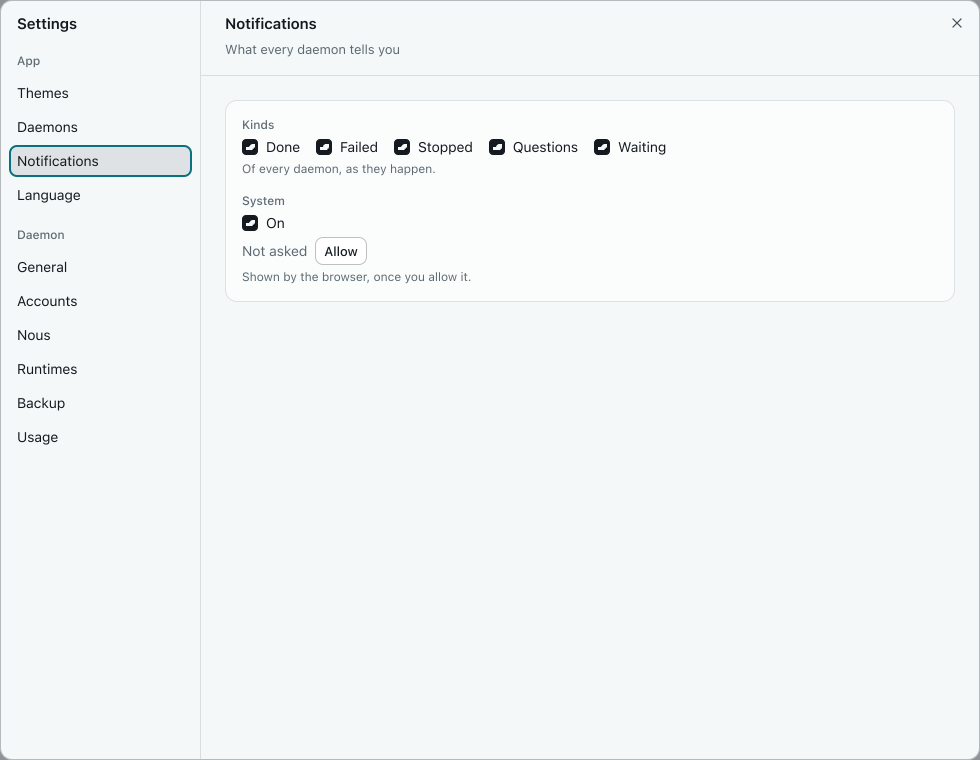
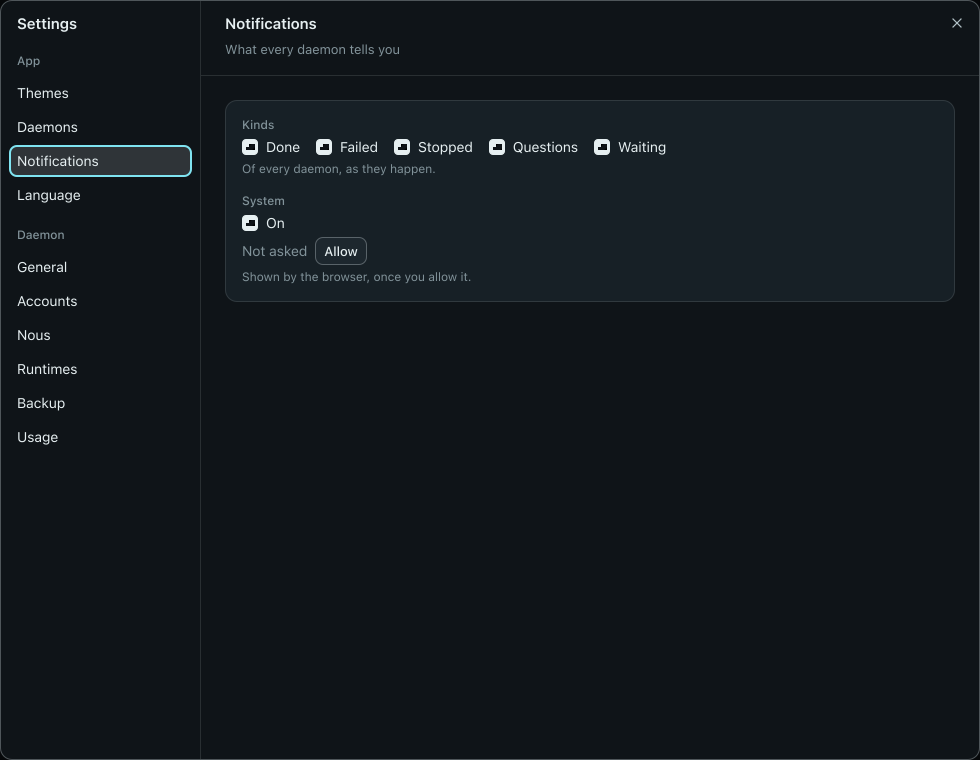
Under Kinds, pick what triggers an alert: an epic that is Done, Failed or Stopped, Questions from a flow, and Waiting when a chat turn ends. Each browser saves its own settings.
Keep the tab open to receive notifications. Phone browsers rarely show them: if you see Unsupported instead of Allow, the browser cannot. Unread dots in the sidebar work everywhere.
6. Add a second machine
Connect your page to a daemon on a second machine, devbox.
On devbox
Add a TCP listener to ~/.hmz/settings.yaml on devbox:
listen:
  - tcp://0.0.0.0:41817
Generate a one-time pairing code:
hmz daemon pair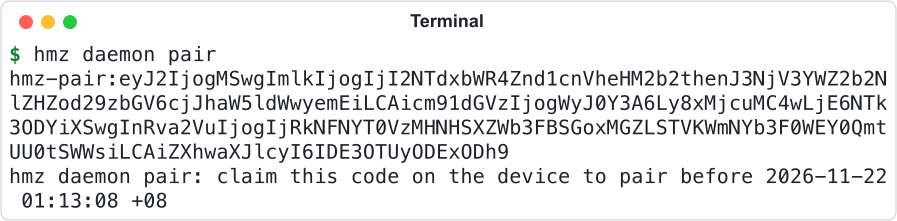
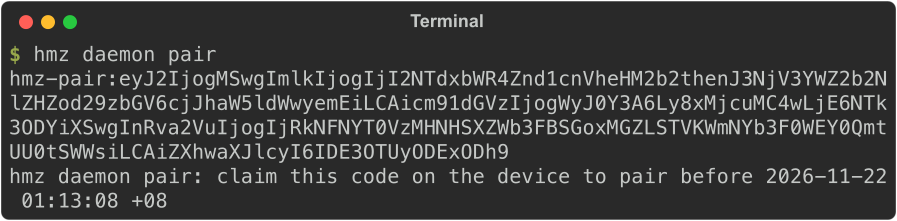
Copy the line starting with hmz-pair:. The code works once and expires after 10 minutes.
In the page
Open Settings, then Daemons. Under New daemon, tap TCP. Enter devbox in Name, paste the code into Pairing code, and tap Add. The code uses the hostname of devbox; if your computer cannot resolve that name, also enter the IP and port in Address, such as tcp://192.0.2.10:41817.
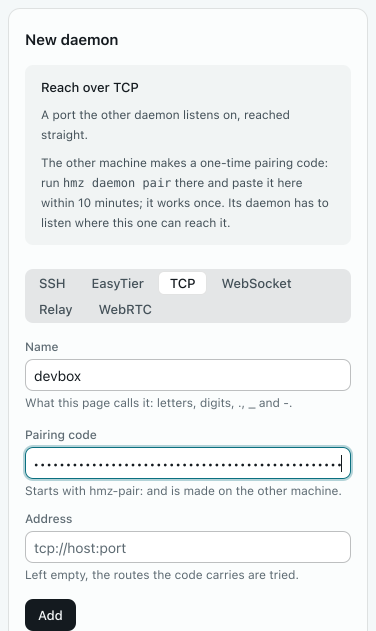
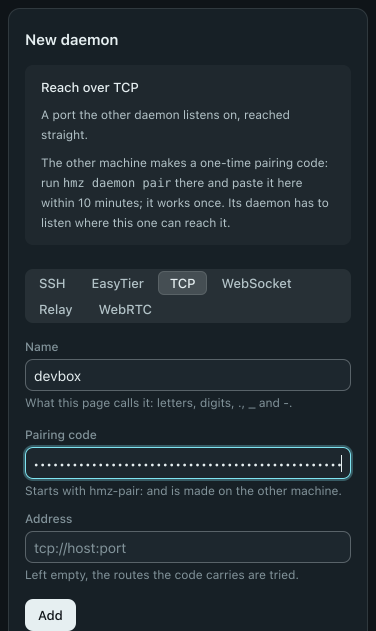
devbox appears in the daemon list. If its state is not up, tap Connect.
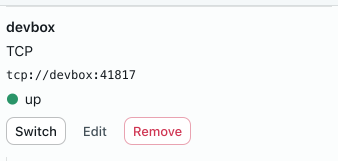
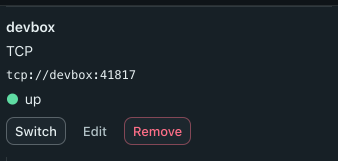
To switch machines, open the sidebar and tap the daemon bar at the bottom. Tap Daemon, then devbox. Tap Local in the same menu to switch back.
The computer running hmz web connects to devbox, not your phone, so devbox must be reachable from that computer on port 41817. Each browser stores its own list of daemons.
What you did
- Served the web interface with
hmz weband signed in with its key. - Reached the page from your phone through a forwarded port.
- Navigated with the sidebar drawer on a small screen.
- Allowed system notifications and saw the dot that marks an unread chat.
- Paired a second machine with
hmz daemon pairand switched between daemons.
Next
- The browser page: everything the page does.
- Connect to other machines: SSH, EasyTier and routes.
- Relays and WebRTC: reach a daemon that has no open port.
- Notifications: every kind and where it shows.