Notifications
Humanize notifies you when an epic or chat you are not viewing ends, asks a question or waits for you. You choose which events you hear about on each interface.
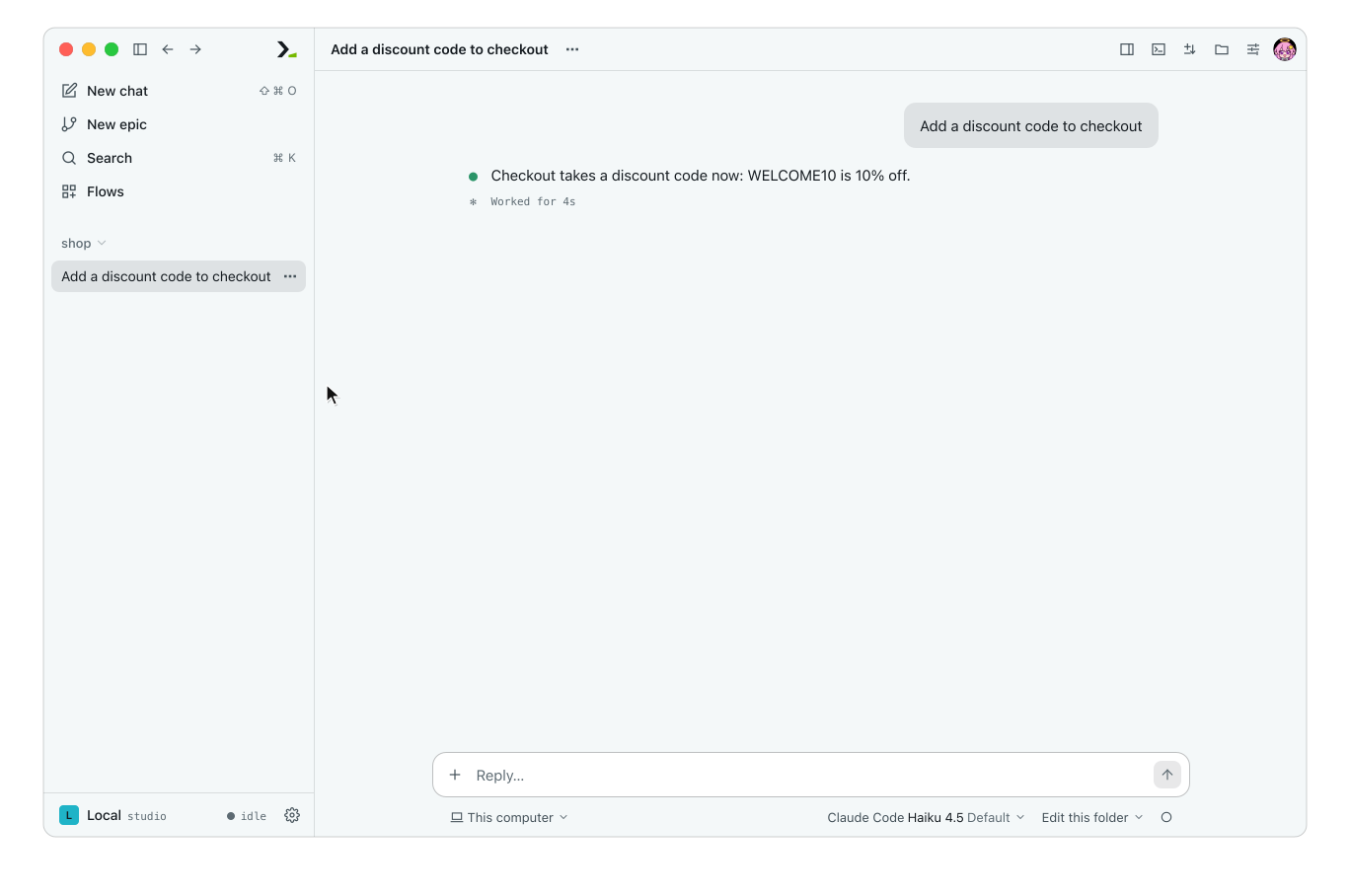
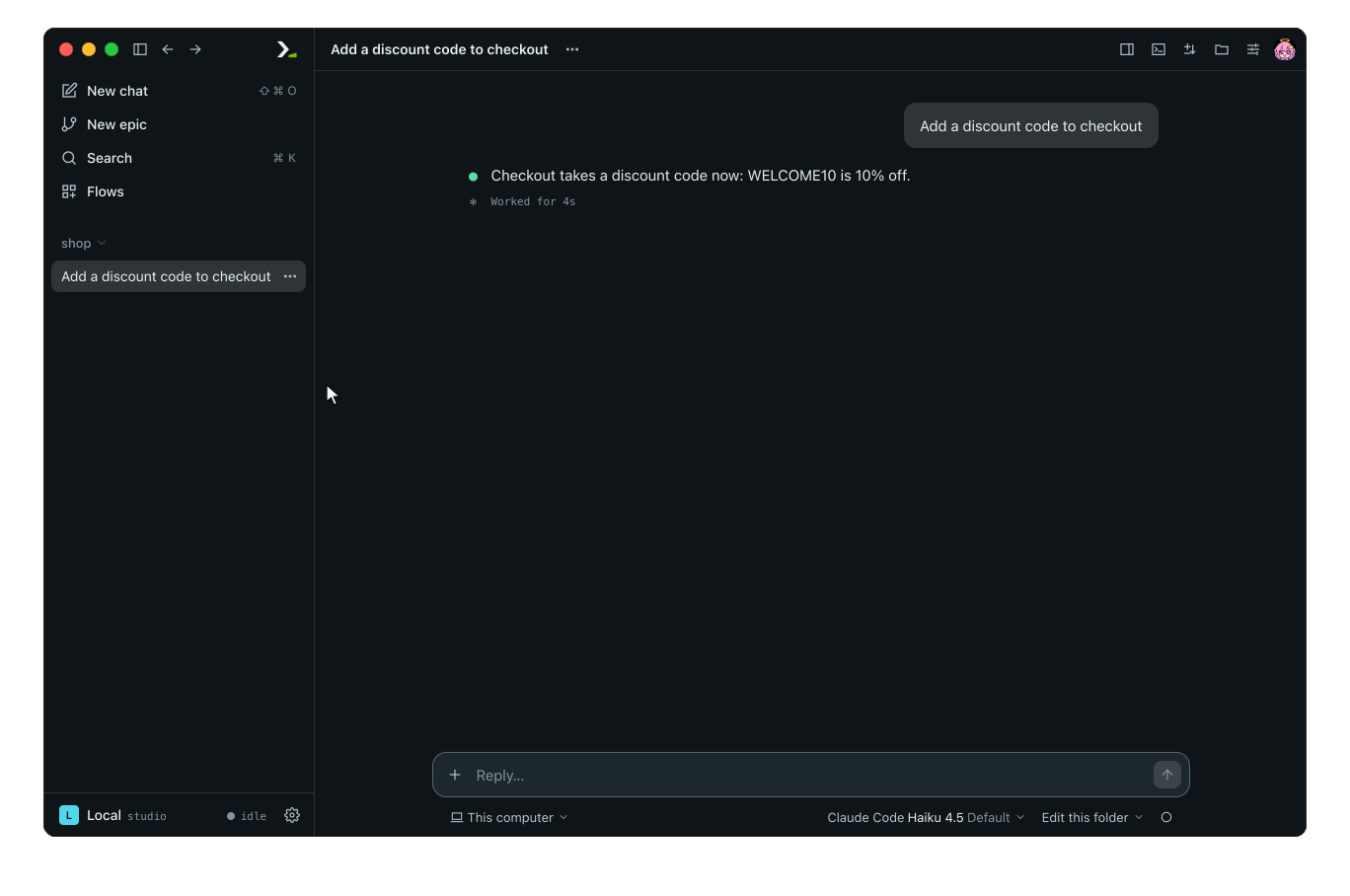
What raises a notice
The daemon creates notices for every epic and chat it holds, regardless of which interface started it (hmz exec included). There are five kinds.
| Kind | When |
|---|---|
| Done | An epic finished. |
| Failed | An epic failed, crashed, ran out of budget or was refused. |
| Stopped | An epic was stopped. |
| Questions | A flow asks you something. See Answer a flow's questions. |
| Waiting | A flow waits for what you say next. |
A finished chat turn counts as Waiting in the app and as Done in the terminal.
You get no notice for the epic or chat you are looking at. One that is open but out of sight still notifies: in the app when the window is not focused (a system notification, with no dot on the open row), in hmz when a menu covers it. Events from before the daemon started (in the terminal, before hmz opened) raise nothing.
In the app
Humanize Desktop and the browser page work the same way. They listen to every reachable daemon, not only the one shown.
A notice does two things:
- Marks the chat or epic unread with a dot on its sidebar row, and on its folder when folded. Open the row to clear the dot, or use Mark as unread and Mark as read in the row menu. See Organise chats.
- Shows a system notification titled with the kind and daemon (such as
Done · Local) and showing the flow (for a chat, its first message) and the first line of text. Click it to focus that chat or epic, or the running epic where a question waits.
The page has no notification bell, count or list of its own.
Choose what you hear about
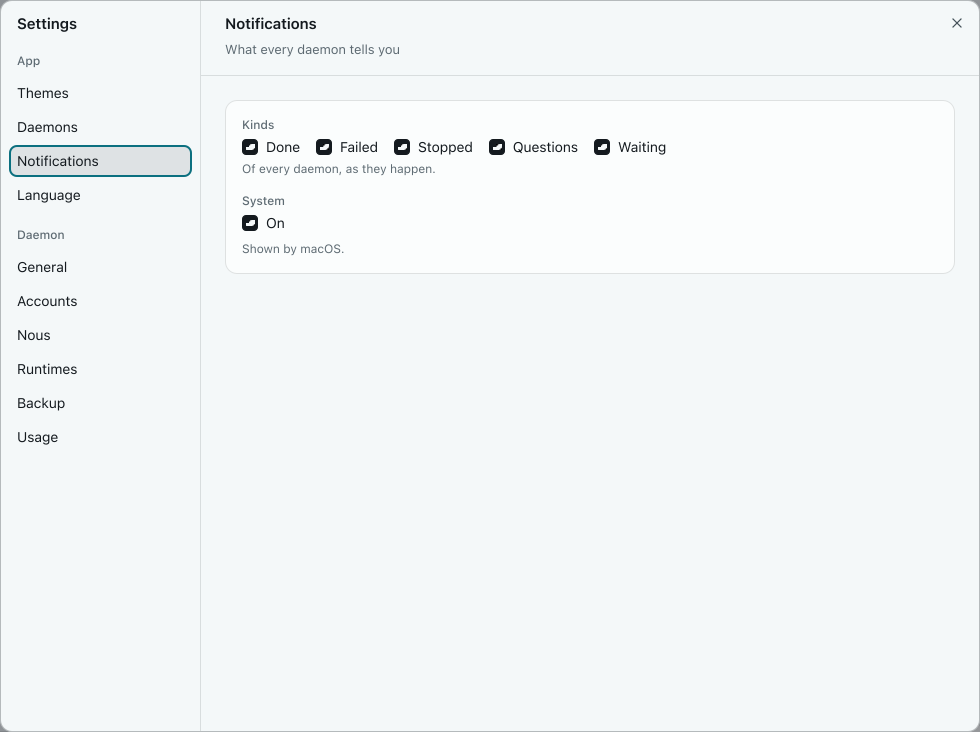
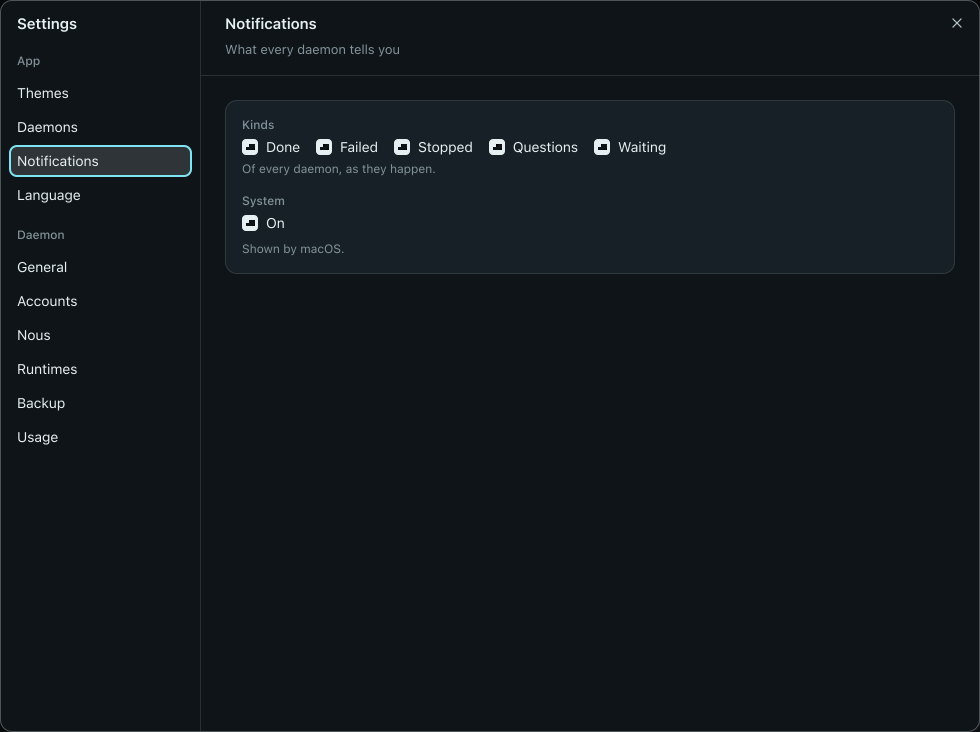
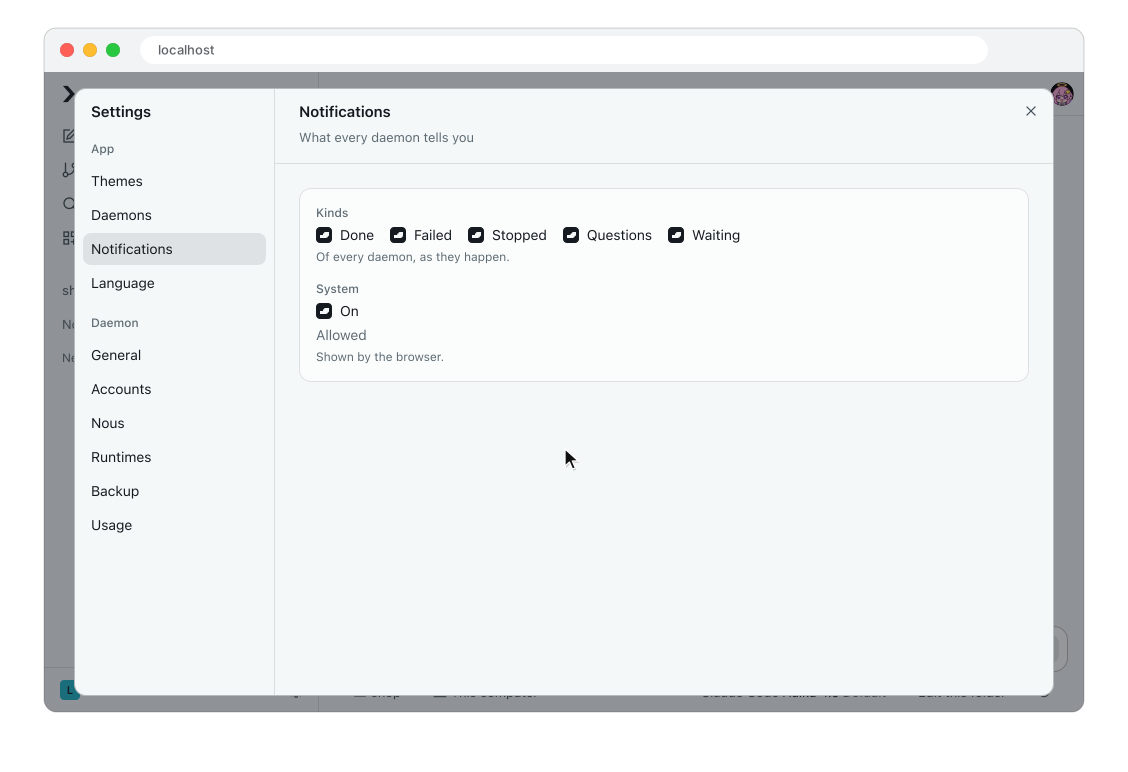
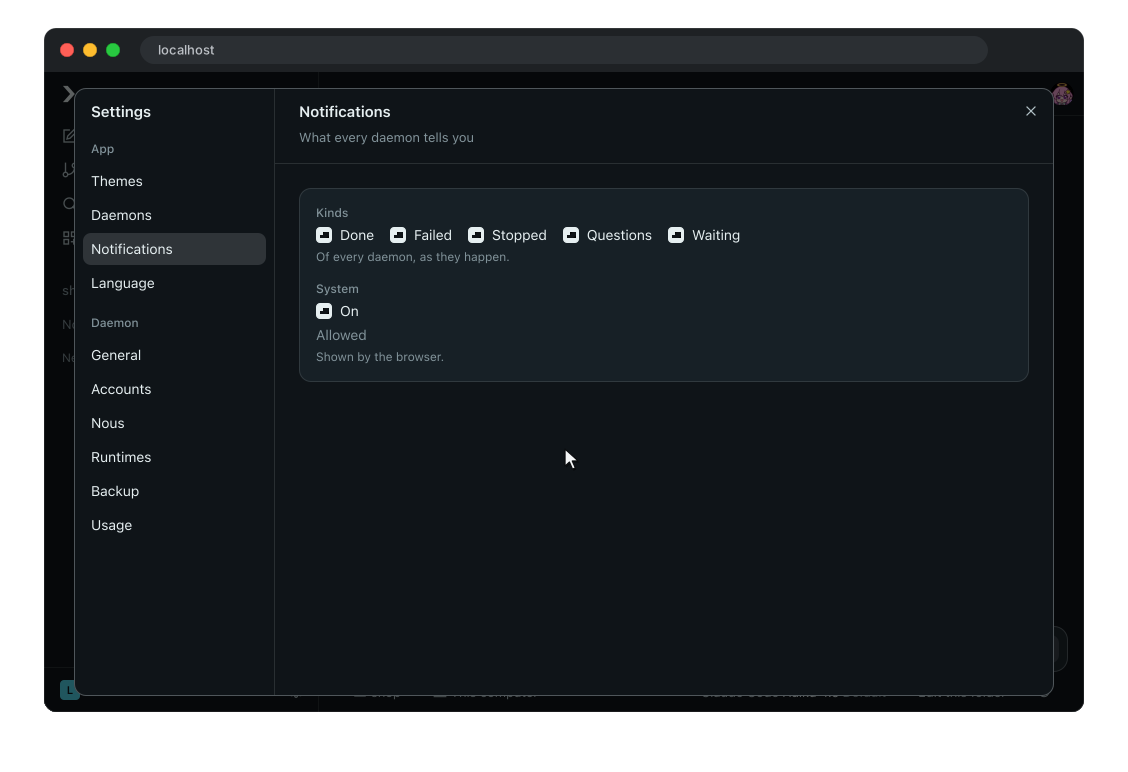
- Click Settings (the gear) in the sidebar.
- Under App, click Notifications.
- Under Kinds, untick the events you want to mute. Muted kinds neither mark rows unread nor show notifications.
- Under System, untick On to keep unread dots without system notifications.
Changes save at once. All options start on.
Allow notifications
Humanize Desktop shows Shown by macOS. or Shown by Windows. and needs no setup. On macOS, click Allow the first time the app sends a notification.
In a browser, look next to System for Not asked, Allowed or Blocked. Click Allow and accept the browser prompt. If it shows Blocked, enable notifications for the site in your browser settings. Browsers without notification support show Unsupported.
In the terminal
hmz notifies you about epics and chats on the local machine. A notice briefly shows a corner card titled Done, Failed, Stopped, Question or Waiting with the flow, folder and text. In /epics, the epic's row shows ● until you open it.
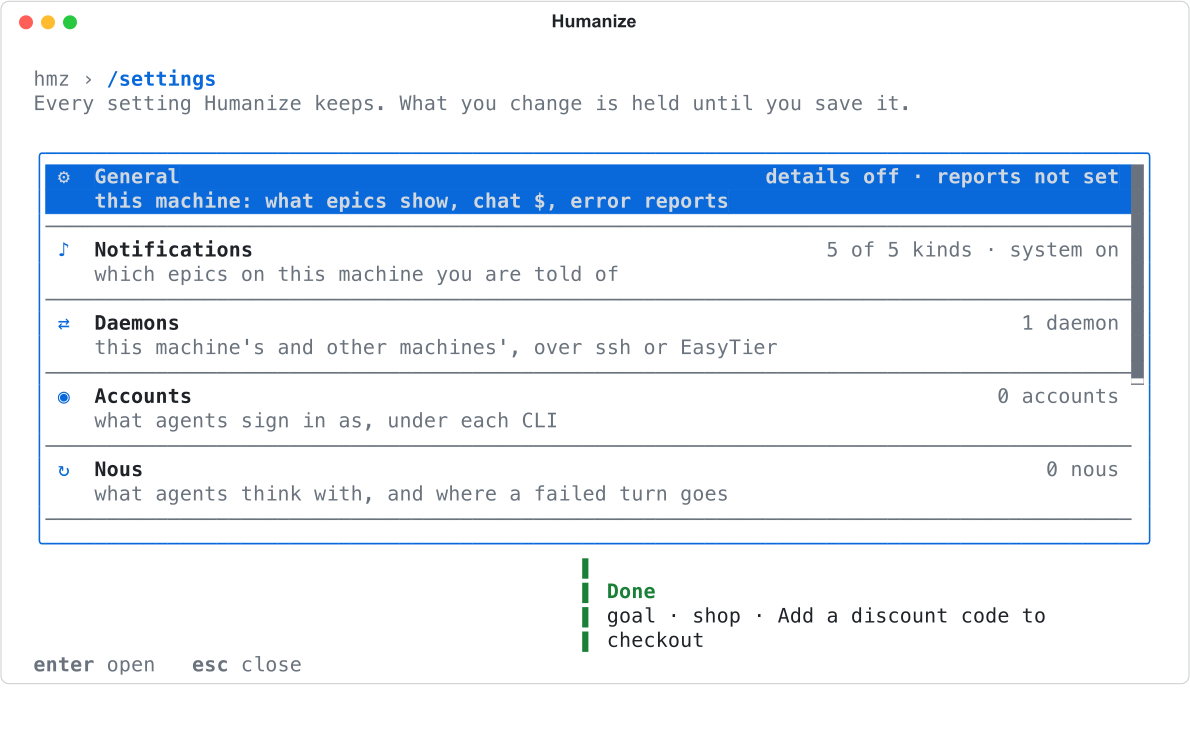
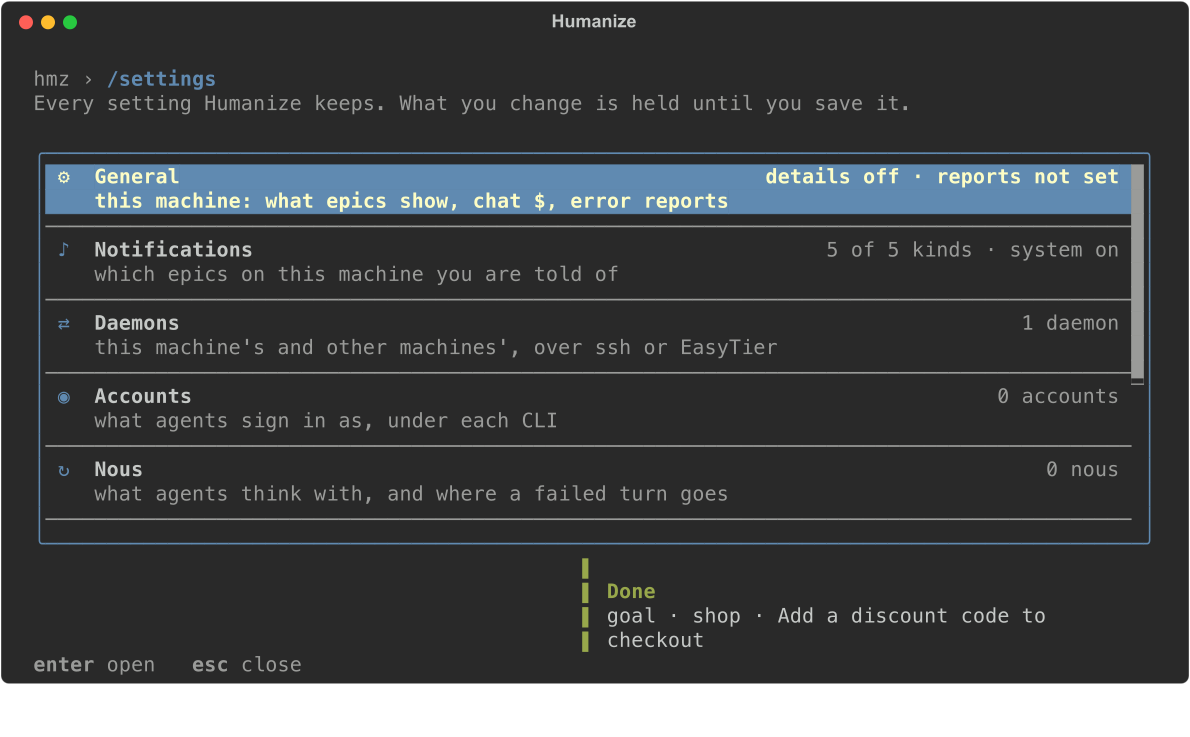
When System is on, hmz also rings the terminal bell and sends a desktop notification. iTerm2, Ghostty, WezTerm, kitty and Windows Terminal display it; other terminals ignore it.
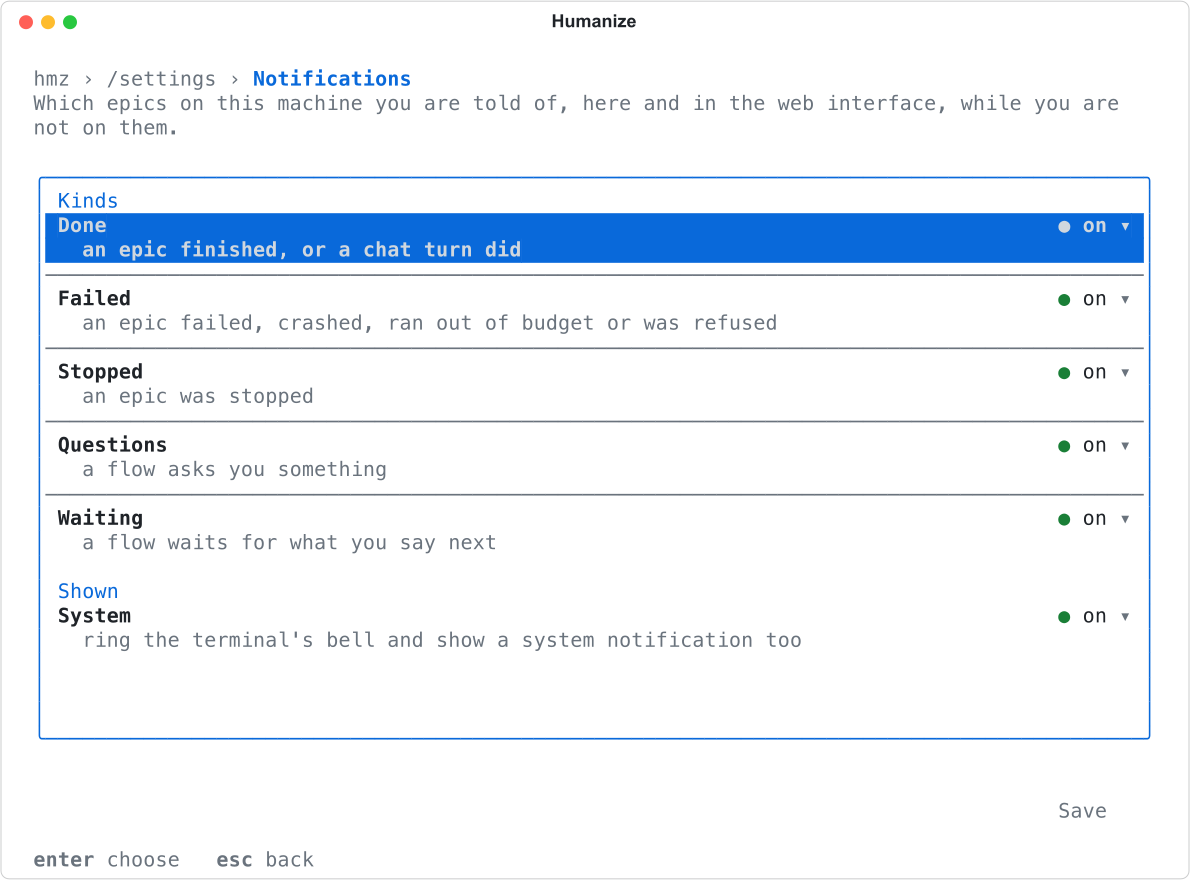
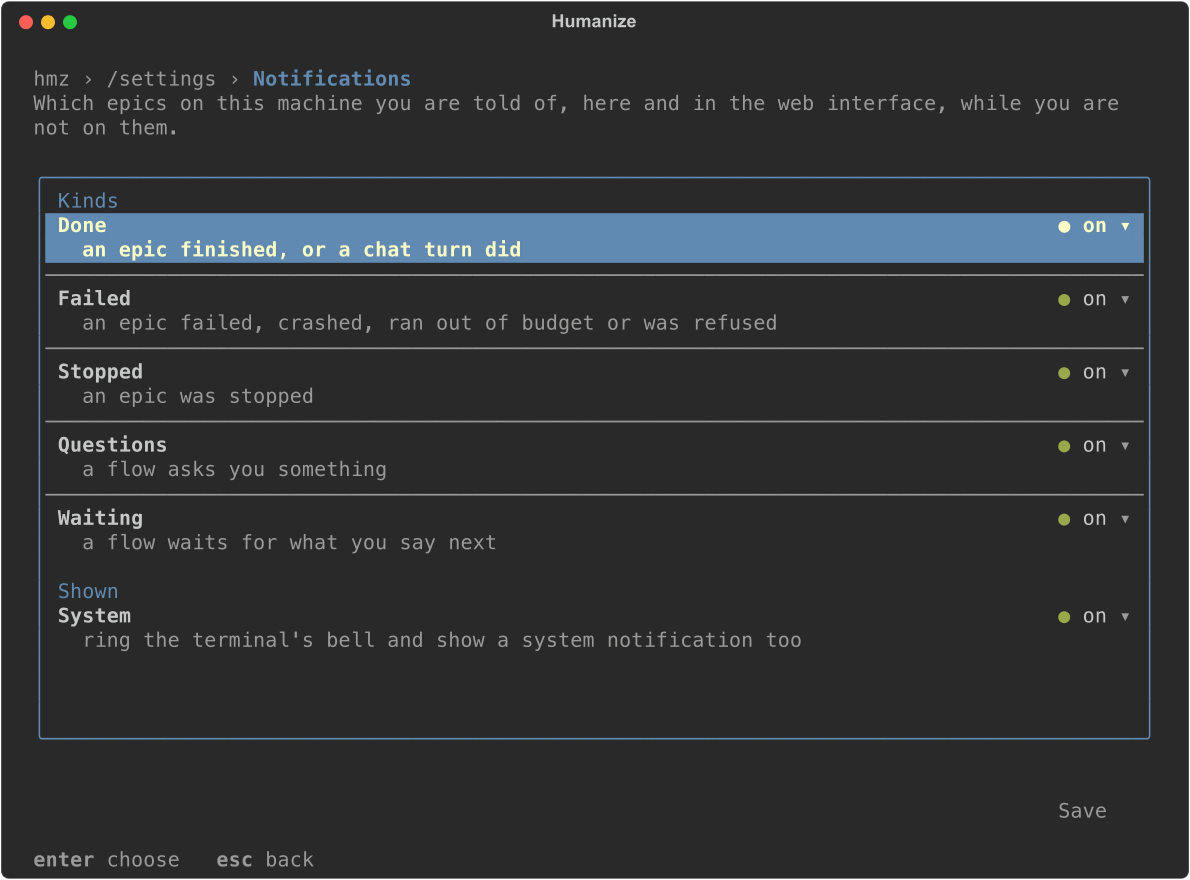
To configure notifications, run /settings notifications. Press enter on a row, select on or off, and choose Save.
| Row | Off means |
|---|---|
| Done, Failed, Stopped, Questions, Waiting | No card, bell or dot for that kind. |
| System | A card in hmz alone: no bell, no system notification. |
hmz saves these settings under notifications in settings.yaml. See settings.yaml.
Good to know
- The app and terminal store settings separately, although the terminal page's heading mentions the web interface. App settings live in the browser or Humanize Desktop rather than the daemon, so each device has its own, and clearing site data resets them.
- The app skips system notifications for notices received more than ten minutes late (for example, while the page was closed), but still marks the row unread.
- Terminal cards and dots last only while
hmzstays open. Chats have no row in/epics, so they show a card but no dot. hmz execandhmz chatdo not show notifications of their own.- If system notifications do not appear, check System Settings → Notifications → Humanize Desktop on macOS, or Settings → System → Notifications on Windows.
- Programs can read the same notices. See Events and records.