Install and update
Humanize comes as Humanize Desktop (macOS and Windows) and as the hmz command (macOS, Linux, and Windows inside WSL). The app connects to the daemon that hmz runs, so it requires hmz too.
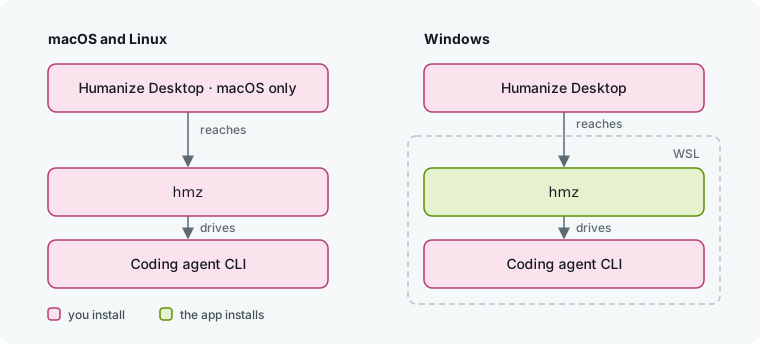
Humanize drives a coding agent CLI that you install and sign in to yourself. See Coding agents.
Install Humanize Desktop
Download the installer from the latest release.
macOS
Requires macOS 11 or later on Apple silicon or Intel.
Open
humanize-<version>-macos-universal.dmgand drag Humanize Desktop to Applications.Open the app from Applications. If macOS blocks it on first launch, click Done, open System Settings → Privacy & Security, and click Open Anyway. Or run this once:
shxattr -dr com.apple.quarantine "/Applications/Humanize Desktop.app"Install the CLI. On macOS, the app installs nothing else.
Windows
Requires Windows 10 or later with WSL 2. Humanize, your repositories, and your coding agent CLIs all live in WSL.
If you do not have WSL, run this in PowerShell and restart:
powershellwsl --installRun
humanize-<version>-windows-x64-setup.exe. It installs for your user account without requiring administrator rights.Open Humanize Desktop from the Start menu.
The installer adds Humanize Desktop to the Start menu and registers .hmzepic files to open with the app. If Windows lacks the WebView2 runtime, the installer downloads it automatically.
Check the box on the final page to add a desktop shortcut; it starts unchecked. Silent and passive installs skip the desktop shortcut, and updates preserve your current shortcut choice.
On first launch, the app installs its matching version of hmz into your default WSL distribution, fetching uv and Python if needed. You do not install the CLI by hand.
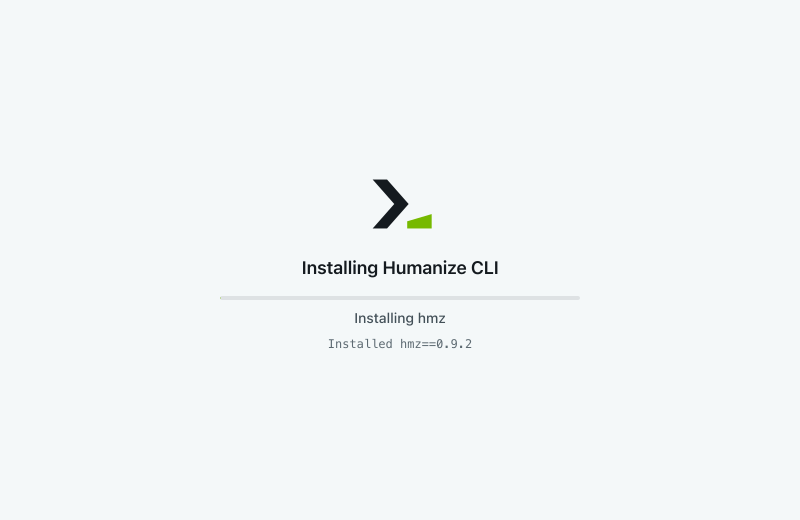
The first launch on Windows: Getting uv, Getting Python, Installing hmz.
Install the CLI
Run this in a terminal on macOS or Linux, or in a WSL terminal on Windows:
uv tool install hmzIf you need uv, install it first with curl -LsSf https://astral.sh/uv/install.sh | sh. uv fetches the Python version that hmz needs (3.12 or later).
Other ways to install or run it:
| Command | What it does |
|---|---|
pipx install hmz | Installs hmz in an isolated environment, like uv tool. |
pip install hmz | Installs into the active Python environment. |
uvx hmz | Runs hmz without installing it. |
Three coding agents need an extra, such as uv tool install 'hmz[all]': see Coding agents. Updates keep the extras you installed.
Verify the installation:
hmz --version

If the shell says hmz: command not found, run uv tool update-shell (or pipx ensurepath) and open a new shell.
Update
In the app
Humanize Desktop checks for a new release a few seconds after launch and every 6 hours after that. It downloads updates in the background and then prompts you once:
- Restart installs the update and reopens the app.
- Later installs it when you quit.
To check manually, choose Check for Updates… from the Humanize menu on macOS, or from the tray icon menu on Windows. A progress window opens and then offers the update, confirms you are up to date, or explains why the check failed.


On Windows, the updated app also updates hmz in WSL to match its own version. Update the app there, not hmz. If epics are still running in the old hmz, the app waits for them to finish:
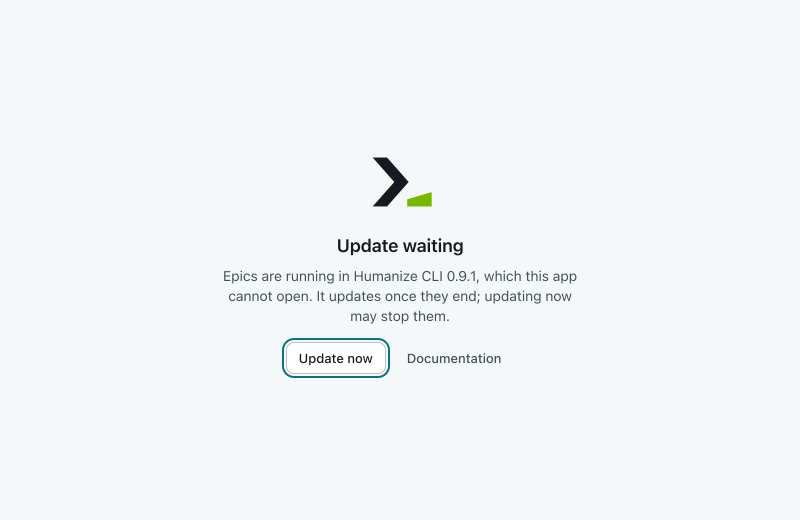
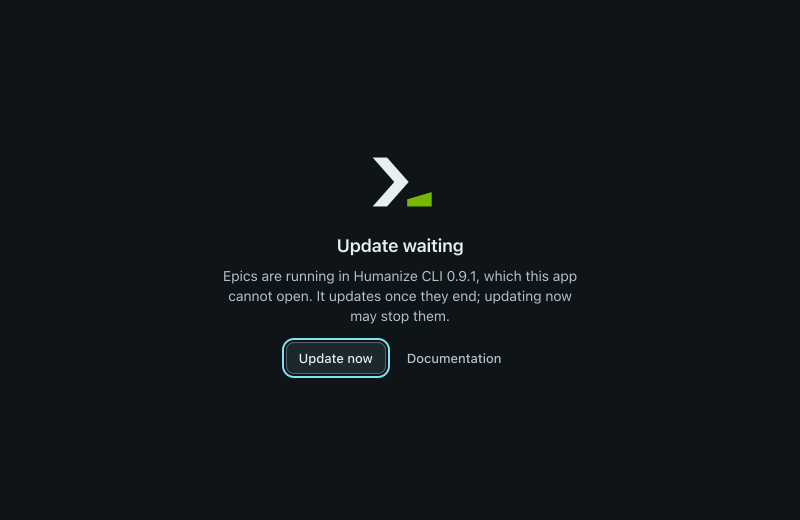
Click Update now to update immediately, which may stop those epics.
On macOS, the app never modifies hmz. Update it from the command line.
From the command line
hmz updateThis checks PyPI for the newest release and updates hmz using the tool that installed it: uv tool, pipx, or pip. If you are already current, it reports that and changes nothing.


The terminal interface and the web page sidebar both notify you when a newer hmz is out; the daemon bar's menu gains an Update item that copies hmz update. With uvx, run uvx hmz@latest instead.
Shell completion
hmz ships no completion script for bash, zsh, or fish. Completion works inside a chat input box: see Commands, skills and files in a chat.
Uninstall
Removing the app leaves hmz and your epics intact, and removing hmz leaves the app intact.
| To remove | Do this | What stays until you delete it |
|---|---|---|
| The app, macOS | Quit it, then move it from Applications to the Trash. | ~/Library/Application Support/ai.humanfia.humanize, and the folders of the same name under ~/Library/WebKit, ~/Library/Caches and ~/Library/Logs |
| The app, Windows | Quit from the tray icon, then Settings → Apps → Installed apps. | %APPDATA%\ai.humanfia.humanize and %LOCALAPPDATA%\ai.humanfia.humanize |
| The CLI | uv tool uninstall hmz, pipx uninstall hmz or pip uninstall hmz (in WSL on Windows) | ~/.hmz (or the folder HUMANIZE_HOME names), ~/.cache/humanize, and .hmz/ in each project where you keep flows |
If you ever ran hmz daemon install, run hmz daemon uninstall before you remove the CLI.
To erase your epics, chats, accounts, and installed flows, delete ~/.hmz. See Files on disk for the full list of files.
Good to know
- A running daemon stays on the old release after
hmz update, andhmz updatetells you so. Its epics move to the new release only after that daemon stops. hmz updaterefuses to update an installation made from a checkout or URL. Update those at their source.hmz updateonly installs full releases, never pre-releases. The app updates to a pre-release only if it is already running one.- The app cannot update itself while running from the disk image. Move it to Applications first.
- Deleting the app's data folder resets its device identity, so you must pair it again with every remote daemon. See Connect to other machines.
- On Windows, if WSL had no uv, the app downloaded one to
~/.local/bin/uvin WSL. It stays after you uninstall. - Installing, updating, or uninstalling Humanize never touches your coding agent CLIs or their logins.
- The app's native menus and update windows always appear in English, regardless of the page language.