Finish your first task in the terminal
In ten minutes, you install hmz, chat with a coding agent, install a flow, and run it on a task in your project. Everything happens in one terminal.
What you need
- A terminal on macOS or Linux, or a WSL terminal on Windows.
- uv. Install it with
curl -LsSf https://astral.sh/uv/install.sh | sh. - A project directory. This page uses
~/shop. - An account with one coding agent, such as Claude Code, and
npmto install its CLI. Humanize runs that CLI under your login.
1. Install the CLI
Install hmz:
uv tool install hmzVerify the installation:
hmz --version

2. Sign in to a coding agent
Humanize drives a coding agent CLI, called a harness. You need one. To set up Claude Code, install it and sign in:
npm i -g @anthropic-ai/claude-code
claude auth login
Skip this step if you already have a coding agent CLI on this machine. See Coding agents for other harnesses.
3. Open hmz in your project
Open your project directory and start hmz:
cd ~/shop
hmz
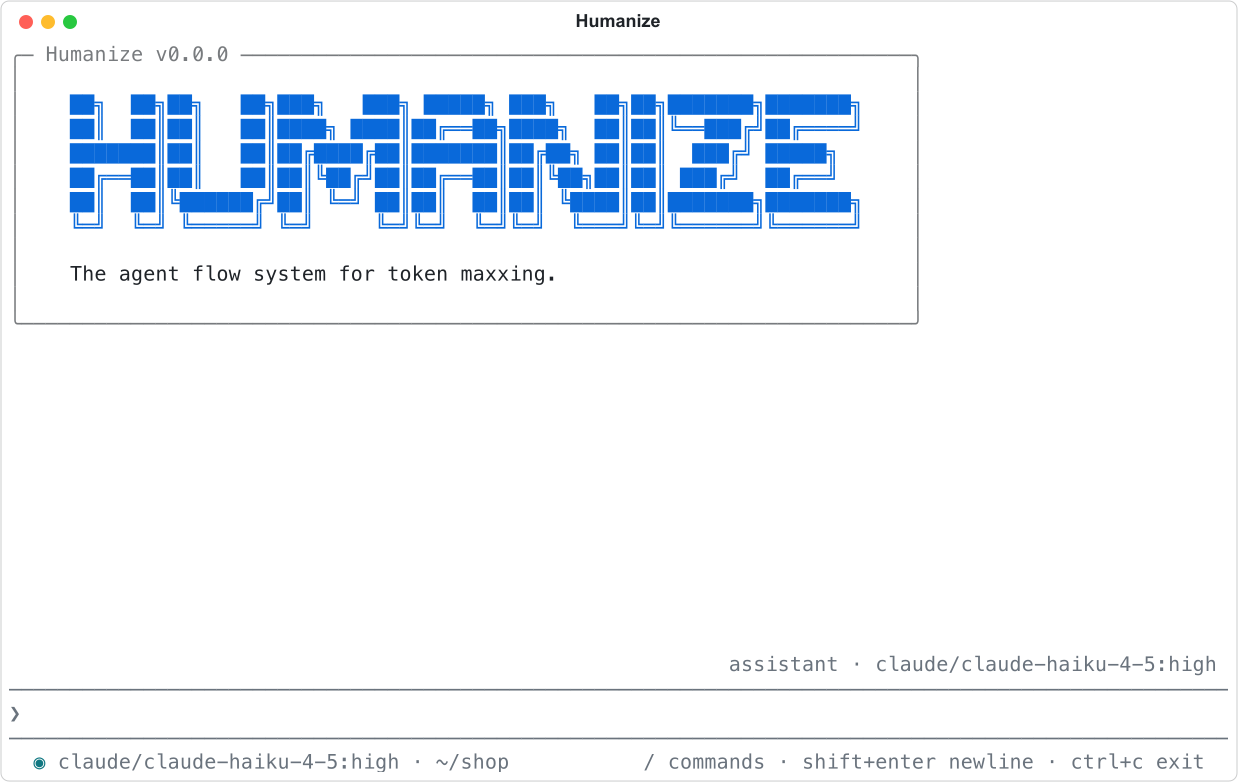
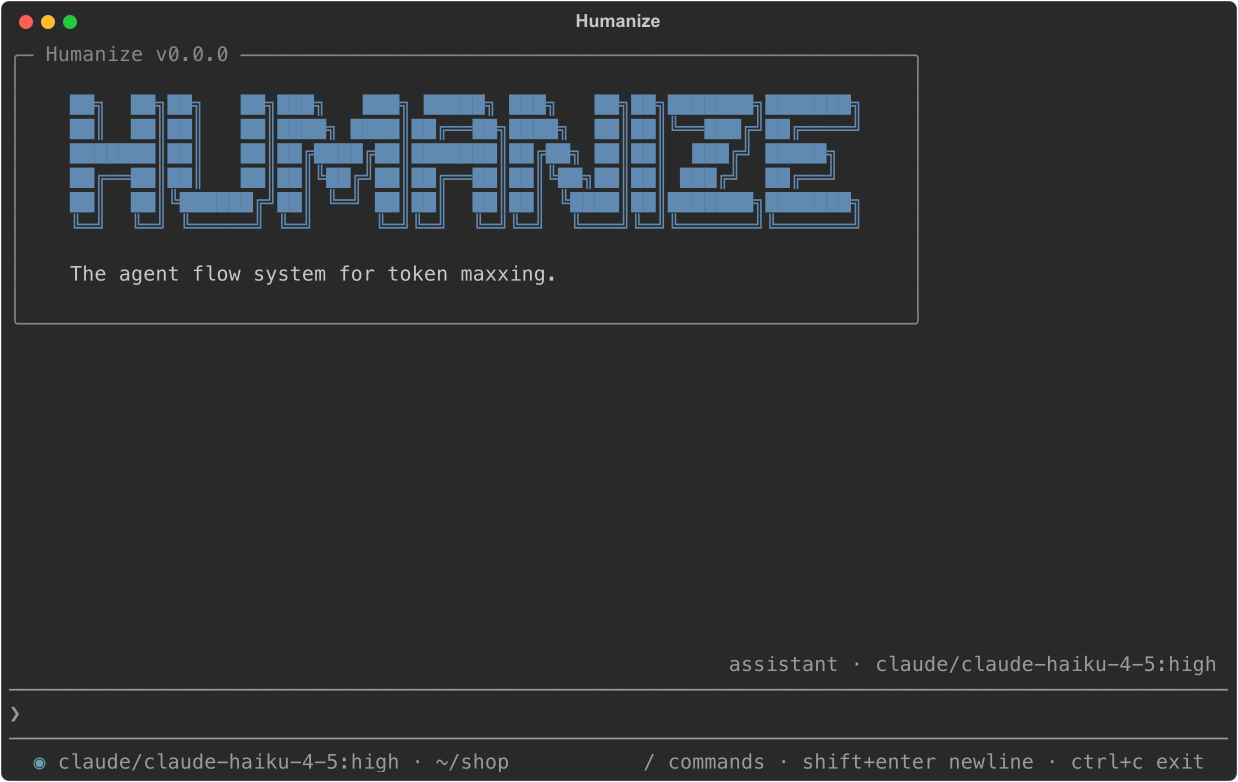
The terminal interface opens on a new chat. The line above the prompt shows the active agent: the harness, model, and effort. On first run, a box asks Report errors to Humanize?. Answer yes or no.
If the line says no agent installed, return to step 2. To switch agents, type /settings workspace and open Chat agent.
4. Chat with the agent
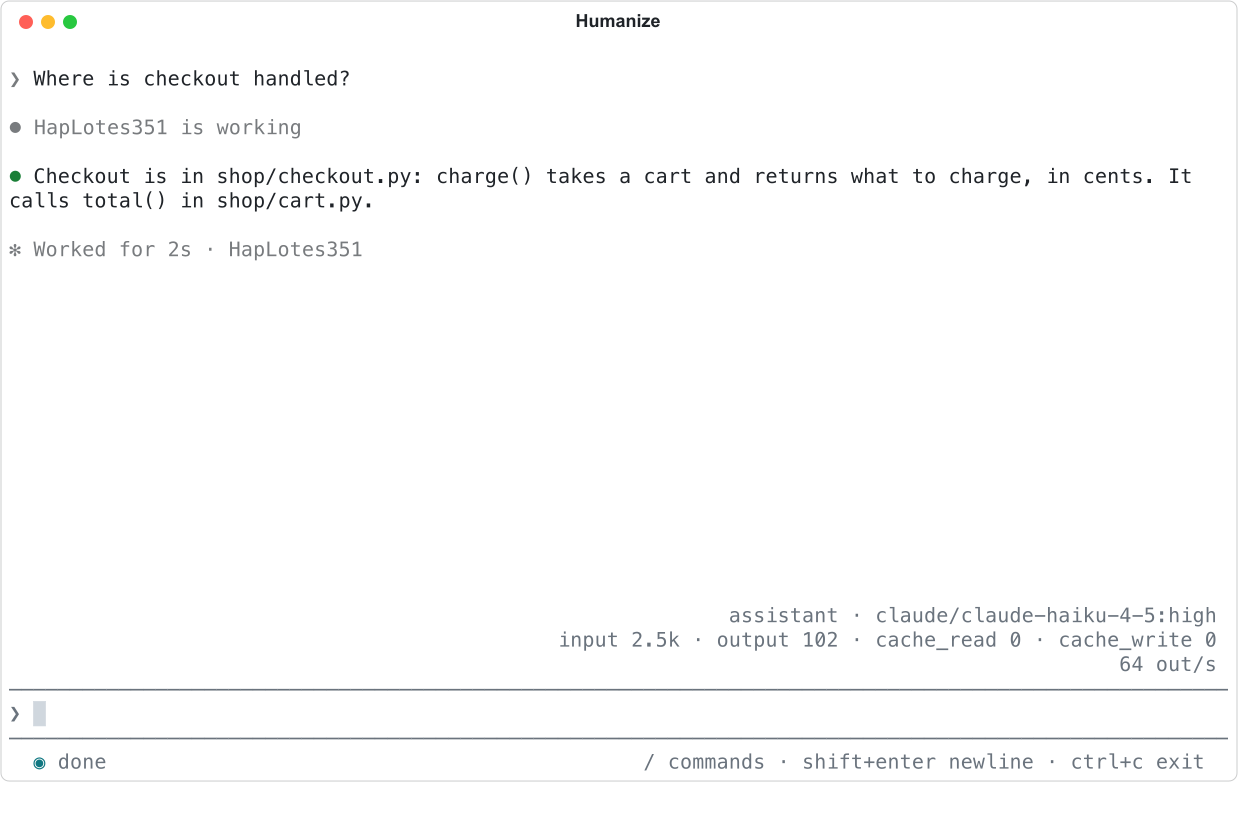
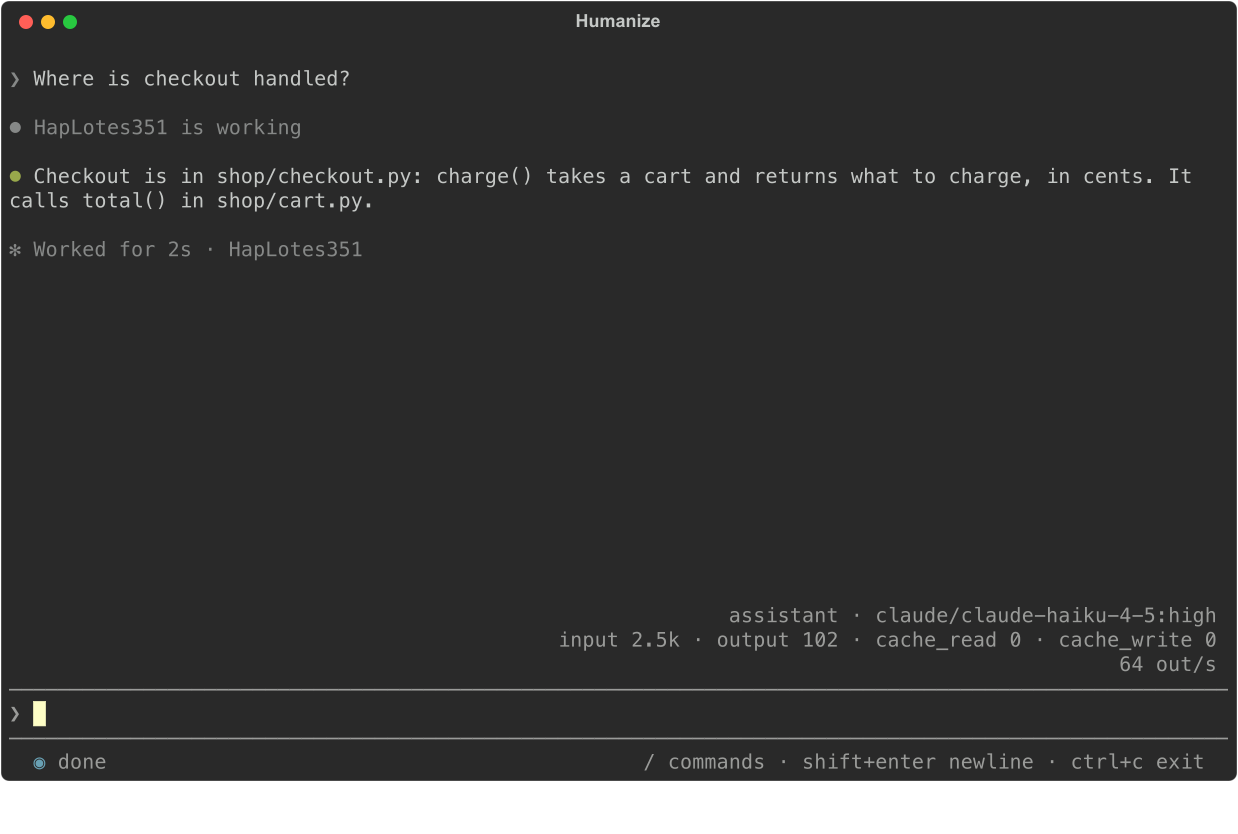
Type a question and press enter:
Where is checkout handled?The agent answers. A chat needs no flow or budget.
5. Install a flow
A flow is a loop that runs agents on a task. Humanize starts with no flows installed. You install them from a flowverse, and the official flowverse is already listed.
- Type
/flowand press enter. The Installed page is empty and Install more… is highlighted. - Press enter. The Flowverses page lists
official. - Press enter to view its flows.
- Select
ralph_loopand press enter to see its releases. - Press enter on the newest release. It shows
✔ installed. - Press esc until the menu closes.
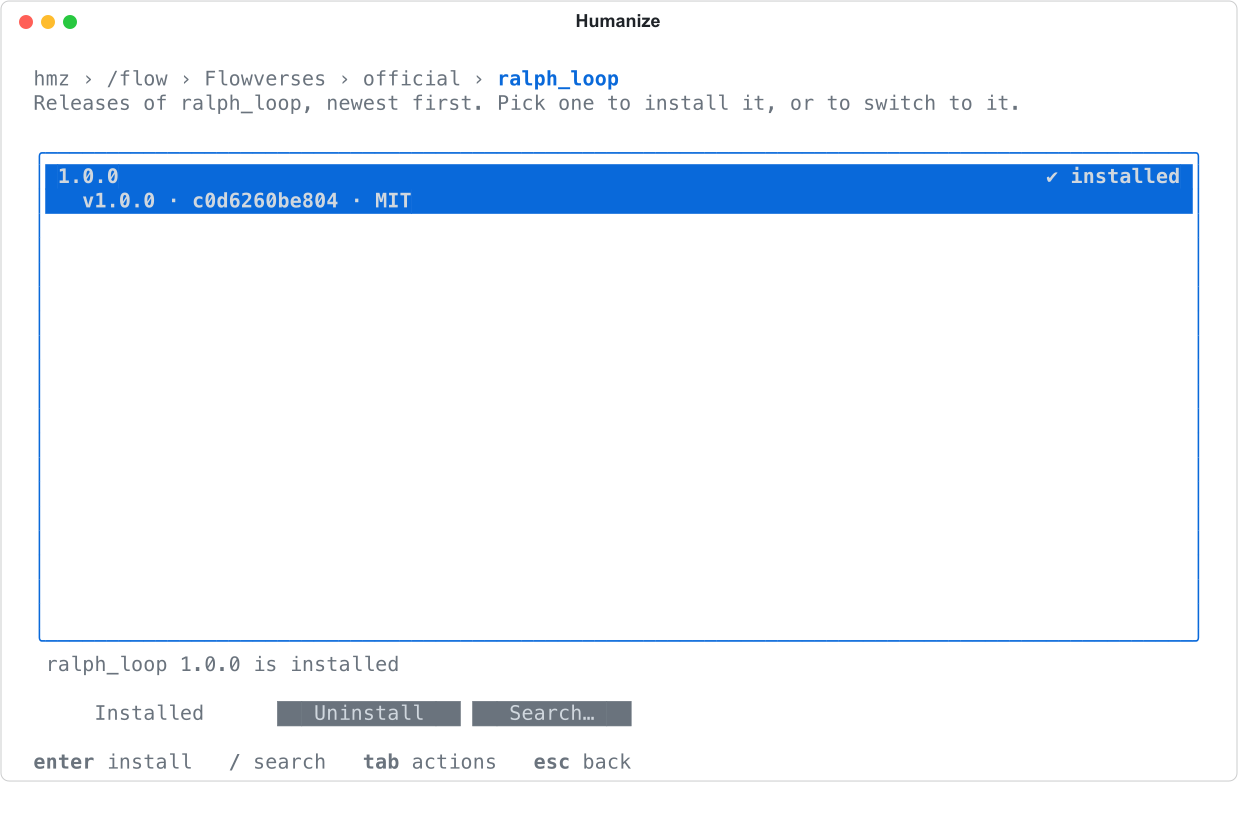
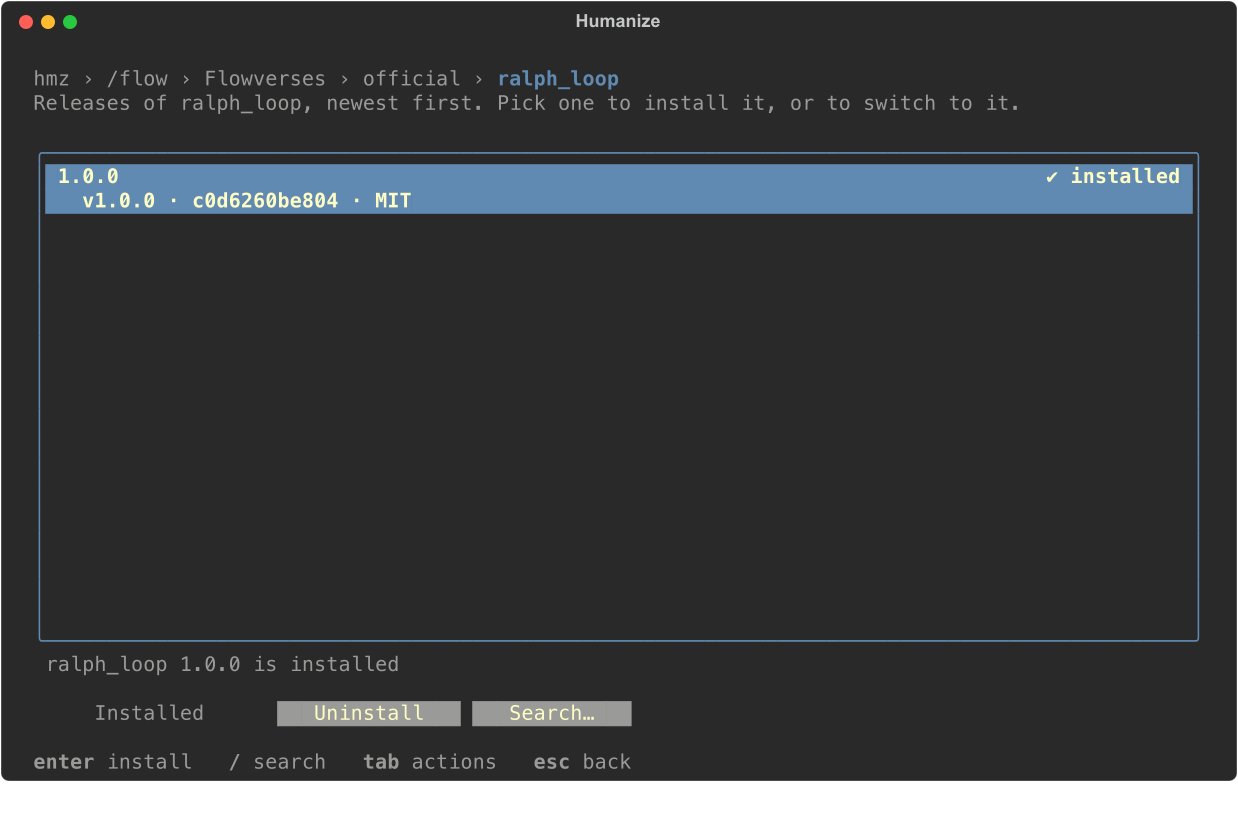
ralph_loop gives one agent the same task in a fresh session every round until its budget runs out or you stop it. The catalogue describes the other flows.
TIP
If official says not fetched, press tab, select Fetch, and press enter. hmz fetches this index in the background each time it opens, so this only happens when that fetch has not finished or failed.
6. Give the flow a budget
Every flow run requires a budget to know when to stop.
- Type
/flow ralph_loopand press enter. The page lists the flow's settings. Theagentrow already names an agent; press enter on it to choose another. - Select
budgetand press enter. - On
duration, press enter, type10m, and press enter again. - Press tab to reach Set, then press enter. The
budgetrow now readsstops at 10m. - Press esc. A box asks
Save?. Press enter on Save.
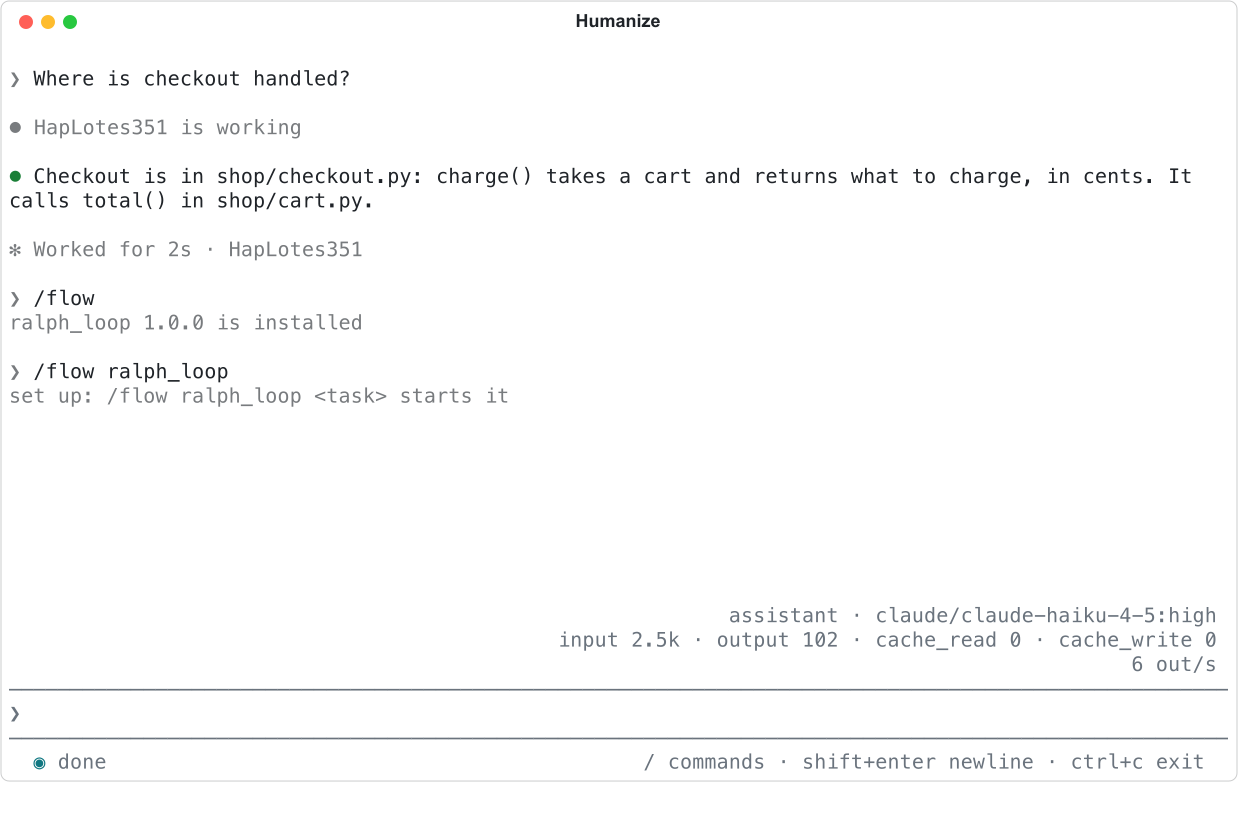
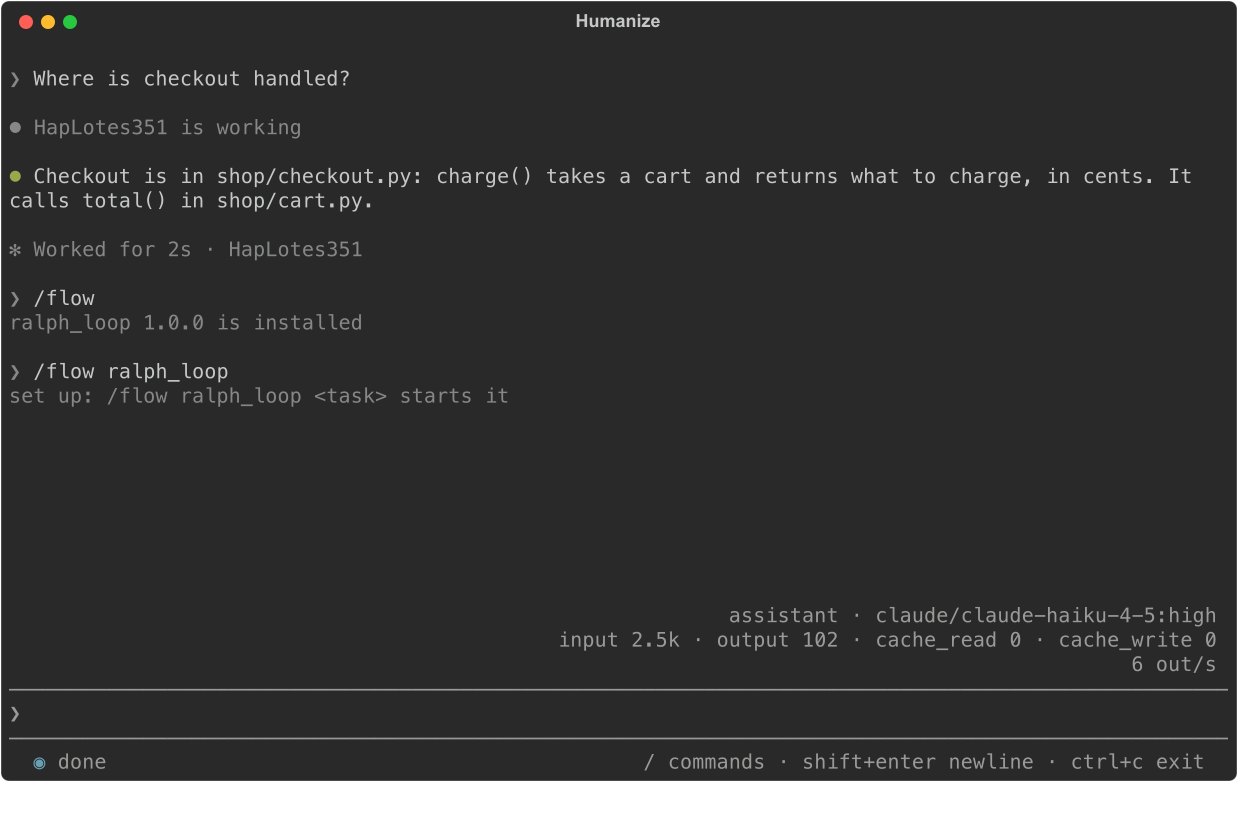
The transcript shows set up: /flow ralph_loop <task> starts it. A budget can also limit cost in US dollars and output_tokens. The run stops at the first limit it reaches.
7. Start it on a task
Run the flow on a task:
/flow ralph_loop Add a discount code to checkoutThe screen switches from the chat to the flow's agent. Each round appears as the agent finishes it. This recorded run of a flow is called an epic.
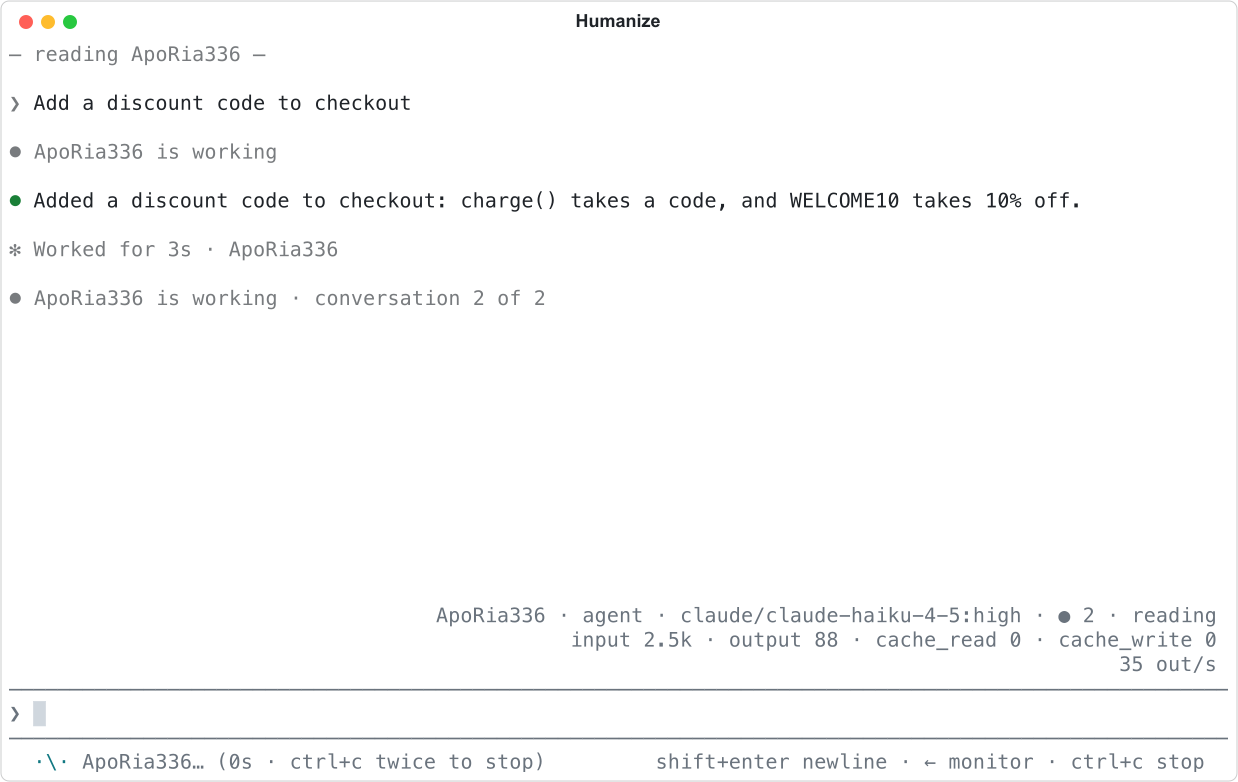
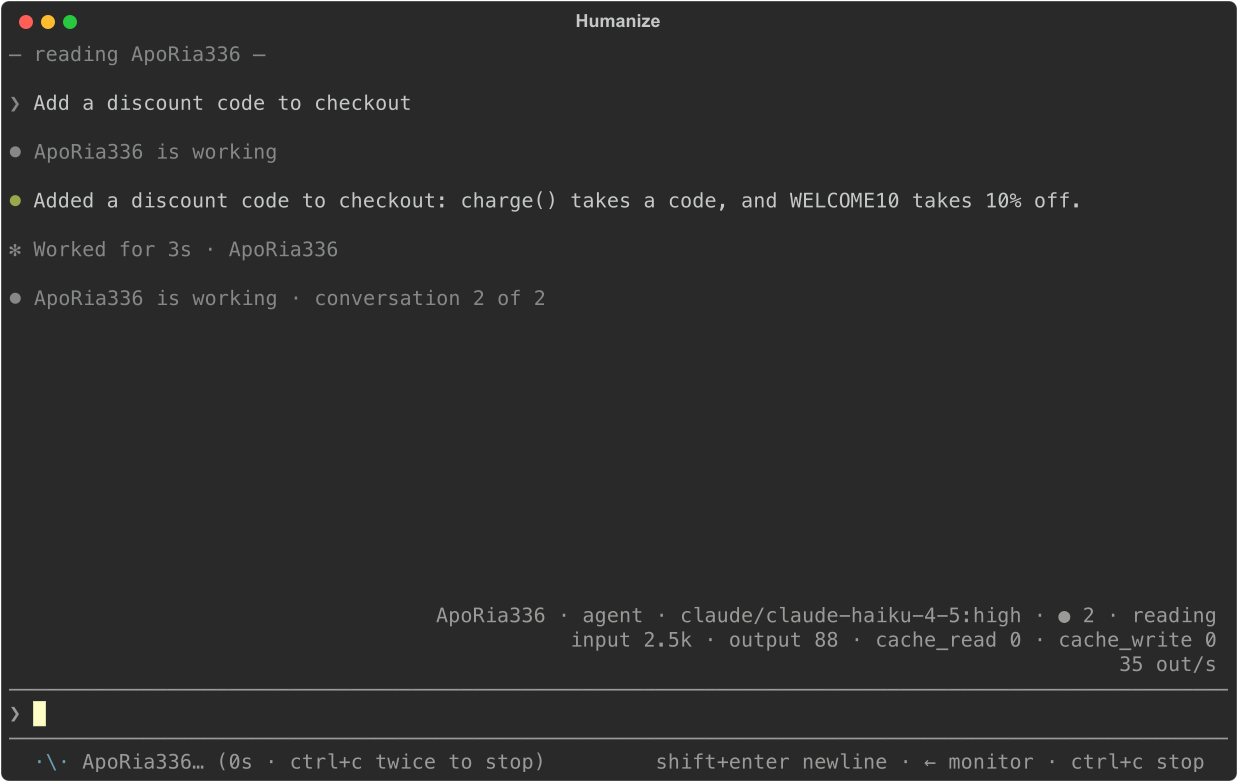
8. Watch the monitor
With the prompt empty, press ←. The monitor displays the epic: its state, turns taken, budget time used, a box per agent, and tokens spent.
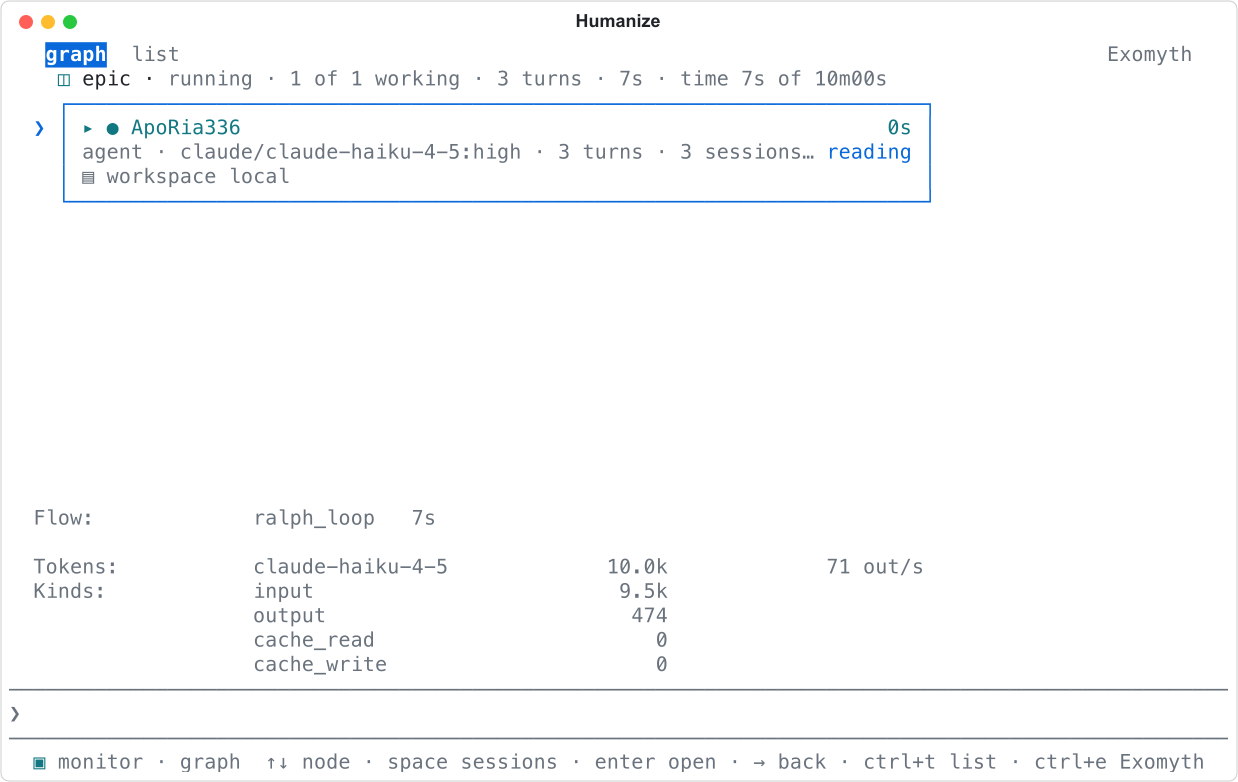
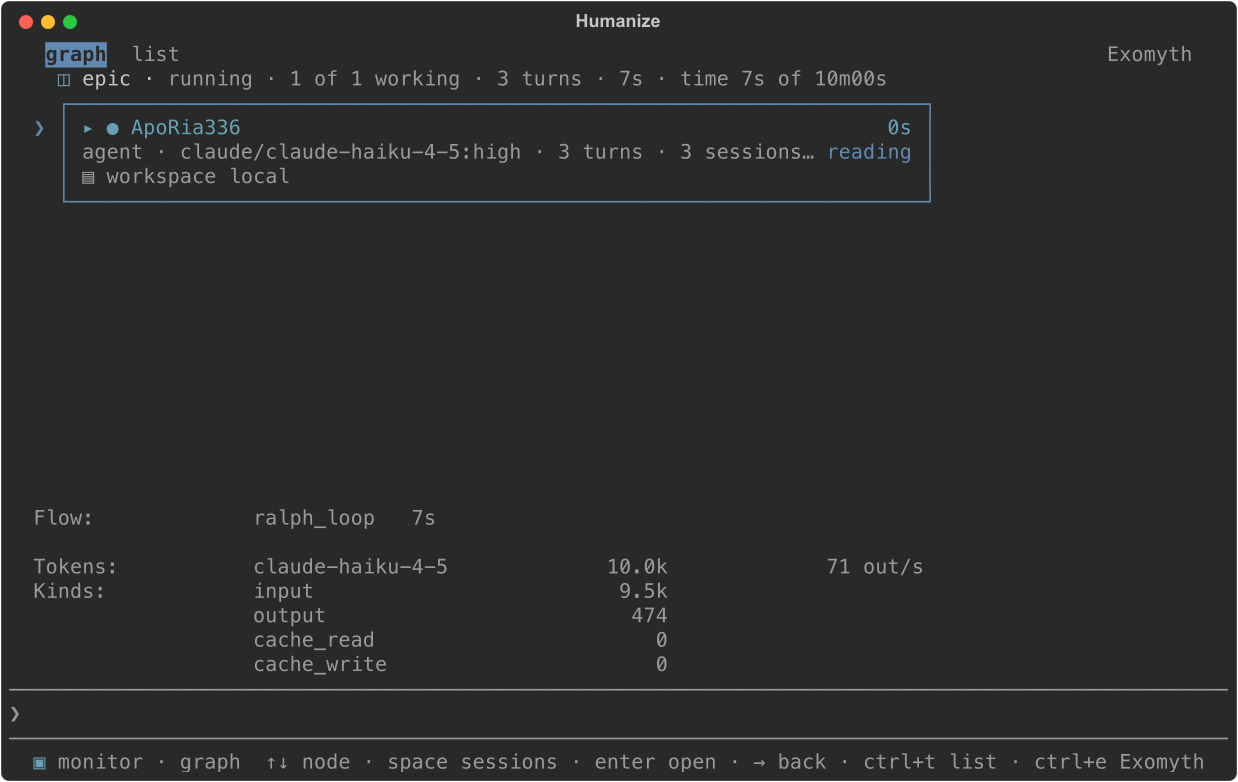
Press → to return to the agent's transcript.
9. Stop the run
Left alone, the run stops after ten minutes once the current turn finishes. To stop it now, press ctrl+c. The transcript says — press ctrl+c again to stop the flow —. Press ctrl+c again within three seconds. Typing /stop stops the run immediately without confirmation.
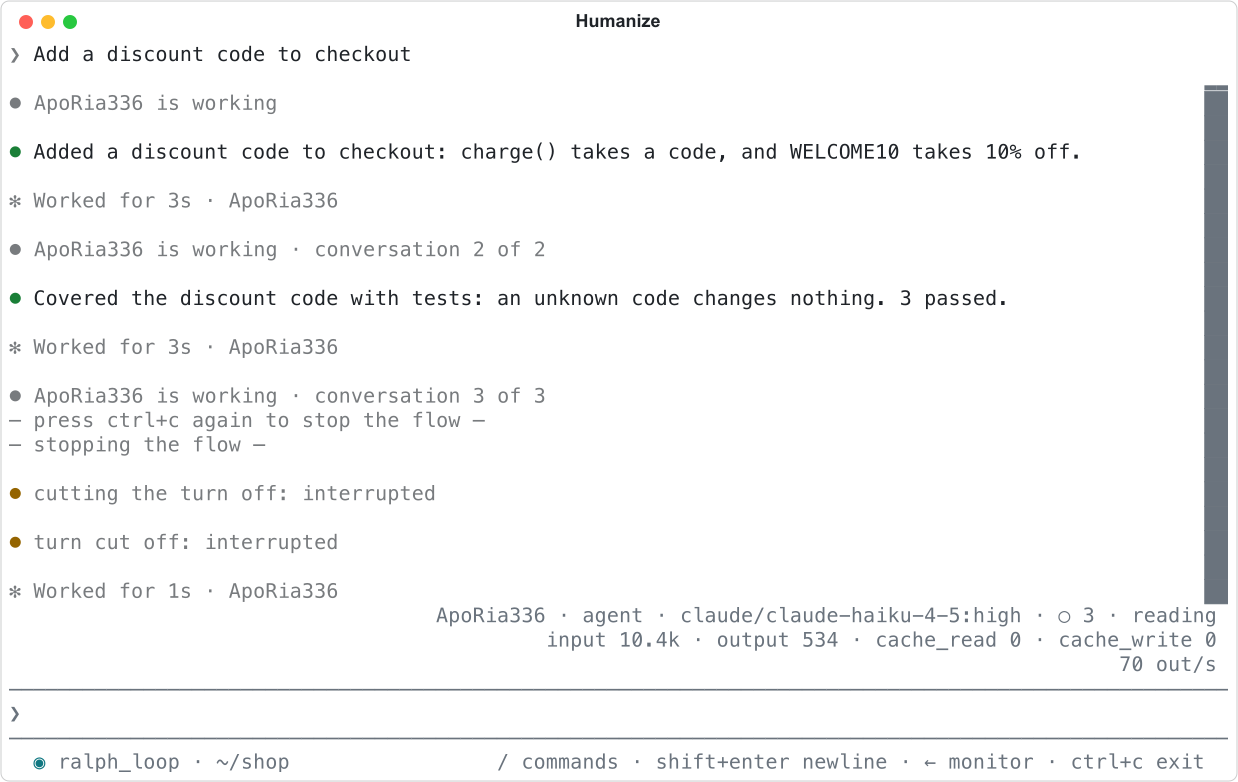
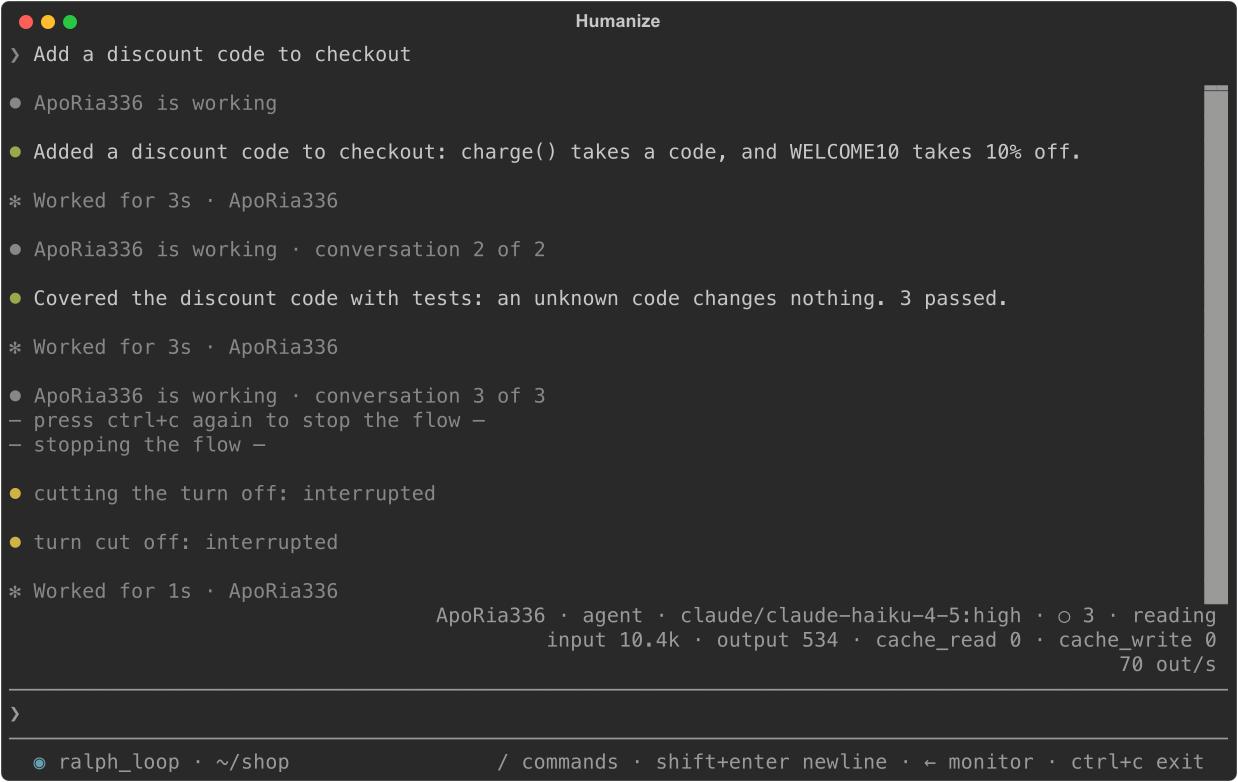
The agent's changes stay in your project.
10. Read the result
- Type
/epicsand press enter. Every epic for this directory appears, newest first, with its flow, task, duration, and status. - Press enter on the epic, then enter on
graph. - Press enter on a session to read the task, each tool call and output, and the agent's response.
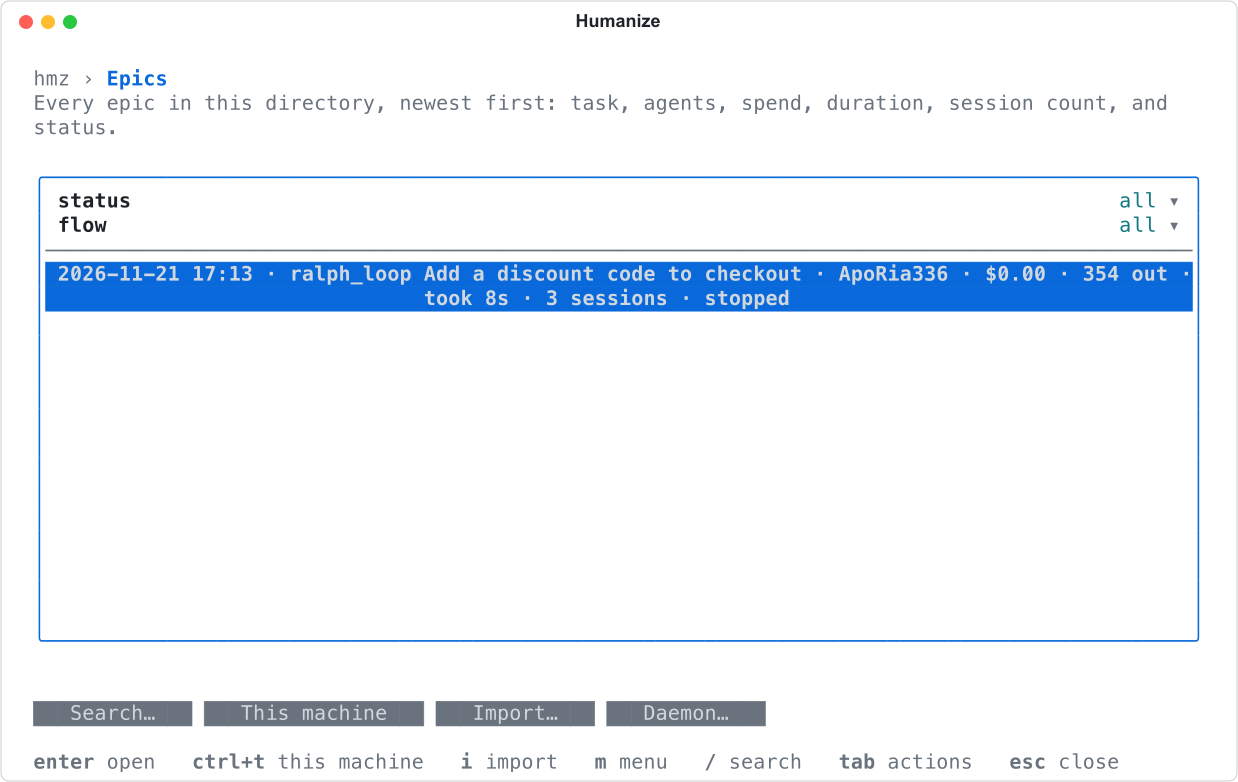
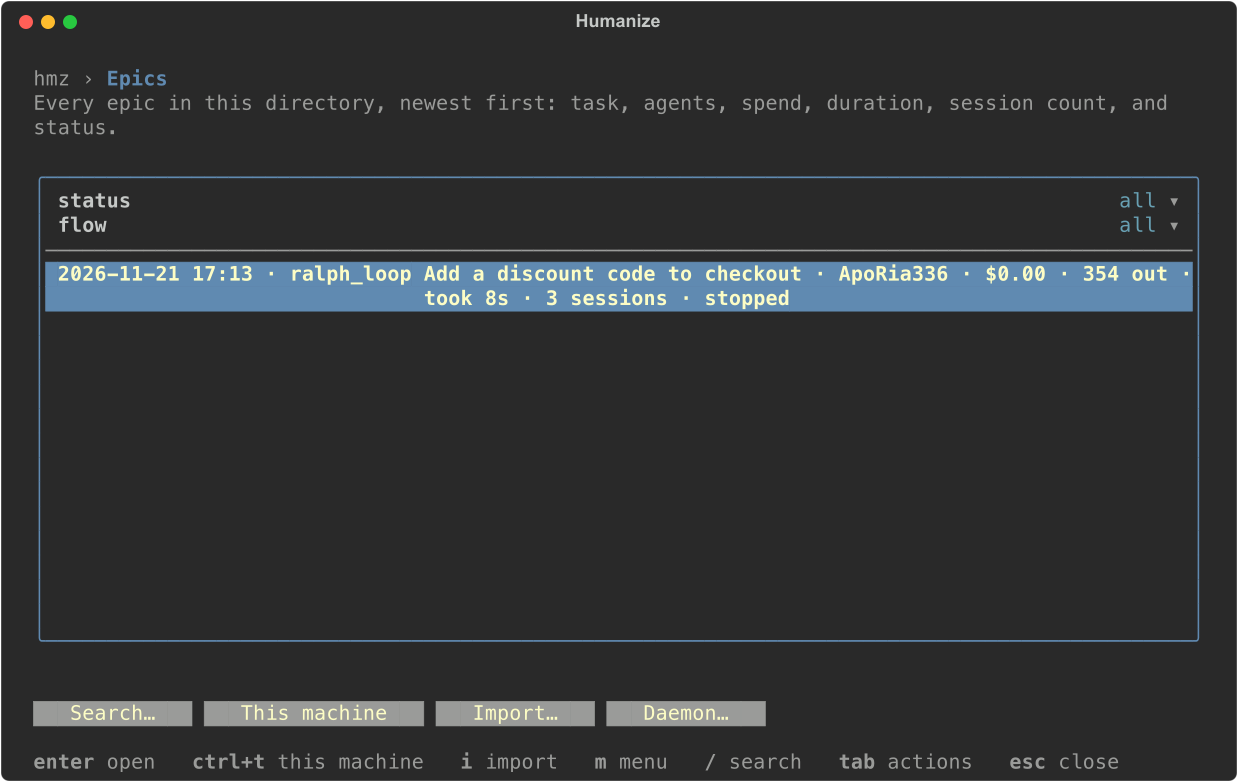
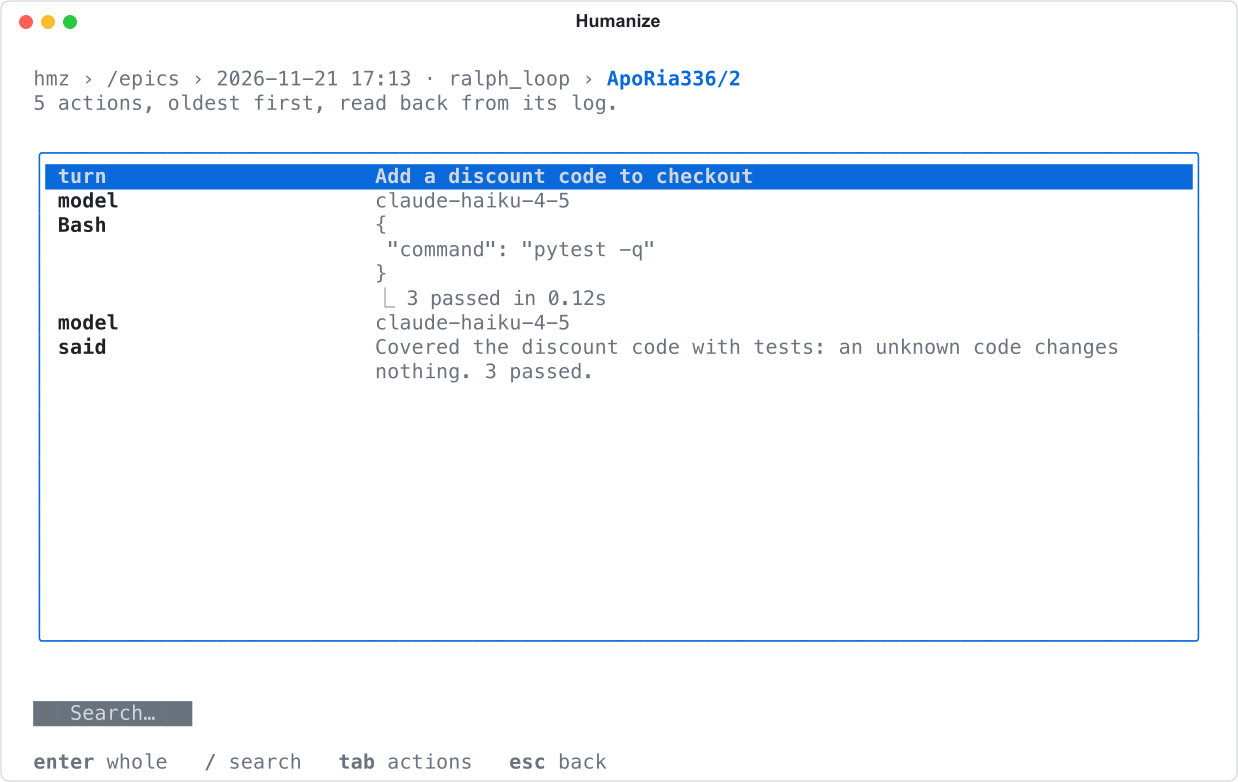
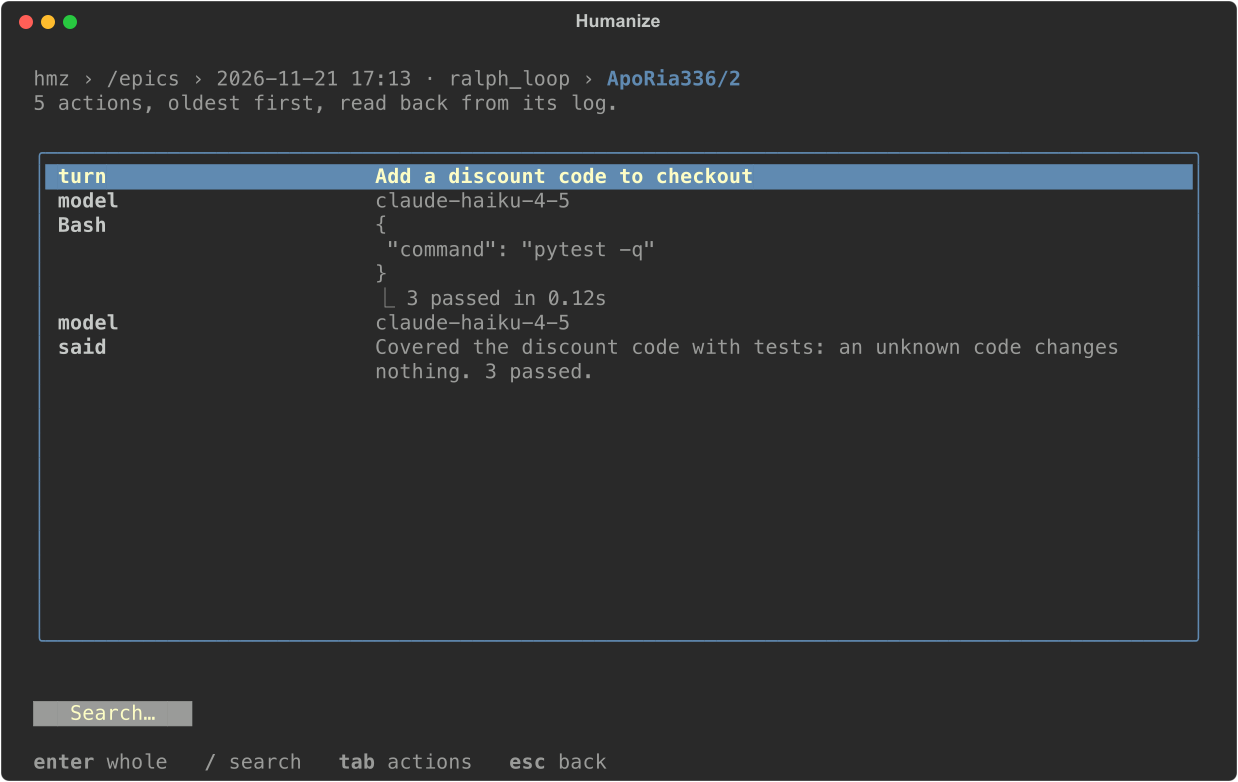
Press esc to back out of each page. Type /exit to leave hmz.
What you did
- Installed
hmzand chatted with a coding agent. - Installed
ralph_loopfrom the official flowverse. - Set a budget and started an epic on a task.
- Watched the epic in the monitor and stopped it.
- Read the session history in
/epics.
Next
- Find and install flows: browse other flows, update them, and add your own.
- Budgets: learn about all limit types and what happens when a run hits one.
- Watch a run: see everything the monitor shows.
- Leave a long task running overnight: close the terminal and return later.