Connect to other machines
Every machine running Humanize has its own daemon. Add another machine's daemon to manage its chats, epics, and settings from your current app or terminal.
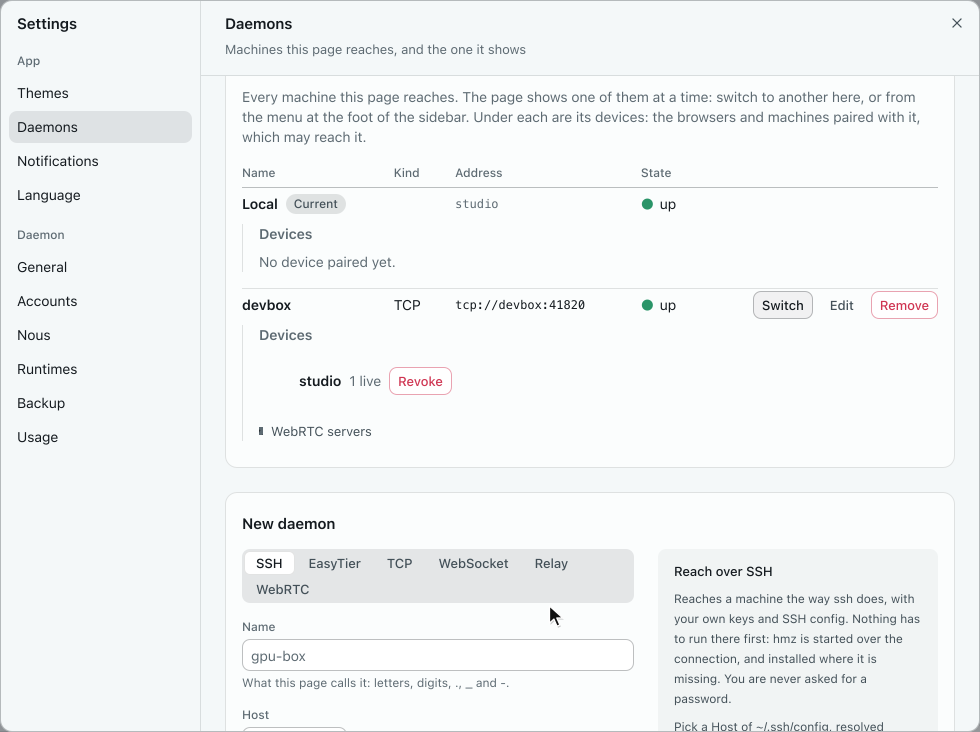
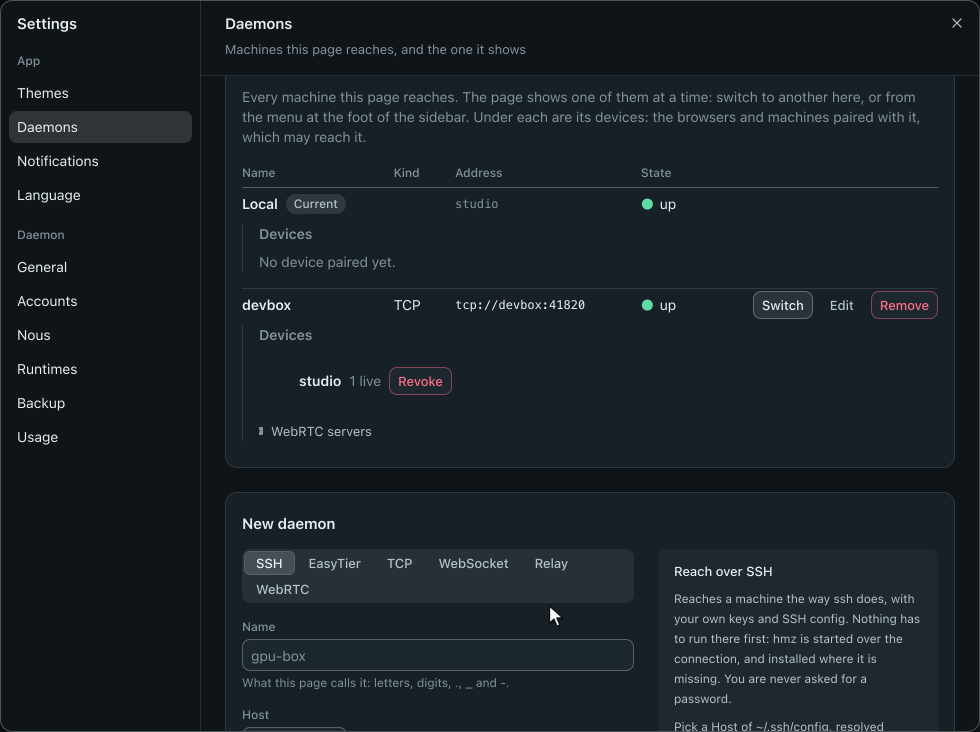
Choose how to connect
| Way | The other machine needs | Use it when |
|---|---|---|
| SSH | Nothing. Your ssh keys must already work. | You can ssh to it. |
| Pairing code | A listening daemon and a one-time code from hmz daemon pair. | You can reach a port, WebSocket, or relay on it. |
| EasyTier | An EasyTier entry with the same secret and node, and a pairing code. | Both machines are behind NAT with no open port and no SSH. |
Over SSH, Humanize starts the remote daemon itself. If the remote machine has no hmz, a dialog asks hmz is not installed on <name>. Install it?: click Install to install it, or Not now to leave the machine failed until you click Connect again. After you click Install for a machine, Humanize does not ask about it again until you reload the page or change the machine's routes. If the remote hmz is a different version, Humanize replaces it without asking, but never while its daemon has running epics. It never asks for a password.
Create a pairing code
On the remote machine, start a listener, then generate a pairing code from a second terminal:
hmz daemon serve --listen tcp://0.0.0.0:41817
hmz daemon pair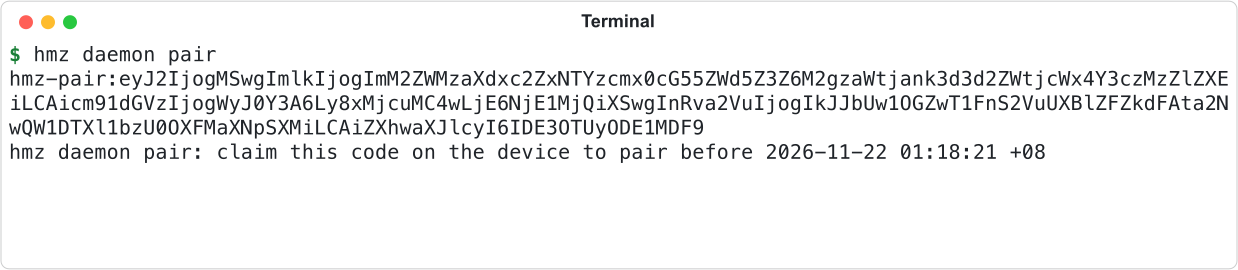
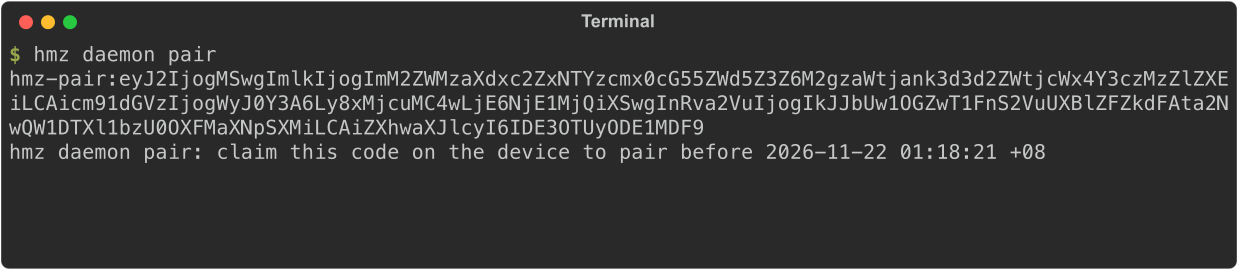
A code pairs one device once and expires after 10 minutes. If a daemon is already running there, hmz daemon serve exits with hmz: a daemon is already running (pid …). Set the listen key in settings.yaml instead: the running daemon opens the listener, and keeps it open every time it starts.
| Option | Meaning |
|---|---|
--route ROUTE | A route the code carries. Repeatable. Defaults to the routes of the open listeners. |
--seconds SECONDS | Code lifetime in seconds, from 60 to 86400. Default 600. |
A code needs a route to carry. Without an open listener or --route, the command prints hmz: There is no route to pair over: give one, or listen. and exits with status 1, and pair a device… in the terminal is refused the same way. Add a listener or pass --route ROUTE. The daemon waits up to 5 seconds for listeners that are still opening.
For EasyTier, add an entry and a listener to ~/.hmz/settings.yaml on the remote machine, then run hmz daemon pair:
easytier:
  home:
    secret: "a secret of at least 16 bytes"
    nodes: ["tcp://node.example:11010"]
listen: ["easytier:home"]
In the app
Open Settings > Daemons, or click the daemon bar at the bottom of the sidebar and select Daemon > Manage.
Add a machine
Under New daemon, select a connection kind, fill in the fields, and click Add.
| Kind | What to fill |
|---|---|
| SSH | Name and a Host from ~/.ssh/config. Or select Custom and fill Host, User, Port, Identity file, Proxy jump, and SSH options. |
| EasyTier | Name, Secret (at least 16 bytes), Pairing code, and Nodes: tick at least one node the other machine also uses, or type one and click Add node. |
| TCP, WebSocket, Relay, WebRTC | Name and Pairing code. Address is optional; leave it empty to try the routes embedded in the code. |
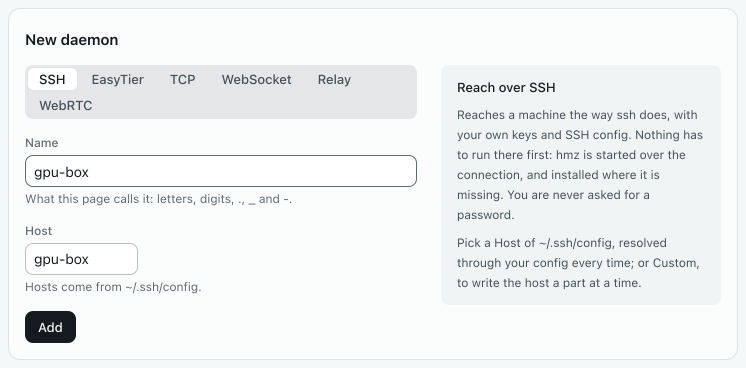
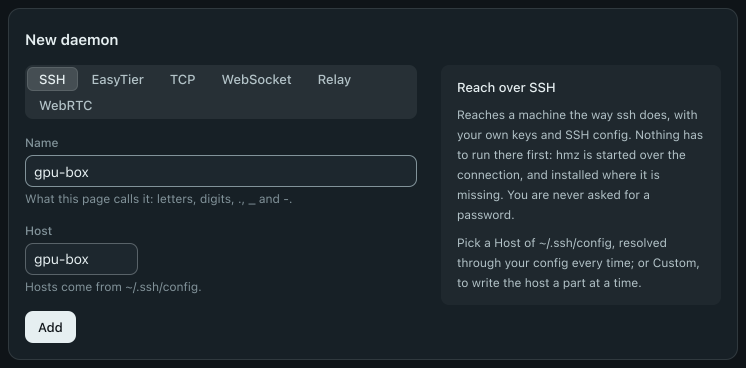
Clicking Add claims the pairing code immediately. Humanize saves the machine only if the claim succeeds. For relays and WebRTC, see Relays and WebRTC.
View machine status
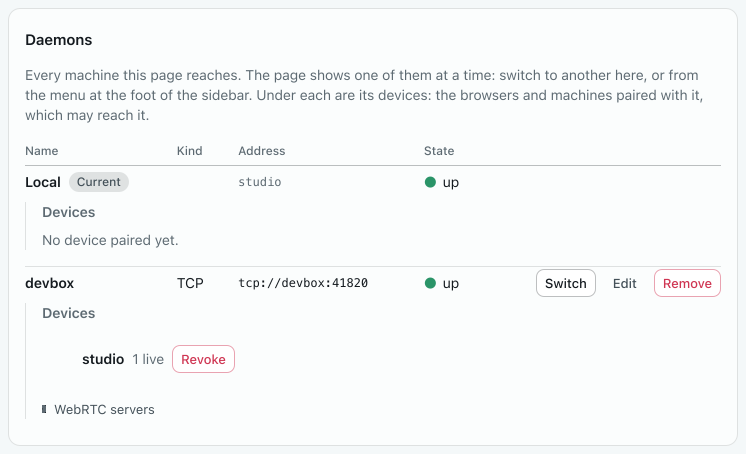
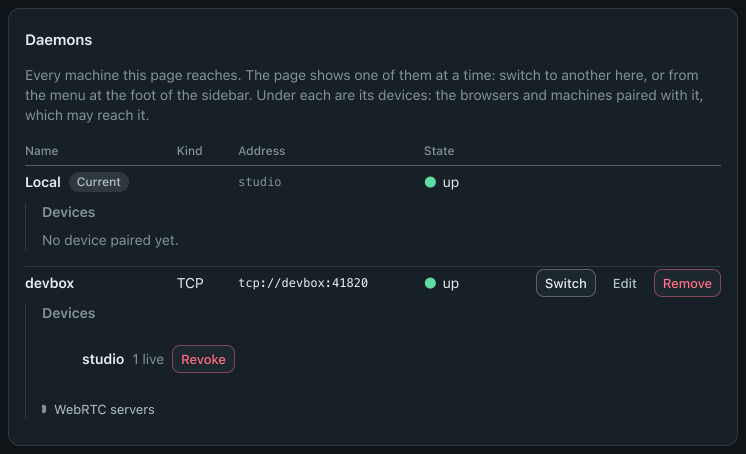
Each row displays Name, Kind, Address (the routes), and State. Click Connect when a machine is not up. Click Remove and confirm to forget the machine locally without changing anything on the remote host. For a daemon running inside WSL, the Local row and the daemon bar show the distribution name followed by (WSL), such as Ubuntu (WSL), instead of the host name.
| State | Meaning |
|---|---|
idle | Not requested yet. |
connecting | Trying routes. |
asking | The SSH machine has no hmz, and the dialog is waiting for Install or Not now. |
installing | Installing hmz over SSH, or downloading EasyTier. |
up | Connected. |
failed | Connection failed. Displays the reason. |
Edit routes
Click Edit on a machine row to rename it or change its routes. Under Routes (or More routes for SSH and EasyTier), use Add, Move up, and Remove to order the routes, then click Save. Humanize tries routes in the listed order. A machine needs at least one route (A daemon needs at least one route.).
While you edit a machine, only its own kind is offered. For an EasyTier machine, leave Secret empty to keep the current value (Left empty, kept as it is); the secret is never shown again. Type the secret again if you change Name (Say the secret again to rename an EasyTier daemon.), because the EasyTier entry is stored under the machine's name.
Revoke paired devices
Under each connected machine, Devices lists its paired browsers and machines. Each row reads <n> live, seen <when>, or never seen; a machine with none says No device paired yet. Click Revoke and confirm. The device loses its active sessions immediately and needs a new pairing code to reconnect.
Each device takes the host name of the machine that claimed the code, or browser when the browser page has no Local daemon. A name already taken gets #2, #3, and so on. Device names follow the same rules as machine names. Sessions from the same machine, over SSH, or from WSL use the local device, which is never listed and cannot be revoked.
Switch machines
The app displays one machine at a time. Click the daemon bar, open Daemon, and select a machine. You can also open Settings > Daemons, where the machine shown is marked Current, and click Switch on another; Settings stays open, now on that machine.
Those are the only two places a machine is chosen. Everything else, including a new epic, a new chat, Search, Flows, and the pages of Settings under Daemon, is of the machine shown.
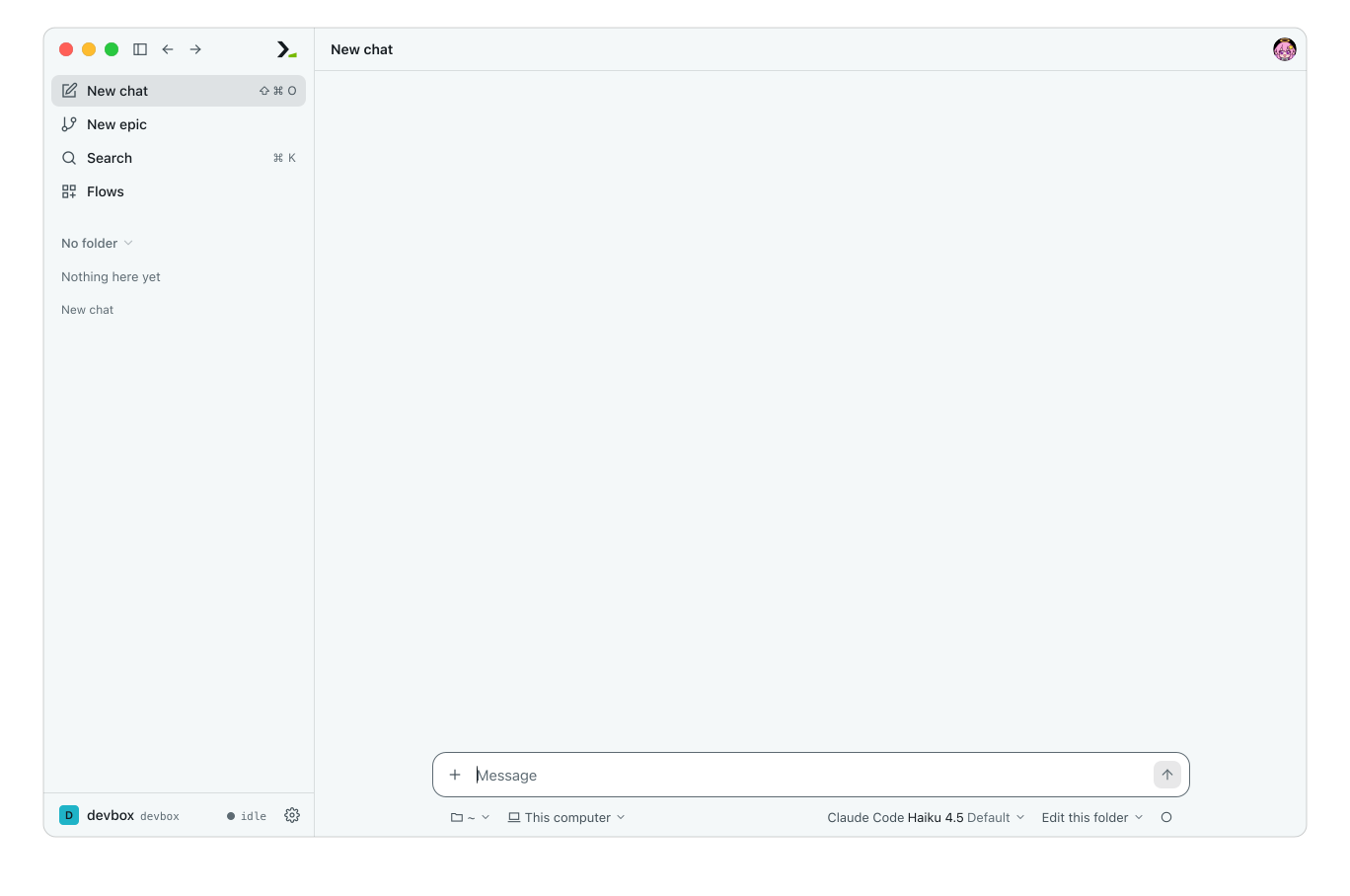
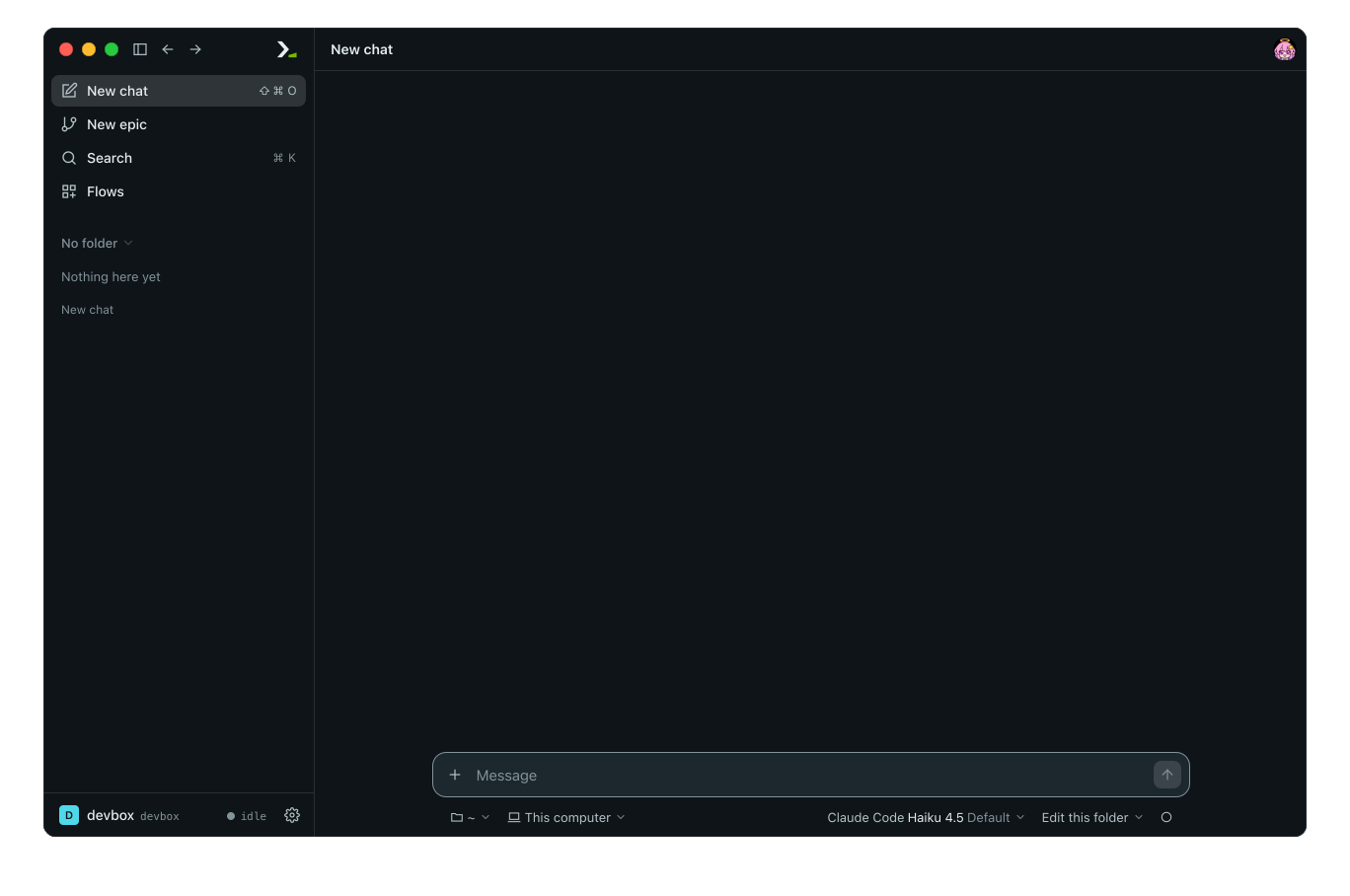
The bar displays the machine's name, its host, and its state. A connected machine shows idle or {n} live, the count of live epics. Otherwise, the bar shows connecting, asking, installing, failed, or not connected; point at the bar to see the reason. In the Daemon submenu, each machine shows its host and state, and Connect under a failed remote machine retries its routes.
Edit and copy machine settings
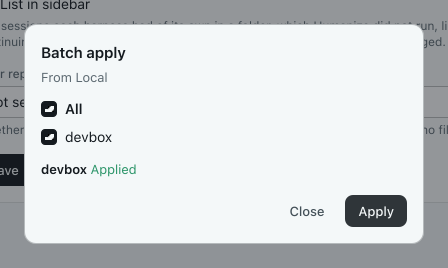
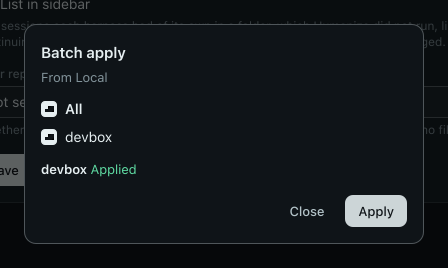
In Settings, the pages under Daemon edit the machine shown, named in a line at the top of each. To edit another machine's settings, switch to it first. To copy settings to other machines, click Batch apply on the General, Nous, Runtimes, or Backup page, select the target machines (or All), and click Apply. Humanize never copies accounts.
In the terminal
Run /settings daemons.
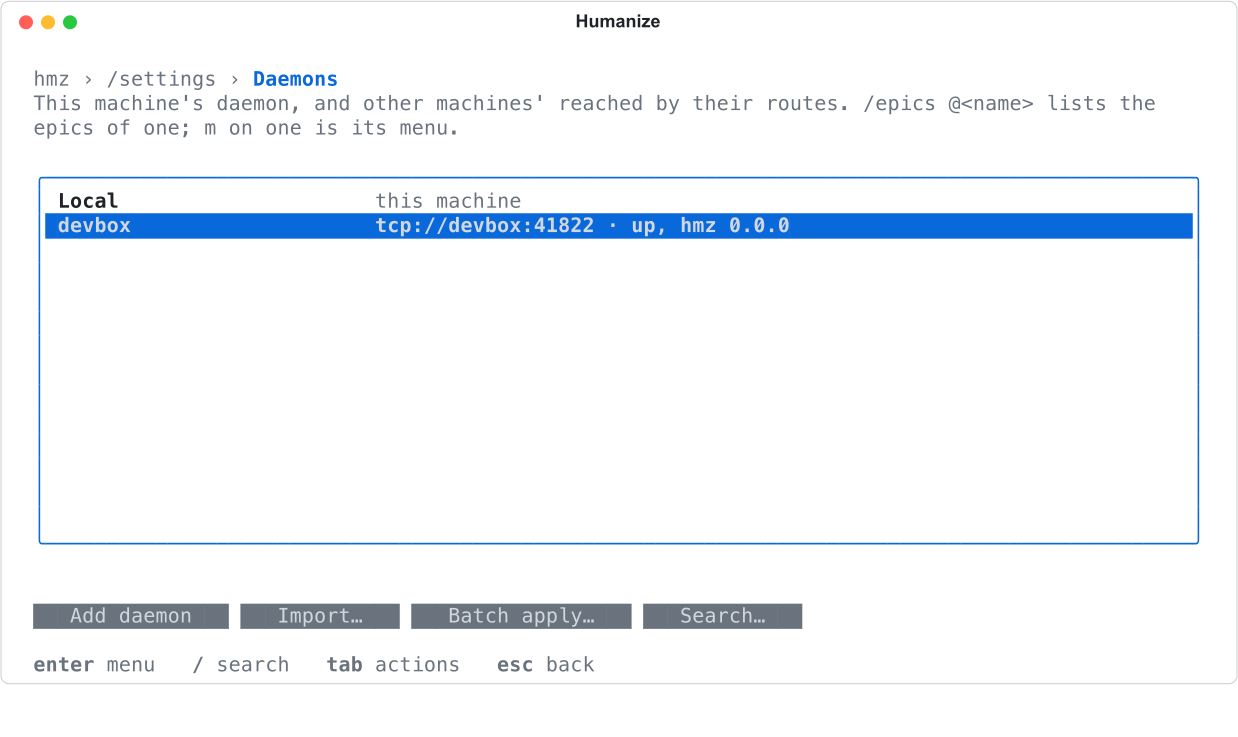
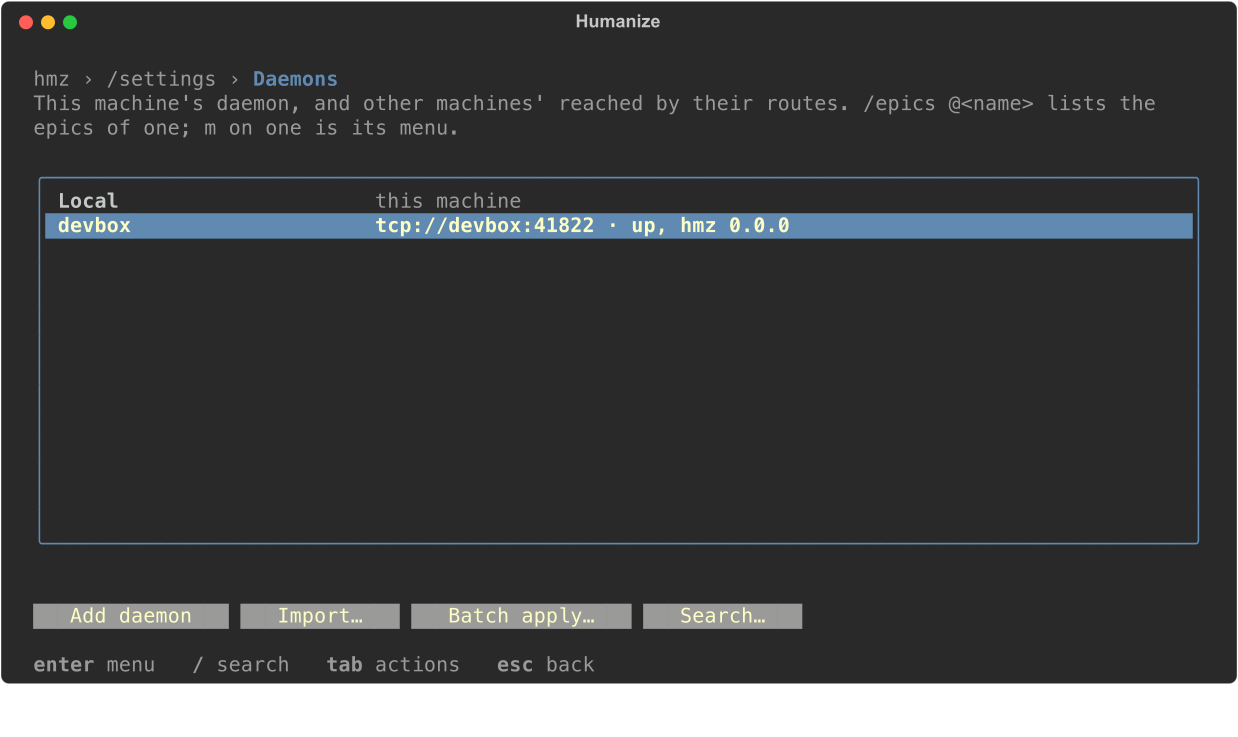
| Action | What it does |
|---|---|
Add daemon | Opens a form with a name and a mode: Pairing code, SSH Config (a host from your ssh config), Custom (host, user, port, identity file, proxy jump, options), or Routes (comma-separated routes in order). |
Import… | Adds hosts from your ssh config, with one toggle per host. |
Batch apply… | Copies this machine's general, nous, runtimes, and backup settings to the selected machines. |
Press enter or m on a machine to open its menu: connect, edit…, remove, or copy name. Connected machines also show pair a device… (which copies a new pairing code) and devices… (where pressing enter on a device revokes it once you confirm). The menu of Local has only these two.
Run /epics @devbox to list another machine's epics. Select a running epic to follow it live. See History and search.
From the command line
Run these commands to manage the local daemon's paired devices.
| Command | What it does |
|---|---|
hmz daemon pair | Prints a pairing code. |
hmz daemon devices | Lists paired devices: name, fingerprint, when each was added, and when it was last seen. |
hmz daemon devices revoke NAME | Removes a device and closes its sessions. |
How routes connect
A route specifies one path to a daemon, such as stdio:ssh://devbox or tcp://devbox:41817. See the daemon reference for the full route grammar.
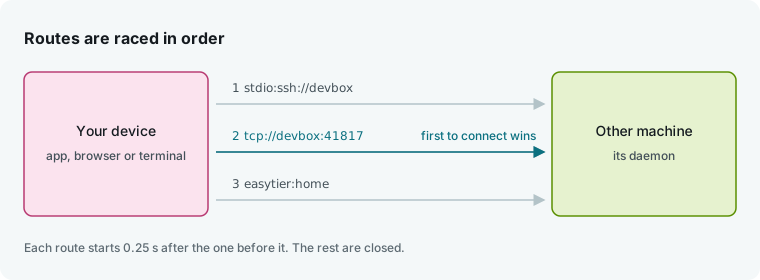
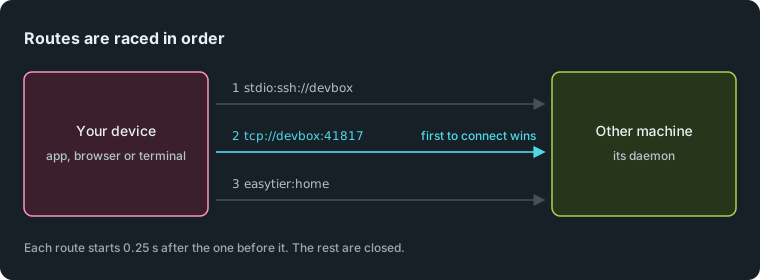
Humanize tries each route 0.25 s after the previous one, or immediately if all earlier routes fail. The first route to connect wins. If a connection drops, Humanize retries forever, starting at 1 s and doubling the wait up to 60 s. Click Connect to retry immediately.
Good to know
- The desktop app, each browser, and the terminal each keep a separate machine list. The terminal stores its list under the
daemonskey insettings.yaml. - Machine names must start with a letter or digit, followed by letters, digits,
.,_, or-. The namelocalis reserved. - SSH connections never prompt. Hosts that require a password or have an unknown host key fail.
- The terminal has no EasyTier form. Add the matching
easytierentry to the localsettings.yaml, then add the machine using its pairing code. - A daemon holds at most 16 unclaimed pairing codes. Generating a 17th code drops the oldest one.
- See Security for details on pairing and permissions for unpaired devices.