Find and install flows
Humanize ships with no flows. Install flows from a flowverse (a git repository that lists flows and their releases) or keep your own in a local folder.
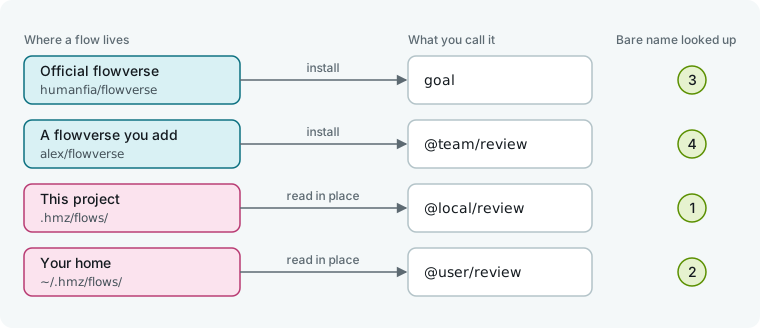
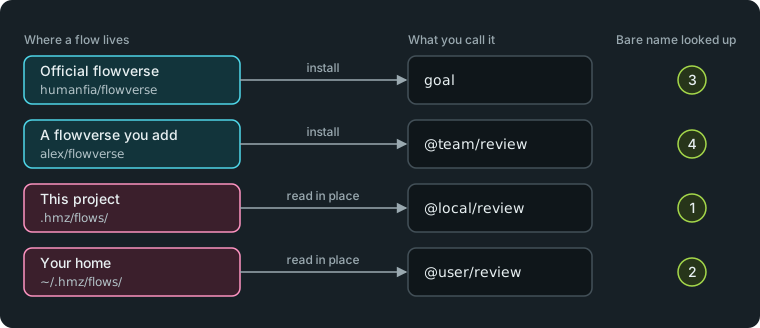
Where flows come from
| Source | What it is | Name of a flow in it |
|---|---|---|
official | The official flowverse, humanfia/flowverse. Always listed and cannot be removed. Browse its catalogue at humanfia.ai/flows. | goal |
| A flowverse you add | Any other index repository under a name you choose. | @team/review |
local | Flows in .hmz/flows/ of the project. | @local/review |
user | Flows in ~/.hmz/flows/. | @user/review |
Humanize looks up bare names like review in the project first, then your home folder, then official, and then other flowverses in alphabetical order. A project flow overrides an official flow of the same name.
Chat requires no flow. See Chat with an agent.
In the app
Click Flows in the sidebar to see the Installed and Flowverses tabs.
Install a flow
- Open the Flowverses tab. It opens on the Official flowverse.
- Pick a release next to the flow. The list defaults to the newest stable release and marks pre-releases with
(pre). - Click Install. Humanize installs the release and its dependencies, then shows the installed version on the row.
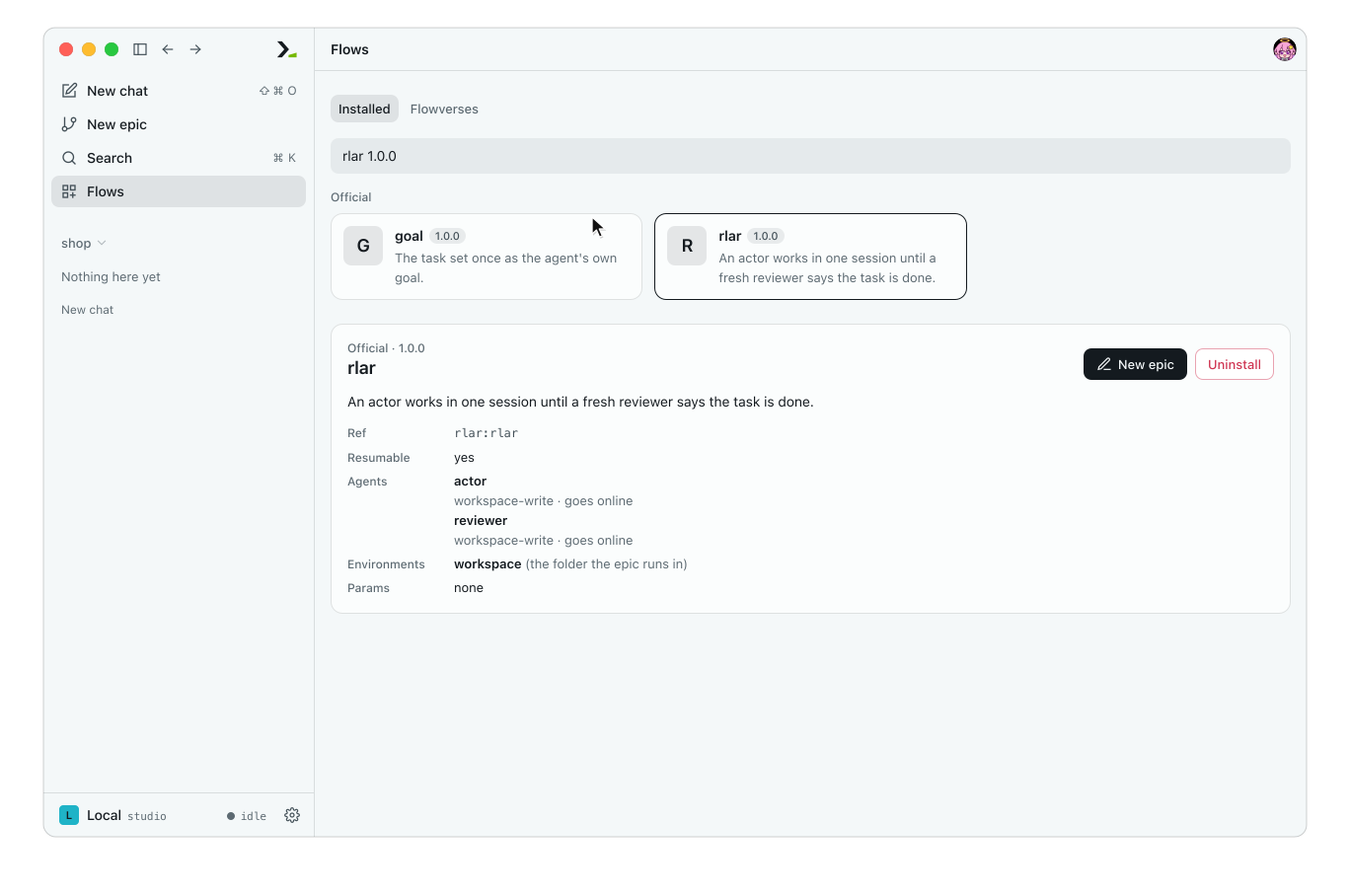
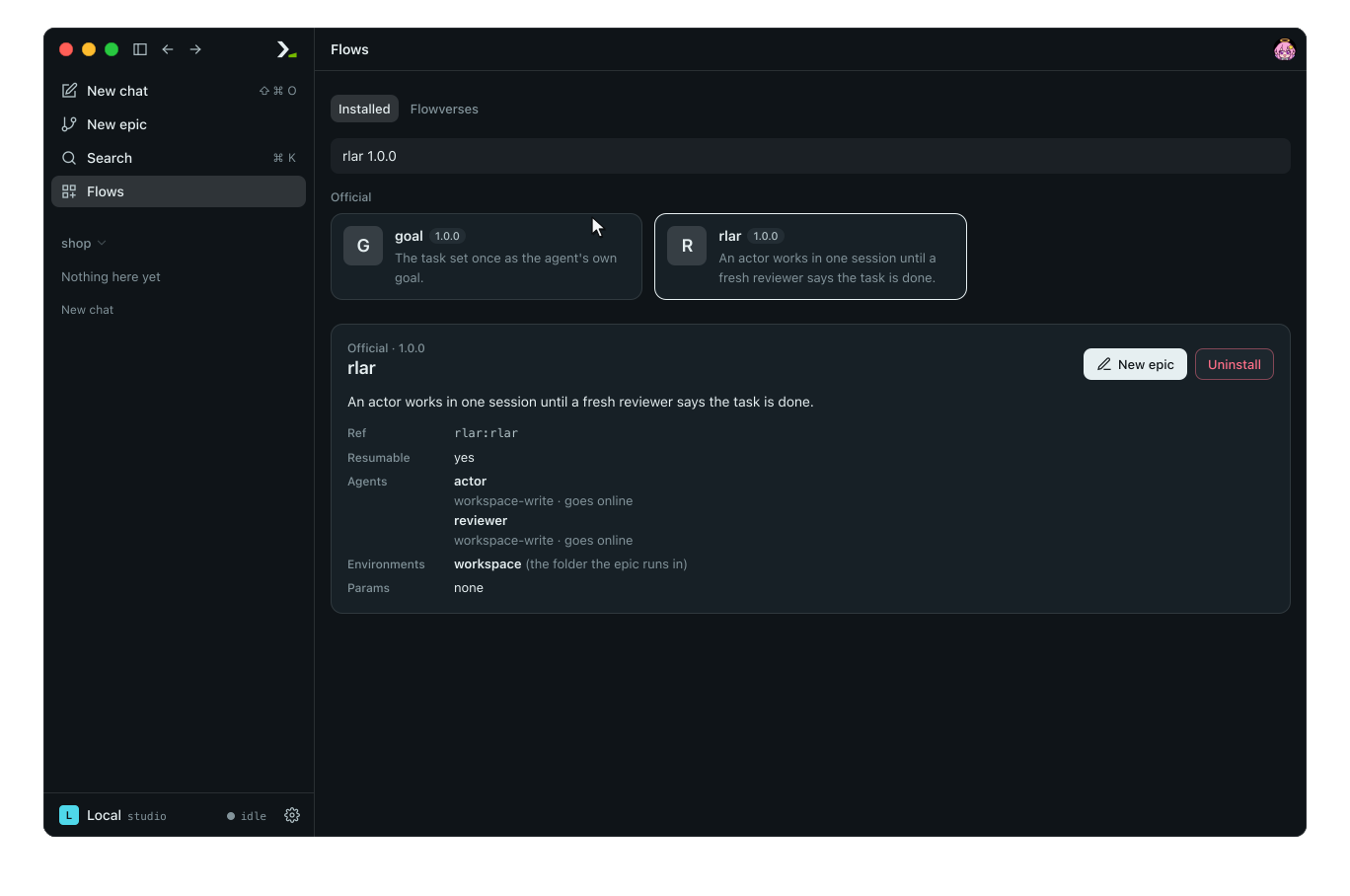
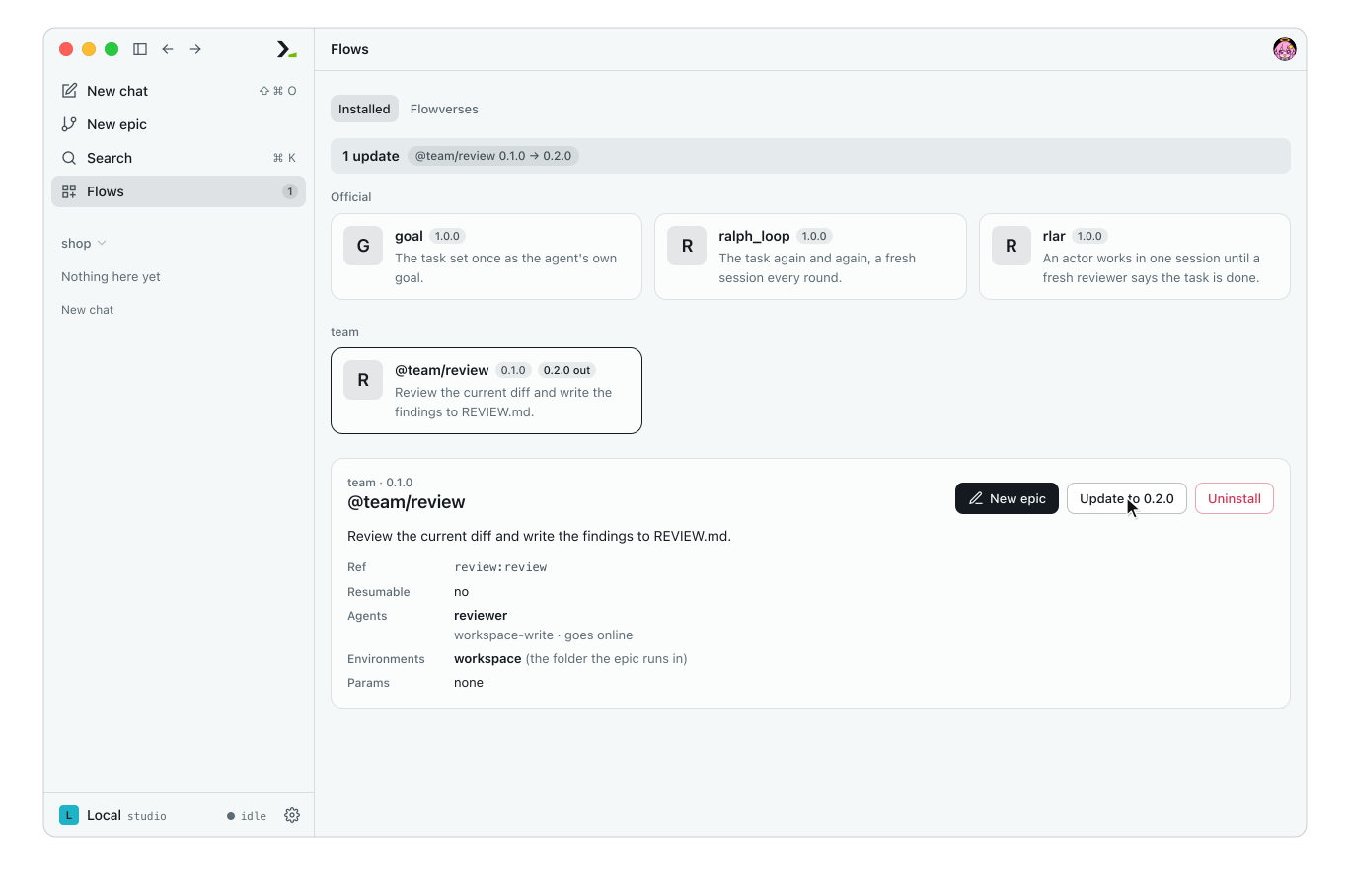
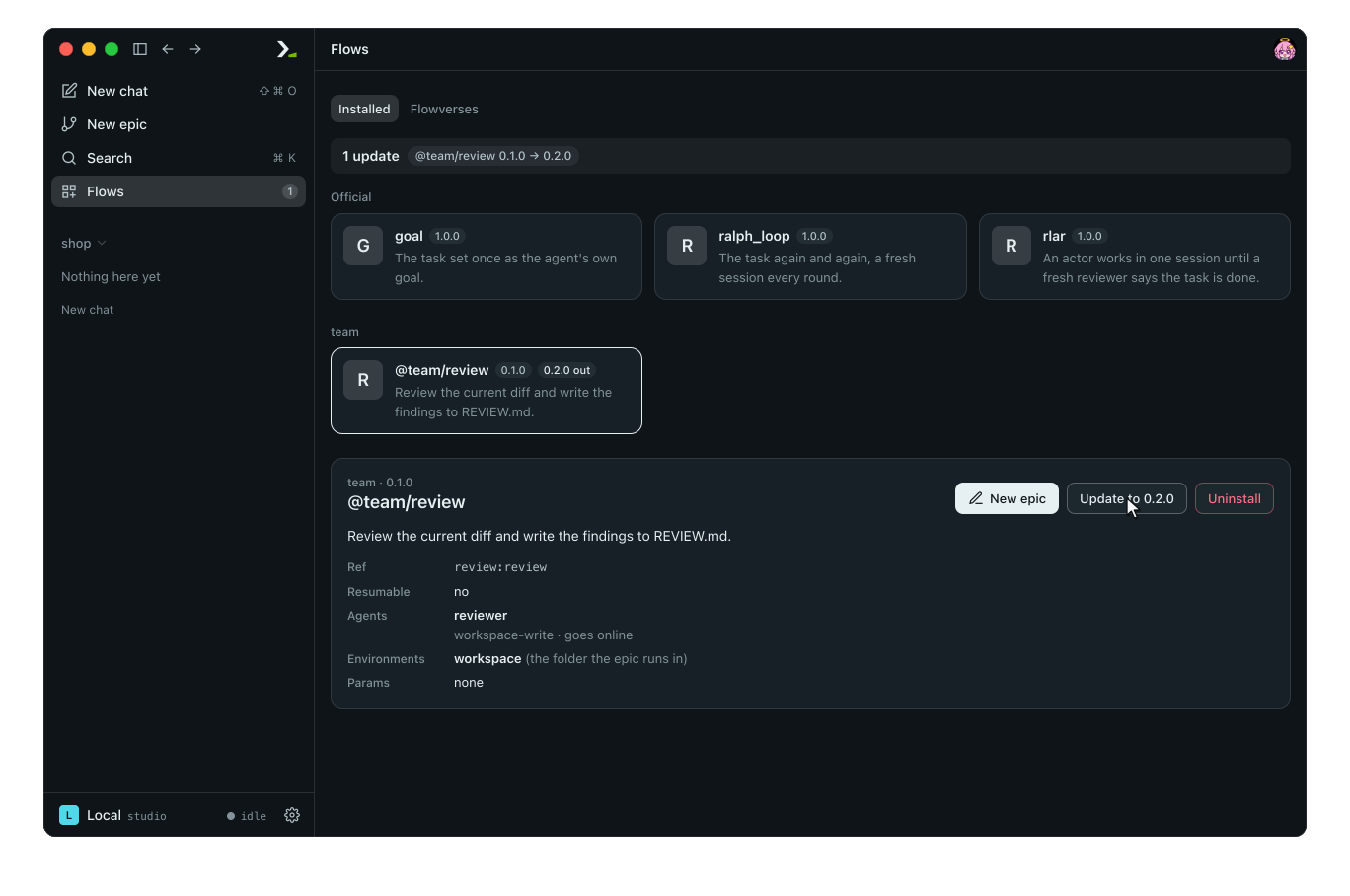
Installed flows appear as cards on the Installed tab. Click a card to view its description, ref, resumability, agent roles, environments, and params. Click New epic to run it; see Start an epic.
When no flows are installed, the tab shows No flows installed yet. with a Browse Flowverses button.
Update, switch release or uninstall
When a flowverse lists a newer release for an installed flow, the sidebar Flows item shows a badge, the page shows 1 update, and the flow card shows 0.2.0 out.
| To | Do this |
|---|---|
| Update | Open the card and click Update to 0.2.0, or right-click the card and select it from the menu. |
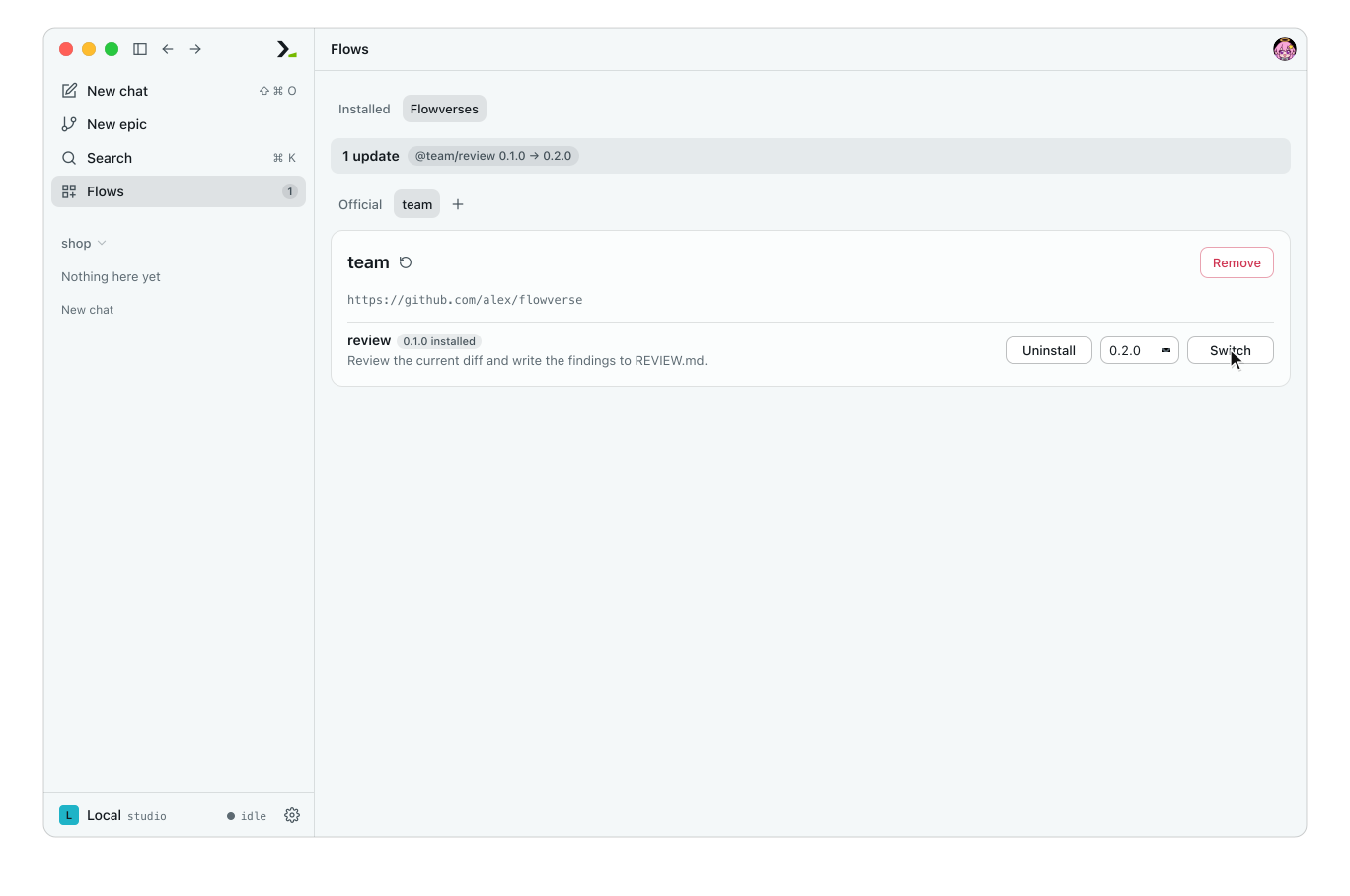
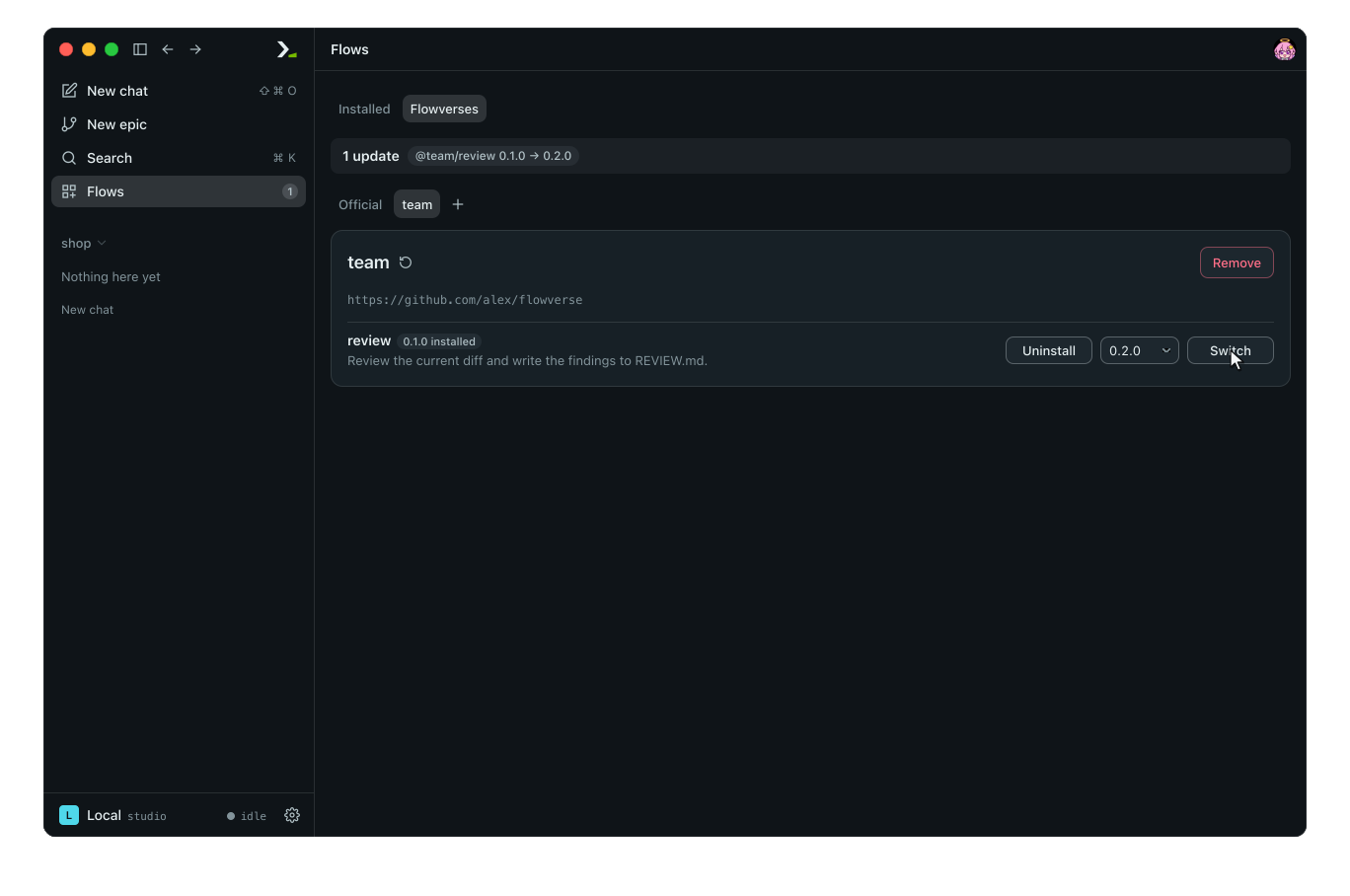
| Switch to another release | On the Flowverses tab, select the release next to the flow and click Switch. A ✓ marks the installed release. |
| Uninstall | Click Uninstall on the open card or on the Flowverses tab, then confirm. |
| Copy a flow's name | Right-click the card and select Copy name. The menu also offers New epic and Show. |
Add, fetch or remove a flowverse
- On the Flowverses tab, click Add flowverse (the plus icon next to the tabs).
- Enter the repository in URL as
owner/repofor GitHub or as a full URL. Leave Name blank to use the repository name, or type your own. - Click Add. A new tab appears listing the flowverse's flows.
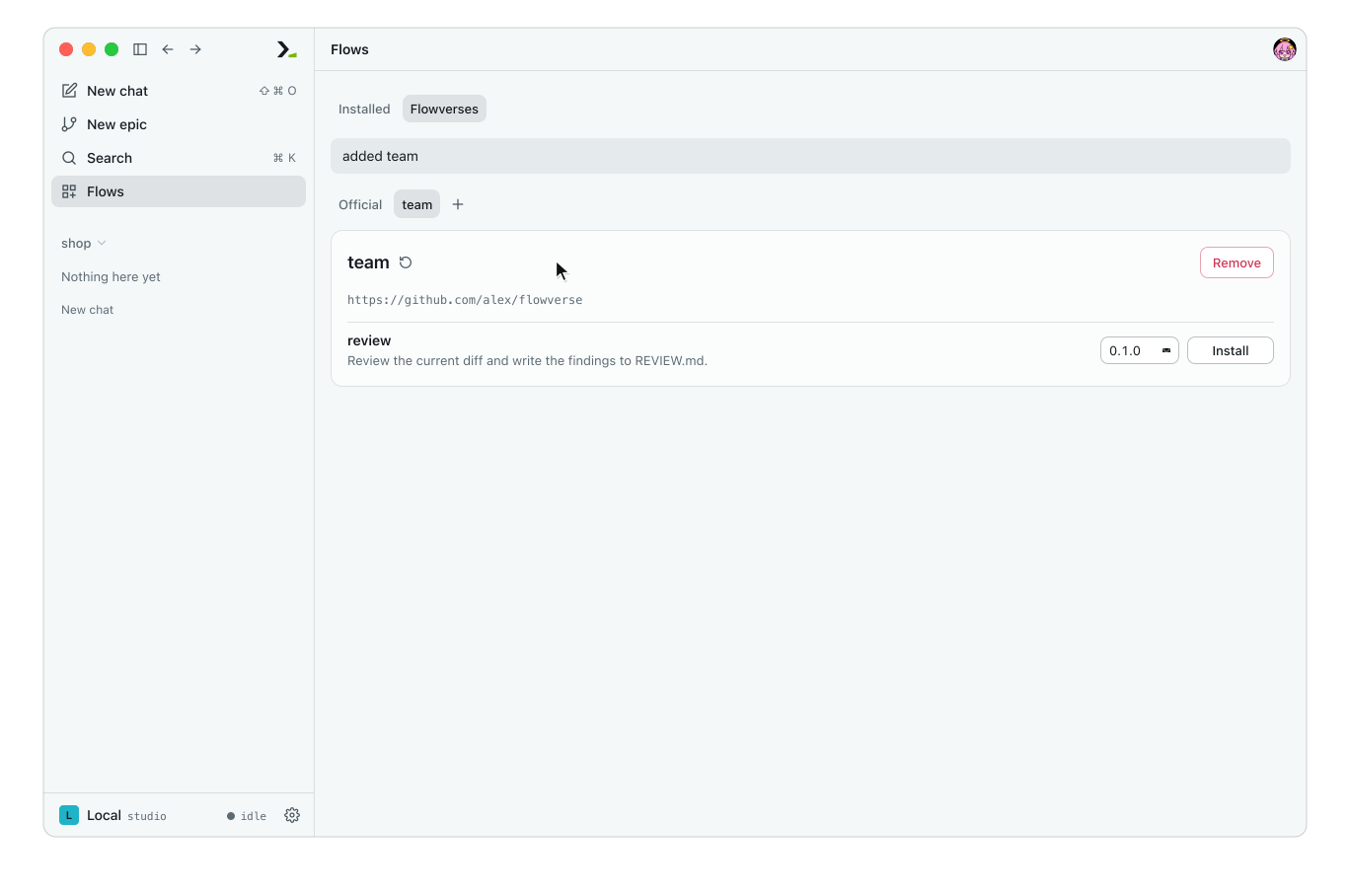
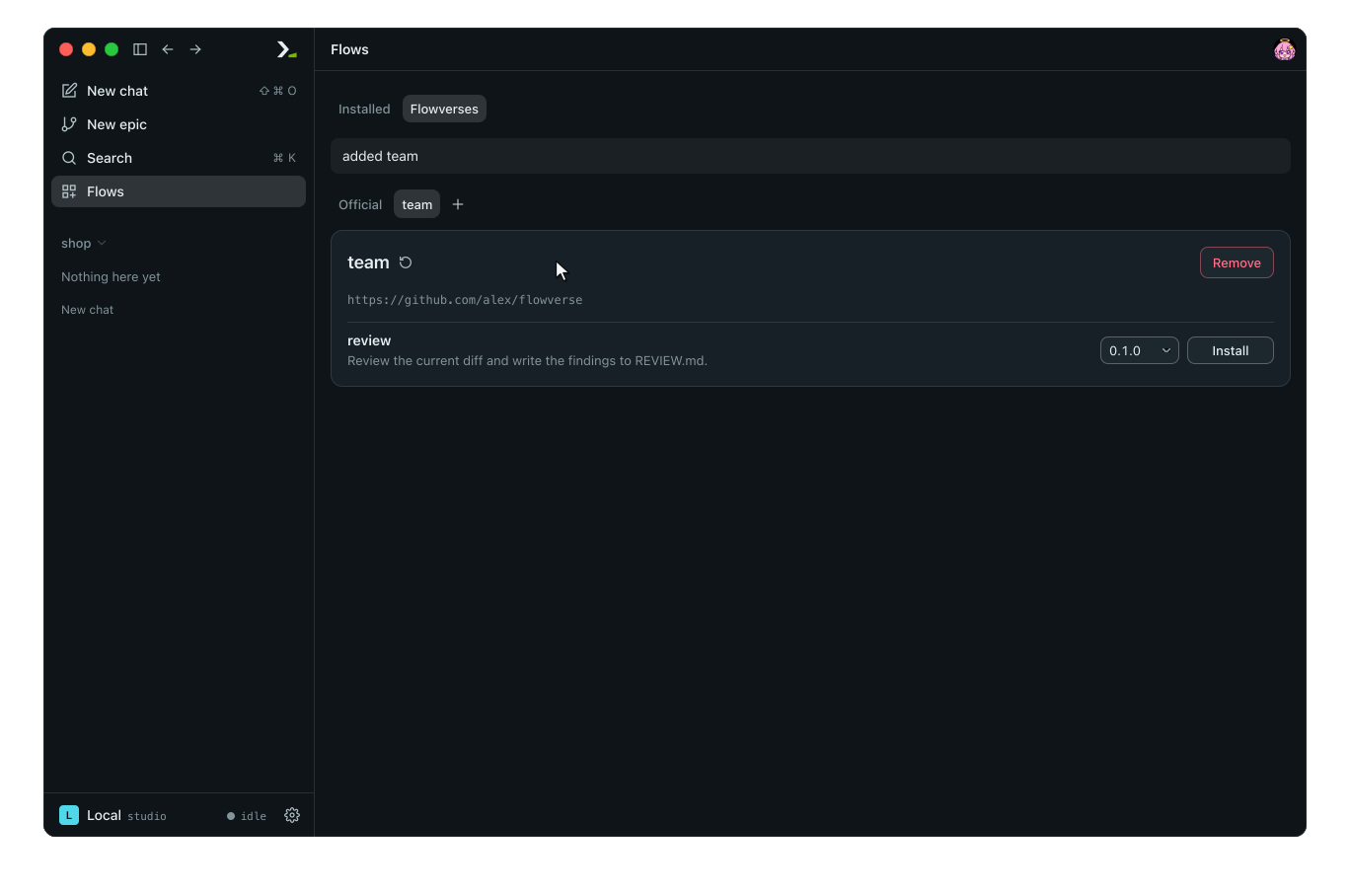
Click Fetch (the round arrow next to the flowverse name) to reload the index and check for new releases. Click Remove and confirm to delete the flowverse and uninstall all flows from it. Right-click a flowverse tab for Open, Fetch, and Copy URL.
An unfetched flowverse displays Not fetched yet. with a Fetch button. If the index contains invalid entries, expand the skipped line to see each entry and why it failed.
In the terminal
Type /flow and press enter. The menu opens on Installed, grouping ready-to-run flows by source and marking available updates with ↑. Press enter to open a row, tab to focus buttons, / to search, m to open the row menu (open, update, uninstall, copy here and copy name for a flow; open, fetch, remove and copy URL for a flowverse), and esc to go back.
Install a flow
- Press tab, then press enter on Install more… to list flowverses.
- Press enter on a flowverse, then on a flow. Releases appear newest first with their tag, commit, and licence.
- Press enter on a release to install it and its dependencies immediately.
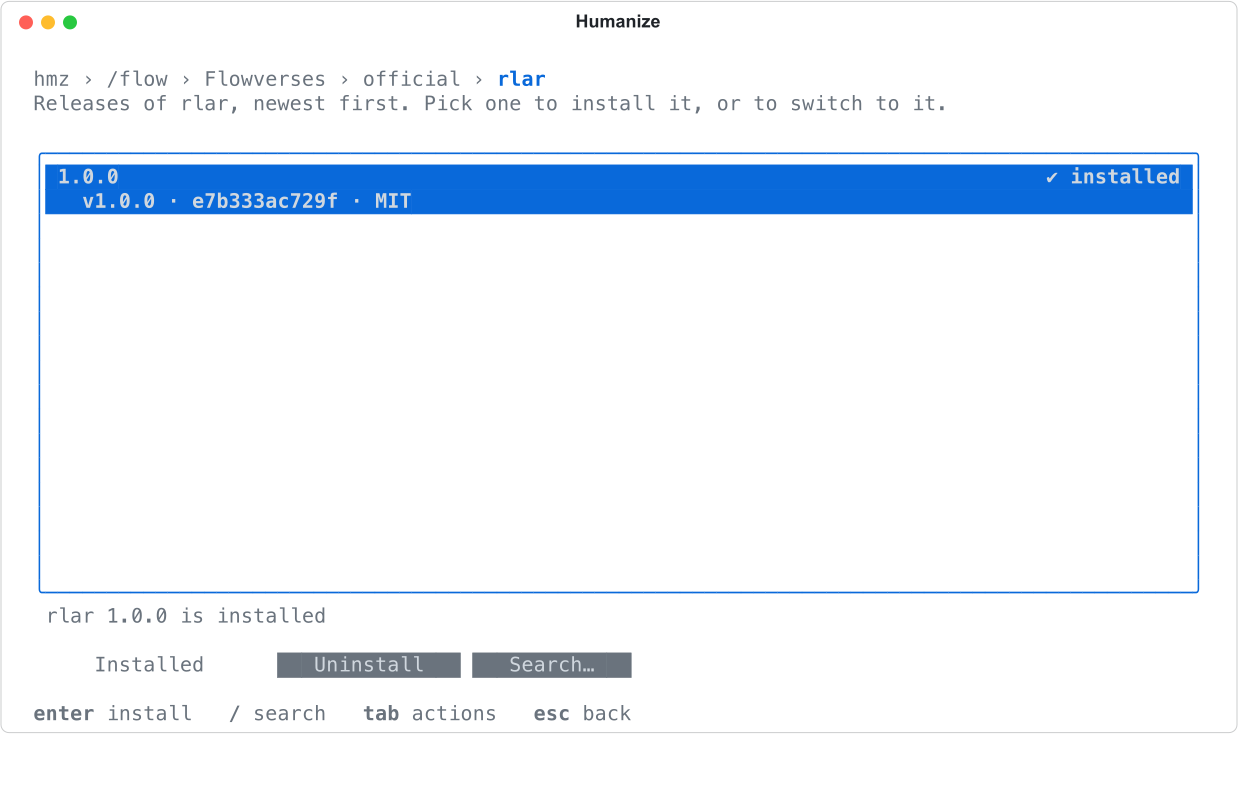
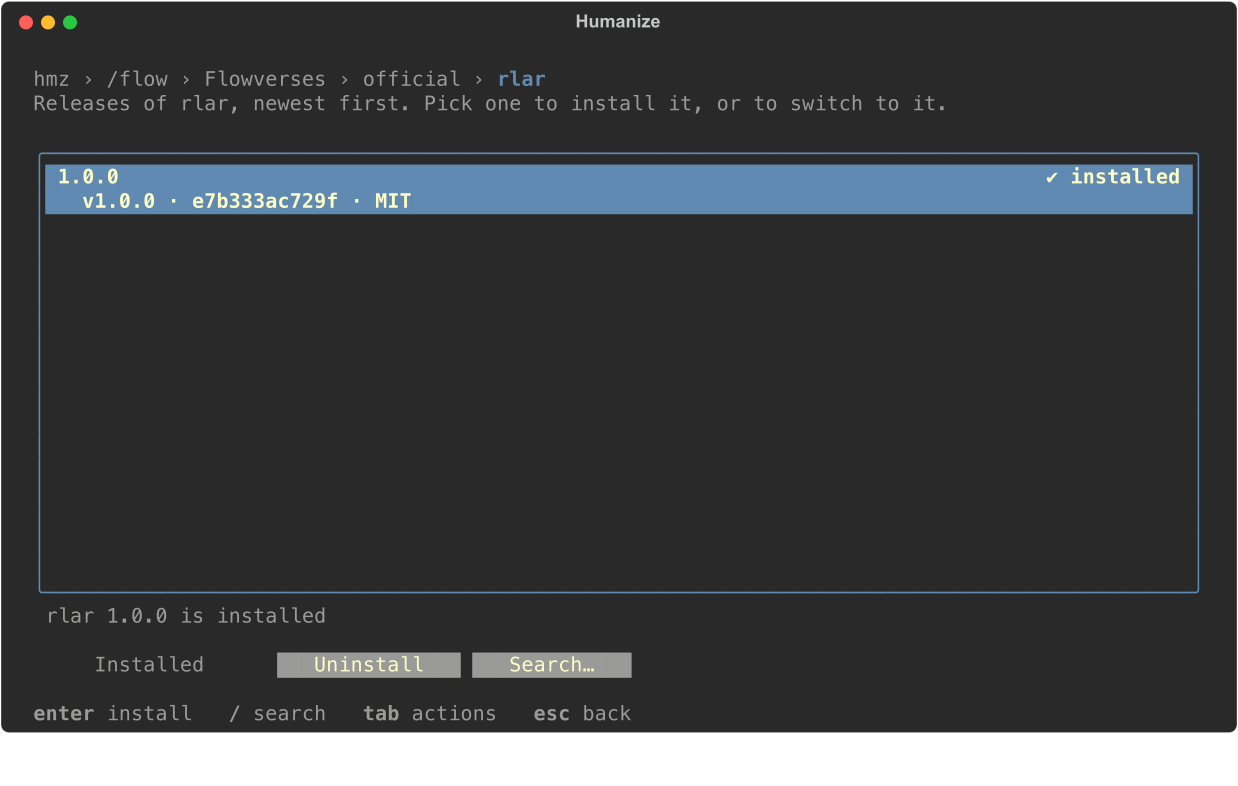
Press enter on a different release of an installed flow to switch versions.
Update, uninstall or copy
Select a flow on the Installed screen and use the action buttons.
| Button | What it does |
|---|---|
| Install more… | Opens the flowverse list. |
| Update | Installs the newest available release, if one exists. |
| Uninstall | Removes the installed flow. |
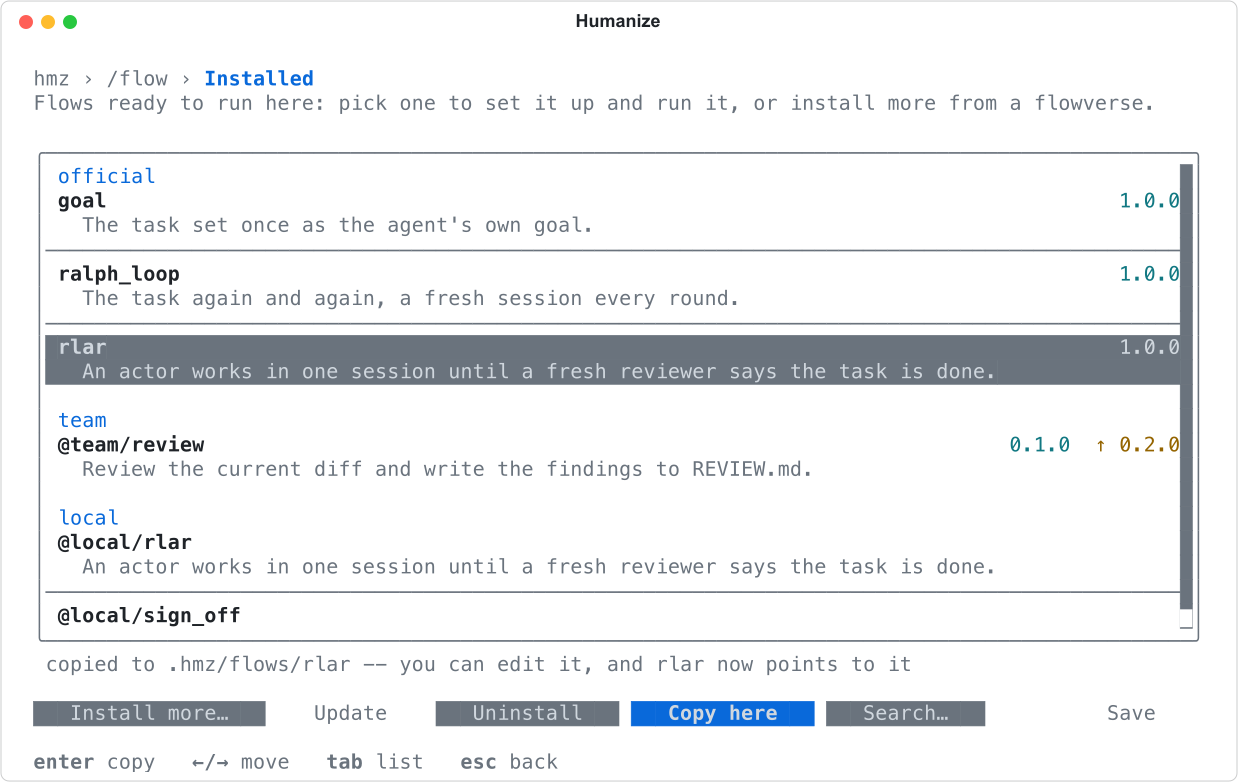
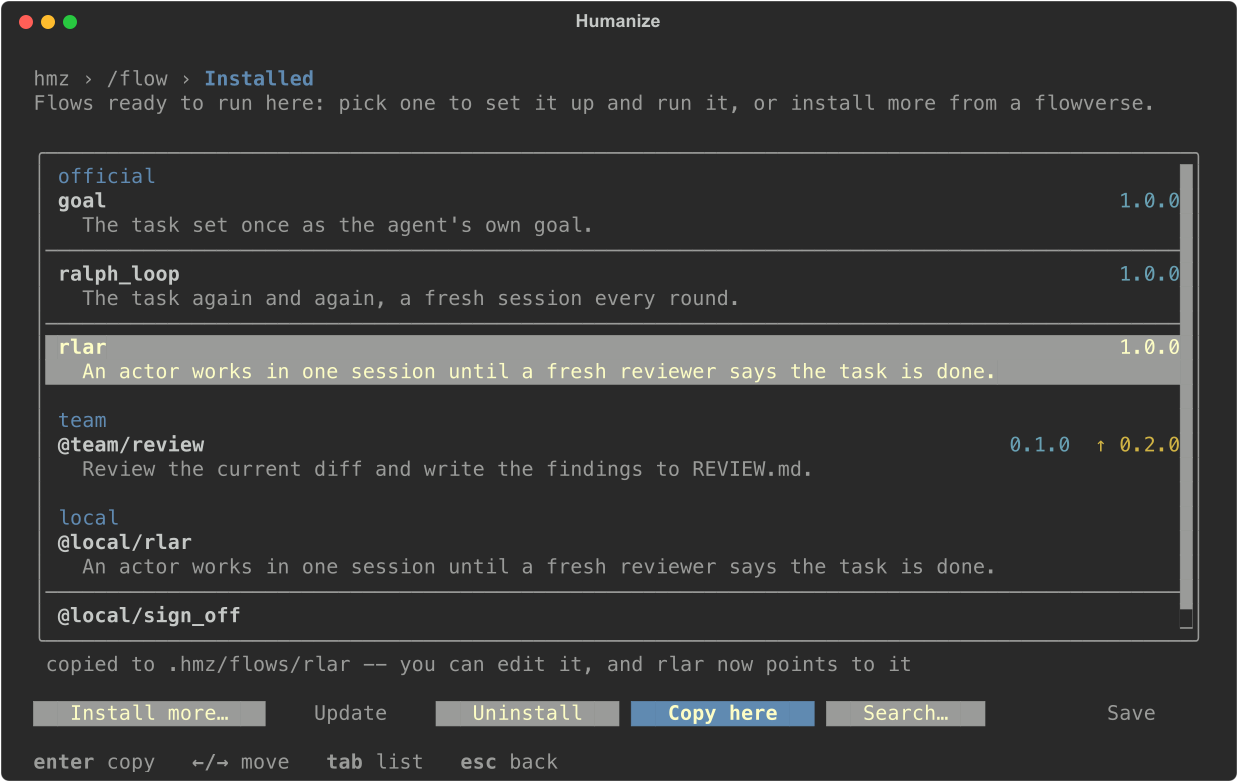
| Copy here | Copies the flow into the project's .hmz/flows/ folder for editing. Disabled for project flows, and refused if the project already has a flow of that name. |
| Search… | Filters the list. |
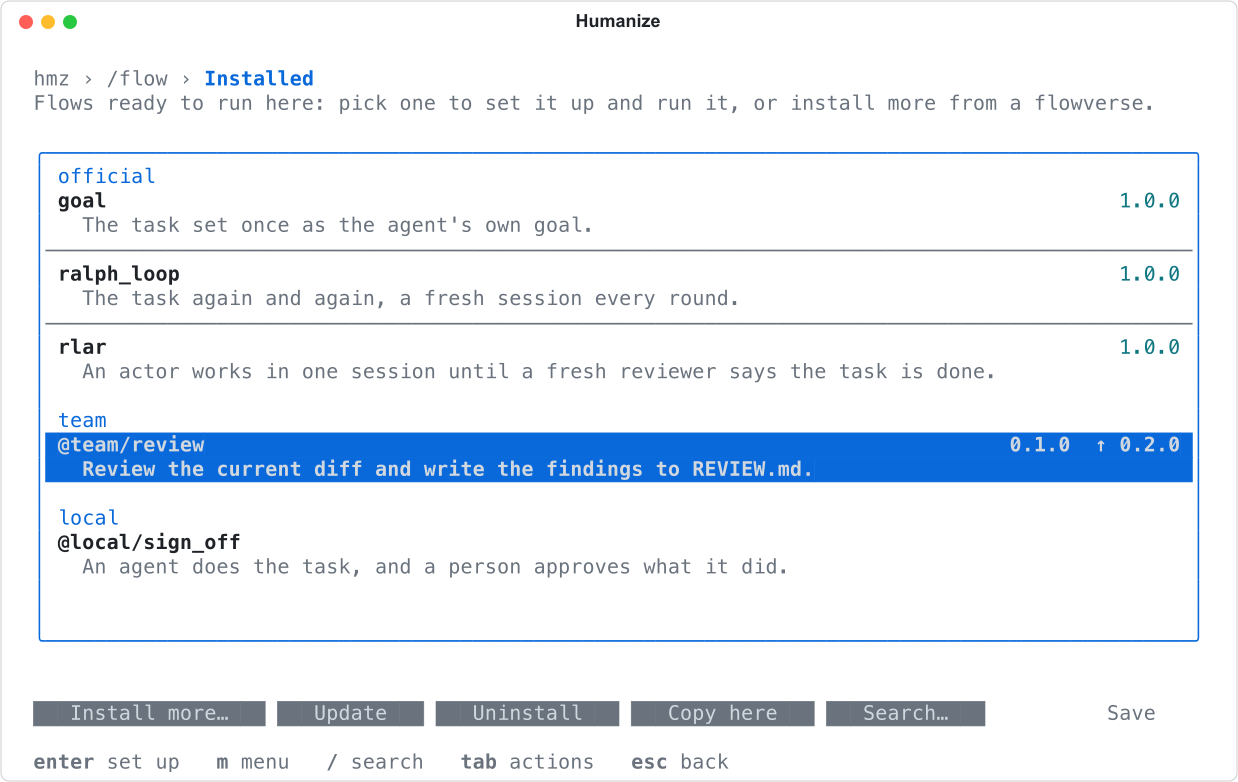
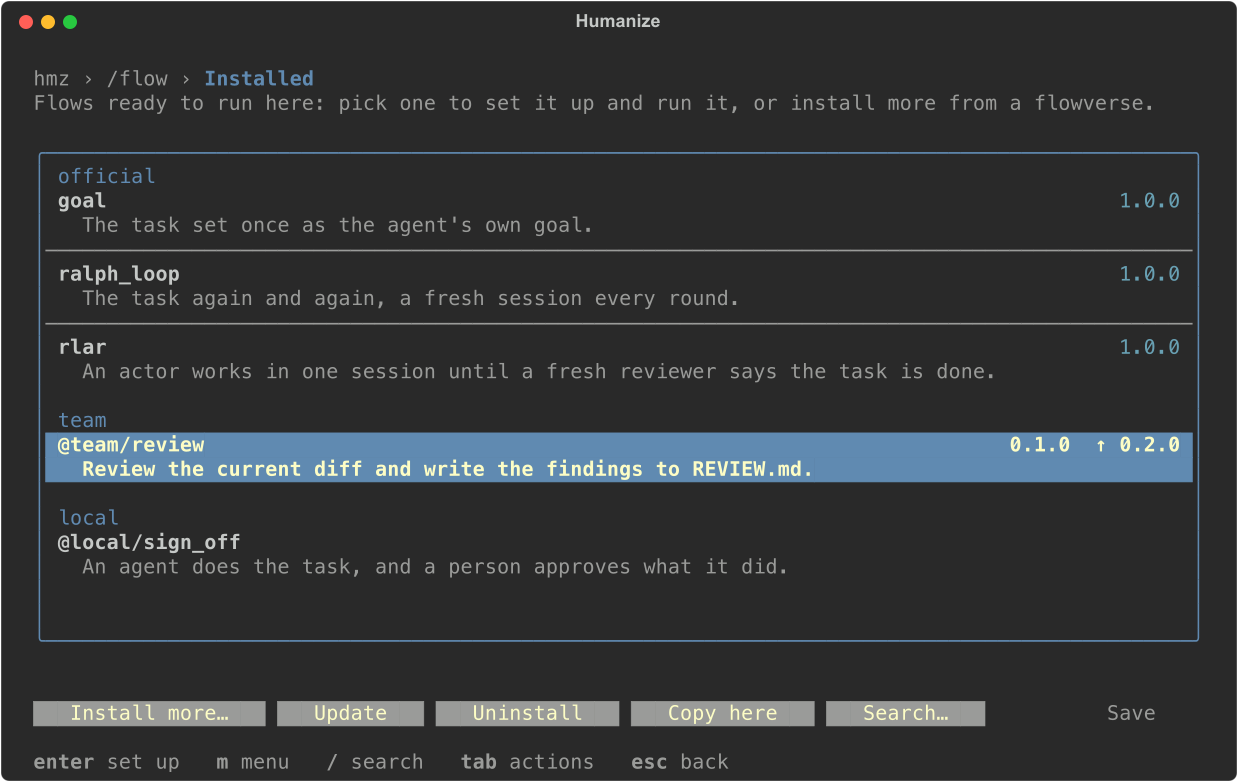
Use Copy here to customize an installed flow without losing your changes on the next update. Because project flows take precedence, the bare name now resolves to your local copy.
Add, fetch or remove a flowverse
Open Install more… to manage flowverses. Add flowverse… prompts for repository and name. Fetch again reloads the index for the selected flowverse. Remove prompts Remove <name>? and deletes the flowverse along with any flows installed from it.
All flow and flowverse actions take effect immediately. Save only saves the role configuration for the flow you are setting up to run.
Add your own flows
Place a Python file or folder in .hmz/flows/ to use it in the current project, or in ~/.hmz/flows/ to use it everywhere. Humanize loads these flows directly and reloads them whenever you save changes. To build one, see Write your first flow and Anatomy of a flow.
In the app, the Flows page lists installed flows and those in ~/.hmz/flows/, but not a project's. Select project flows from the New epic page.
Start a flow from a chat line
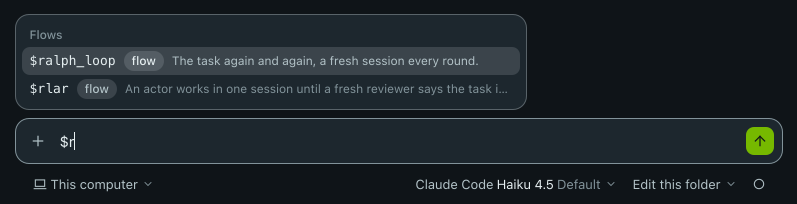
Type $ followed by a flow name and a task in the chat input to start a flow. Type $ by itself to autocomplete flow names.
$ralph_loop Add a discount code to checkout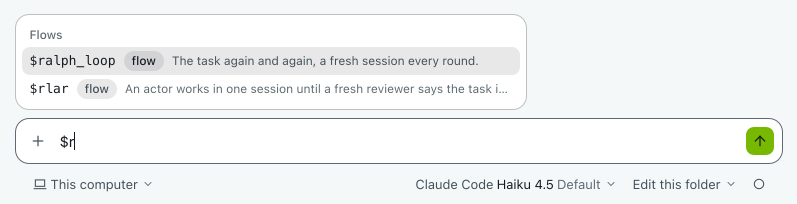
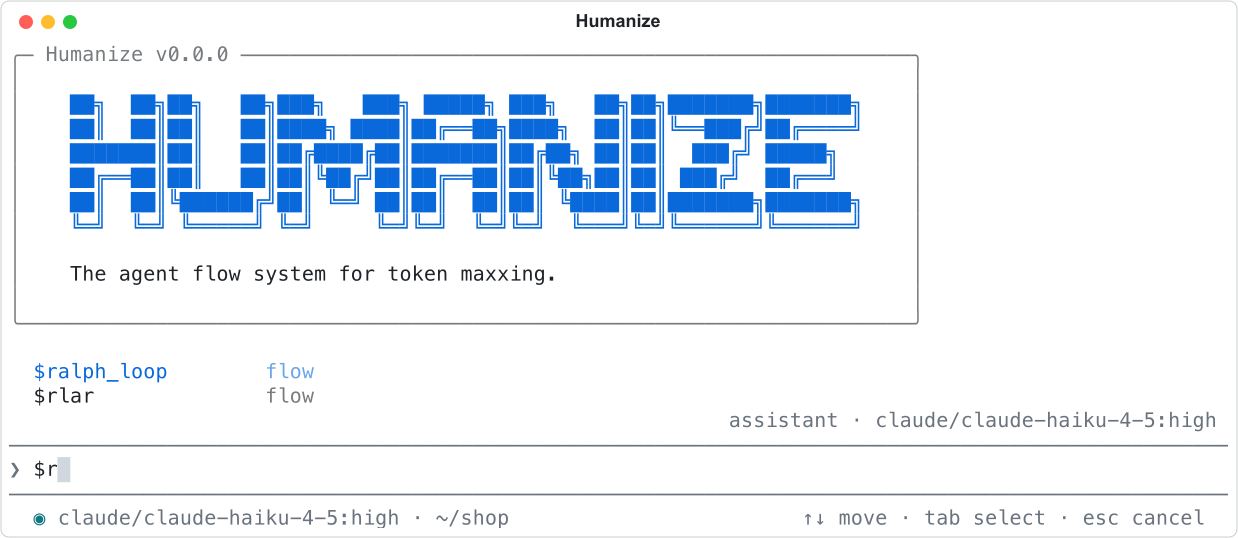
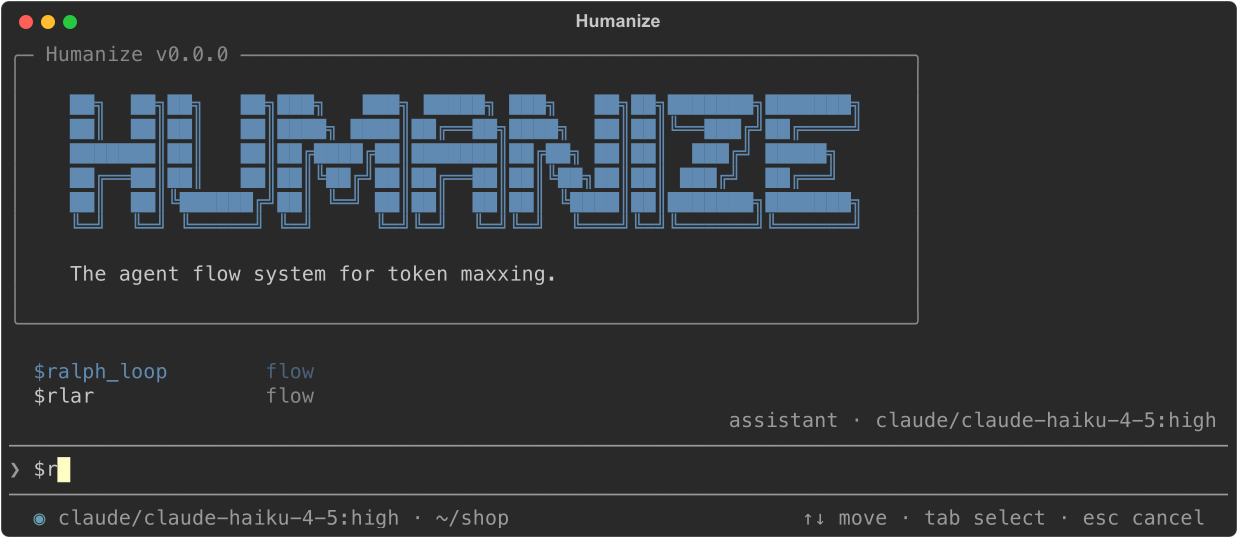
- In the terminal, the flow starts immediately if it is already configured for this folder. Otherwise,
/flowopens on its roles and starts the epic when you save. If you omit the task, nothing starts: the flow is set up and the terminal tells you to give it a task with/flow <name> <task>. - In the app, the flow starts using the folder's last setup for that flow. If you omit the task, the New epic page opens with the flow selected.
- Typing
/flow ralph_loopfollowed by a task works the same way in both interfaces.
If a skill shares a name with a flow, the chat preference determines which one $ runs. See Commands, skills and files in a chat.
From the command line
Run hmz exec -f to execute an installed flow by name. hmz exec never installs flows; if a flow is available in a flowverse but not installed, the command fails and tells you which flowverse provides it. -f also takes a path to a flow file or folder, starting with ., / or ~.


Install flows using the app, the terminal, or The Python SDK. For all hmz exec flags, see The command line.
Good to know
- Flows are Python code, and Humanize loads the code of every installed flow to list it. Only install flows from repositories you trust.
- Fetching updates the list of available releases without changing your installed flows, and overwrites any local changes in the index cache.
- You cannot uninstall a flow while another installed flow depends on it. Uninstall the dependent flow first.
- In the app, installing, switching, uninstalling and removing a flowverse are refused while an epic is running on the machine:
An epic is running: flows change once none is. - A flowverse name starts with a letter or digit, uses letters, digits,
.,-and_, and cannot beofficial,localoruser. - While a flow is running in the terminal,
/flowonly opens that flow's roles, and$returnshmz: cannot choose a flow while one is running. - Opening the terminal fetches all flowverses in the background without installing updates, skipping any index you have edited by hand. When updates are available, the status line shows
1 flow update. - Flows that fail to load appear in red in the terminal along with the error message.
- To publish your own flows or host a flowverse, see Publish and version a flow.