Coding agents
Humanize drives the coding agent CLIs installed on your machine, which it calls harnesses. It does not contain a model of its own.
Install a coding agent
Humanize names an agent by its installed command and offers it when that command is on your PATH.
| Command | Name in the app | Also accepted on a command line | Install |
|---|---|---|---|
claude | Claude Code | claude-code | npm i -g @anthropic-ai/claude-code |
codex | Codex | npm i -g @openai/codex | |
agy | Antigravity | antigravity | from its vendor |
cursor-agent | Cursor CLI | cursor-cli | curl https://cursor.com/install -fsS | bash |
dsh | DeepSeek Harness | deepseek-harness | the hmz[dsh] extra |
grok | Grok Build | grok-build, grokbuild | npm i -g @xai-official/grok |
kimi | Kimi Code | kimi-code | npm i -g @moonshot-ai/kimi-code, and the hmz[kimi] extra |
mcode | MiniMax Code | minimax, minimax-code | npm i -g @minimax-ai/code |
mimo | MiMo Code | mimocode, mimo-code | npm i -g @mimo-ai/cli |
omp | Oh My Pi | oh-my-pi | curl -fsSL https://omp.sh/install | sh |
opencode | OpenCode | npm i -g opencode-ai | |
pi | Pi | npm i -g @earendil-works/pi-coding-agent | |
qwen | Qwen Code | qwen-code | npm i -g @qwen-code/qwen-code |
litellm | LiteLLM | the hmz[litellm] extra |
dsh and litellm are Python packages, not standalone programs. dsh, kimi and litellm require an hmz package extra; if an extra is missing, the terminal agent list shows the exact command to install it.
litellm is a bare model with no tools, not a coding agent. See Gateways, LiteLLM and custom CLIs to use it or to add any other CLI that speaks the Agent Client Protocol.
After installing an agent, sign in once in its own CLI or add an account in Humanize. See Accounts.
Check what each agent supports
Every agent can chat and fill a standard flow role. When a flow requires extra capabilities for a role, Humanize offers only the agents that support them.
| Agent | Steer a running turn | Its own goal command | Tools from the flow | Fork a session |
|---|---|---|---|---|
claude, codex | yes | yes | yes | yes |
kimi | yes | yes | no | yes |
pi, omp | yes | no | yes | yes |
dsh | no | yes | yes | no |
grok, opencode, mimo, qwen | no | no | yes | yes |
agy | no | no | yes | no |
cursor-agent, mcode | no | no | no | no |
litellm | no | no | no | yes |
See Agents and harnesses for the full matrix, including hooks and web search.
Name an agent
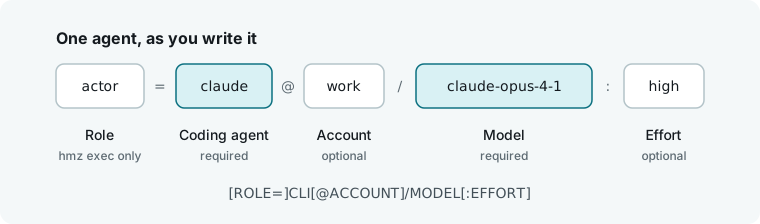
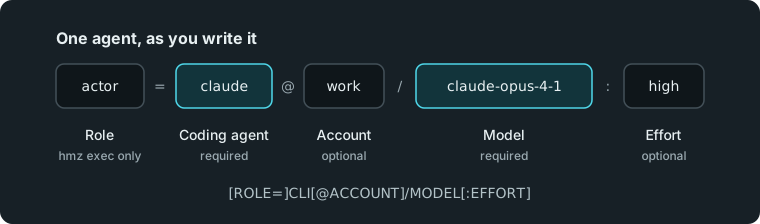
Write an agent as a single string called the agent spec. Every interface reads and stores this format.
| Part | Meaning | When left out |
|---|---|---|
ROLE= | The role of the flow this agent fills. | Required by hmz exec. Not used by hmz chat. |
CLI | The coding agent, by its command. | Required. |
@ACCOUNT | The account its turns run as. See Accounts. | The CLI runs as it is signed in on this machine. |
/MODEL | The model, as the CLI spells it. | Required. |
:EFFORT | How hard the model thinks. See Effort and swarm mode. | The CLI uses its default. :auto means the same. |
A model name may contain / and :. Humanize reads the text after the last : as the effort when it is a plain word. For a model whose own name ends that way, write the effort explicitly, as in qwen3:latest:auto.
Instead of CLI[@ACCOUNT]/MODEL[:EFFORT], you can write the name of a virtual nous such as careful. See Nous: models, retries and fallback.
In the app
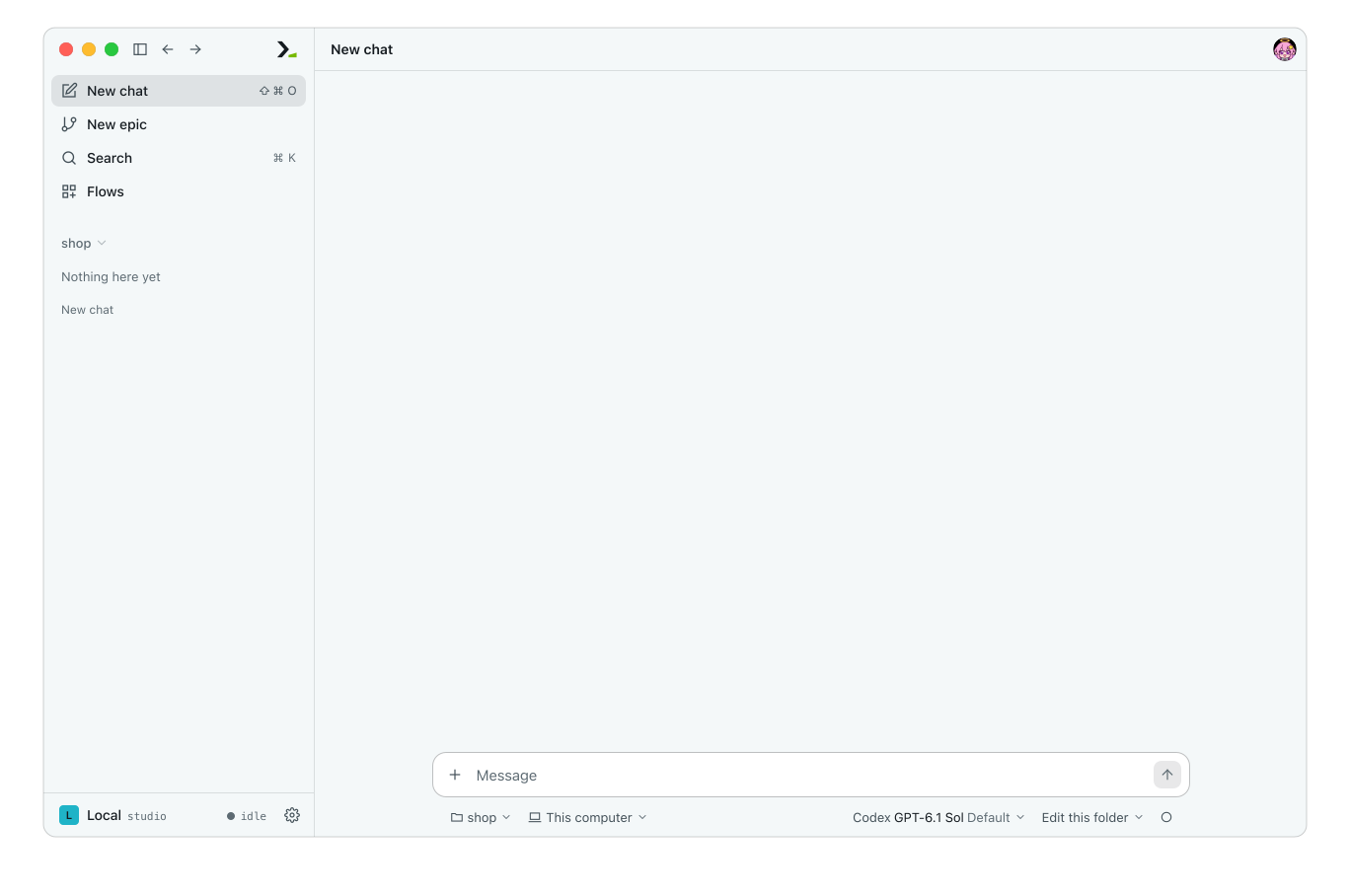
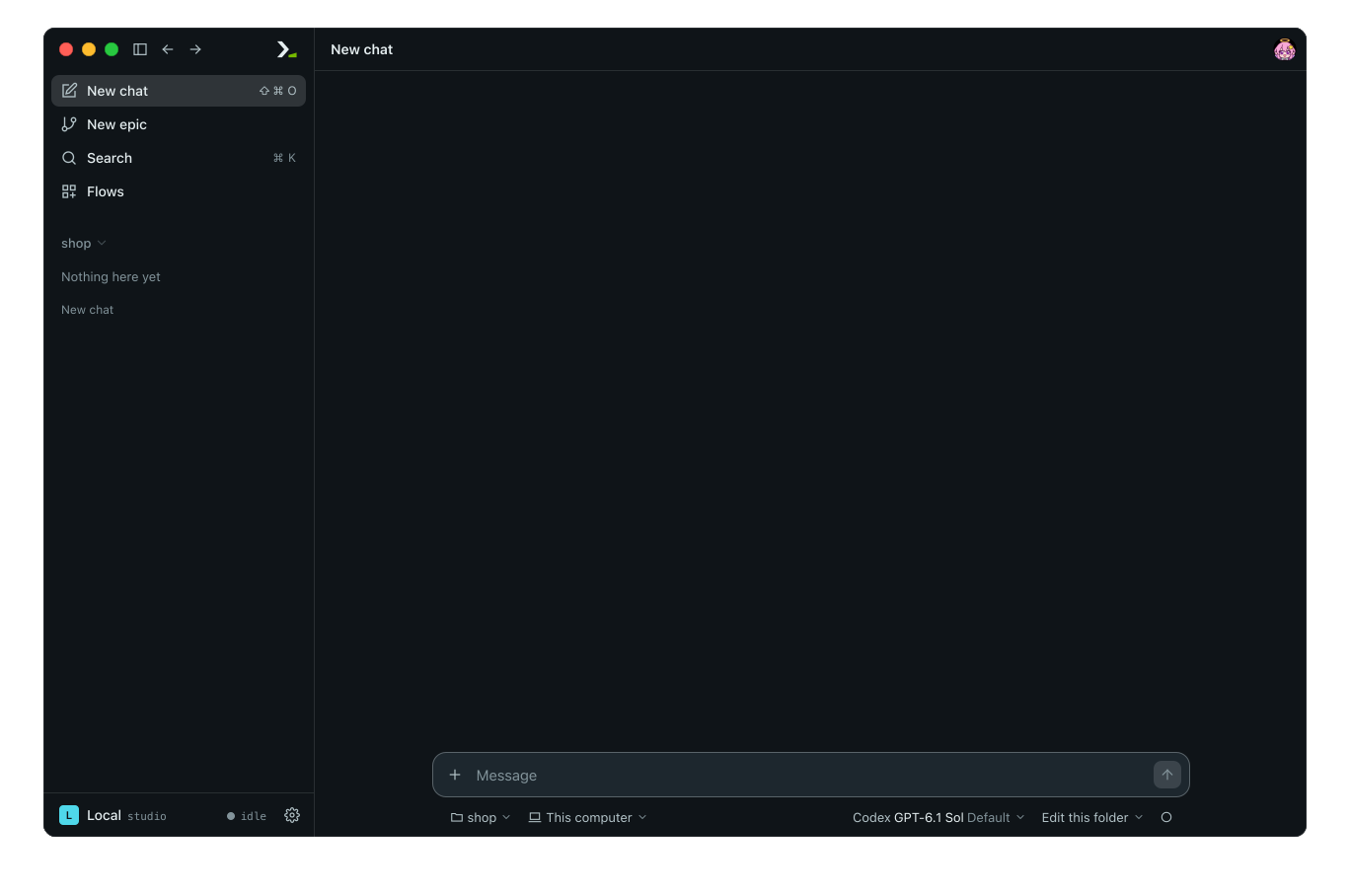
Pick an agent from the nous chip under the message box of a new chat or on each role of a new epic.
- Click the chip to open its levels: Harness, Account, Model and Effort.
- Click Harness and pick a coding agent. The menu advances to Model.
- Pick a model, then set Effort if you want one.
The menu hides any level that has only one choice. Harness appears when at least two agents are installed, and Account appears when you add an account beyond the machine's own sign-in.
The app displays product names: claude reads as Claude Code, claude-haiku-4-5 reads as Haiku 4.5, xhigh reads as Extra high, and an unset effort reads as Default. Unknown names appear as written. Point at the chip to see the raw spec string.
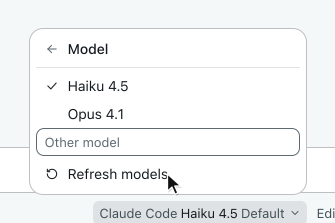
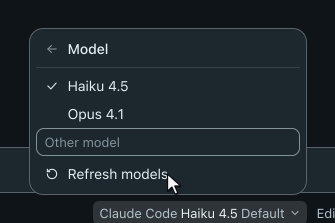
The Model level shows the models the harness last reported. Click Refresh models to query the harness again, or click Other model to type a model name not on the list. When the list has more than ten models, use Find a model at the top to filter it.
If a harness lists no models, the menu shows Not asked yet, Asking… or No models listed. A model removed from the harness is marked as not listed, and a removed CLI is marked as not installed.
To refresh all harnesses at once, open Settings, pick Nous, and click Scan. To refresh a single account, open Settings, pick Accounts, and choose Refresh models under More options.
In the terminal
In hmz, configure an agent on a sheet with four rows: cli, account, model and effort. Open this sheet in one of two ways:
- Type
/settings workspaceand press enter on Chat agent to set the default agent for new chats in the current directory. - Type
/flow, pick a flow, and press enter on a role.
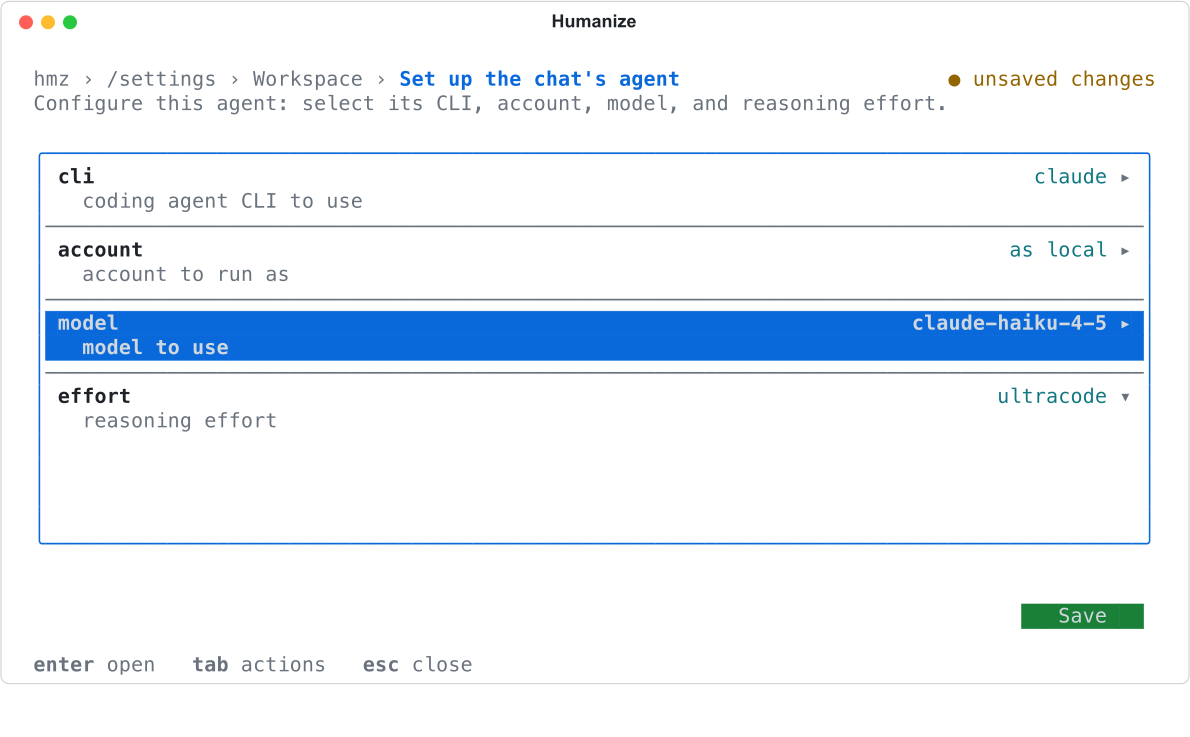
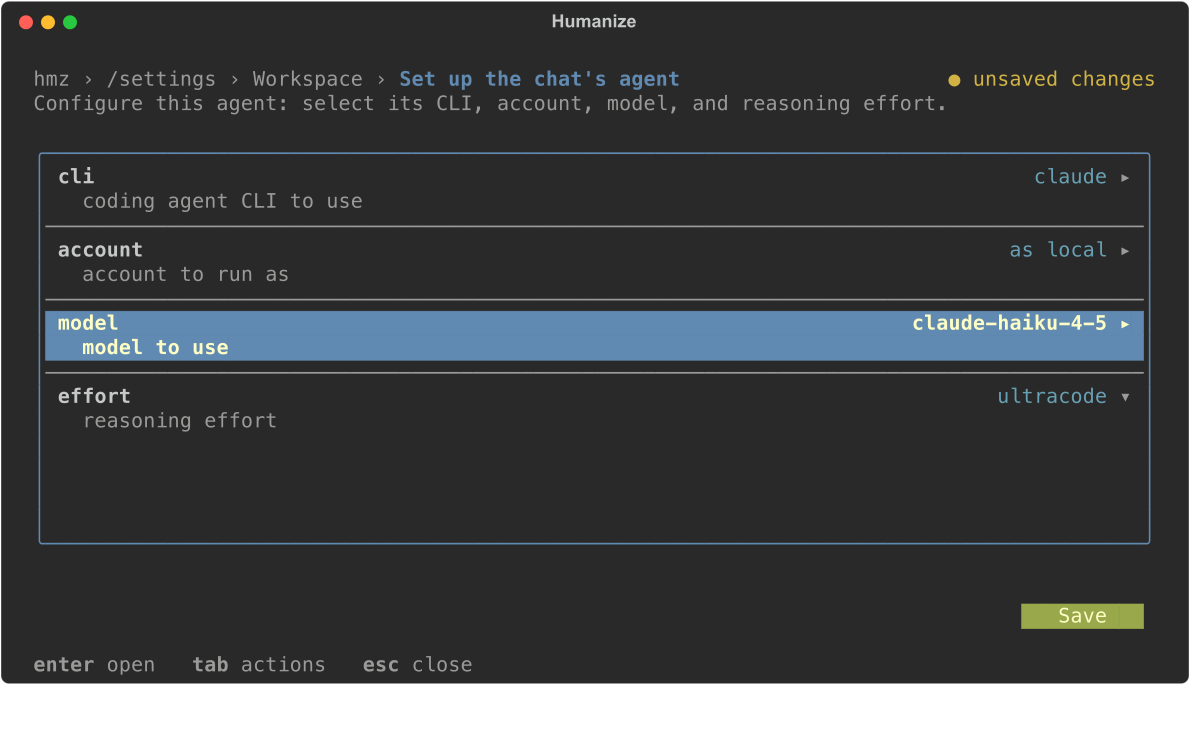
Press enter on cli to list your installed coding agents and the number of models each reported.
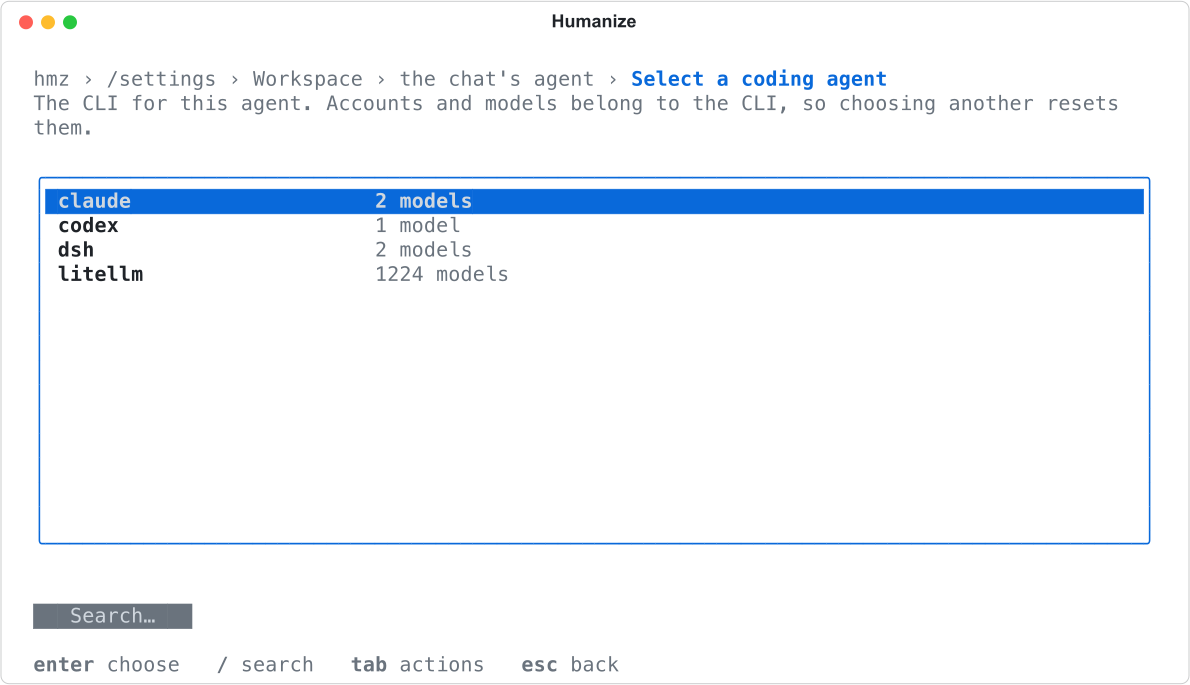
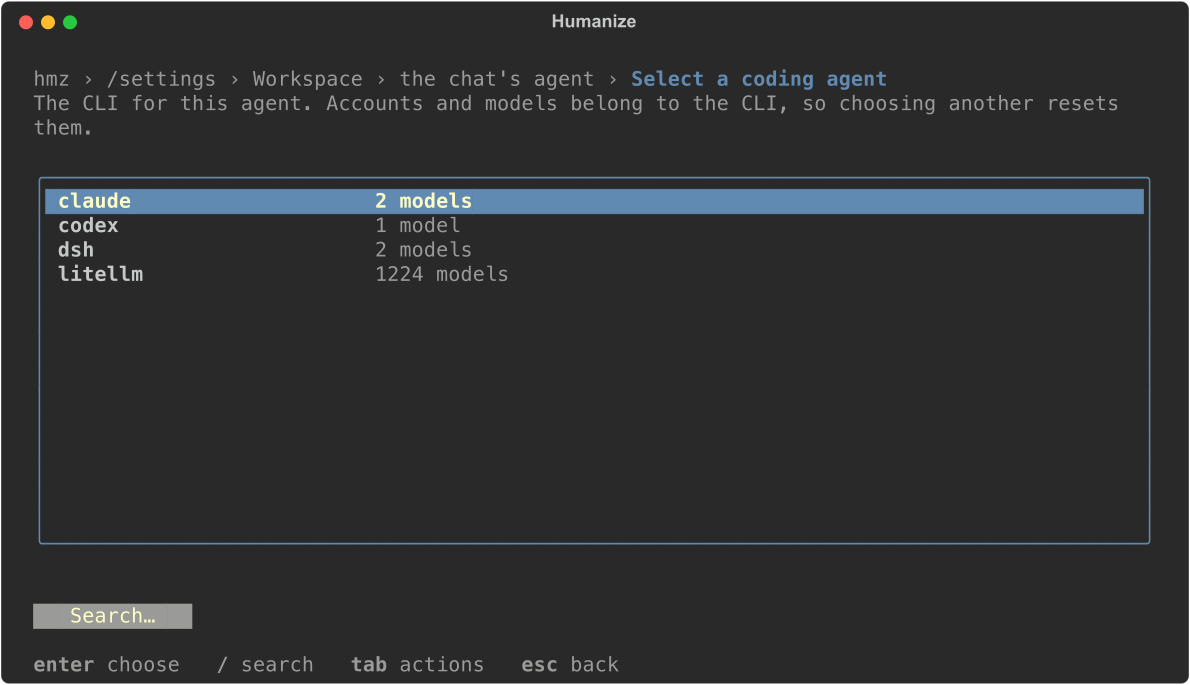
Press enter on model to list the models and their supported efforts. Press / to search the list, or press tab and select Check again to re-query the CLI.
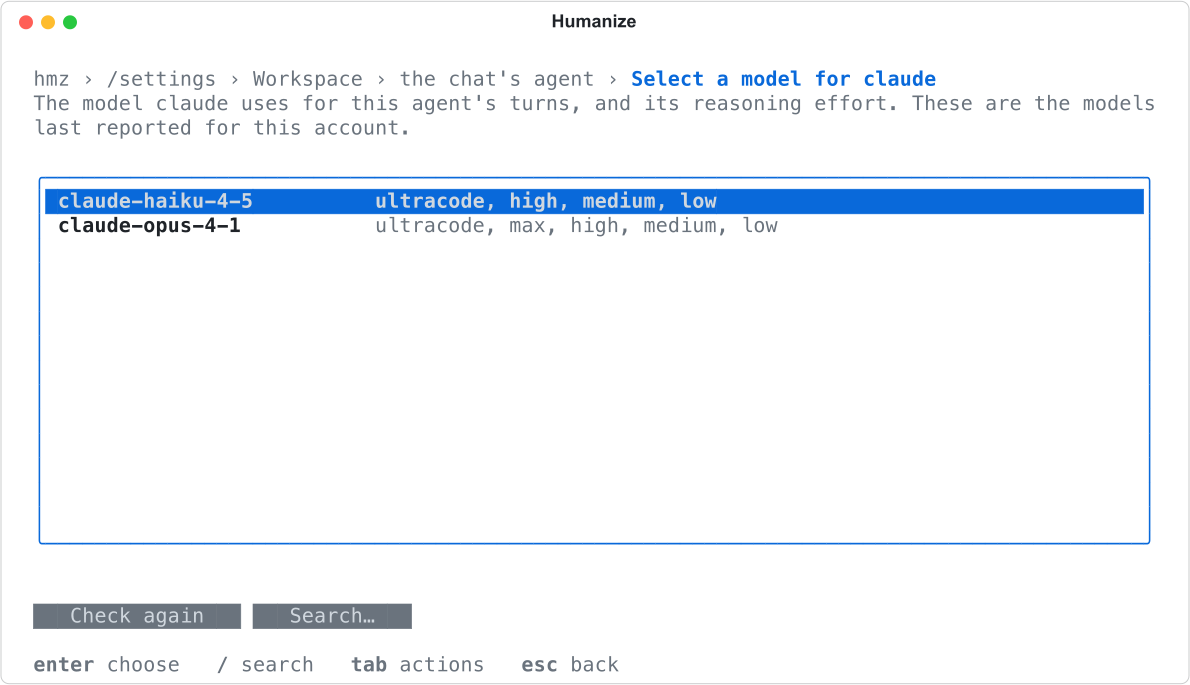
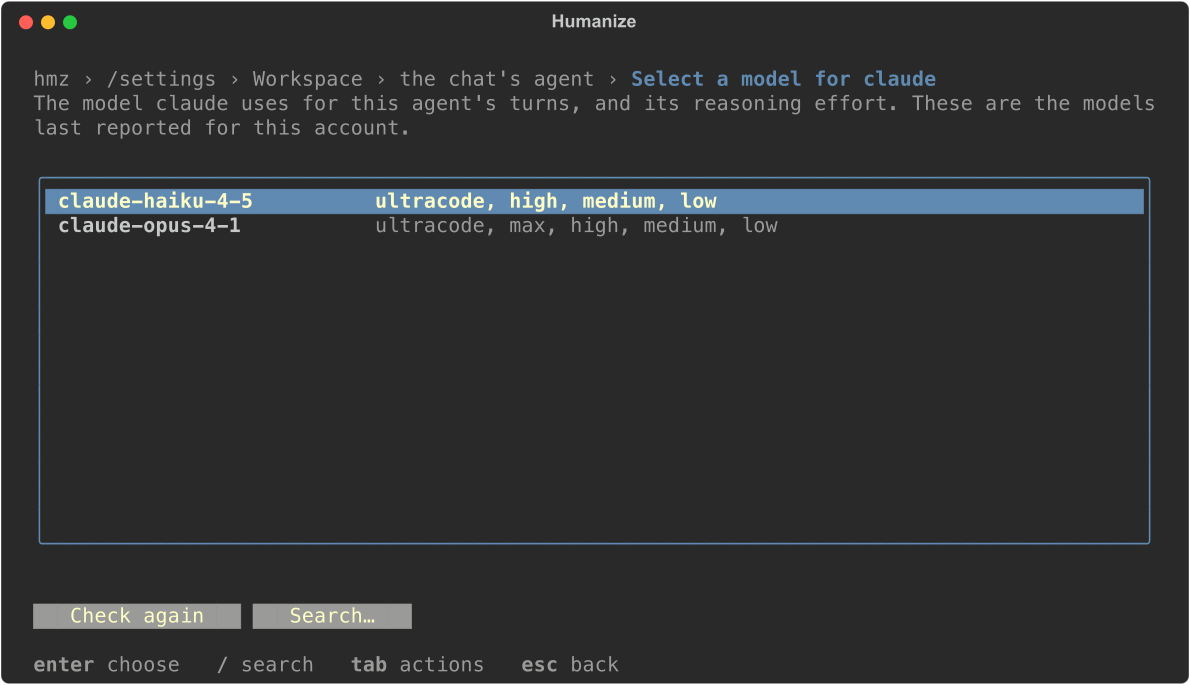
The terminal displays raw IDs rather than product names.
From the command line
Pass -a to hmz exec once per role, or join multiple roles with commas. Pass -a to hmz chat with no role.
hmz exec -f goal -a worker=claude/claude-haiku-4-5:low -p budget.output_tokens=20000 "Add a discount code to checkout"
hmz exec -f rlar -a actor=claude/claude-opus-4-1:high,reviewer=codex@work/gpt-5 -p budget.cost=5 "Add a discount code to checkout"
hmz chat -a claude/claude-haiku-4-5 "Where is checkout handled?"

If you omit -a, hmz chat uses the agent saved for the current directory.
An invalid spec stops the command before anything runs and prints the part to fix: an unknown CLI, a missing model, an @ with no account name, a duplicate role, a role the flow does not declare or fills by itself, a required role left out, or an agent that lacks a capability the role requires.


How Humanize caches model lists
Humanize queries each harness once per account and caches its model list locally so opening a picker never starts a CLI. For gateway accounts, Humanize queries the gateway instead; if the gateway does not respond, the cached list stays unchanged.
Three harnesses do not report all their models, so Humanize supplies built-in lists:
| Harness | Built-in models | When shown |
|---|---|---|
dsh | deepseek-v4-flash, deepseek-v4-pro | Before any query, and for accounts without a custom endpoint |
qwen | qwen3-coder-plus, qwen3-coder-flash | Before any query, and for accounts without a custom endpoint |
mcode | MiniMax's own models | Appended after the providers you added |
On startup, the daemon queries in the background every account it has never queried or last queried more than 7 days ago. Set HUMANIZE_SCAN=off to disable background scans. CLI queries time out after 180 seconds, and gateway queries time out after 20 seconds.
Good to know
- If no coding agent is installed, the terminal says
hmz: no coding agent is installed. - If no installed agent supports a flow role, the app shows No harness installed here can fill it.
- If a CLI has reported no models yet, the terminal says so under its empty model list; select Check again to query it.
- When nothing is saved for a chat or a role, the terminal never selects
litellmby itself, and selectsdshonly when its key is set. - In the terminal, changing
cliclears bothaccountandmodel, and picking a model sets its highest effort unless the effort already set still applies.