Commands, skills and files in a chat
A chat accepts the same inputs as its coding agent's command line. Start a line with /, $, ! or @ to use that CLI's commands, skills, shell lines or file mentions. Humanize completes them as you type.
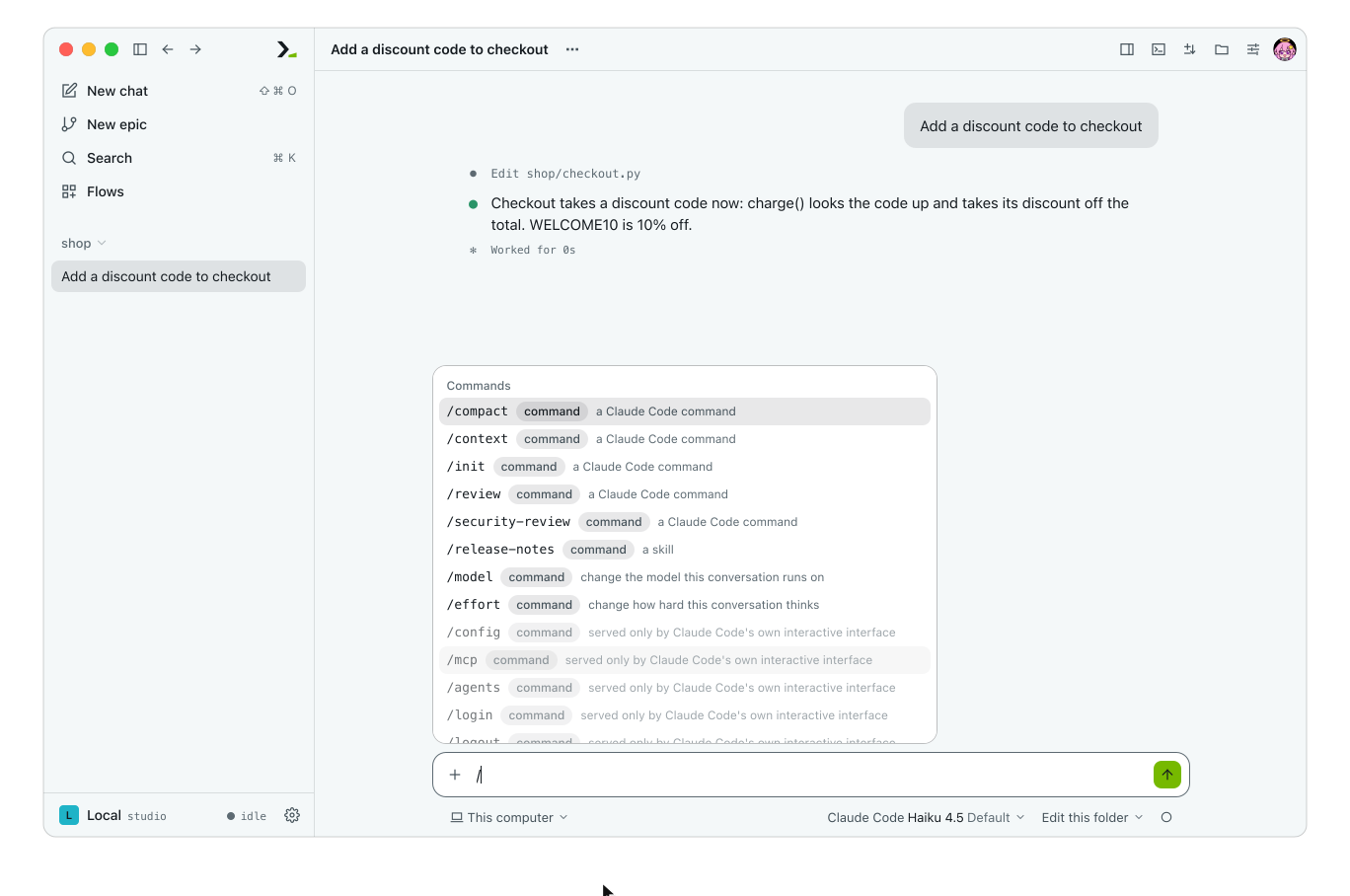
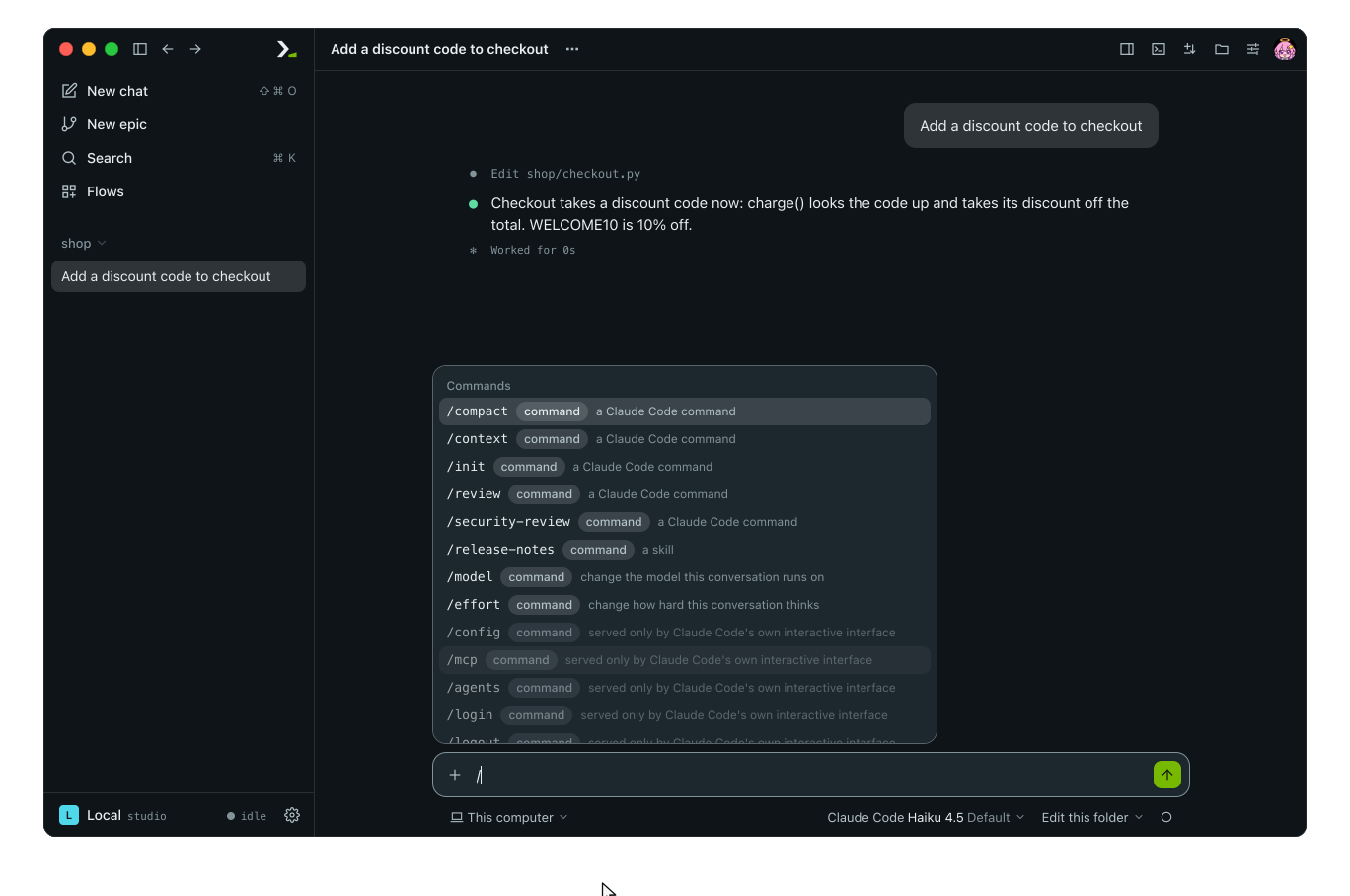
Prefixes you can type
| Starts with | It is | Example |
|---|---|---|
/ | A command or skill of the chat's CLI, or a Humanize command | /compact |
$ | A skill of the CLI, or a flow to start | $goal fix the build |
! | A shell command, run in the chat's folder | !git status --short |
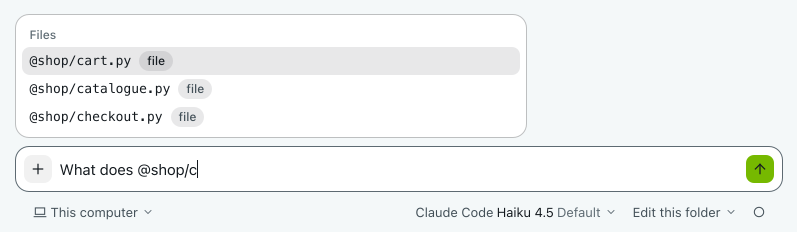
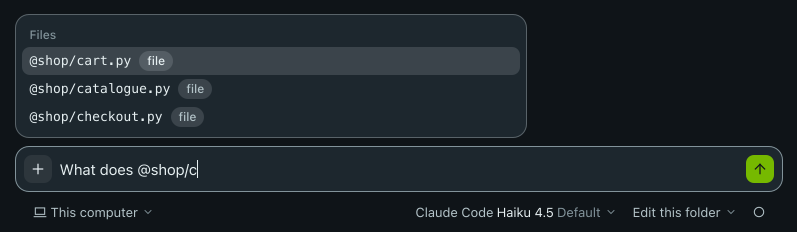
@ | A file or directory put in front of the agent | What does @shop/cart.py add up? |
/ and $ work only at the start of a line. @ works at the start of any word. All other text goes to the agent as a normal message.
Available prefixes depend on the chat's CLI. See What each CLI takes.
In the app
Humanize Desktop and the browser page work the same way.
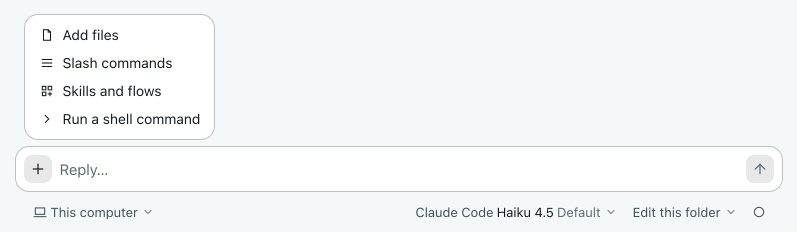
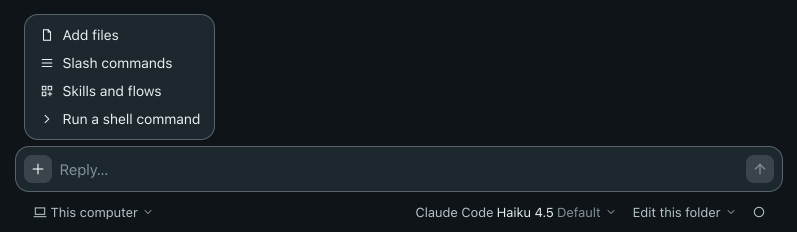
Open the Add menu and completion list
Click Add (+) in the chat box, or type a prefix directly. The menu offers Add files, Slash commands, Skills and flows and Run a shell command.
Type /, $ or @ to open the completion list. Each row shows a tag (command, skill, hmz, flow, dir or file) and a description. Rows are grouped into Files, Commands (Skills after $), Humanize, and Flows. Greyed rows work only in the CLI's own interactive interface.
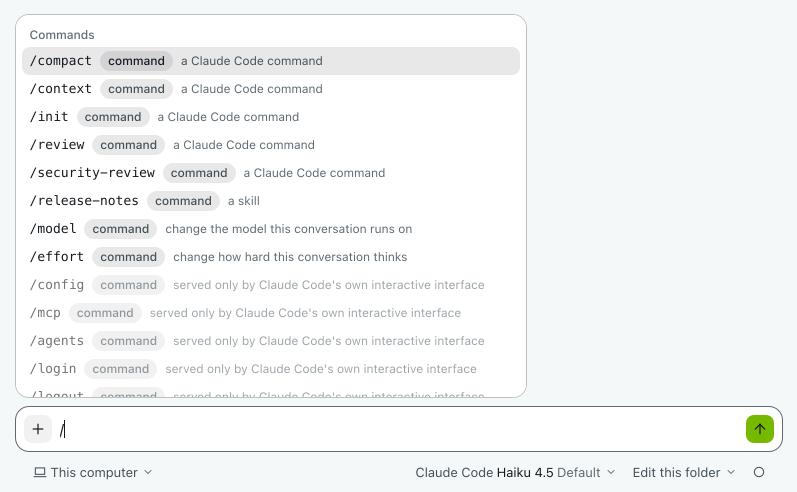
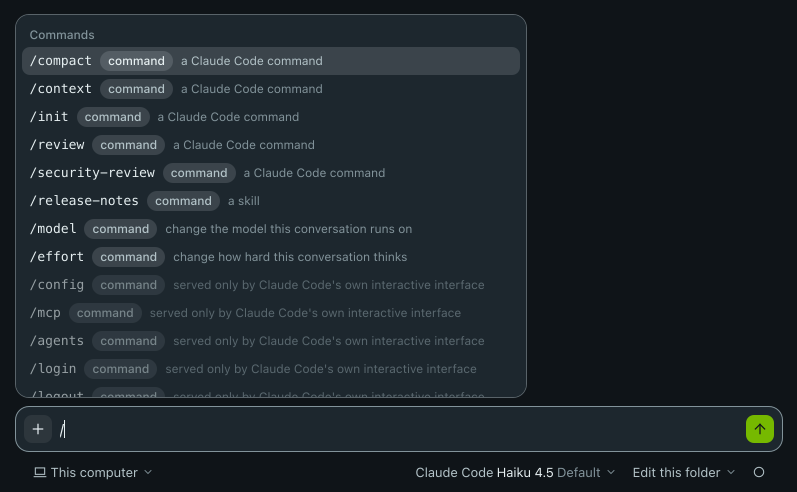
| Key | What it does |
|---|---|
| ↑ ↓ | Move in the list |
| tab or enter | Select the highlighted row |
| esc | Close the list |
Selecting a row completes the text without sending it. Press enter again to send the message.
On the new chat and new epic pages, only Add files is available because no CLI is running yet. While the folder chip says No folder, Add files is greyed and says Pick a folder first: the chat's directory is made only as it starts.
Mention a file
Type @ and the start of a path. The list shows files and directories from the chat's folder, worktree or runtime. Type . to include hidden names that start with ..
Run a shell command
Start a line with ! to run a shell command in the chat's folder with the agent's permissions. The chat shows the command, its output, and any non-zero exit status. Running a command does not start a turn; the agent receives the command and its output with your next message.
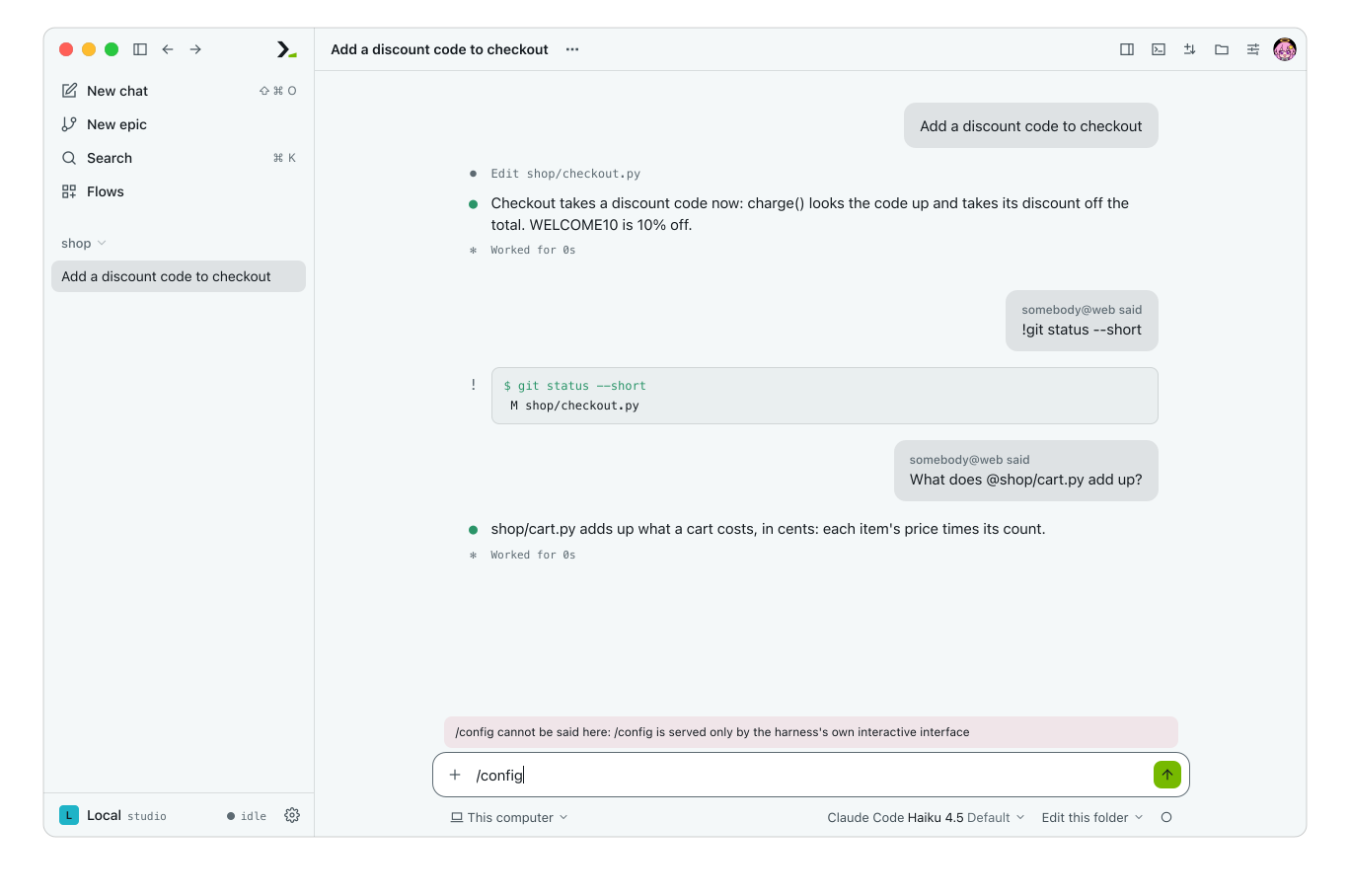
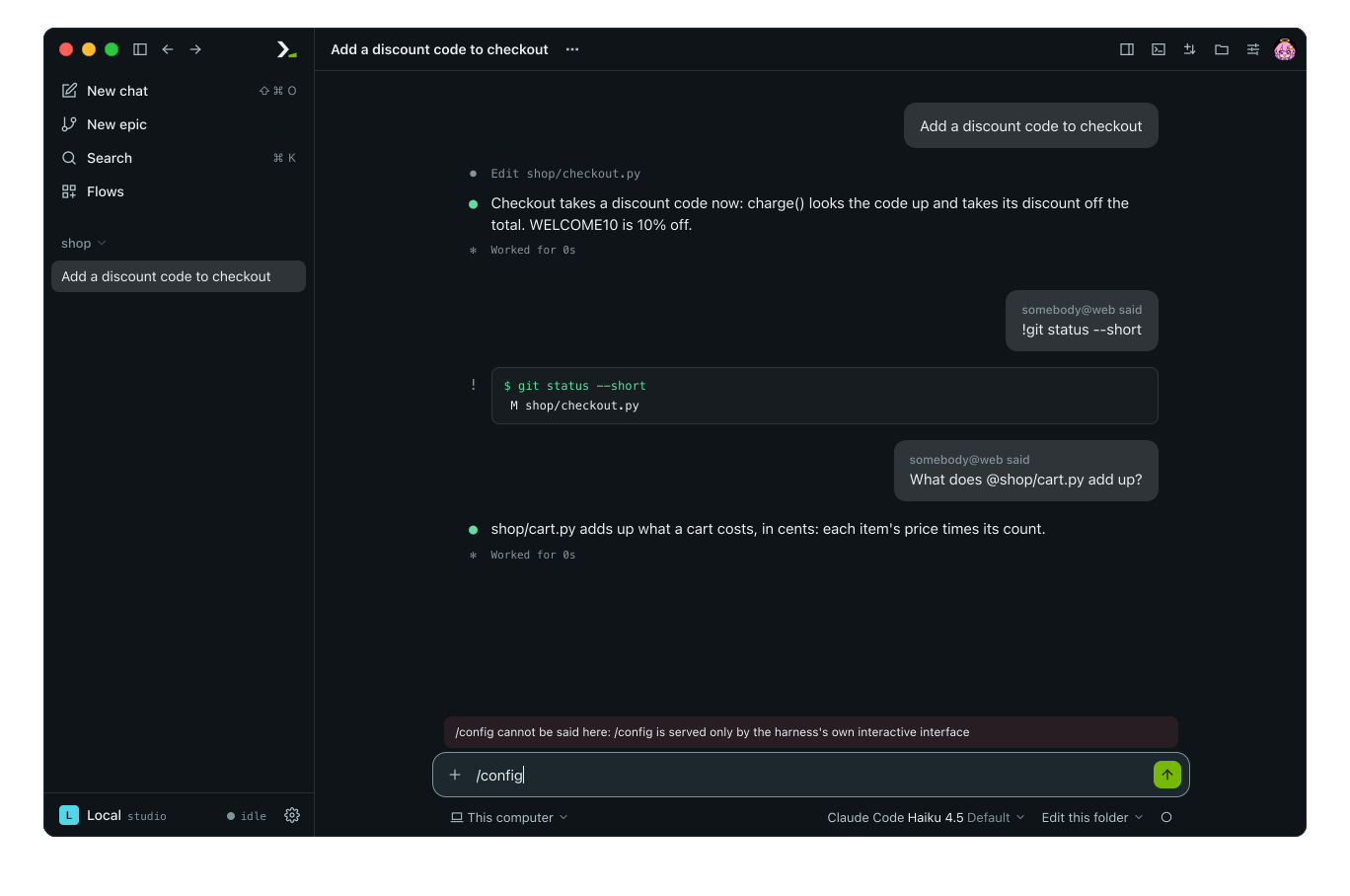
If the CLI cannot run a line here, Humanize refuses it, shows the reason above the box, and leaves your text in the box.
Run skills and flows
Type $ to list the CLI's skills and your installed flows. Enter $ followed by a flow name and a task to start an epic using that folder's last setup for the flow:
$ralph_loop add a discount code to checkoutOmit the task to open the new epic form for that flow. You can also type /flow <name> [task], which always means the flow, never a skill of that name.
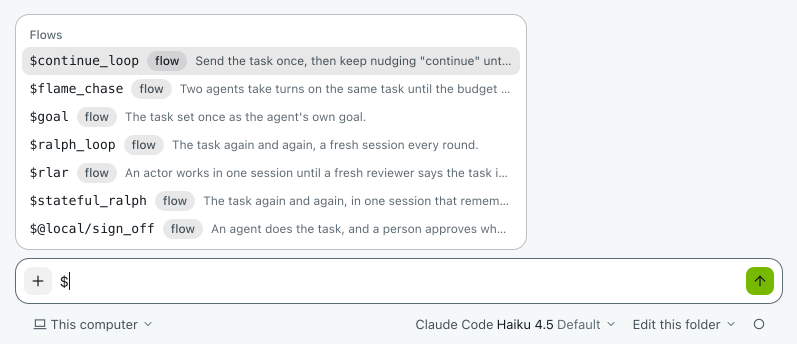
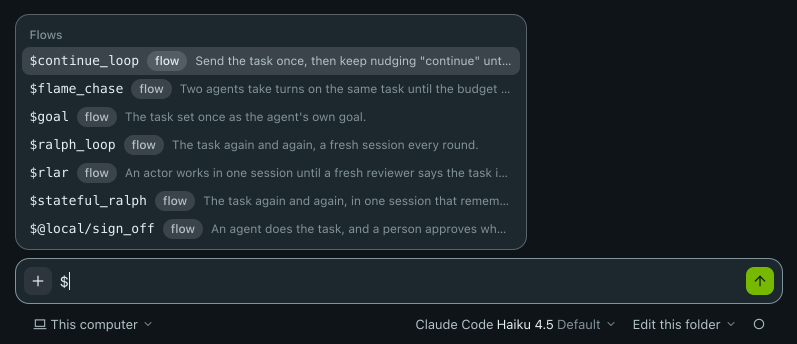
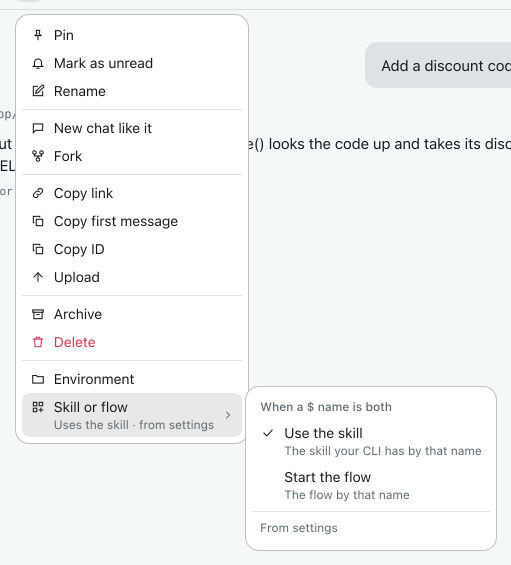
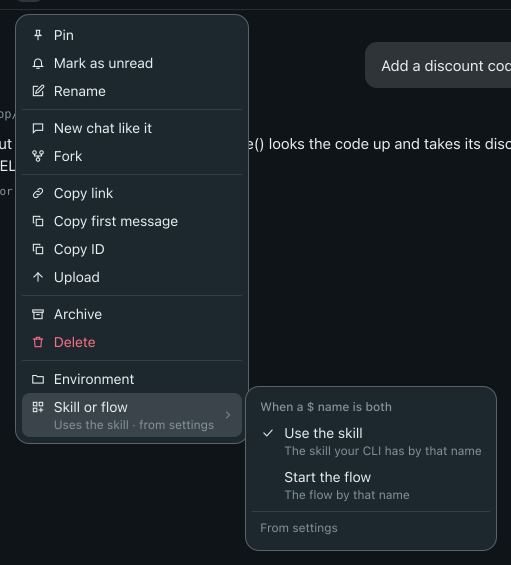
When a skill and a flow share a name, the chat's preference decides which one runs. The default is native, which runs the skill, and the completion list says which one a shared name runs. To change it for the current chat, open the chat menu (…), select Skill or flow, and pick Use the skill or Start the flow. You can also type /prefer native or /prefer flow, or type /prefer alone to toggle between them.
Change the model or effort
Click the nous chip under the box, choose Model or Effort, and pick a value. To use a model that is not listed, type its name in the Other model field under the models and press enter. The chip shows the new value at once, and the chat uses it from its next turn, in the same conversation. This works on every chat, at any time: one that is running, one between turns, and an old one you have just opened from the list. The page does not reload, no message is sent to the agent for it, and an old chat is not started up until you say something.
Where the CLI has its own /model and /effort (Claude Code and Codex), you can also type /model <id> or /effort <level> in the box of a running chat.
The harness and account are locked once a chat starts: a conversation belongs to the harness that had it. Click New chat at the bottom of the menu to start a chat with a different harness or account. A few harnesses cannot go on from an earlier conversation at all (Cursor CLI, MiniMax Code, Antigravity and DeepSeek Harness), and a CLI added by hand is never told a model; picking another model or effort for a chat of theirs is refused with a message that says so, and the chip goes back to what the chat runs.
Built-in Humanize commands
Humanize handles these commands itself and never passes them to the CLI.
| Line | In the app |
|---|---|
/clear, /chat | Opens a new chat in the same folder |
/resume, /epics | Opens Search for the folder |
/exit, /quit | Opens the new epic page |
/settings | Opens Settings |
/btw <question> | Asks a side question in the panel |
/flow <name> [task] | Starts the flow |
/prefer [native|flow] | Sets whether a shared $ name runs the skill or the flow |
In the terminal
In hmz, chats use the same four prefixes. Type / to open a list of up to ten rows above the prompt, showing Humanize commands first and CLI commands second. Type more letters to filter the list, use ↑ ↓ to move, press tab or enter to select a row, or press esc to hide the list.
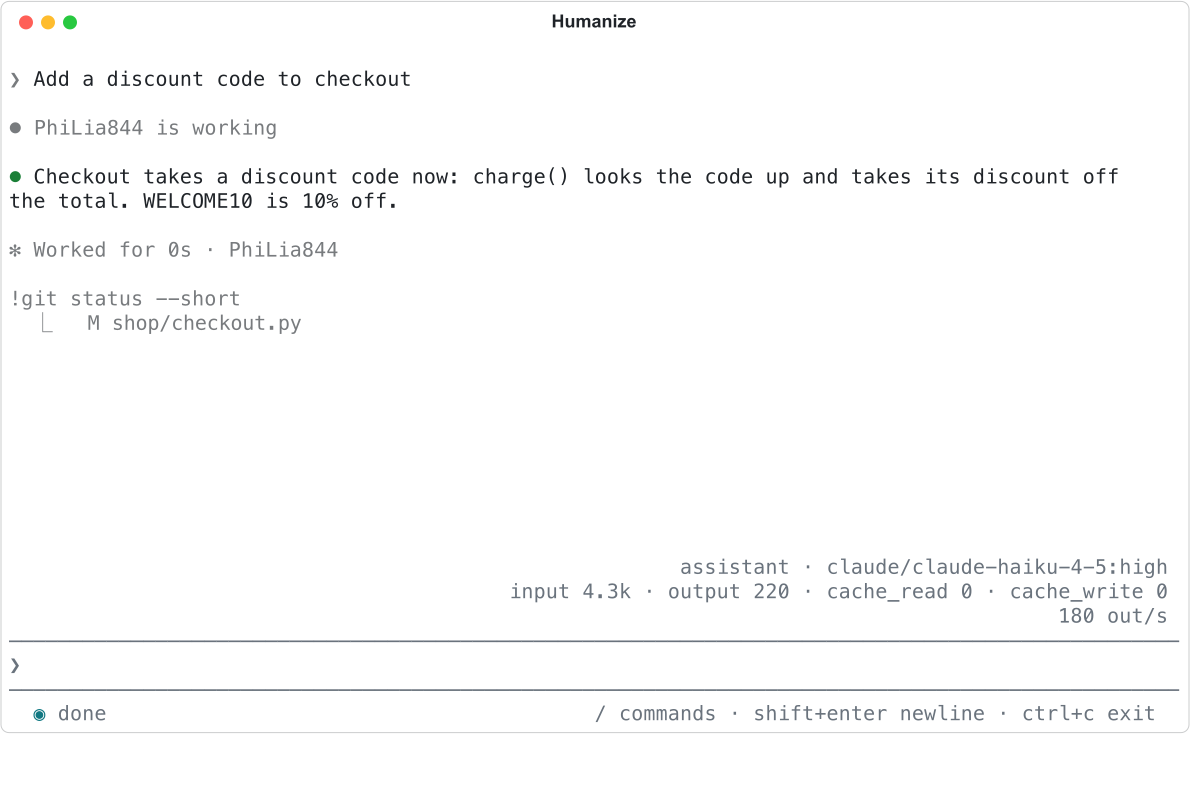
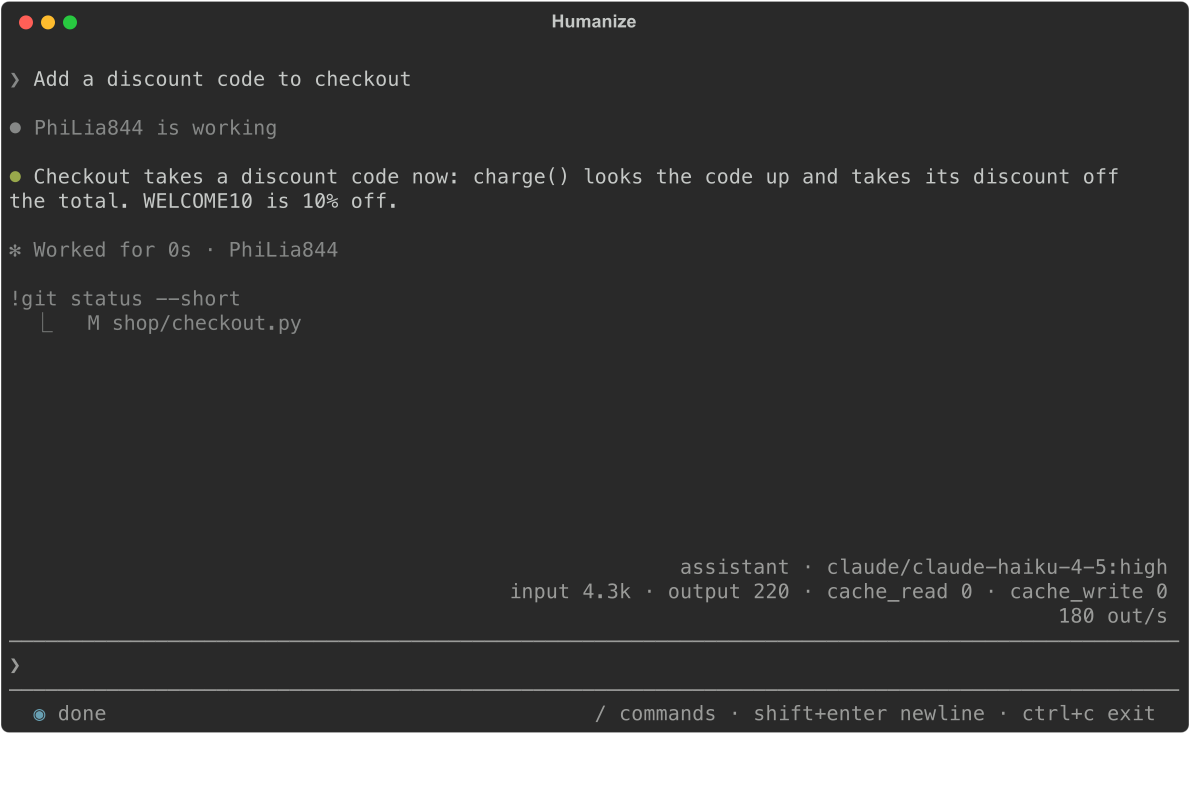
$lists the CLI's skills first, then flows, taggedskillorflow.@at the start of a line completes a path when the CLI supports@.$<flow> <task>starts the flow, or opens/flowfirst if the flow is not set up in this folder yet.!lines and their output appear dimmed./model <id>and/effort <level>change the chat's model and effort.- Refused lines print an error in red starting with
hmz:. - Commands that only the CLI's own interface serves are left out of the list here; the app lists them greyed.
Type /prefer to see whether shared $ names run the skill or the flow and where that setting comes from. Type /prefer native or /prefer flow to change it for the current chat.
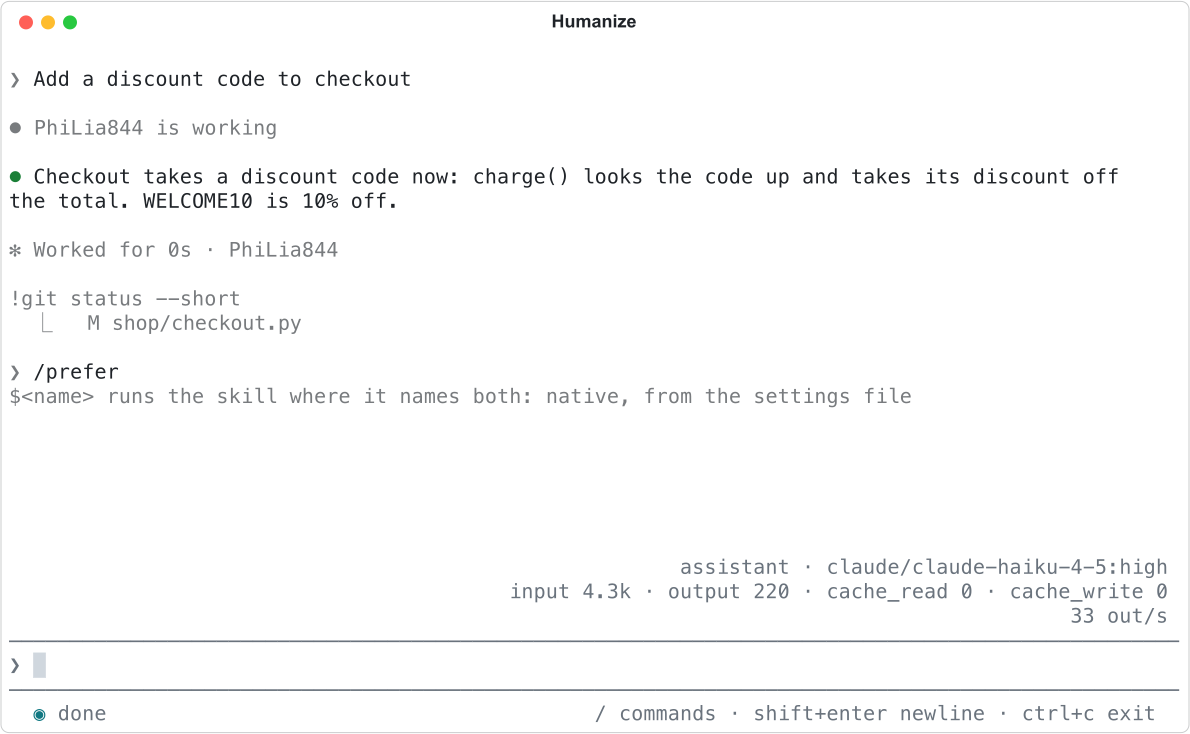
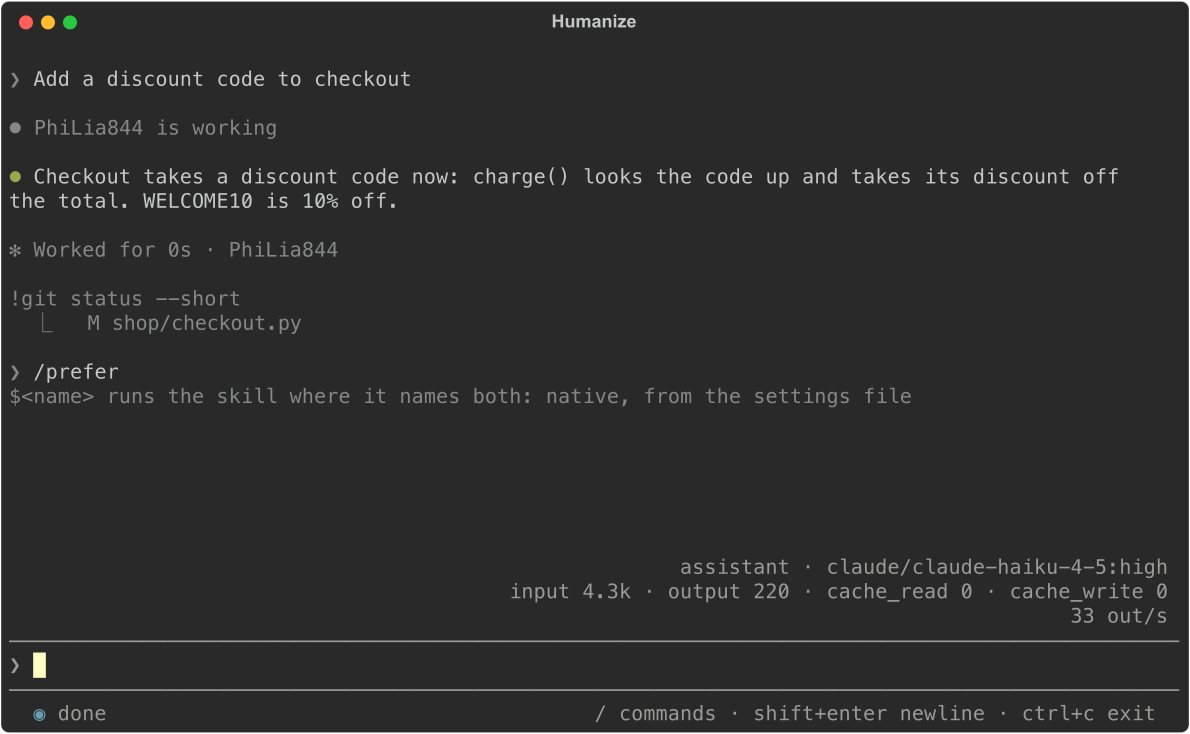
To change the default for all chats on your machine, run /settings general and set Chat prefers for $, or set chat.prefer in settings.yaml.
See Terminal commands and keys for the full list of Humanize commands (/clear, /resume, /exit and others).
From the command line
hmz chat parses prefixes the same way. A ! line prints the command and its output without taking a turn:
hmz chat -a claude/claude-haiku-4-5 '!git log --oneline'

hmz chat refuses Humanize commands like /clear and $ lines that name a flow. To start a flow from the shell, run hmz exec -f <name> instead. See The command line.
What each CLI takes
| CLI | / | $ | ! | @ |
|---|---|---|---|---|
| Claude Code | Its commands and skills, /model, /effort | No | Yes | Yes |
| Codex | /compact, /review, /rename, /model, /effort | Its skills | Yes | Yes, images too |
| Pi, Oh My Pi | Their commands, /compact | No | Yes, and !! runs a command without telling the model | No |
| Kimi Code | /compact and its skills | No | No | No |
| Qwen Code | Its commands | No | No | Yes |
| OpenCode, MiMo Code | Their commands and skills | No | No | Yes |
Every other CLI, including LiteLLM, has no list of its own: Humanize passes each line to it as typed. "No" in the table means the same for that prefix.
Good to know
- In Claude Code, skills use
/, so$lists only flows. - A CLI reports its commands when its conversation opens. Before the first turn, the list is short and unknown
/lines pass through as text; after the first turn, unknown/names fail withno such command. - Commands that open an interactive CLI dialog, such as
/config,/loginor/permissions, are refused. - Humanize stops any
!command it runs after 10 minutes. - A chat's
/prefersetting is saved with the chat and persists when you resume it. - Flow prompts never parse these prefixes. A flow prompt containing
/compactsends that literal text to the agent. - An Ai-chan conversation in the app has no Add menu and no completion list, and it refuses
/modeland/effort: her nous stays as picked when the conversation was made. - See Skills for how skills reach an agent, and Nous and Effort and swarm mode for model, effort and account settings.