Themes and language
Each theme pairs a light side and a dark side under one name. You pick a theme and choose which side to show. You can view the page in English, Simplified Chinese or Traditional Chinese.
In the app
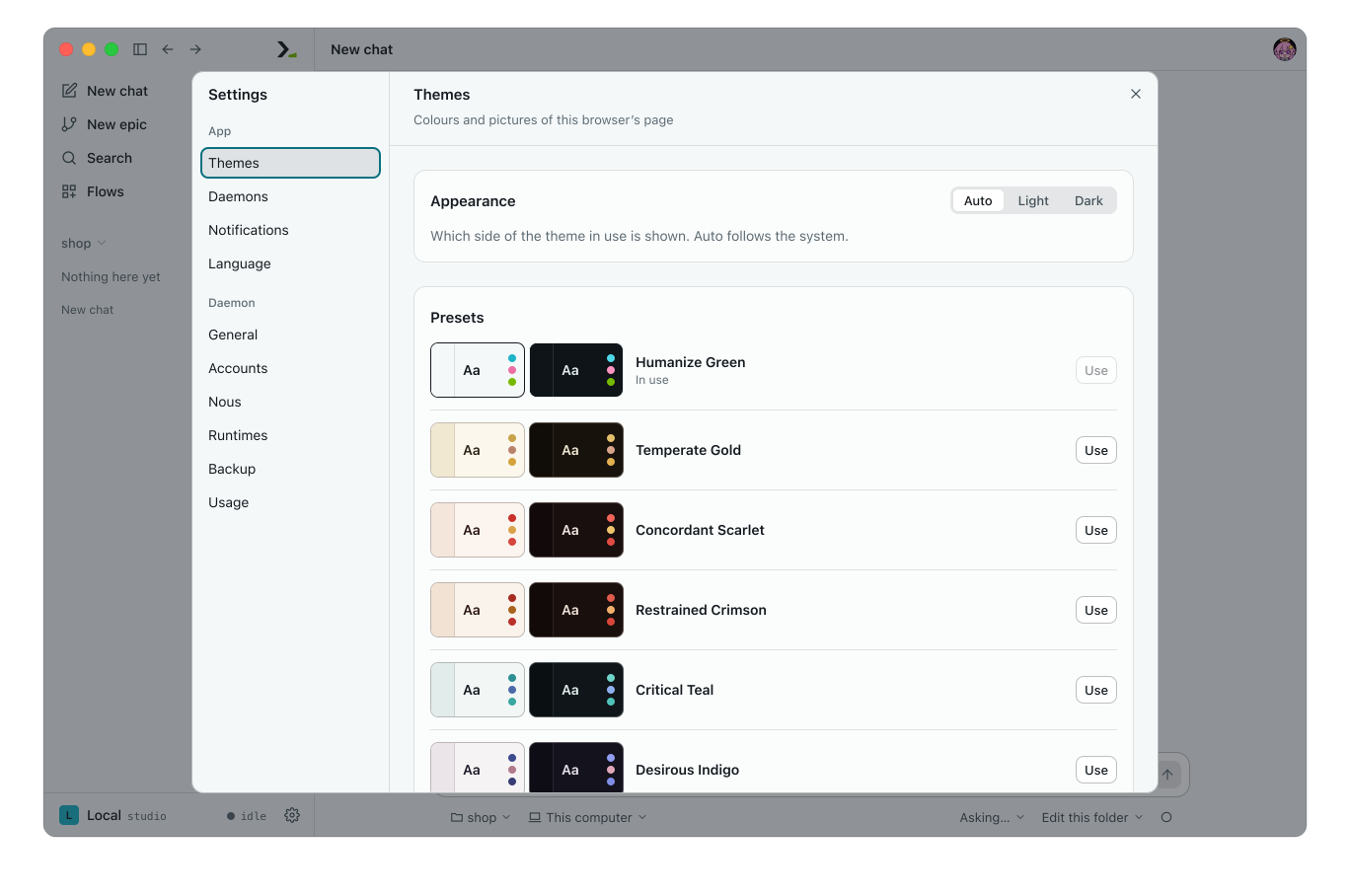
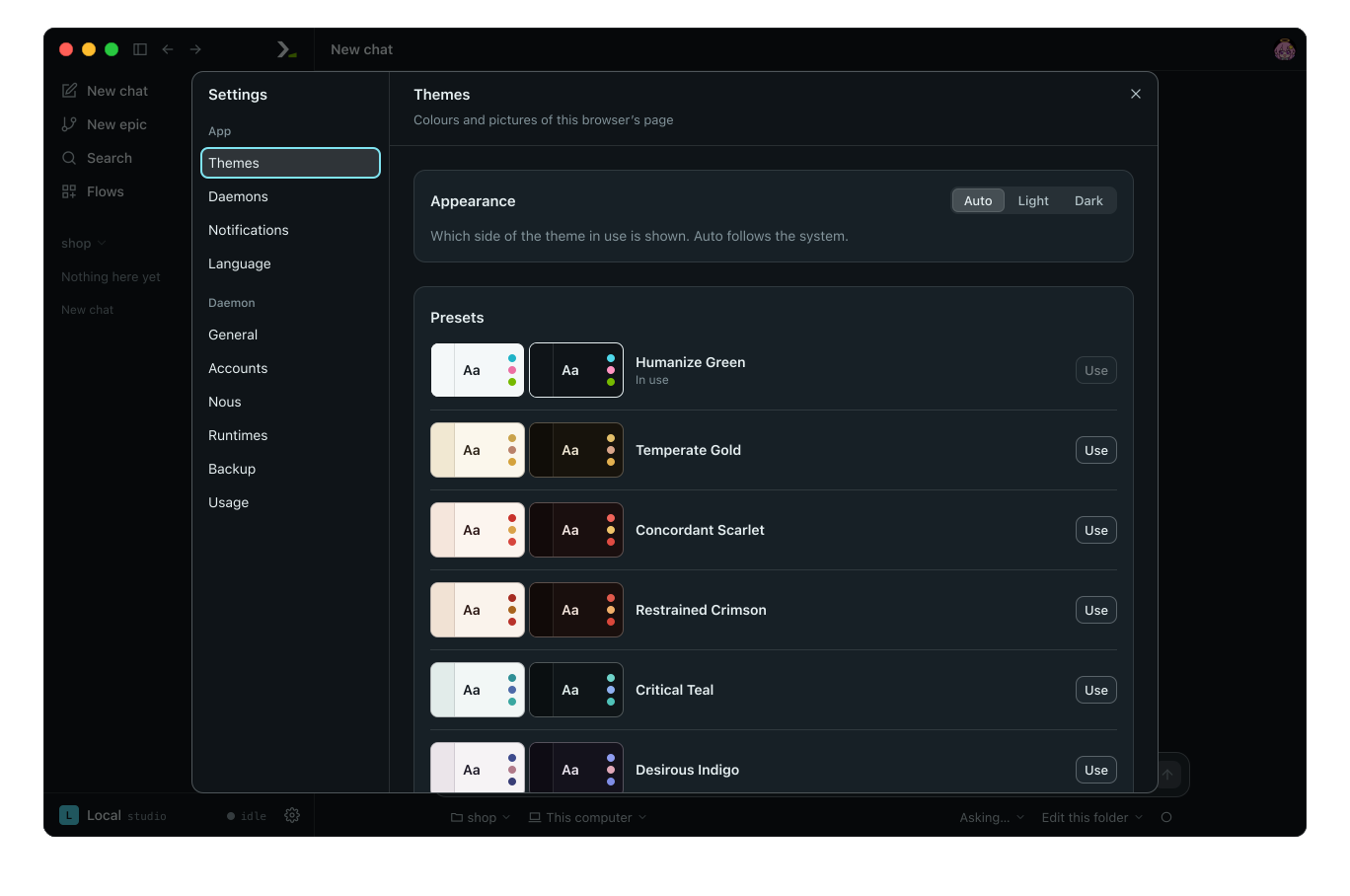
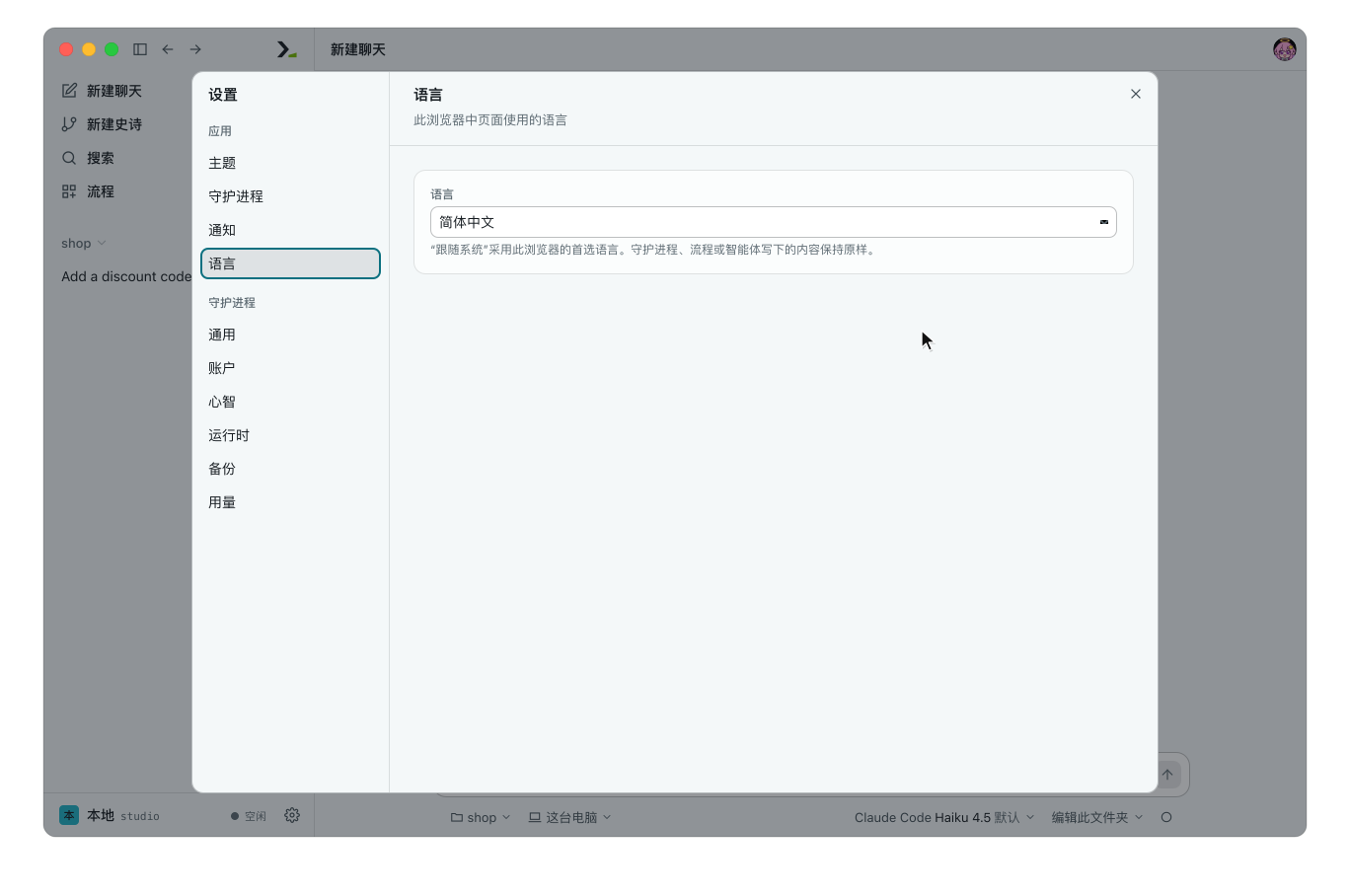
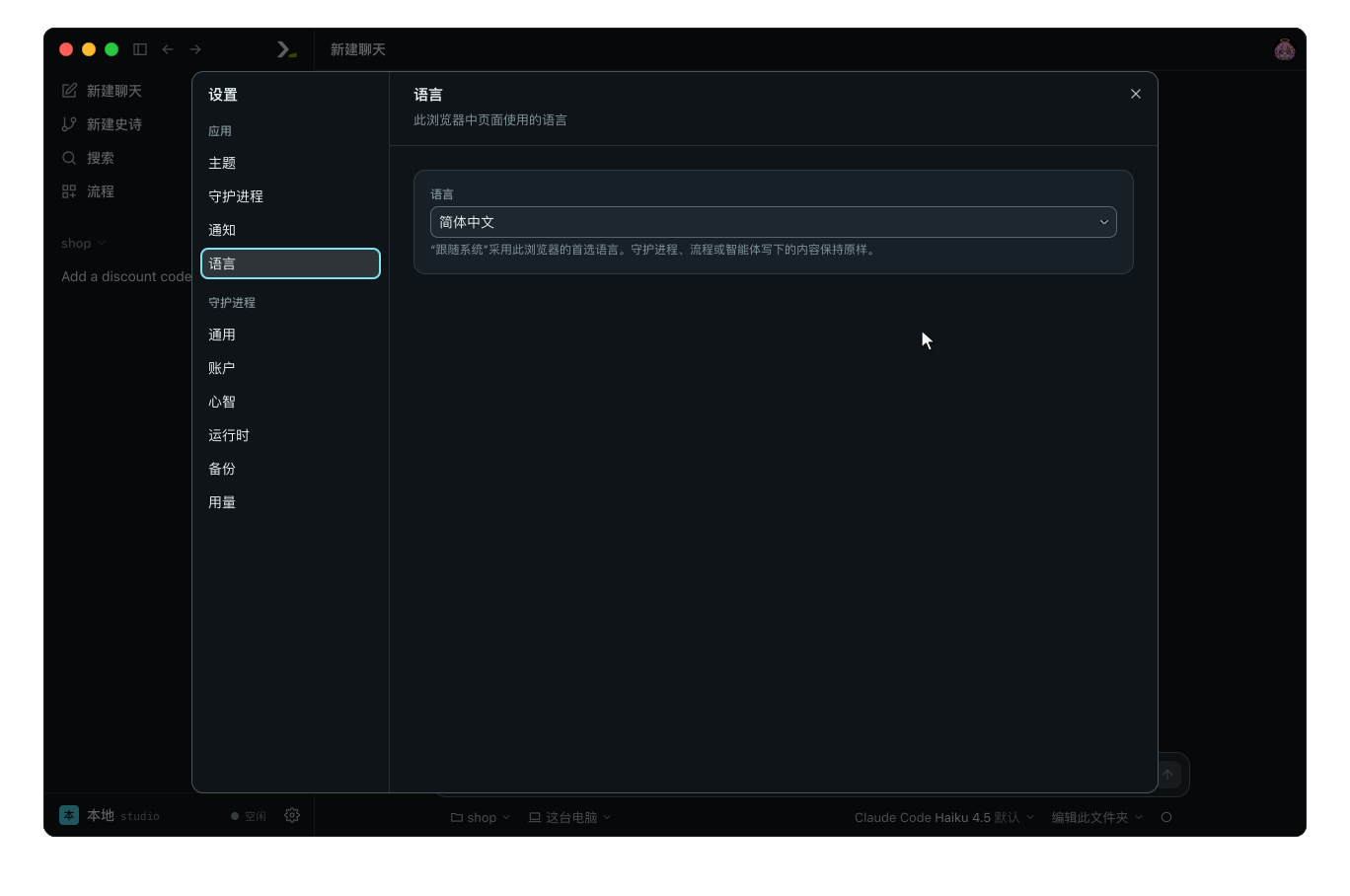
In Humanize Desktop or the web page, click the gear button Settings at the foot of the sidebar, then click Themes or Language under App.
Pick a theme and a side
Under Presets, click Use on a row, or right-click the row and select Use. The page updates at once and the row shows In use.
Use Appearance to choose which side of the active theme to show.
| Appearance | What is shown |
|---|---|
| Auto | Light when the system is light, dark when it is dark, following a change at once. Default. |
| Light | Always the light side. |
| Dark | Always the dark side. |
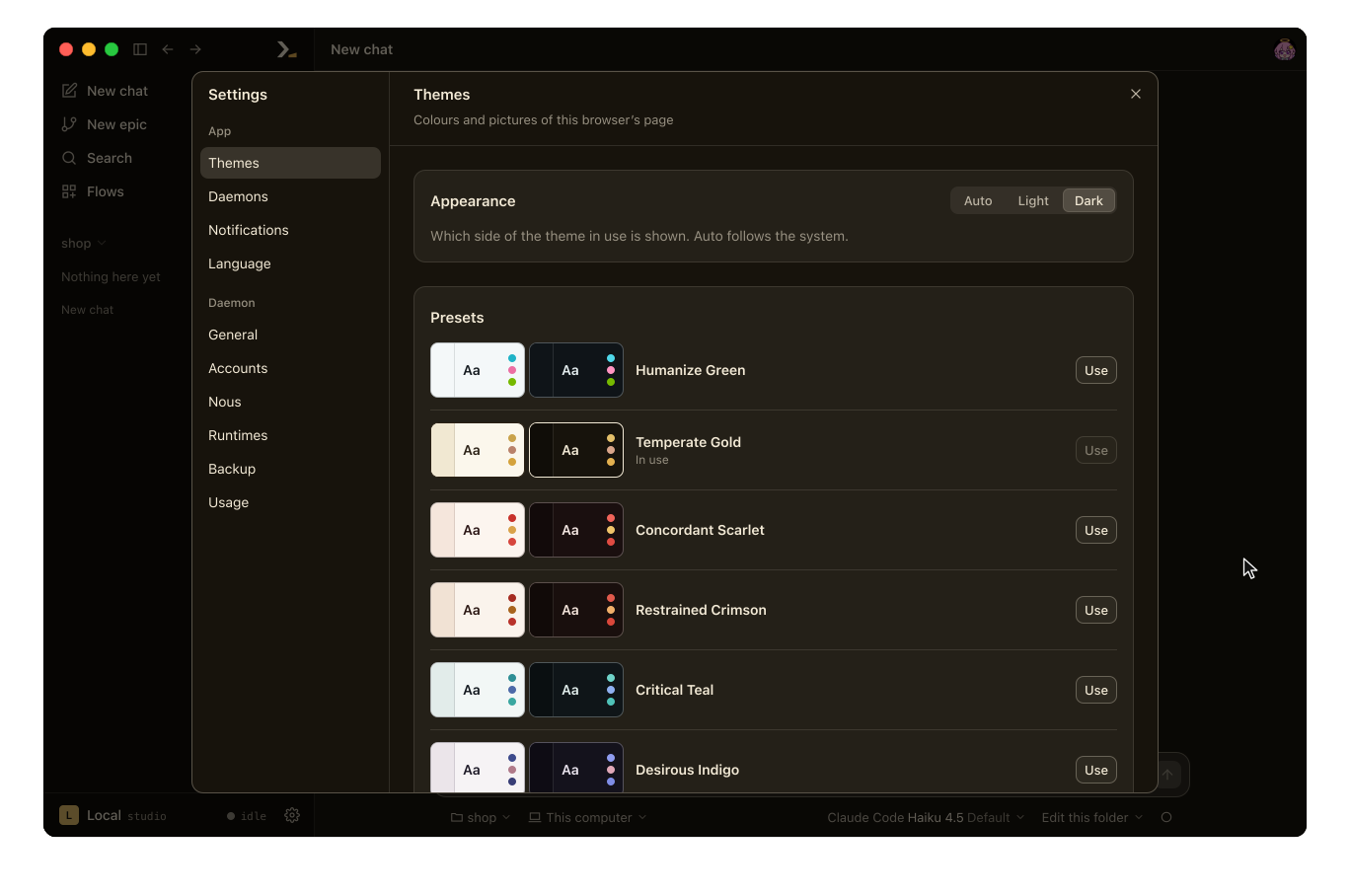
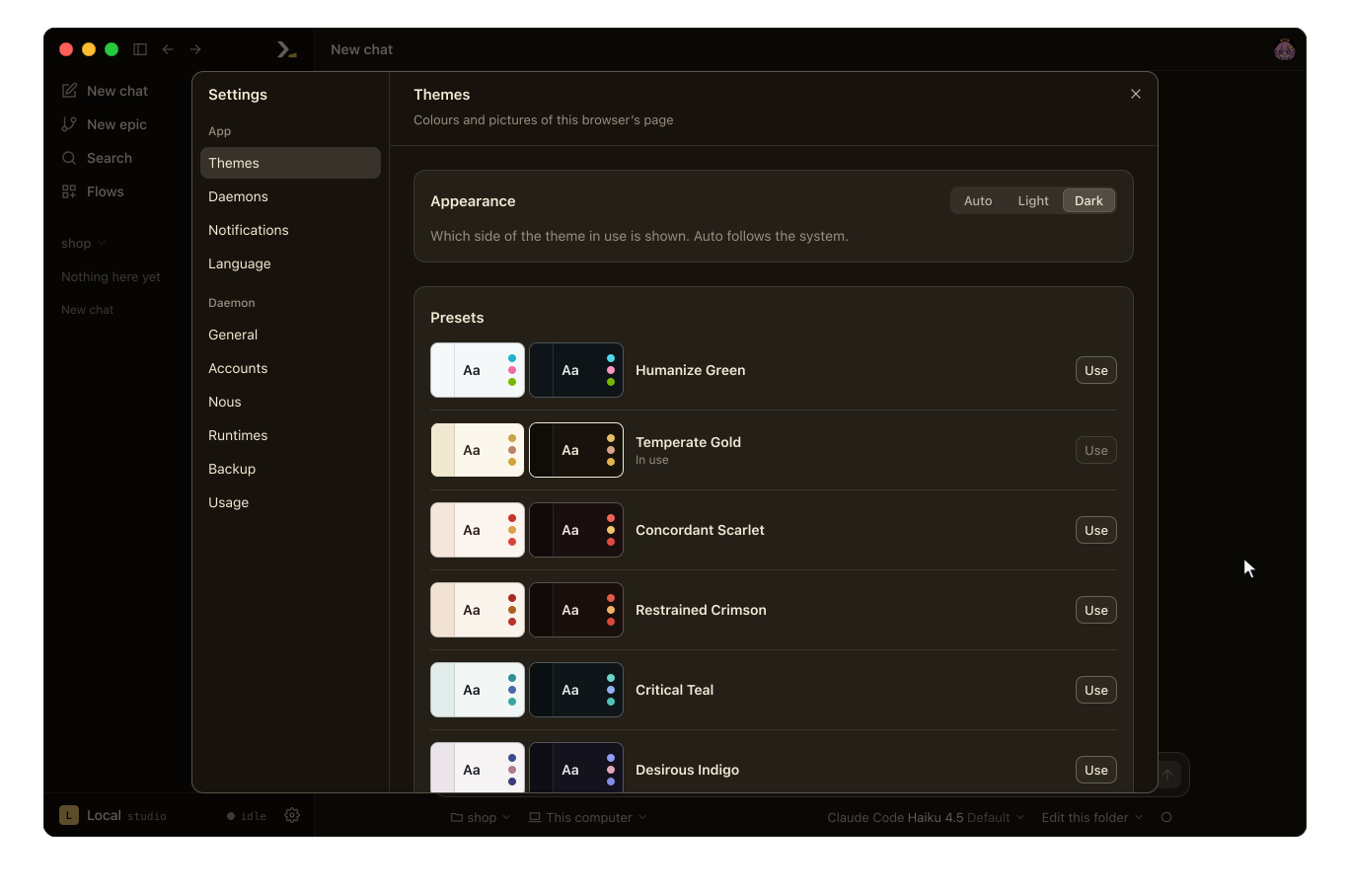
Thirteen presets are built in: Humanize Green (the default), Temperate Gold, Concordant Scarlet, Restrained Crimson, Critical Teal, Desirous Indigo, Peaceful Lilac, Hateful Silver, Devoted Pink, Self-Negating Plum, Dominant Azure, Surviving Jade and Lamenting Orchid. You cannot edit or delete a preset.
Make your own theme
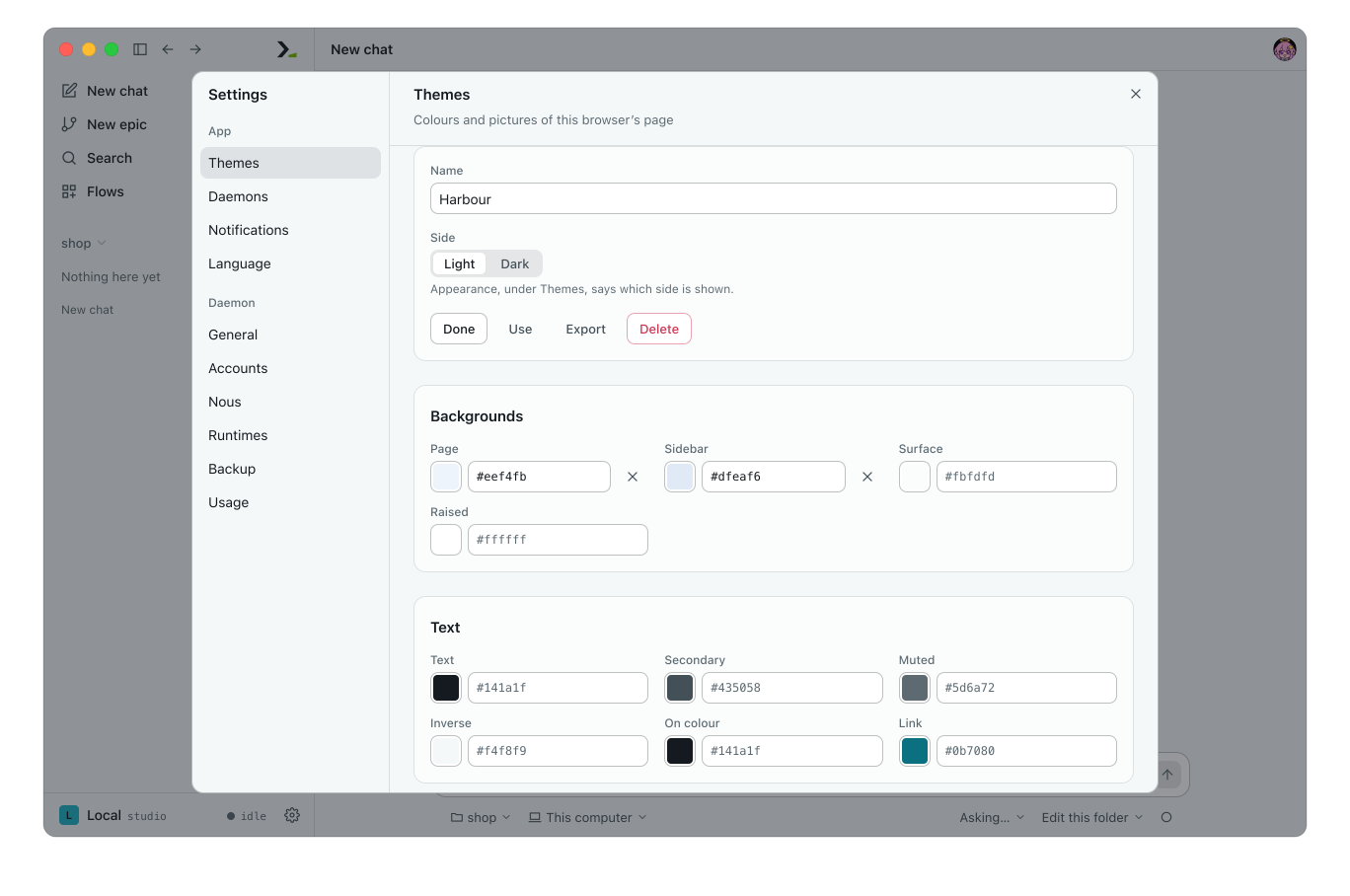
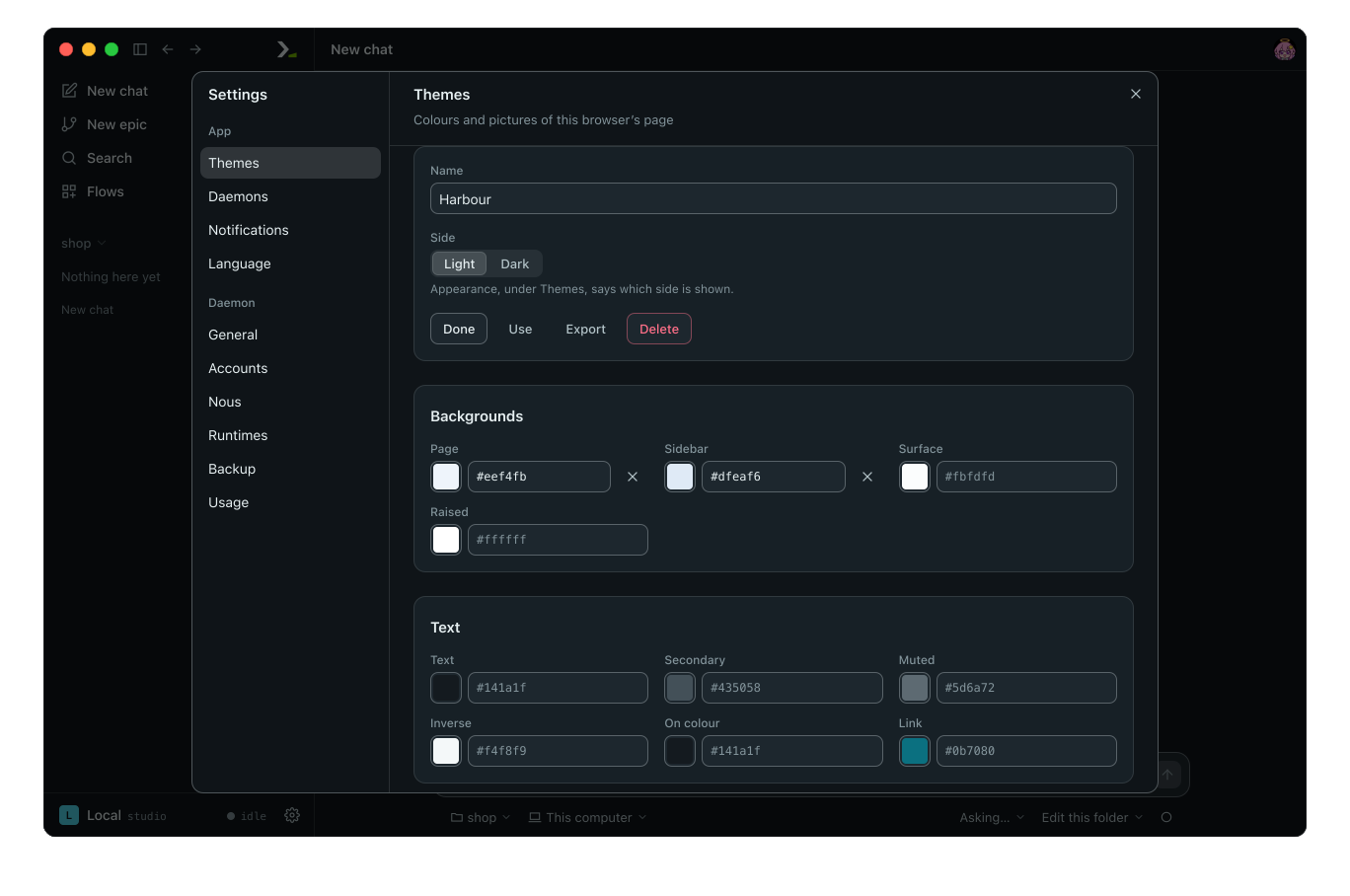
Under Custom, click New. Humanize copies both sides of the active theme into a new theme called New theme and opens the editor. Changes apply to the page and save as you make them. While the editor is open, the page shows the theme you are editing, even when another theme is in use.
| Control | What it does |
|---|---|
| Name | Sets the name for both sides. Up to 60 characters. A blank name is not saved. |
| Side | Selects Light or Dark for editing. |
| Done | Returns to the theme list. |
| Use | Activates this theme. |
| Export | Saves the theme as a file. |
| Delete | Deletes the theme after confirmation. |
Each side has 35 colours across six groups: Backgrounds, Text, Controls, Lines, Accents and Graph. Use the colour picker or type any CSS colour, such as #1f6feb or rgba(20, 26, 31, 0.12). Click × next to a modified colour to reset it to the default. Invalid colours are marked and not saved.
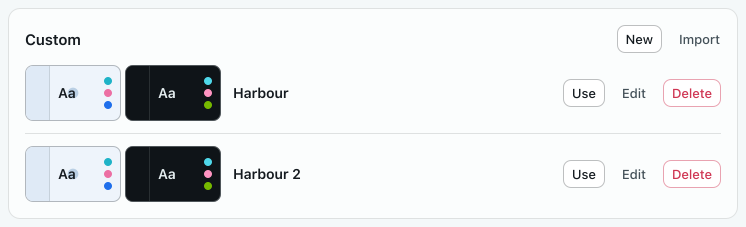
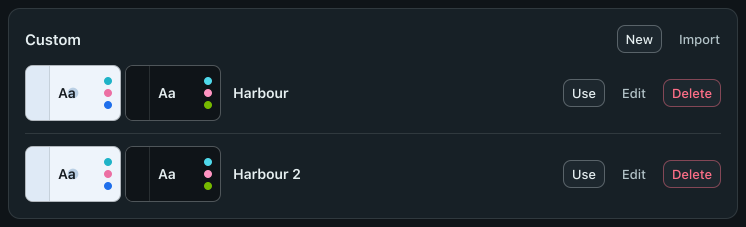
In the theme list, each custom row has Use, Edit and Delete. Right-clicking the row offers Use and Edit.
Put a picture behind the page
At the bottom of the editor, Pictures lets you set a background image for four areas: Page, Sidebar, Panel and Dialog. Each side of a theme stores its own pictures.
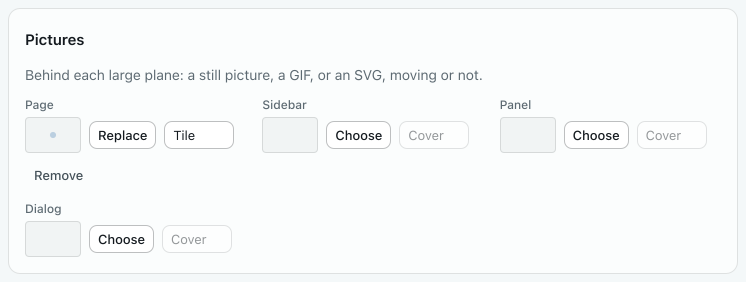
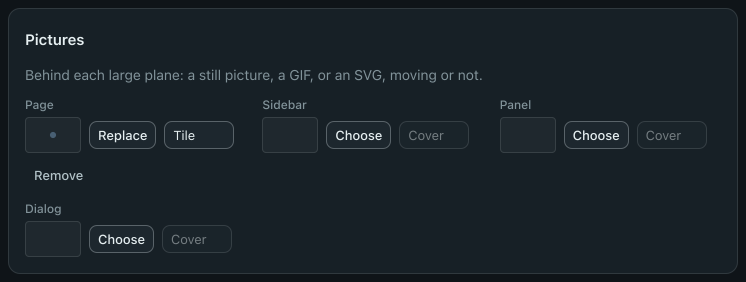
- Click Choose and pick a PNG, JPEG, GIF, WebP, AVIF or SVG file. GIFs and animated SVGs animate.
- Select how the image fills the area: Cover, Fit or Tile.
- Click Replace to pick a different file, or Remove to clear it.
Share a theme as a file
In the editor, click Export to download the theme as <name>.hmztheme. The file contains the name, both sides, and all colours and pictures.
To load a theme file, click Import under Custom and select the file. Humanize adds it as a new custom theme, appending a number if the name is already taken.
Choose the language
Open Settings, click Language, and select a language. The page reloads in that language at once.
| Language | What the page is written in |
|---|---|
| System | The first supported language requested by your browser or system. Default. |
| English | English. |
| 简体中文 | Simplified Chinese. |
| 繁體中文 | Traditional Chinese. |
When set to System, Chinese locales for Taiwan, Hong Kong, Macao, or zh-Hant show Traditional Chinese. Other Chinese locales show Simplified Chinese, and all other locales show English.
Output from a daemon, flow, or agent remains in the language it was written in.
In the terminal
hmz uses your terminal's background and 16-colour palette by default, with red for failures and yellow for warnings.
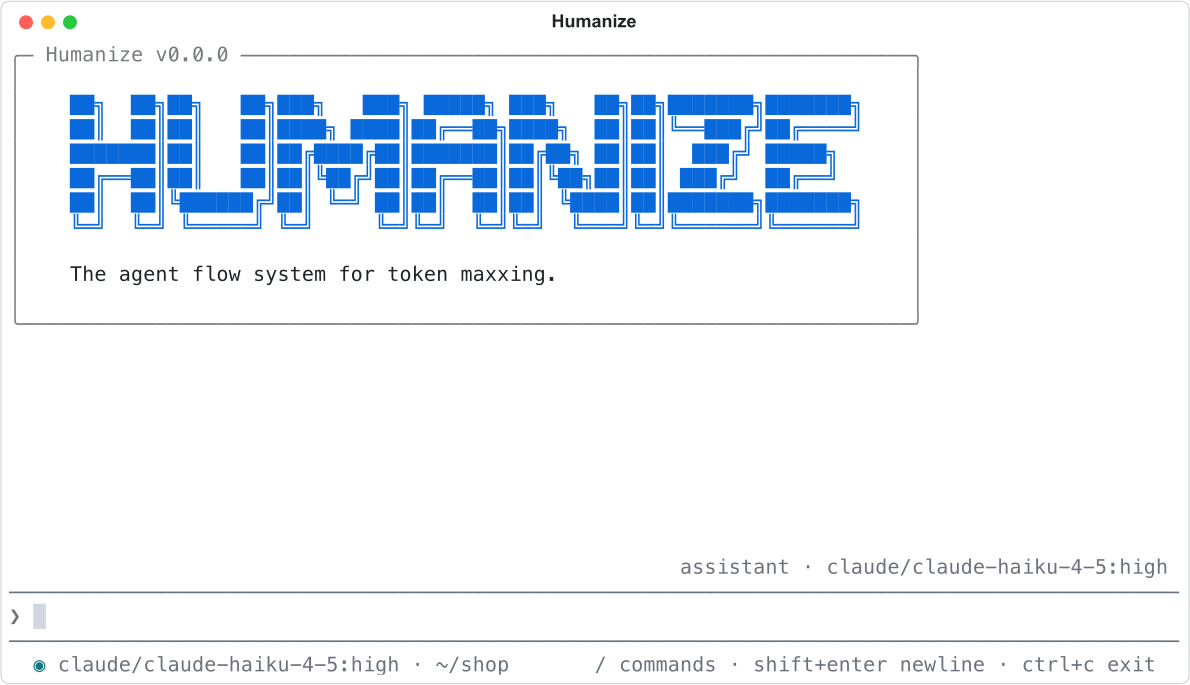
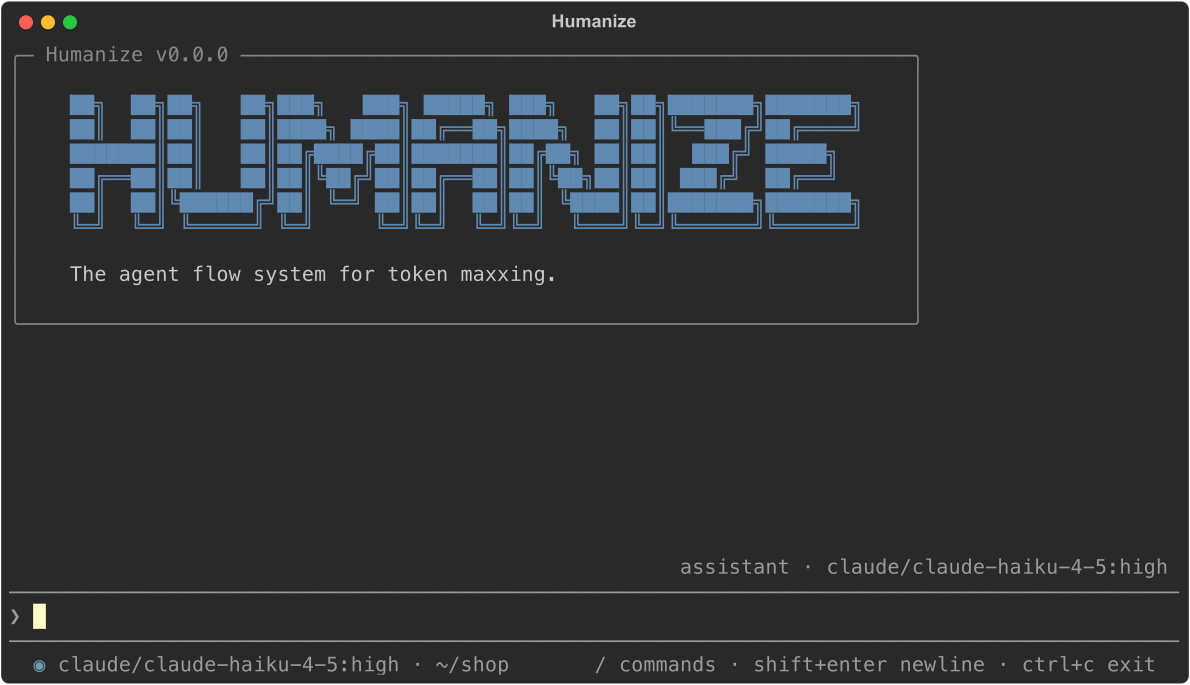
Set TEXTUAL_THEME at launch to use a Textual theme instead:
TEXTUAL_THEME=gruvbox hmz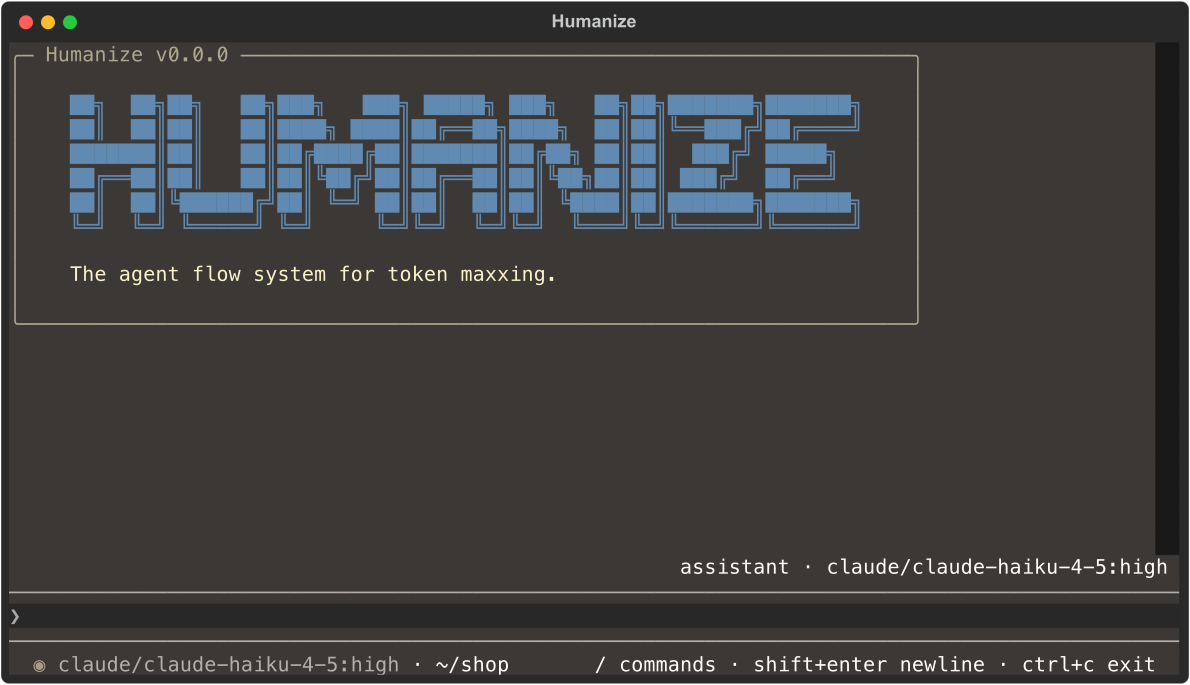
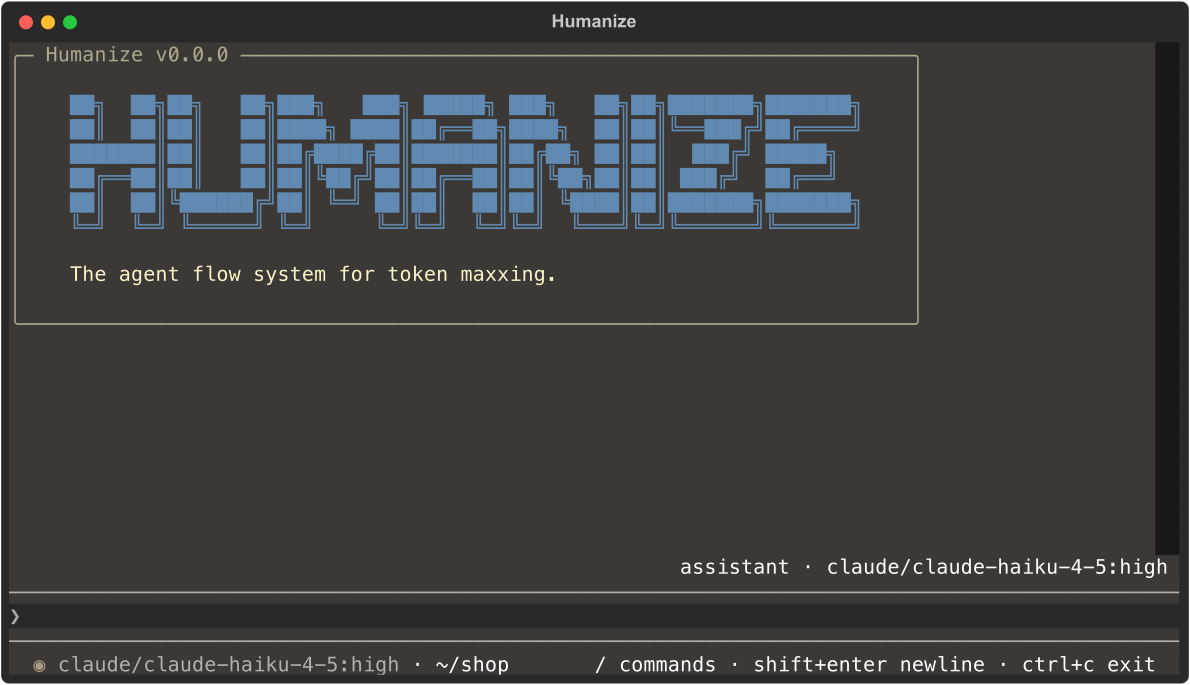
Valid theme names are ansi-dark, ansi-light, atom-one-dark, atom-one-light, catppuccin-frappe, catppuccin-latte, catppuccin-macchiato, catppuccin-mocha, dracula, flexoki, gruvbox, monokai, nord, rose-pine, rose-pine-dawn, rose-pine-moon, solarized-dark, solarized-light, textual-dark, textual-light and tokyo-night. Unknown names are ignored.
Set NO_COLOR to disable colour:
NO_COLOR=1 hmzThe terminal interface and CLI are in English only.
Good to know
- Your browser or Humanize Desktop stores themes, pictures and language locally on your device, not on a daemon. Use Export and Import to move themes between browsers or devices.
- Clearing browser site data deletes custom themes and resets the theme, side and language to their defaults.
- Deleting the active theme switches you back to Humanize Green.
- Other tabs of the same browser follow a change of theme or side at once, and reload when you change the language.
- Importing keeps only valid colours and pictures. Non-theme files are rejected with
This is not a theme file. - When your system requests reduced motion, animated pictures pause on their first frame.
- Preset names translate with the page language, while custom theme names stay as you typed them.
- Humanize Desktop's native menus, launch window and update window are always in English and follow your system's light or dark mode rather than your theme.
- See Settings for all other settings.