The terminal interface
Run hmz in a project folder to open the terminal interface. It opens on a new chat with the folder's last agent. You do everything from one prompt: type a line to talk, or type a / command to open a menu.
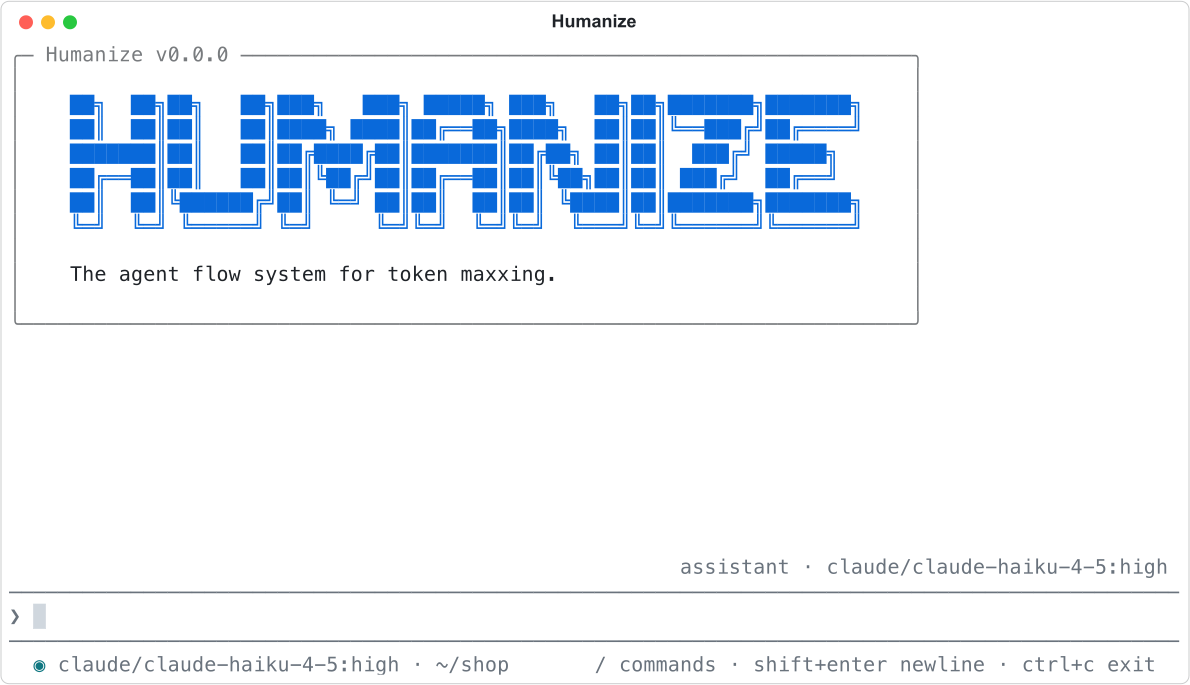
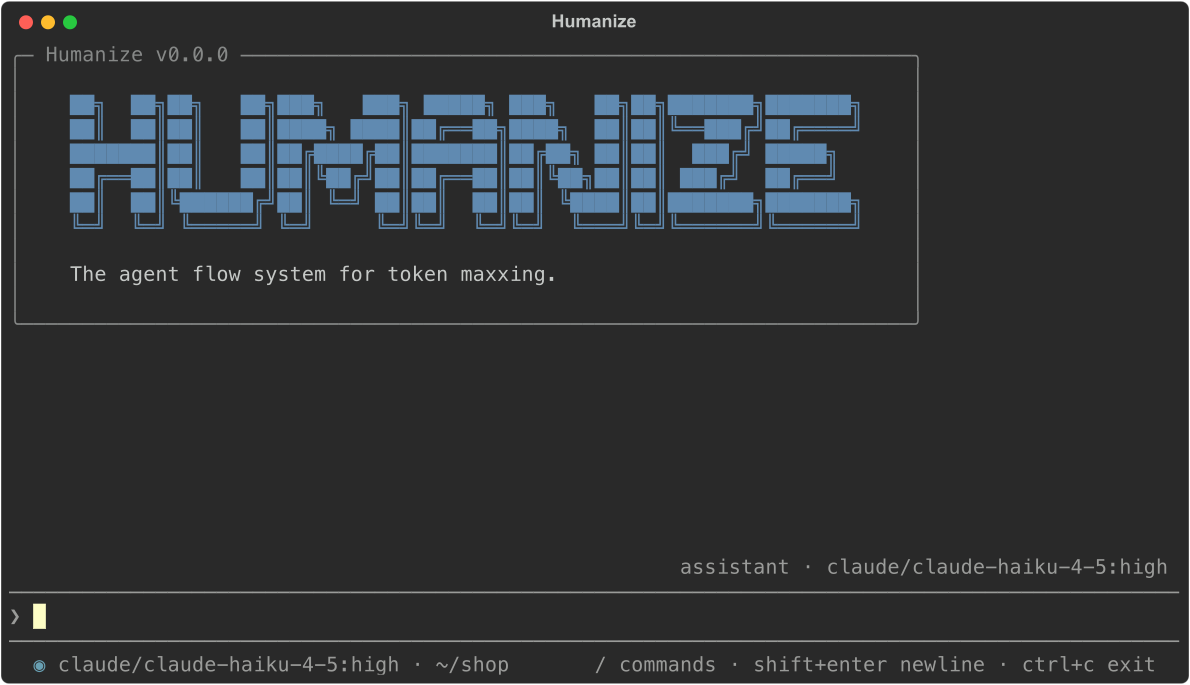
Read the screen
From top to bottom:
| Part | What it shows |
|---|---|
| Opening box | The banner and the version. |
| Transcript | What you and the agents said. Agent lines start with a green bullet; yours start with ❯. |
| Lines above the prompt | On the right, one line per agent role: its name, role, harness, model and effort. While an epic runs, one line per outworlder and what you spent. On the left, lines you sent that an agent has not taken yet. |
Prompt ❯ | The editor. It always has focus and grows to 10 rows. |
| Status line | The state on the left, the active keys on the right. |
Use the prompt
| Key | What it does |
|---|---|
| enter | Send the line. Blank lines are not sent. |
| shift+enter or ctrl+j | Start a new line. ctrl+j works in every terminal; shift+enter works where the terminal reports it. |
| ctrl+c | Clear what you typed. On an empty prompt, see Stop a run. |
| ↑ on the first row, ↓ on the last | Walk the prompt history. |
| ← on an empty prompt | Open the monitor (outside a chat). See Watch a run. |
| shift+tab, tab | Switch to the next or previous view. |
| ctrl+q | Quit, same as /exit. |
How input is routed
Humanize checks each line you send in this order and applies the first rule that matches:
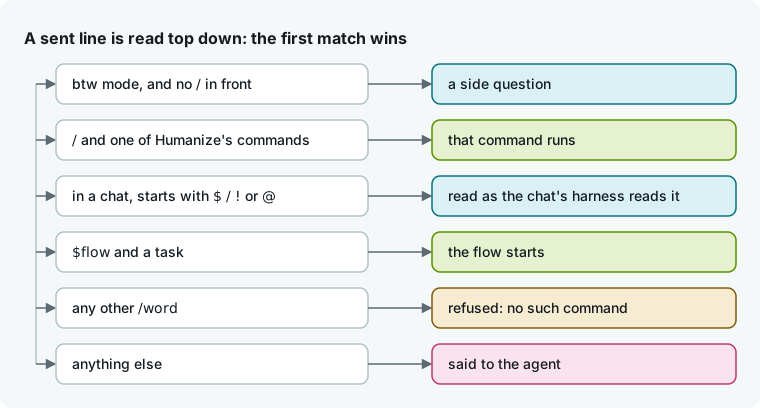
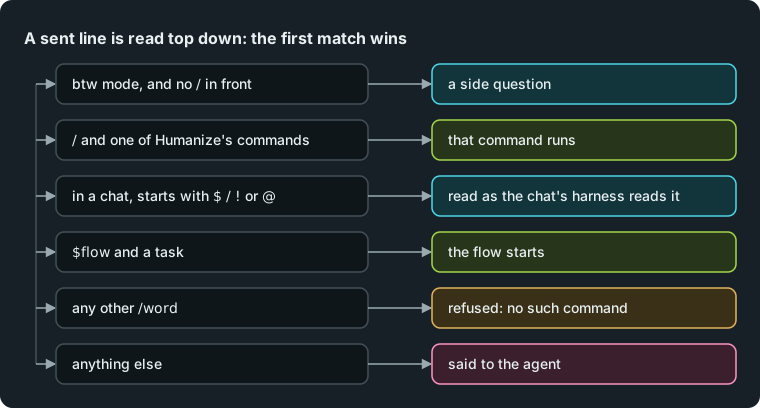
- In btw mode, a line without a leading
/asks a side question. See Ask a side question. - A
/line that names a Humanize command runs that command. - In a chat, a line starting with
$,/,!or@goes to the chat's harness. See Commands, skills and files in a chat. $<flow> <task>starts that flow on the task, such as$ralph_loop fix the build. If the flow is not set up here yet,/flowopens on it first, holding the task. See Start an epic. If a question is waiting, the line answers it instead.- Any other
/line fails withhmz: no such command: /<name>. - Anything else goes to the agent: it starts or continues the chat, steers the running flow, or answers a waiting question. See Chat with an agent, Talk to a running flow and Answer a flow's questions.
If a command does not work in your current view, Humanize tells you where it works. Command arguments split like shell words, so quote arguments that contain spaces.
Recall prompt history
Humanize saves every line you send to ~/.hmz/history.jsonl with its folder. Press ↑ and ↓ to walk the lines sent in the current folder, or lines from all folders if you have not sent any here yet. Walk past the newest line to return to the draft you were typing. Consecutive duplicate lines are saved once.
Run commands
Type / to list the commands that work right now, along with their arguments and descriptions. Keep typing to filter the list.
| Key | In the list |
|---|---|
| ↑ ↓ | Move the highlight. |
| tab or enter | Accept the highlighted option. It replaces the word and adds a space without sending the line. |
| esc | Hide the list until you type again. |
The list also completes arguments: flows after /flow and $, the nine pages after /settings, and native or flow after /prefer. When a command is complete, one row shows its arguments and enter runs it.
| Command | What it does | More |
|---|---|---|
/flow [flow] [task] | Set up a flow, or start one on a task. | Find and install flows, Start an epic |
/epics [@daemon] | View and manage epics here or on another daemon. | History and search |
/resume | Resume the last epic here; in a chat, pick an earlier chat. | Resume a run, Organise chats |
/stop | Stop the flow or the chat's turn. | Stop a run |
/exit, /quit | Quit. You can leave a running flow running. | Leave it running and come back |
/clear | Clear the current view; in a chat, start a new chat. | Chat with an agent |
/chat | Return to the chat after a flow takes the screen. | Chat with an agent |
/prefer [native|flow] | Choose what $<name> runs in a chat when it matches both a skill and a flow. | Skills |
/btw [question] | Ask side questions of the current session. | Ask a side question |
/ai | Talk to Ai-chan. | Ai-chan |
/env [role] | Inspect files, changes and a shell in the run's environments. | Files, changes and terminal |
/afk [on|off] | Set whether an agent may ask you questions. | Answer a flow's questions |
/claim [on|off] | Answer for one outworlder alone. | Answer a flow's questions |
/settings [page] | Open the settings. | Settings |
The list shows only commands that apply right now: /claim appears only on an outworlder's view, and outside a chat /resume appears only when there is an epic to resume. For every key in every view, see Terminal commands and keys.
Switch views
While an epic runs, the interface keeps a separate transcript for each agent, session and outworlder. You read one view at a time.
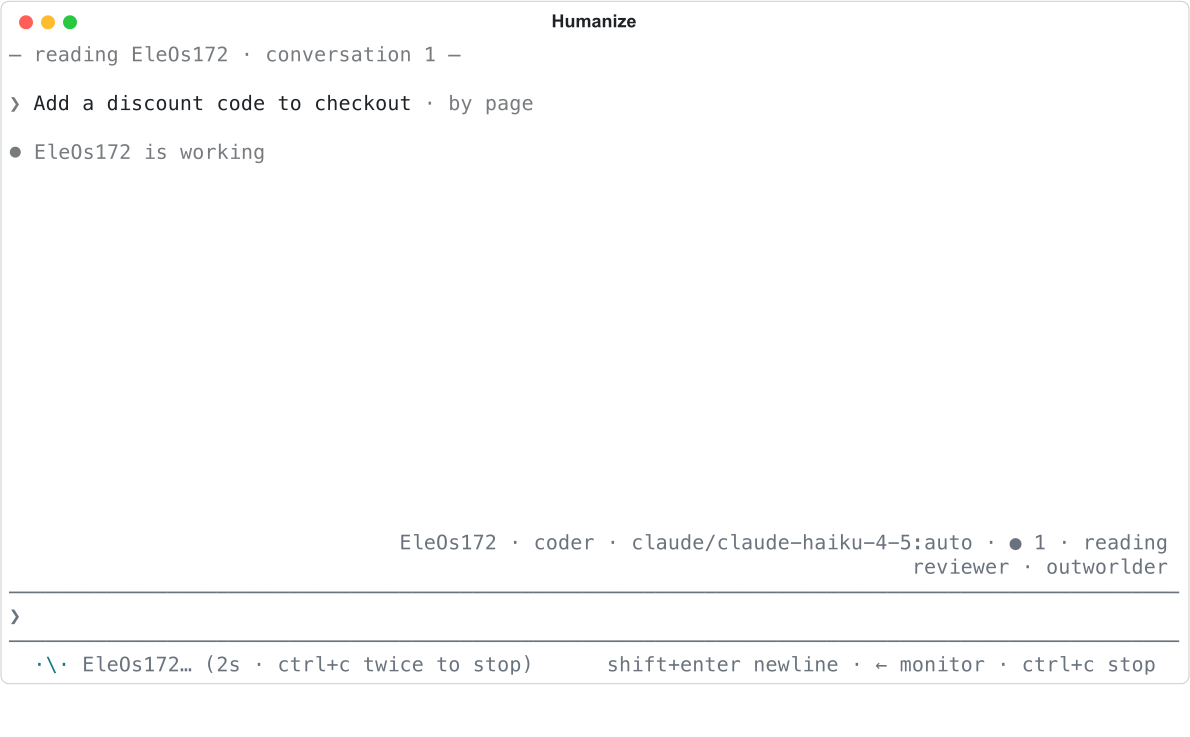
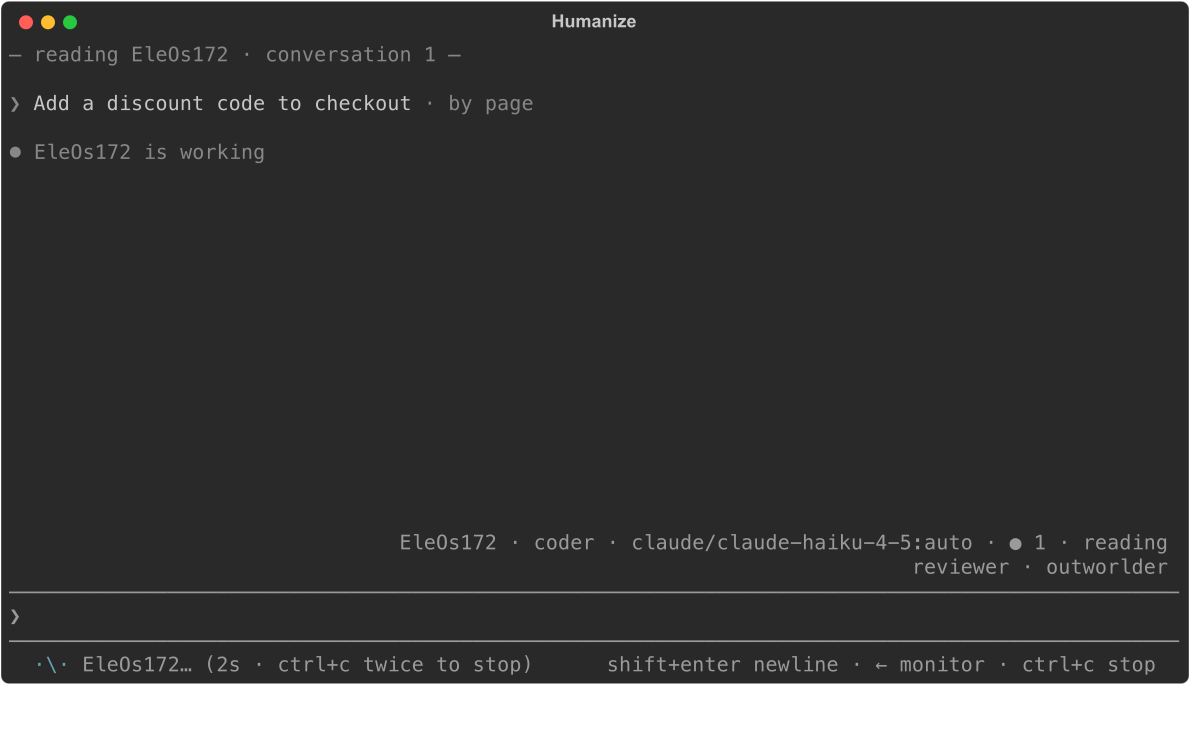
Press shift+tab for the next view and tab for the previous one. The cycle includes each session with an open turn, followed by each outworlder. The lines above the prompt mark your current view as reading, and mark any other view as unread when new lines arrive. Ended sessions leave the cycle; open the monitor to read them. A chat has only one view, so both keys do nothing.
The interface keeps the last 2000 lines of up to 32 transcripts.
Read the status line
The left side shows the current state: starting…, the active agents and their elapsed time (in a chat, running… then done), waiting for you, or, when idle, the agent (outside a chat, the flow that is set up) and the folder. Prefixes mark active modes: afk when agents may not ask you, details when tool calls are visible, btw in btw mode, and 2 flow updates when installed flows have newer releases. After you copy text, it shows copied for two seconds.
Two prefixes mark what the terminal follows. When you open an epic or chat on another daemon with follow from /epics @<name>, you see @<daemon> · <folder> and the transcript shows following <path> on <daemon>; esc comes back. Press esc at the prompt to return to that daemon's list. A new Ai-chan conversation shows Ai-chan · new · <scope> until your first line; a conversation you follow shows Ai-chan#<n> · <scope>. See History and search and Ai-chan.
The right side lists only the keys that work right now, such as enter send, shift+tab switch view, / commands, ← monitor and what the next ctrl+c does. In a narrow terminal, hints drop from the left of the key list; the state on the left side is never cut.
Use menus
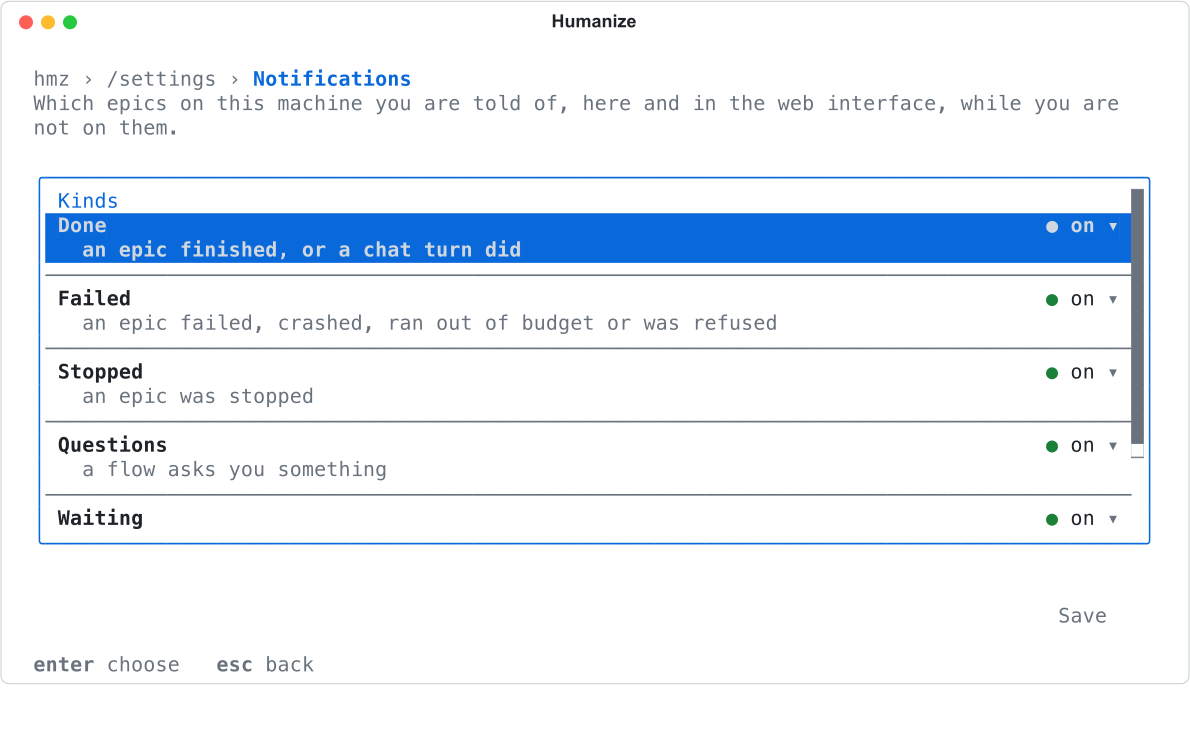
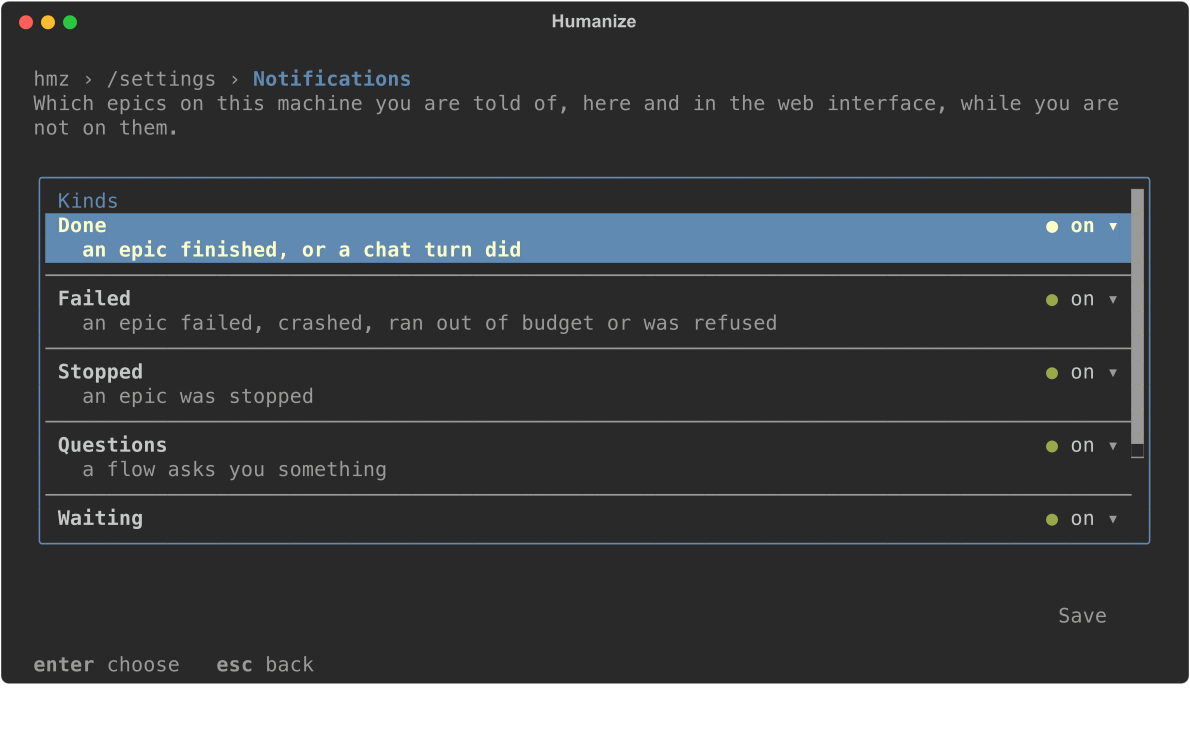
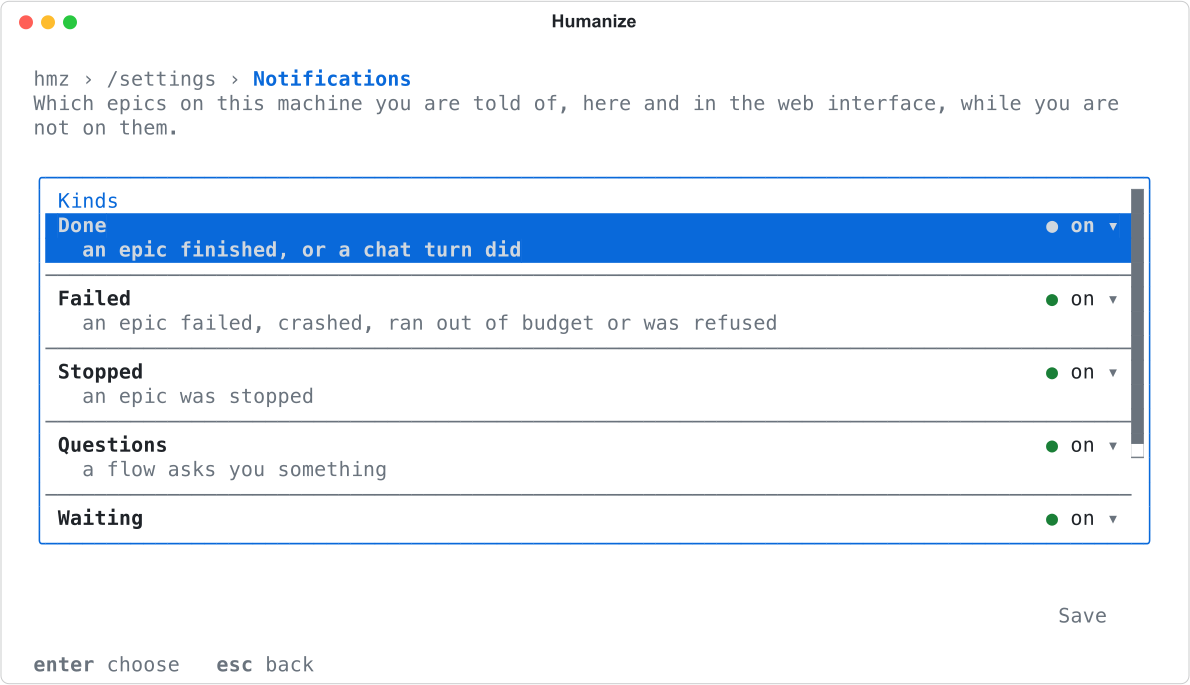
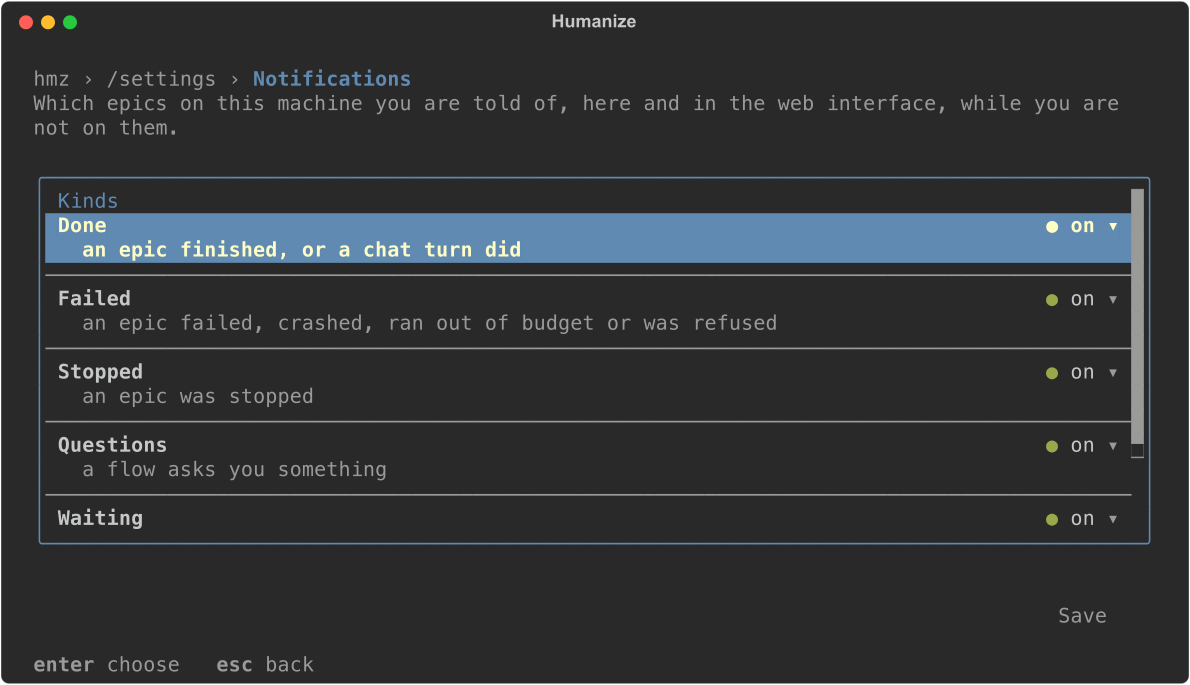
/flow, /epics, /settings and /ai open full-screen menus. Every menu shares the same layout and keys.
| Key | What it does |
|---|---|
| ↑ ↓ | Move the cursor. |
| enter | Open or select the row. |
| → | Enter what the row opens. |
| ← or backspace | Go up a level. |
| esc | Revert a row you are editing, clear the search, or leave the menu. |
| tab, shift+tab | Move between the search box, the list and the buttons. |
/ | Search the list, when searchable. |
m | Open the row's menu, when available. |
You can also click any row, button or breadcrumb across the top.
- Rows. A value ending in
▸opens a sheet. A value ending in▾drops a list of options with✔on the active one. A switch reads● on ▾or○ off ▾; its list opens on the opposite value, so pressing enter twice flips it. - Forms. Type on a form row to start editing it. Press enter to keep the value and move to the next unanswered row, or esc to revert it. On path rows, press tab to complete paths as in a shell.
- Buttons. The primary action button sits last on the right in green. Destructive buttons are red.
Save or discard changes
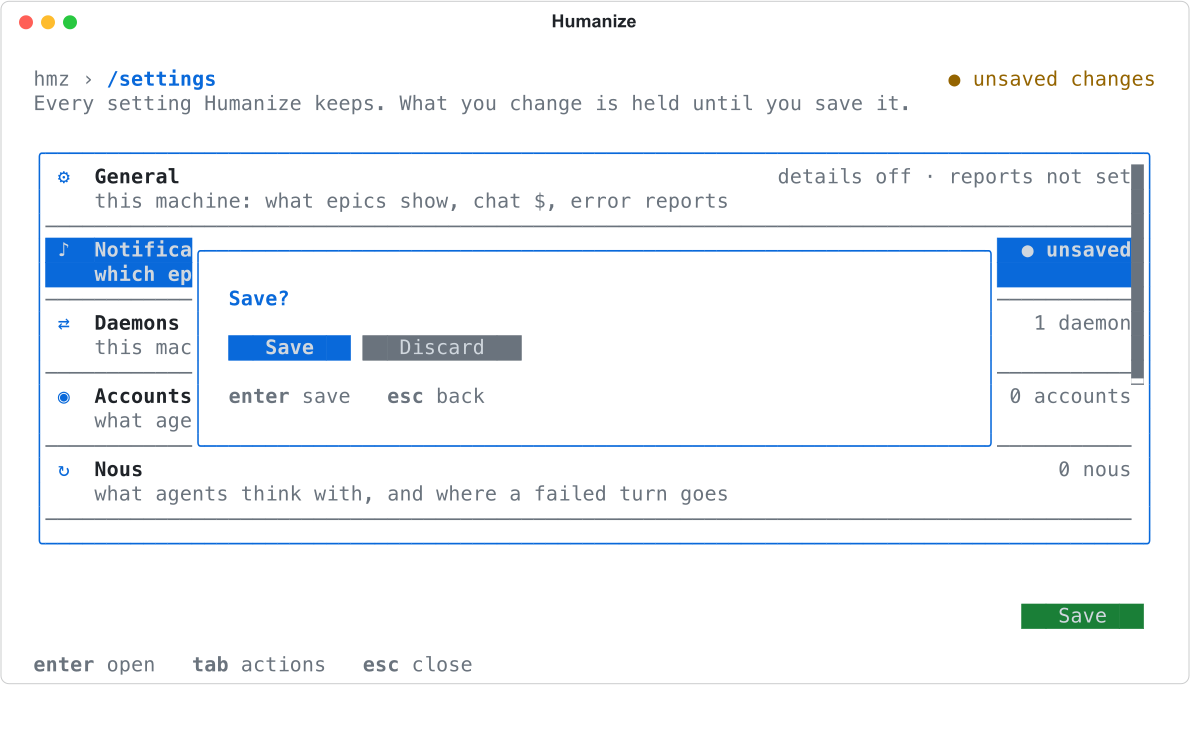
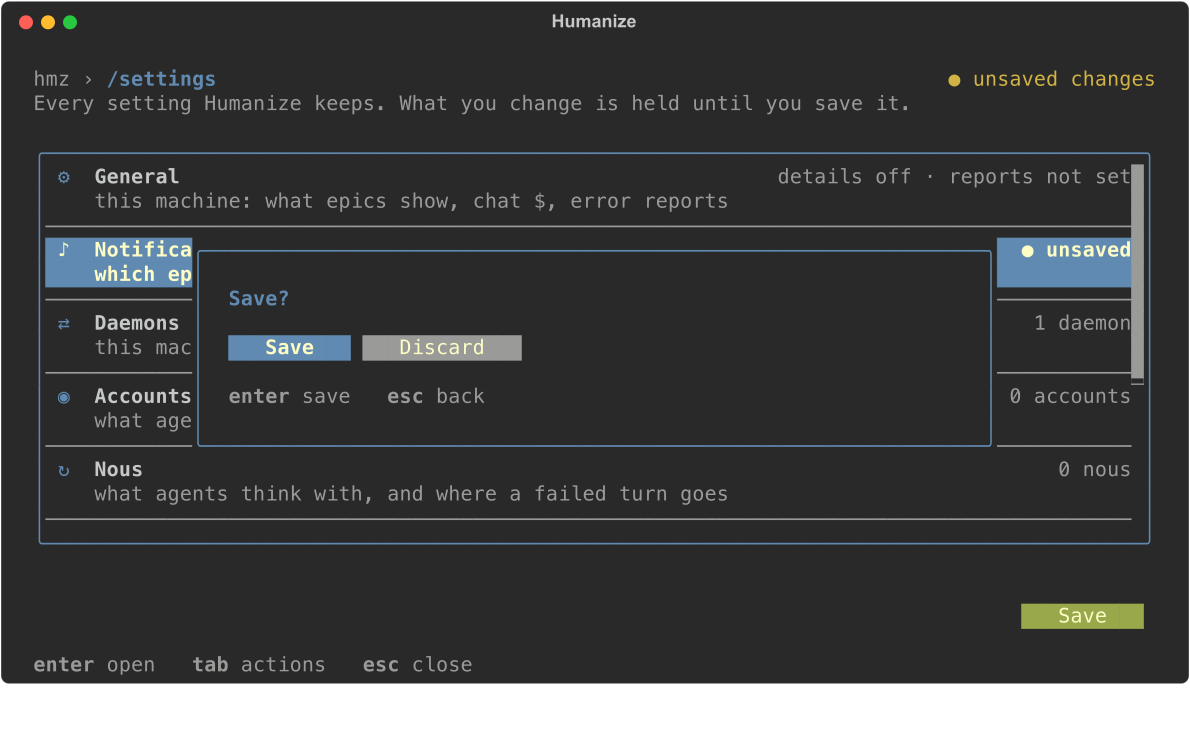
Menus hold your edits until you save. While you have unsaved edits, the top line shows ● unsaved changes. Press Save, or leave the menu to open a Save? prompt with Save and Discard (esc returns to the menu).
Actions that install, fetch, import, export or upload take effect immediately.
Select and copy text
Drag across the transcript to copy from press to release. Double-click to copy a word, or triple-click to copy the whole line. Humanize copies the unwrapped text and sends it through the terminal to your local clipboard, so copying works over SSH. In most terminals, hold shift while dragging to use the terminal's own selection instead. The transcript follows new lines until you scroll up, and follows again once you scroll back to the bottom.
Change colours
By default, the interface uses your terminal's 16 colours and background. Set TEXTUAL_THEME to use a Textual theme instead:
TEXTUAL_THEME=nord hmzUnknown theme names are ignored. Set NO_COLOR=1 to turn colour off. See Themes and language.
Good to know
- The interface draws without waiting for the network. In the background, it refreshes model lists, flowverse indexes and prices, and checks for new releases.
- When a new release is out, the transcript prints
hmz <version> is out: run `hmz update` to updateonce. See Install and update. - When installed flows have updates, the transcript prints
updates available: …; update from /flow. - On first start, Humanize asks
Report errors to Humanize?. See Report a problem. - When a background run finishes or asks a question, a card appears in the corner. See Notifications.
- There is no separate command palette; type
/for all commands.