Organise chats
Humanize keeps every chat until you delete it. You can rename, fork, pin, archive, restore, delete, and search your chats. The daemon stores them, so changes on one interface appear on the others.
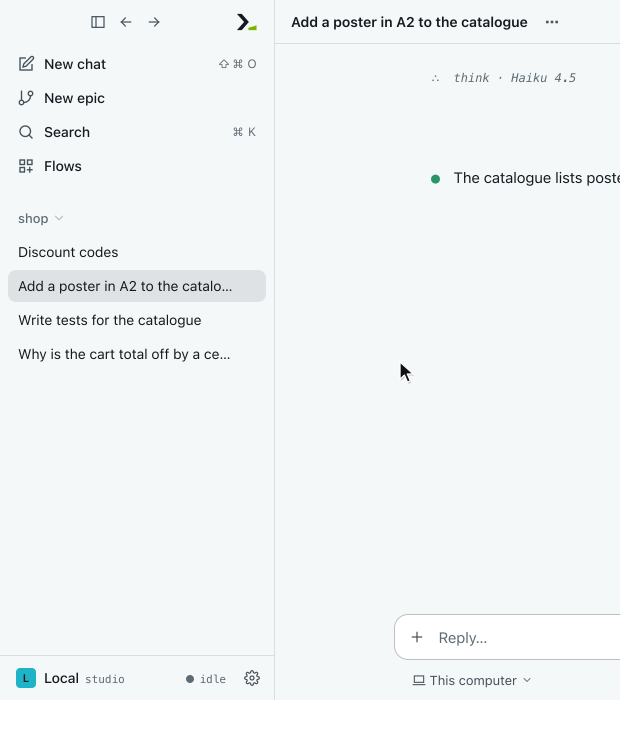
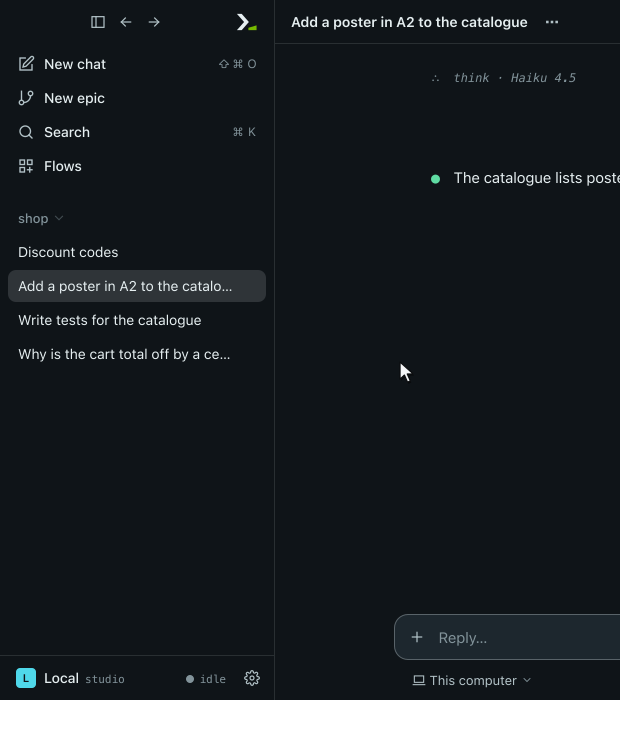
In the app
Humanize Desktop and the web page work the same way.
Open a chat's menu
Hover over a chat in the sidebar and click More options (…), or right-click the row. You can also click More options on the top bar of an open chat. Results in Search have the same menu, except for Rename.
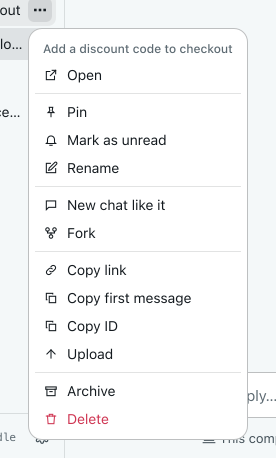
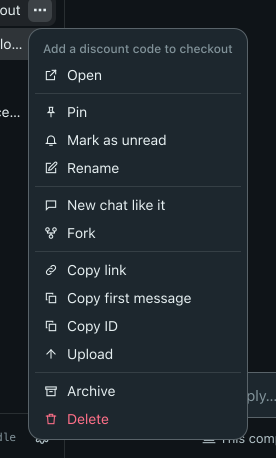
| Item | What it does |
|---|---|
| Open | Opens the chat. |
| Pin / Unpin | Lists the chat first, under Pinned. |
| Mark as unread / Mark as read | Shows or hides a dot on the row. |
| Rename | Turns the title into an editable field. |
| New chat like it | Opens a new chat with the same folder and agent. |
| Fork | Copies the chat into a new chat and opens the copy. |
| Copy link, Copy first message, Copy ID | Copies the value to the clipboard. |
| Upload | Backs the chat up now. See Back up to git. |
| Archive / Unarchive | Removes the chat from the list, or restores it. |
| Delete | Permanently deletes the chat after confirmation. |
Rename a chat
- Pick Rename in the menu, or click the title on the bar of the open chat.
- Type the new title and press enter or click elsewhere to save it. Press esc to keep the old title.
A title is at most 240 characters. Until you rename a chat, its title is the first line of its first message.
Fork a chat
Select Fork to create a new chat in the same folder. The new chat continues from a copy of the conversation so far, using the same agent, permission, and place of work. The original chat stays unchanged. You cannot fork a chat while its turn is open.
Pin and mark unread
Select Pin to keep a chat at the top of the list under Pinned. Select Mark as unread to show a dot on the row until you open the chat. Notifications mark rows unread the same way.
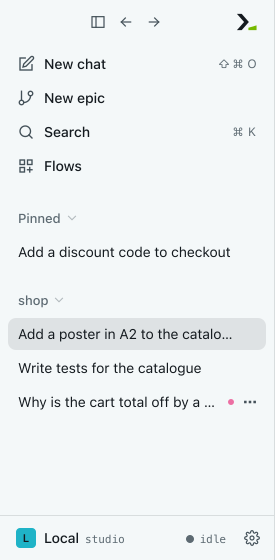
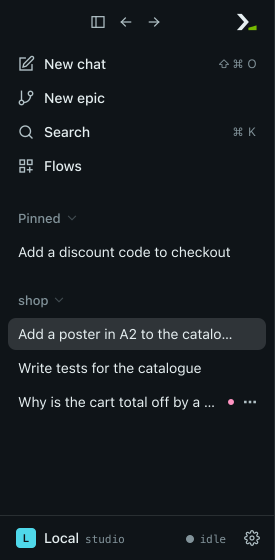
Each row also shows the state of its chat. It displays Running while the agent answers and Failed if the chat fails. When the agent waits for your answer, a dot appears that reads Awaiting input on hover. A resting chat shows only its title. On touch screens, every row also shows the chat's age.
Archive and restore
Select Archive to remove a chat from the sidebar and from Search. Nothing else about the chat changes.
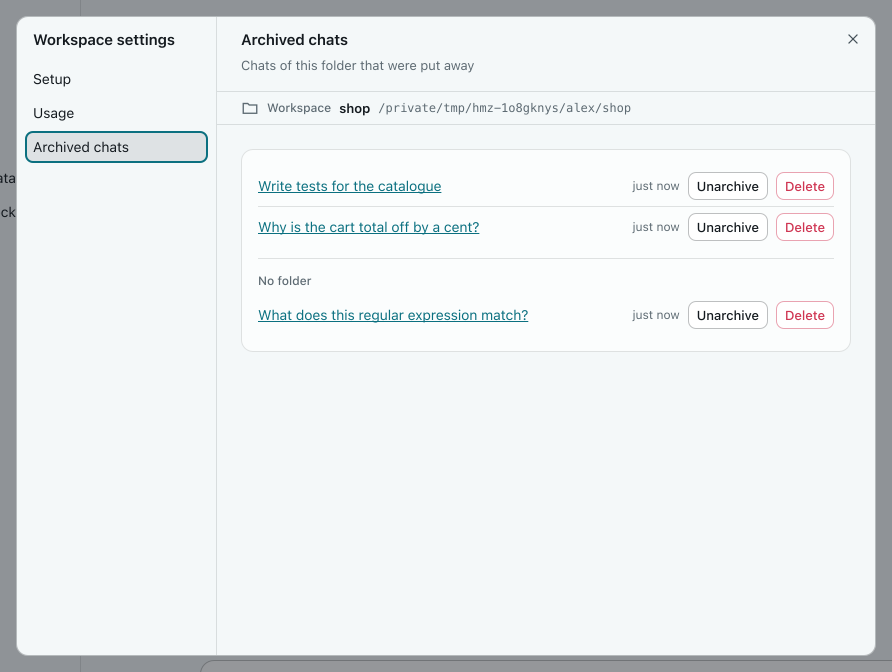
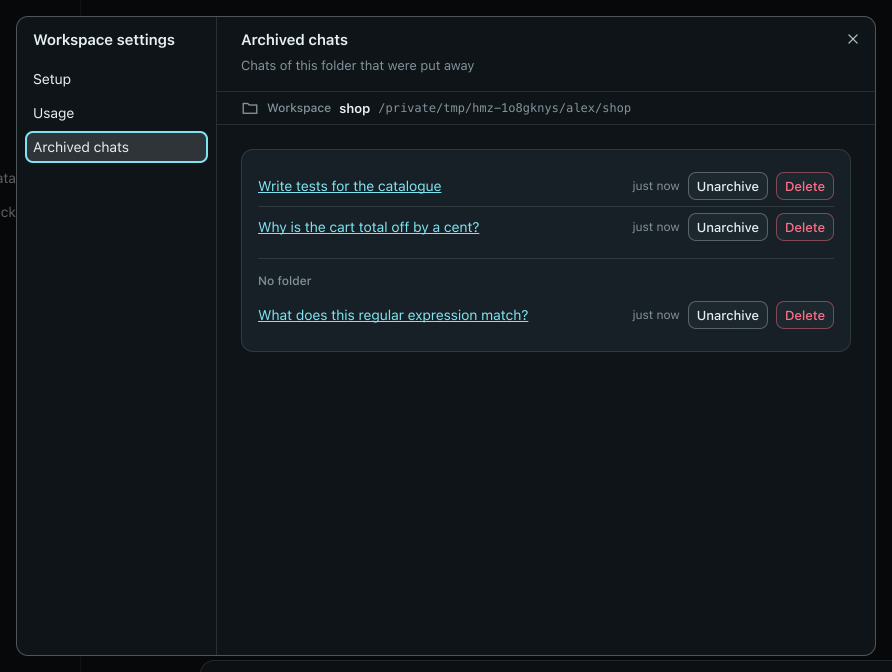
To view and restore archived chats:
- In the sidebar, point at the folder's heading, click Group and sort, and choose Workspace settings. You can also right-click the heading.
- Click Archived chats.
- Click a title to read the chat, Unarchive to restore it to the list, or Delete to remove it.
Chats started with No folder appear under the No folder heading below the folder's archived chats, whichever folder's settings you opened. Workspace settings on the sidebar's No folder heading lists them alone. See Workspace settings.
An open archived chat also has an Unarchive button on its top bar.
Delete a chat
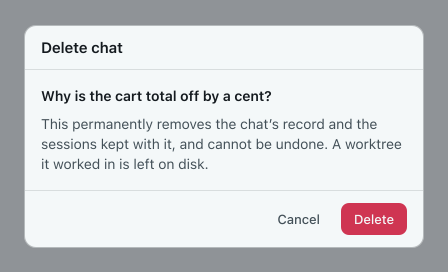
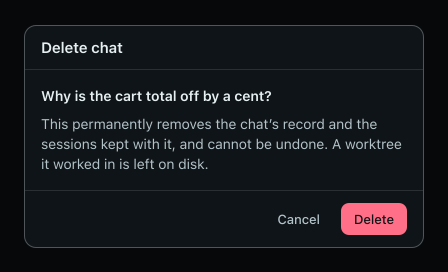
Select Delete to open a confirmation dialog that names the chat. Click Delete to confirm or Cancel to keep it.
WARNING
Deleting removes the chat's record and its saved sessions, and cannot be undone. Any git worktree the chat used stays on disk.
You cannot delete a chat while its turn is open. Stop the turn or wait for it to finish.
Group and sort the list
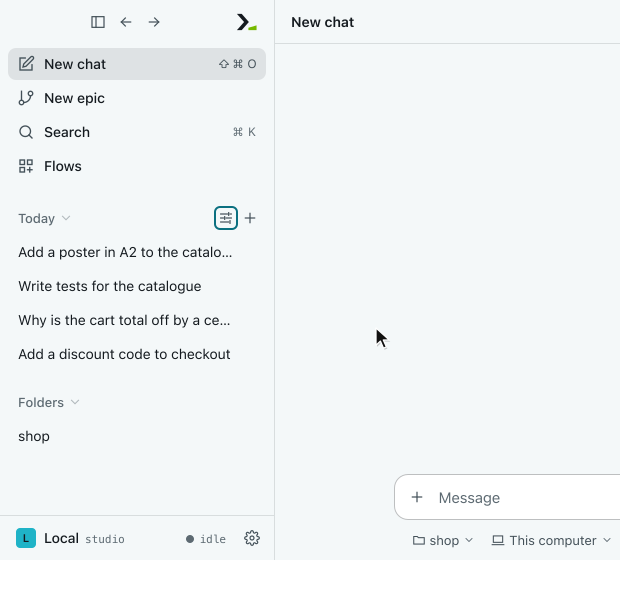
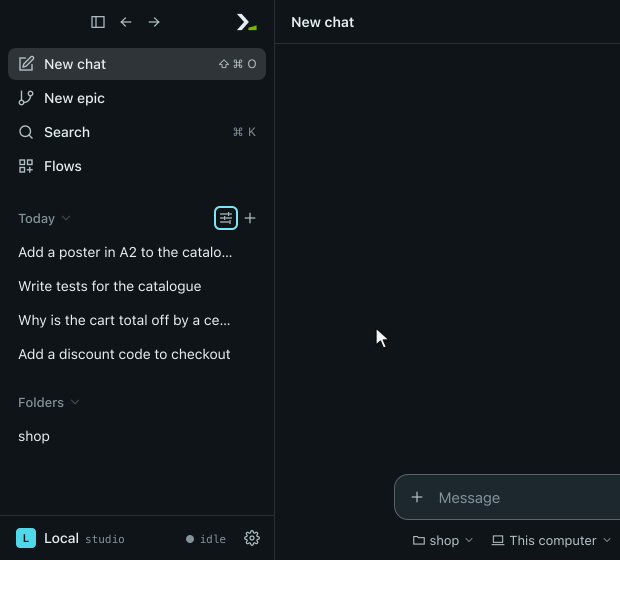
Hover over any group heading in the sidebar and click Group and sort.
| Menu | Choices | Default |
|---|---|---|
| Group by | Folder, Date (Today, Yesterday, Last 7 days, Last 30 days, Older), None (one group, All) | Folder |
| Sort by | Last updated, Created | Last updated |
| Show | Chats, Epics | both |
Click Reset to defaults to restore all three settings. Pinned rows always appear first. A group shows 20 rows; click Show N more under it to see the rest.
Work with folders
When you group by folder, each folder appears as a heading above its chats and epics. Chats started without a folder appear under No folder.
- Click the heading to collapse or expand the group.
- Click
+on the heading to start a new chat in that folder. - Right-click the heading to open the folder's menu.
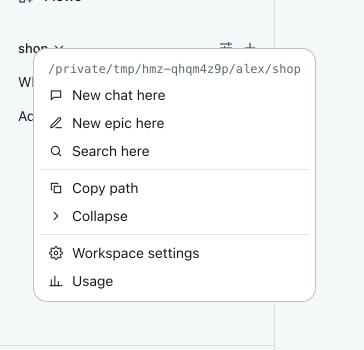
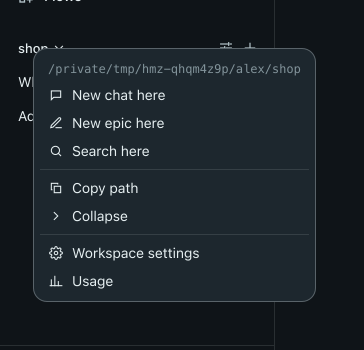
If a folder contains no chats and no epics, its menu includes Forget, which removes the folder from the list. When you group by date or not at all, folders appear at the bottom under Folders with the same menu; click one to start a new chat in it. A folder whose directory was deleted is tagged missing: its chats can still be read, but nothing new starts there.
Search for chats
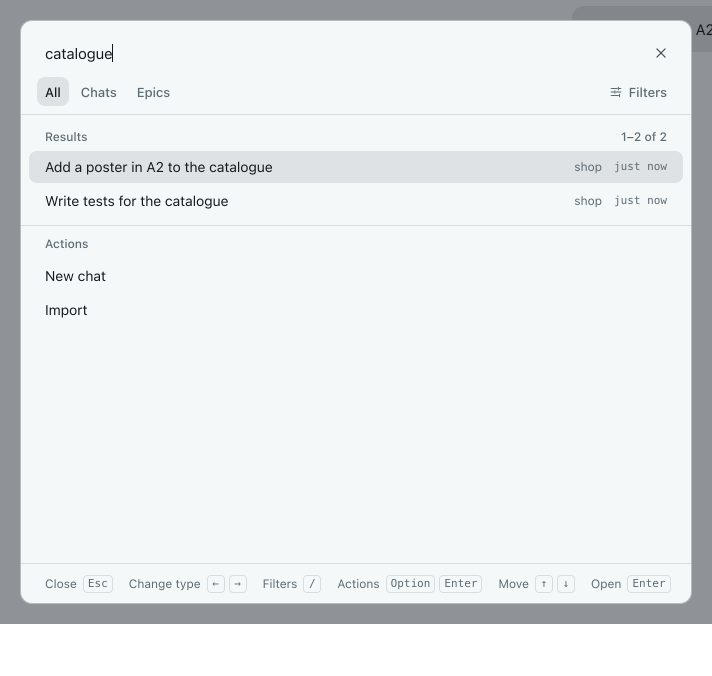
- Click Search in the sidebar or press ⌘K (ctrl+K on Windows and Linux).
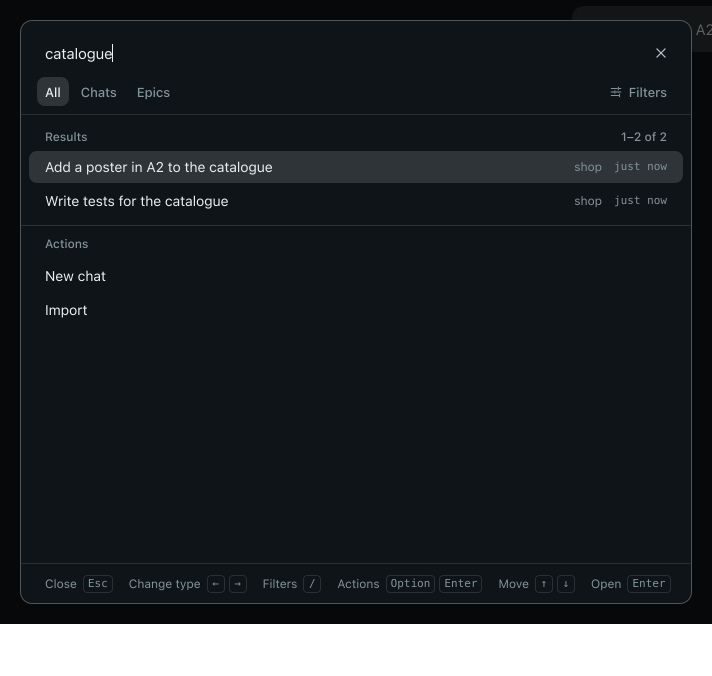
- Type to find chats by title, first message, or ID. Select the Chats tab to exclude epics.
- Press ↑ and ↓ to move through results, and press enter to open one.
- Right-click a result, or press option+enter (alt+enter), to open its menu.
Select Search here in a folder's menu to search only that folder. For search filters and epics, see History and search.
In the terminal
hmz opens directly into a chat. To manage chats in the current directory:
- Type
/resumeinside a chat and press enter. You see the directory's chats, newest first, with the chat you are in ticked once it has a message. (Outside a chat,/resumeresumes an epic instead; see Resume a run.) - Press enter on a chat to continue it, / to search the list, or m to open the menu for the selected chat.
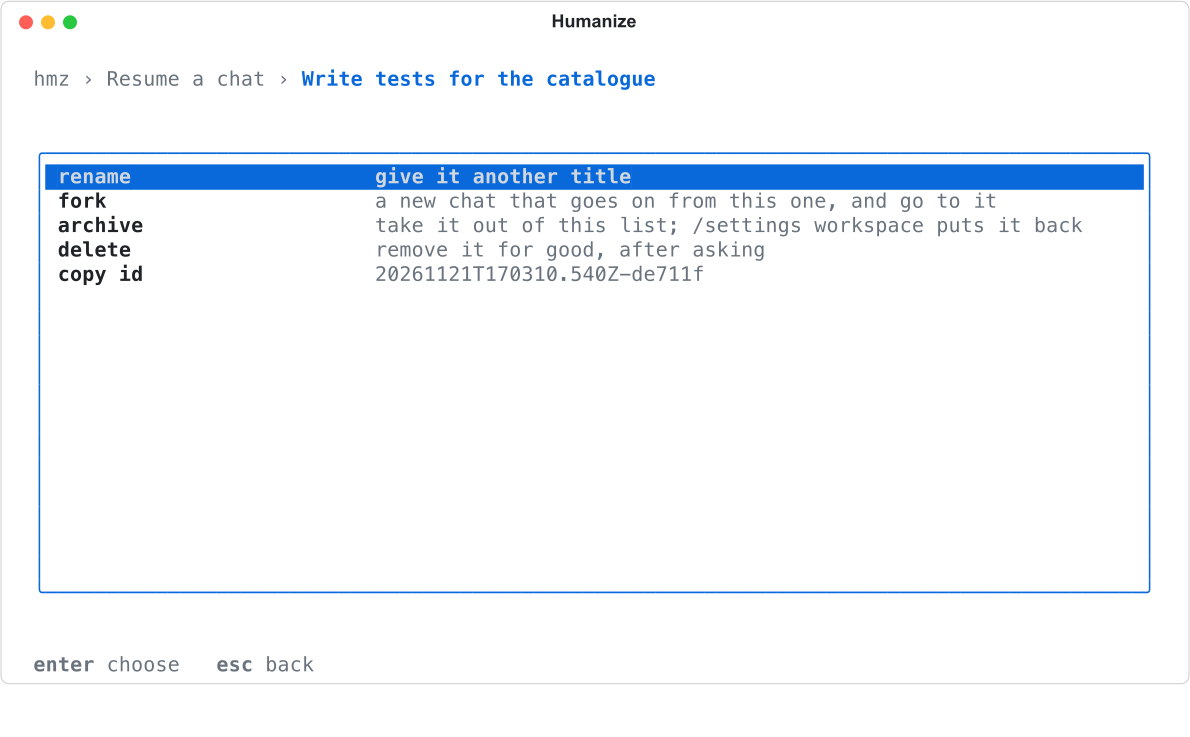
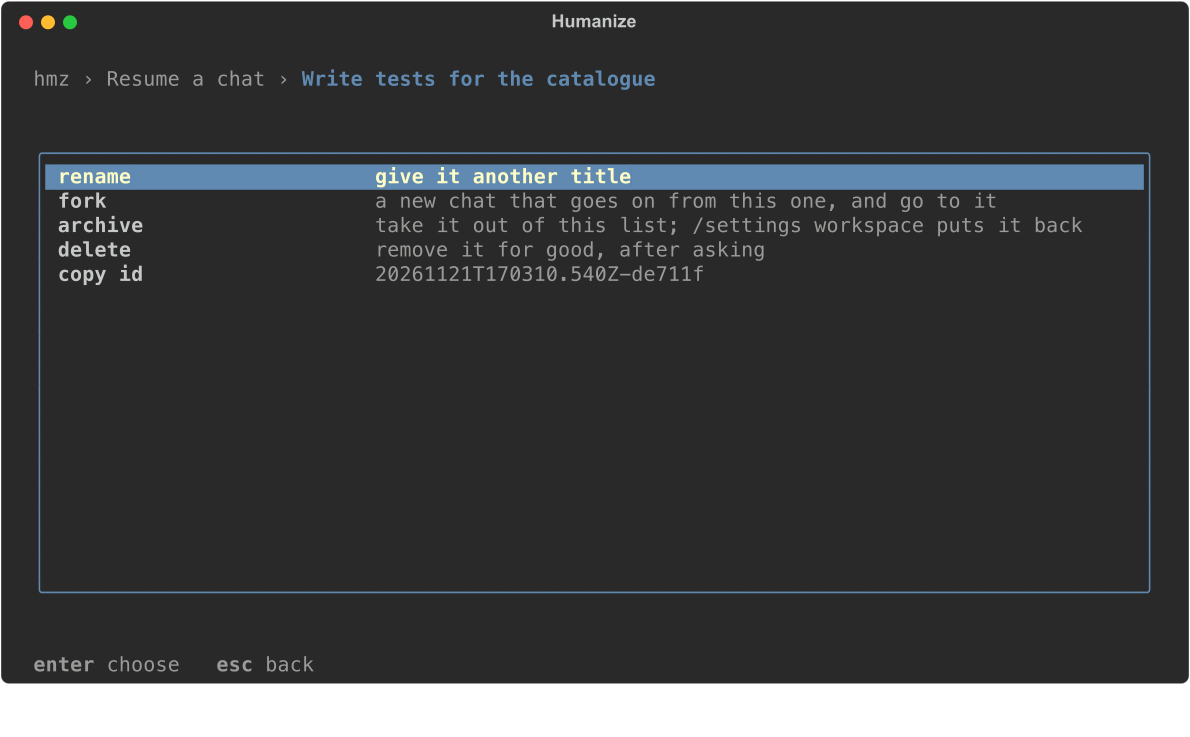
| Menu row | What it does |
|---|---|
rename | Prompts for a new title. |
fork | Creates a new chat continuing from this one and switches to it. |
archive | Removes the chat from the list. |
upload | Backs the chat up. Shown only when a backup target is set. |
delete | Prompts Delete <title>? with keep selected first, then deletes it permanently. |
copy id | Copies the chat's ID. |
If you archive or delete the active chat, closing the list starts a new chat.
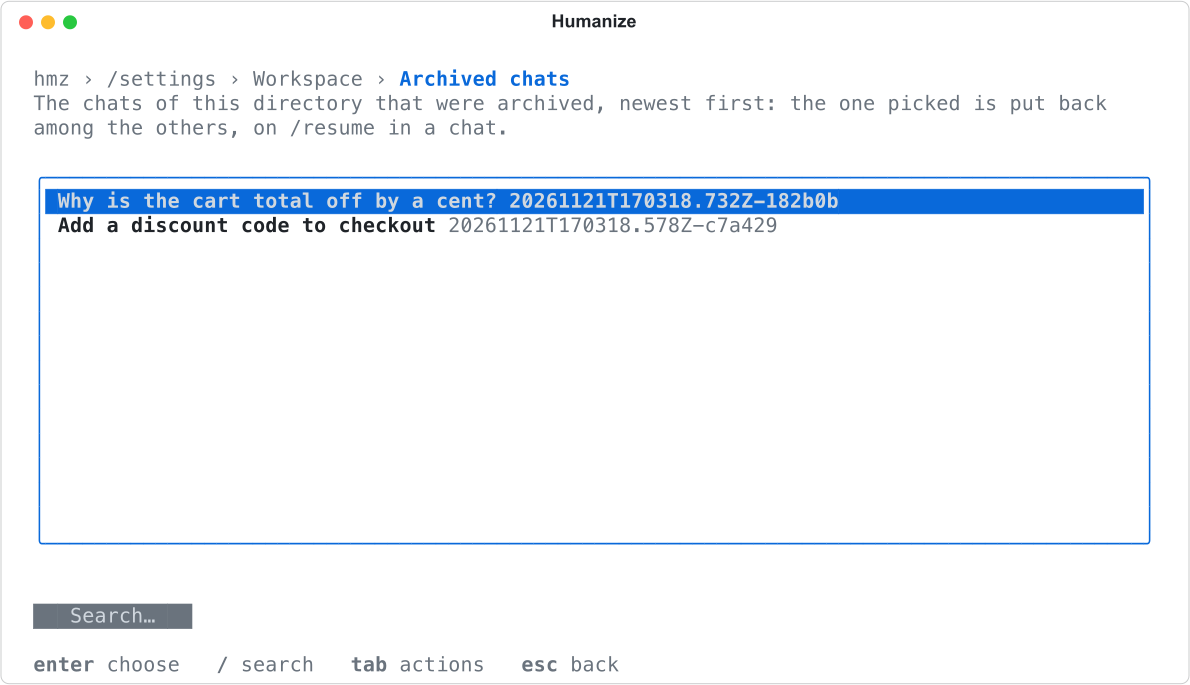
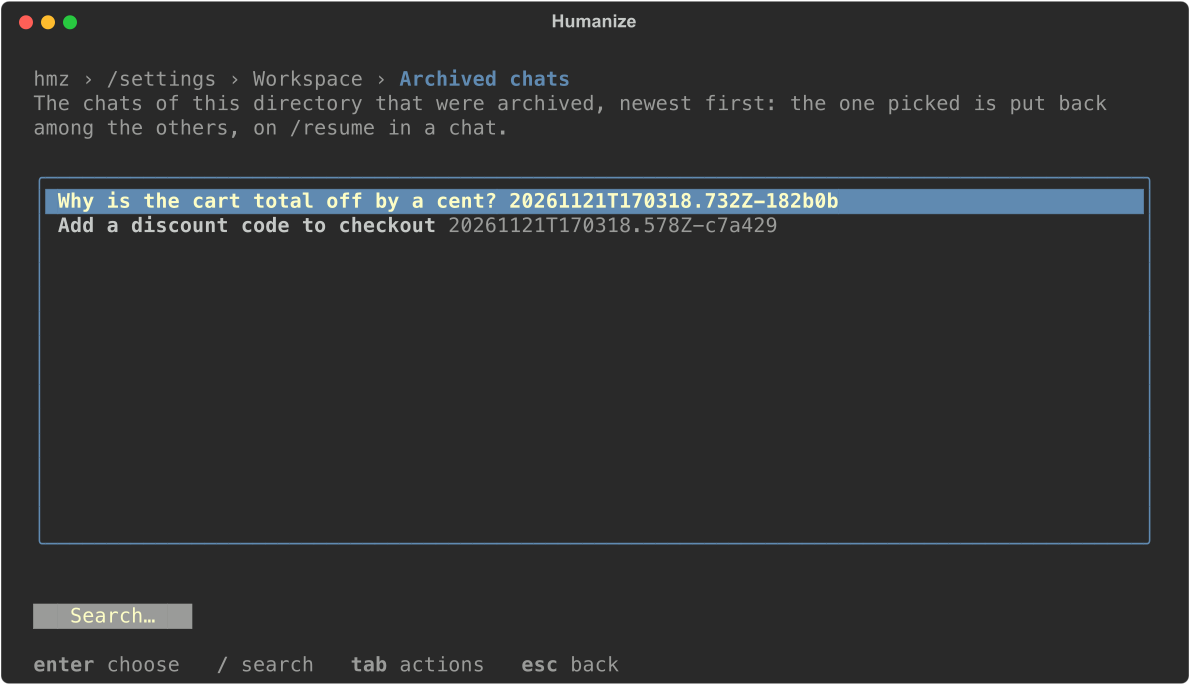
To restore an archived chat, type /settings workspace, open Archived chats, and press enter on the chat. The list stays open so you can restore several chats at once.
From the command line
Run hmz chat to manage chats in the current directory by ID without starting a turn.
hmz chat --list

Each line prints the chat's ID, state, and title. The state is turn while the agent answers, asking while it waits for you, failed, or ready.
hmz chat --rename 20261121T041901.042Z-f214a8 "Discount codes"

| Option | What it does | Prints |
|---|---|---|
--list | Lists the chats, newest first. | One line per chat. |
--list --archived | Lists only the archived chats. | One line per chat. |
--rename CHAT TITLE | Sets a new title for the chat. | The chat's line. |
--fork CHAT | Creates a new chat that continues from this one. | The new chat's ID. |
--archive CHAT | Removes the chat from the lists. | The chat's line. |
--unarchive CHAT | Restores an archived chat. | The chat's line. |
--delete CHAT | Permanently deletes the chat after asking [y/N]. | Nothing. |
--delete CHAT --yes | Deletes the chat without asking. | Nothing. |
Pass one action option at a time. Without --yes, --delete prompts only in an interactive terminal; in a script, it deletes nothing and exits with status 1. To continue a chat by ID, run hmz chat --resume (see Chat with an agent).
Good to know
- Pins, unread marks, Group and sort settings, and collapsed groups stay in the current browser, which keeps at most 200 pins and 200 unread marks. Other browsers, the terminal, and the command line do not see them. The daemon stores titles, forks, archives, and deletions, so every connected interface shows them.
- The terminal and command line list chats for the current directory only. The app lists all folders.
- List lines in the terminal and on the command line show at most 60 characters of a title.
- An archived chat appears only on the Archived chats page, under its folder or under No folder, never under Pinned.
- You cannot fork a chat if its coding agent stores the conversation outside the chat's own record.
- You can list standalone sessions from other coding CLIs alongside your chats. See Continue sessions from other CLIs.