Accounts
An account is a named set of credentials for one coding agent CLI. Humanize isolates each account from the CLI's own sign-in and from other accounts, so two agents of the same CLI can run at the same time under different accounts.
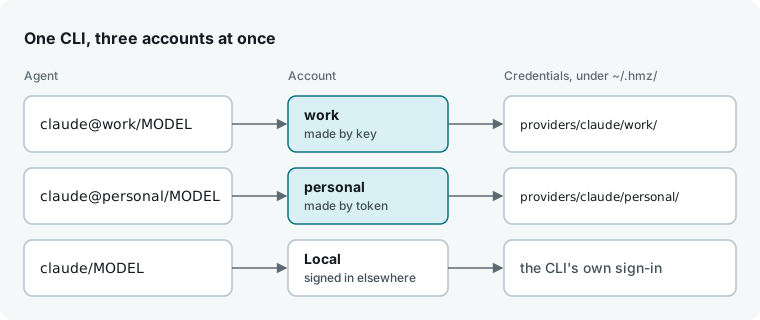
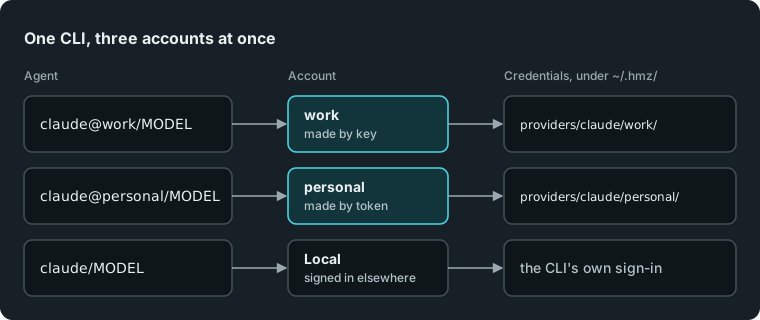
An agent without an account name runs as Local, using the CLI's existing sign-in on your machine. Humanize stores no credentials for Local, so you cannot edit or remove it.
Use an account
Add @ and the account name to the agent spec: claude@work/MODEL. Without @, the agent runs as Local. You can also pick the account in the app and terminal pickers; see Coding agents and Nous.
Humanize refuses unknown account names before anything runs:


Account changes take effect on the agent's next session. Running sessions keep the account they started with.
In the app
Open Settings, then Accounts. The table lists each account by CLI, showing its name, sign-in method, the variable names it sets under Sets, and the model count and last check time under Models. Secret values are never shown. Local is listed under each CLI that has at least one named account. With no account at all, the page says No account yet. and Add account jumps to the form.
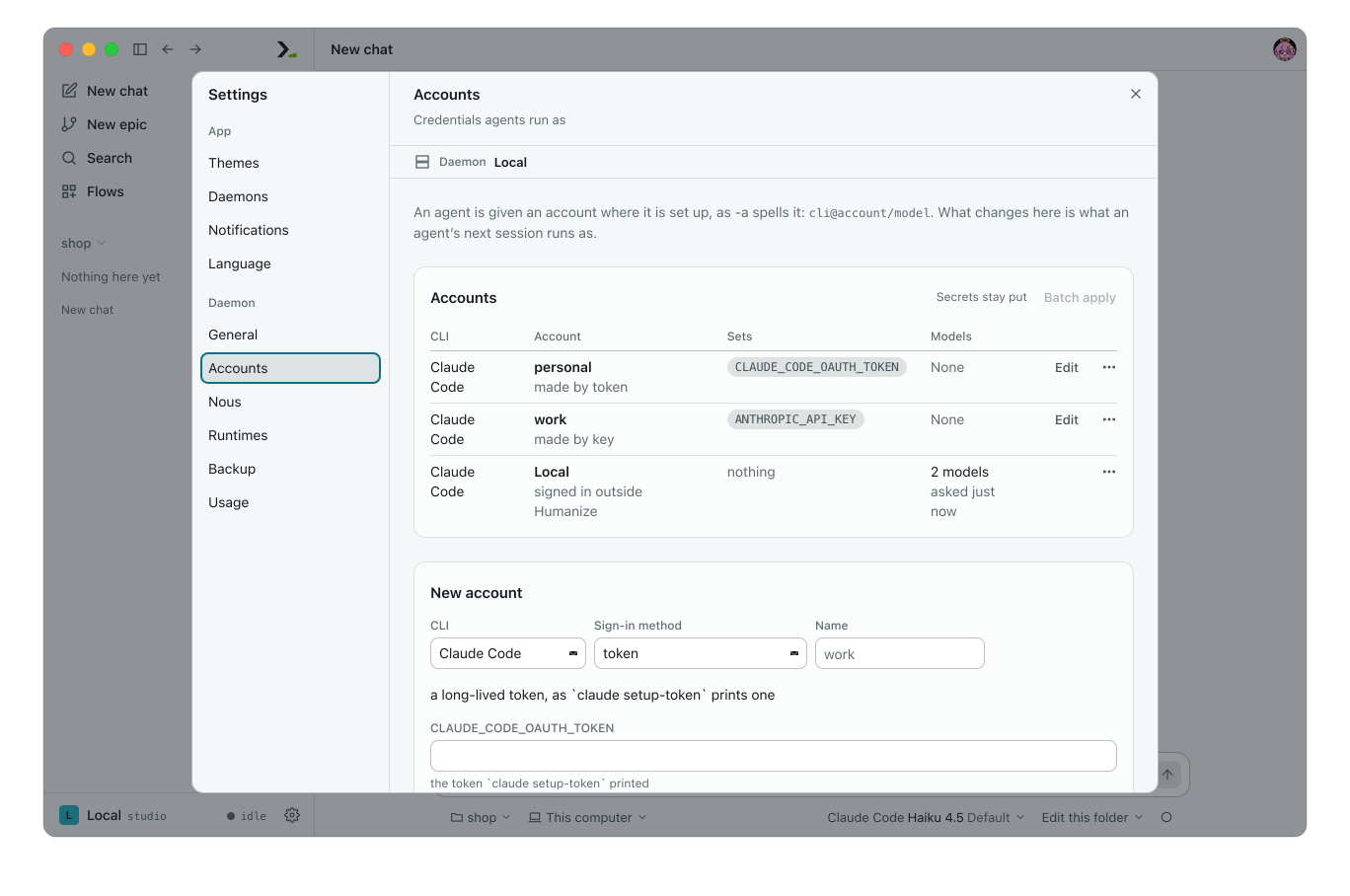
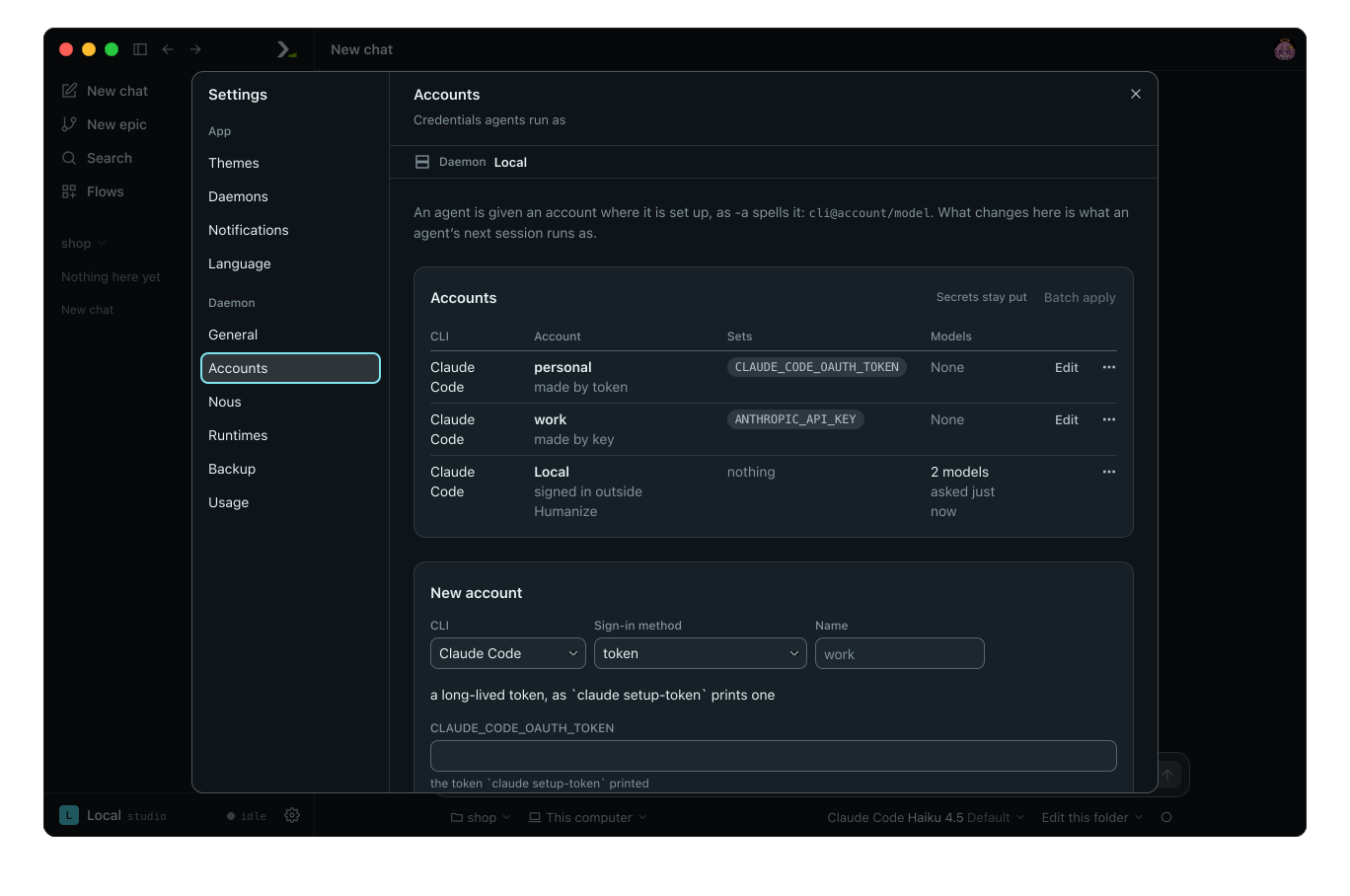
Accounts belong to the daemon the app shows, which is named at the top of the page. Batch apply is disabled on this page and displays Secrets stay put because accounts cannot be copied across daemons. To use an account on another daemon, switch to that daemon and create the account there.
Add an account
- Under New account, select the CLI and a Sign-in method.
- Type a Name, such as
work. - Fill in the fields for that method. Empty fields with defaults show the default value they will use.
- Click Create. The page displays
Made claude@work.and adds the account to the table.
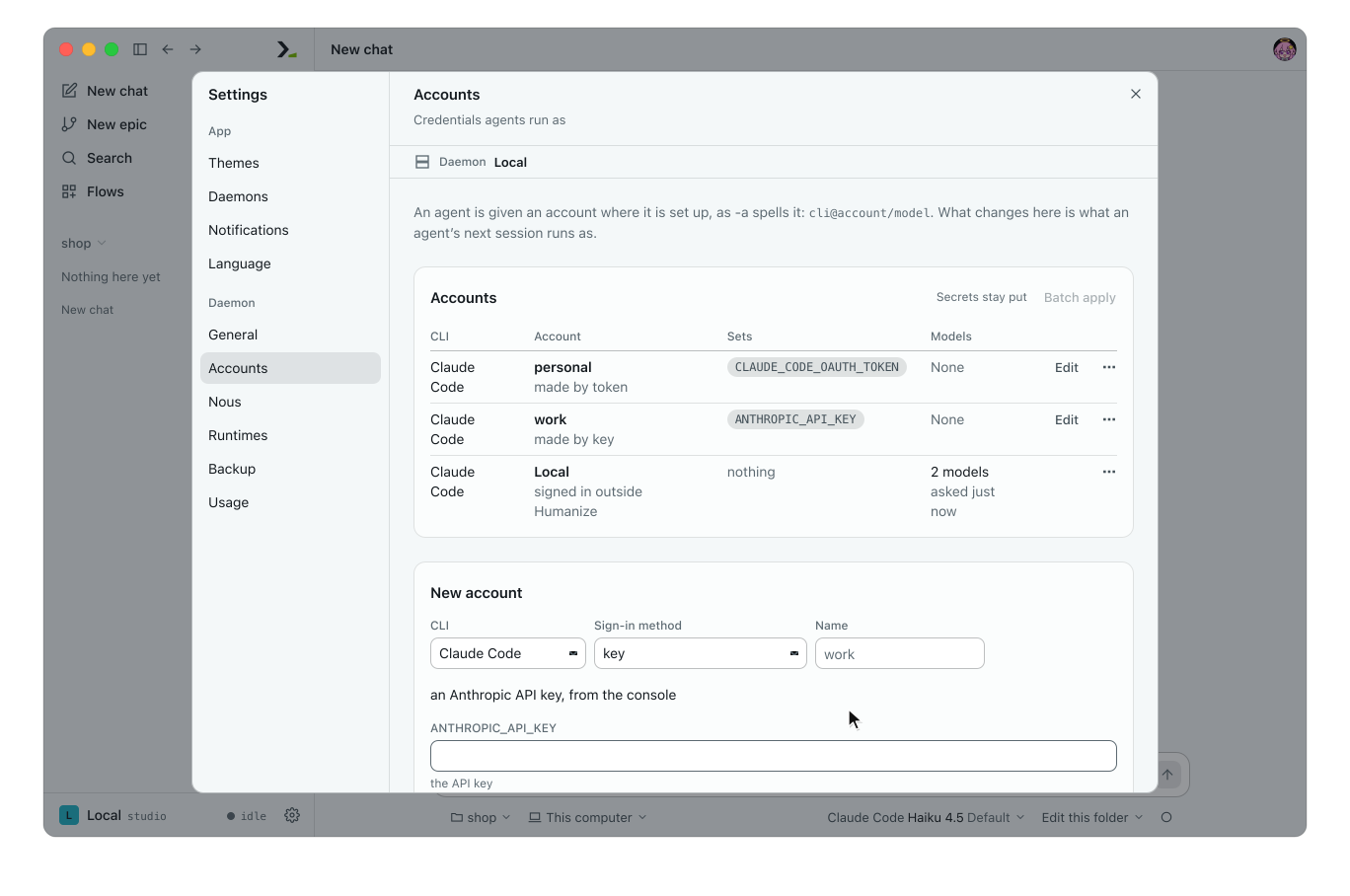
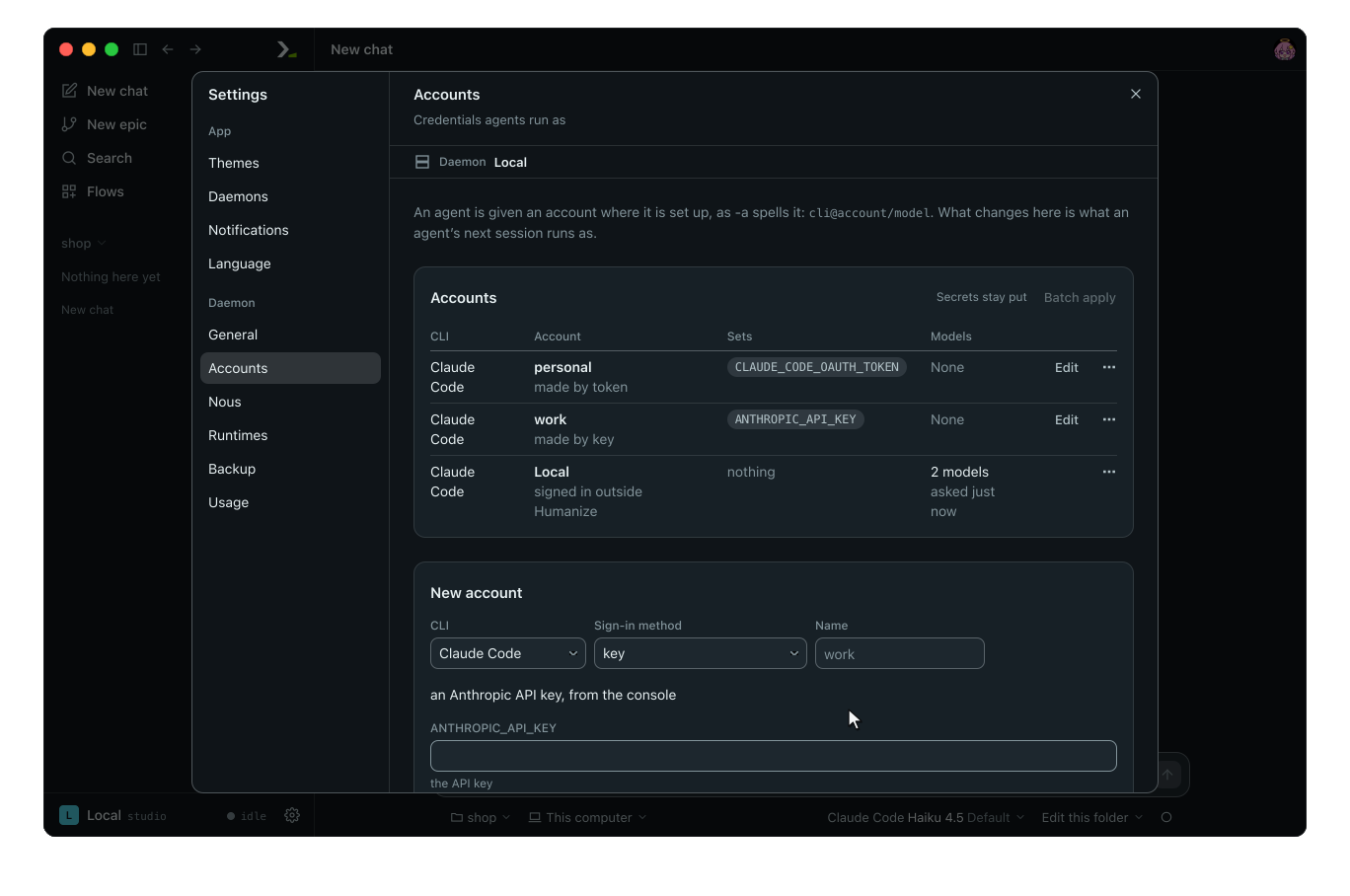
Methods marked (at a terminal) run the CLI's own sign-in. You cannot create them in the app, and Create is disabled. Create them in the terminal instead.
Edit, refresh, copy, remove
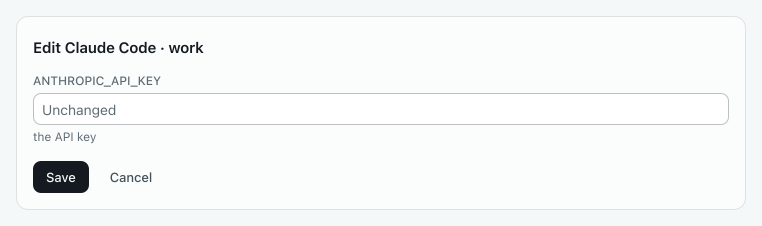
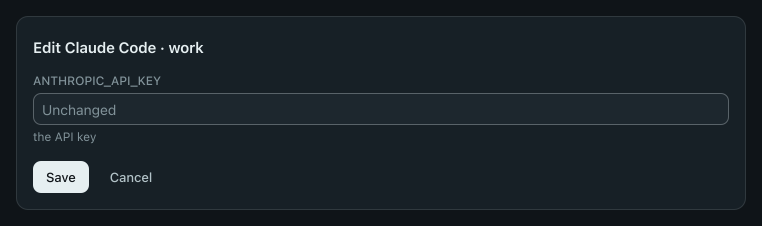
Click Edit on a row to update its fields. Leave a field empty (Unchanged) to keep its current value, then click Save. To update an account created with the CLI's own sign-in, sign in again in the terminal.
Click More options on a row, or right-click it, for more actions:
| Item | What it does |
|---|---|
| Refresh models | Asks the CLI which models it can run with this account. |
| Copy to a CLI | Creates an account with the same name and credentials for another compatible CLI, replacing any existing account of that name. |
| Remove | Prompts for confirmation, then deletes the account and its credentials. |
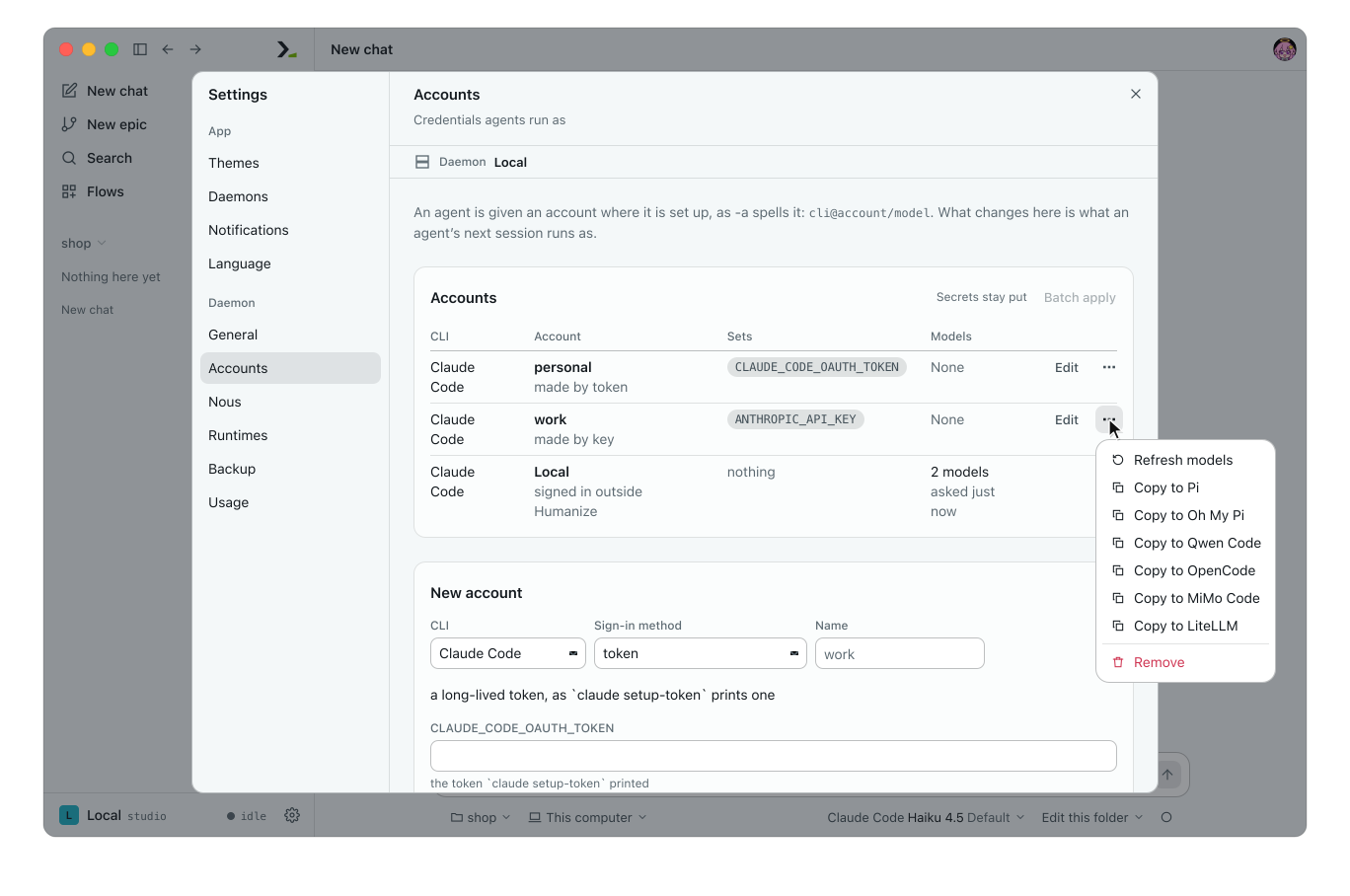
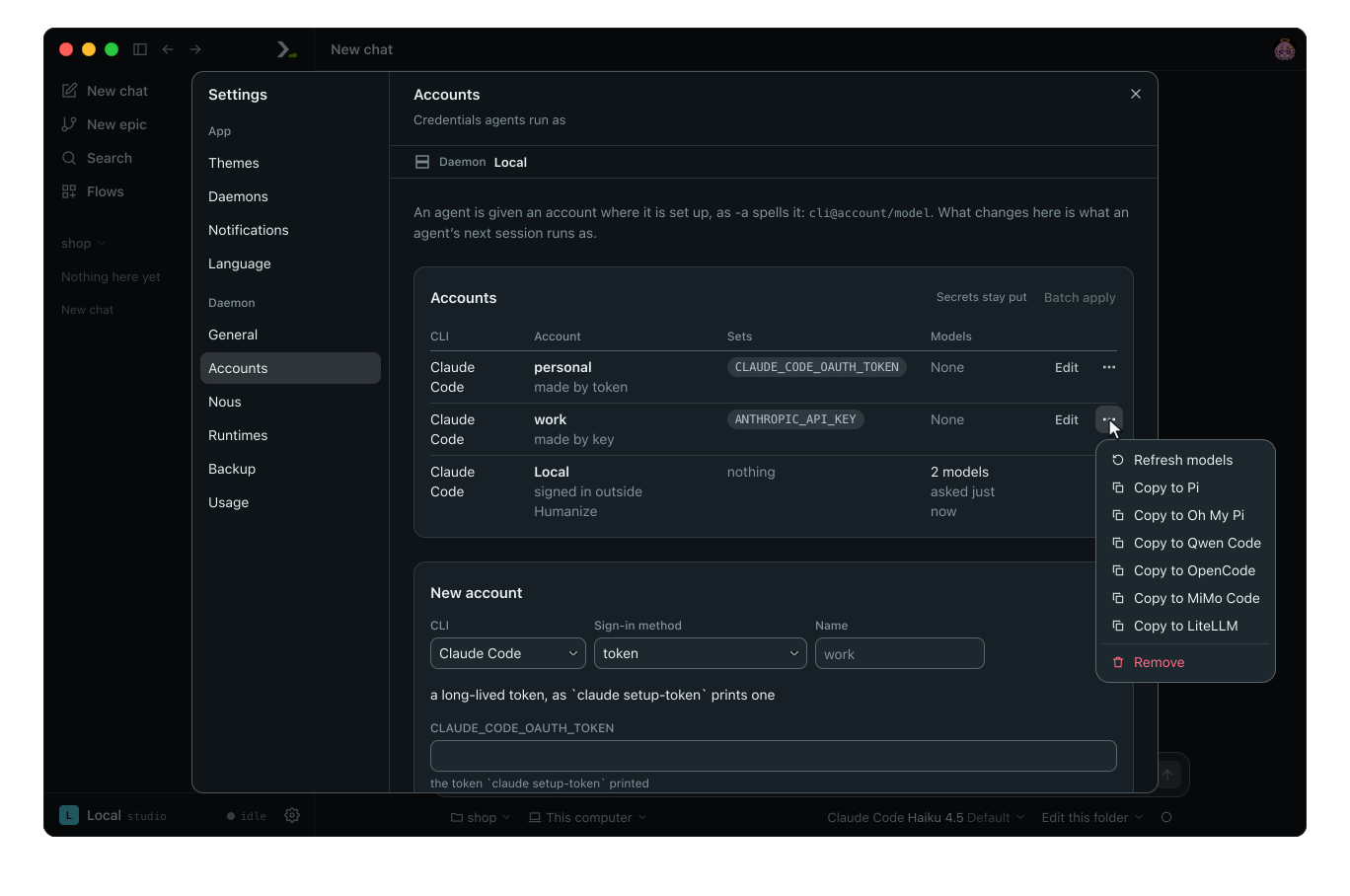
Copy to appears only for CLIs that accept the same credentials; for example, an Anthropic API key also works with Pi or OpenCode. Subscription sign-ins live in a single CLI's store and cannot be copied. The Local row offers only Refresh models.
In the terminal
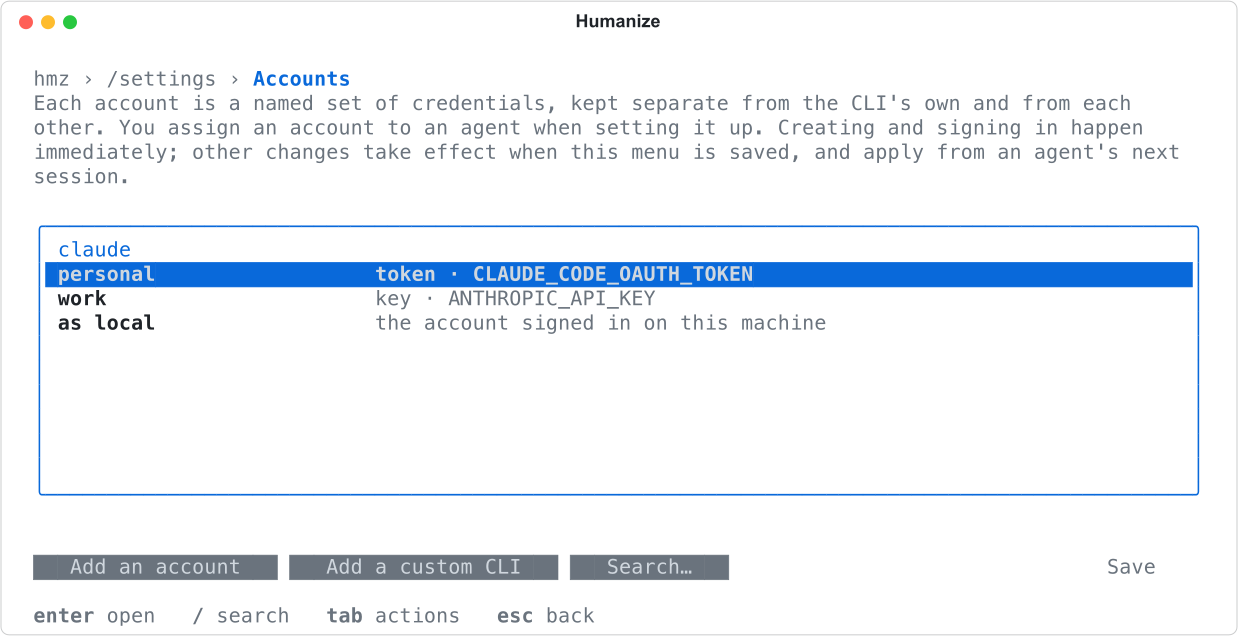
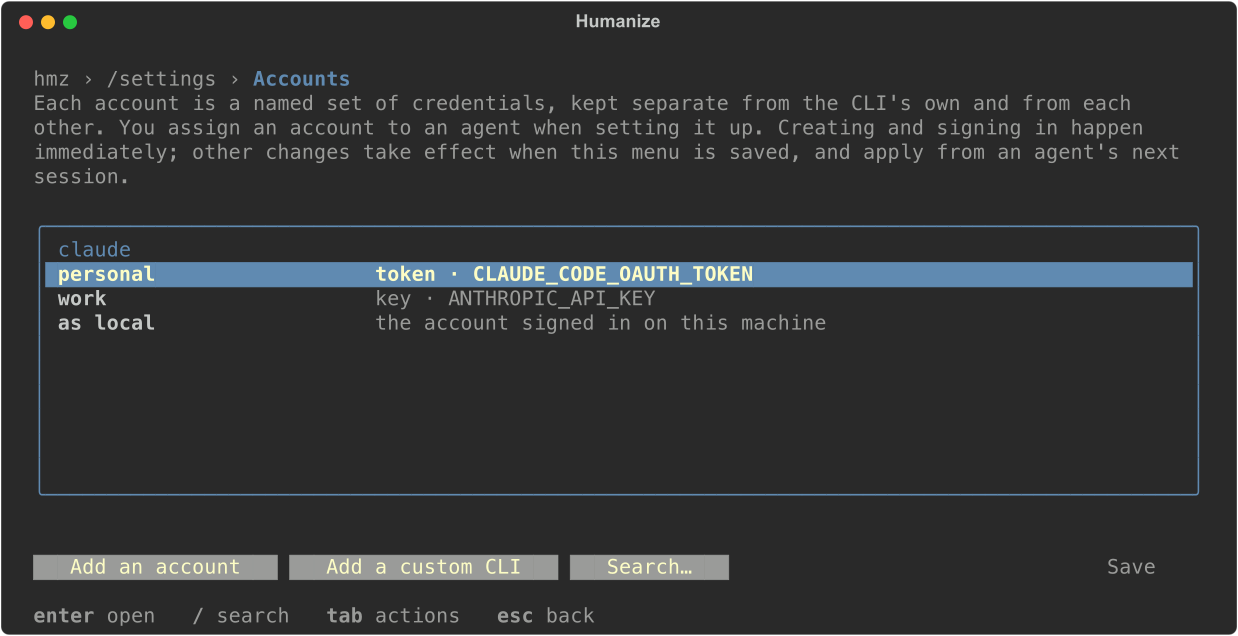
Type /settings accounts. Accounts appear under a heading for each CLI, with as local listed last in each group. Press / to search the list.
Add an account
- Press tab and choose Add an account.
- Set
cliandway(the sign-in method), and type aname. - Fill in the rows the method adds. Secrets appear as dots.
- Toggle each
also forrow to copy the account to other compatible CLIs. Installed CLIs start on, and a row warnsoverwrites <cli>/<name>when the copy would replace an account. - Choose Done. The line above Done previews the changes.
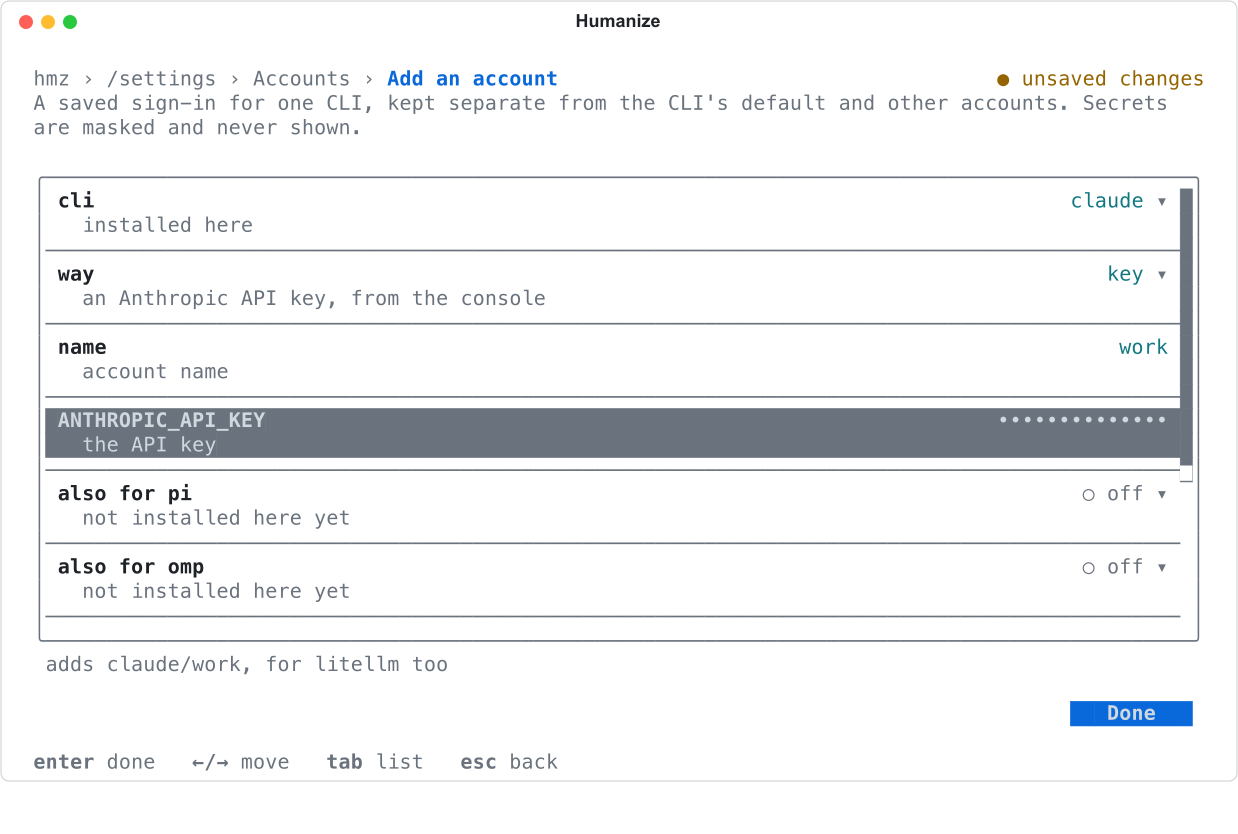
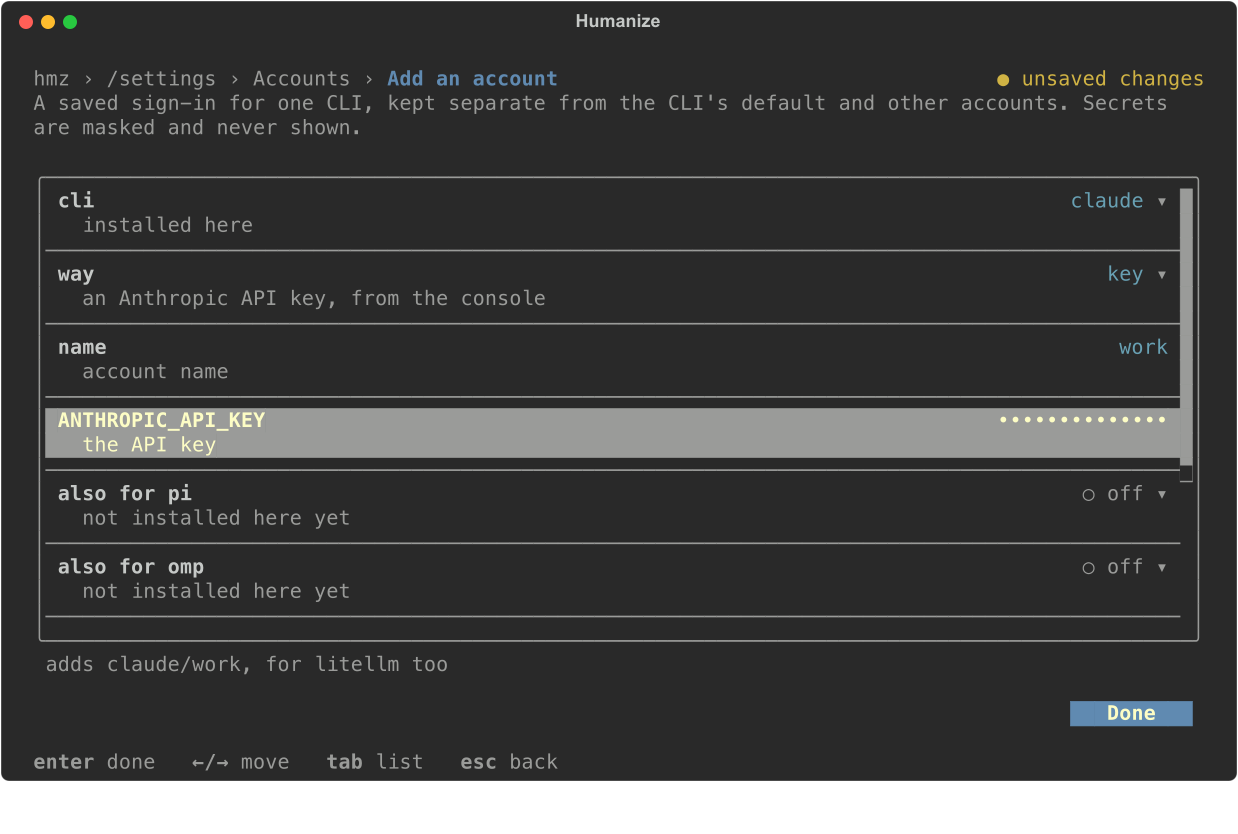
The account is created immediately. If the method uses the CLI's own sign-in, that flow takes over the terminal until it finishes. Humanize then queries the CLI for the models available to the new account.
Edit, sign in again, remove
Press enter on an account to open its menu.
| Item | What it does |
|---|---|
edit settings | Prompts for the setup fields again. Leave a secret blank to keep its current value. The also for rows update the copies for other CLIs. |
sign in again | For an account made by the CLI's own sign-in: runs that sign-in immediately, taking over the terminal until it finishes. Other accounts have no command to run; edit their settings instead. |
| Remove | Marks the account and its credentials for deletion. Choose Cancel removal to undo. |
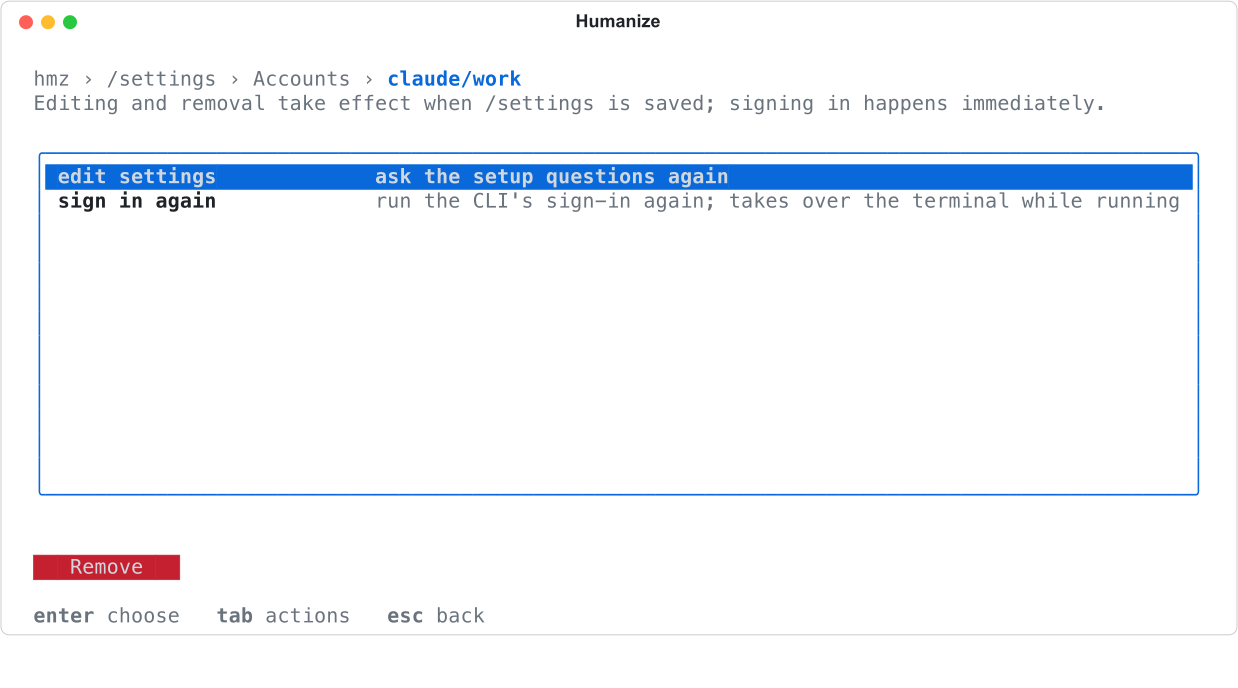
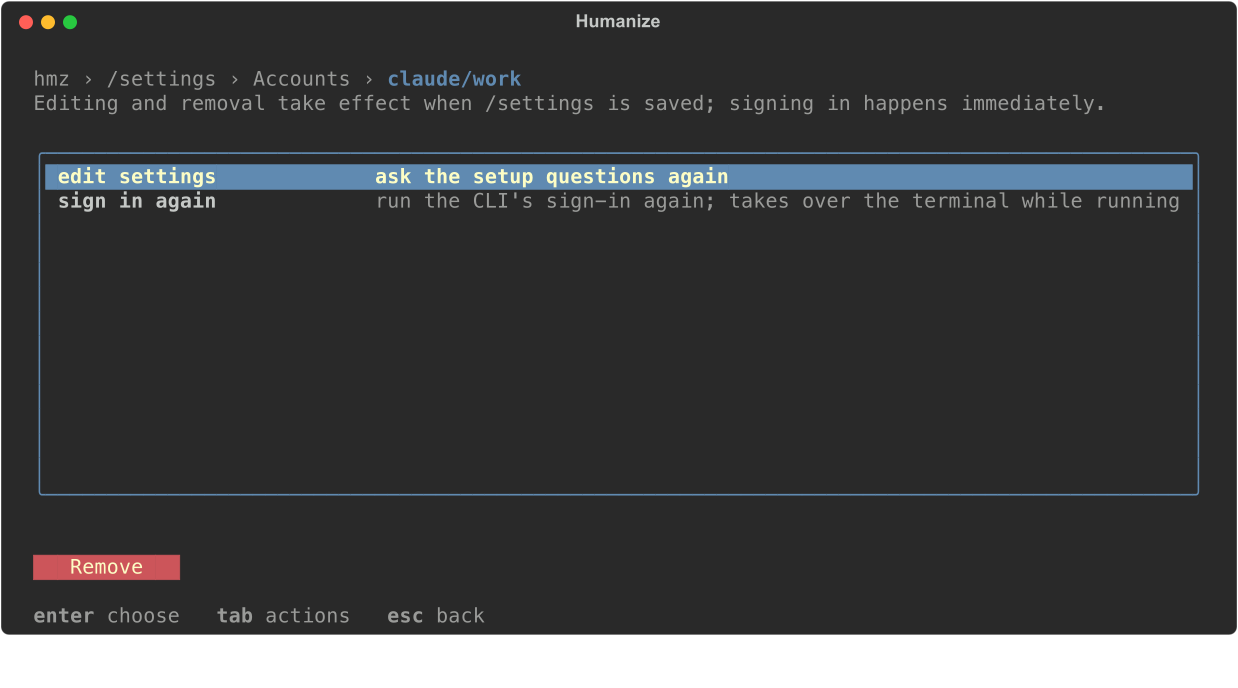
Edits and removals take effect when you choose Save. Until then, the row displays edited or will be removed.
Choose Add a custom CLI on the same page to register your own ACP-compatible CLI; see Gateways, LiteLLM and custom CLIs.
Pick an account for an agent
- Open the agent sheet from
/settings workspaceand Chat agent, or from a role in/flow. - Set
clifirst, then press enter on theaccountrow.
The Select the account to run as list opens. It starts with as local, followed by each account for that CLI, its sign-in method, and the variables it sets. If the CLI has no accounts, the list shows <cli> has no saved accounts yet.
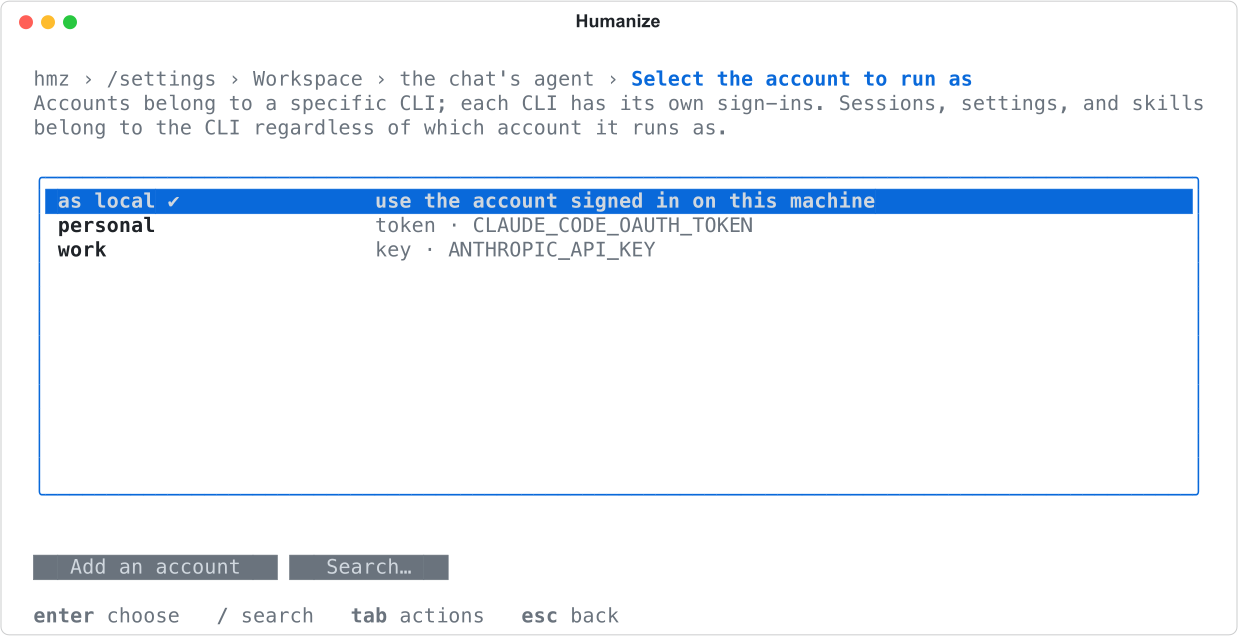
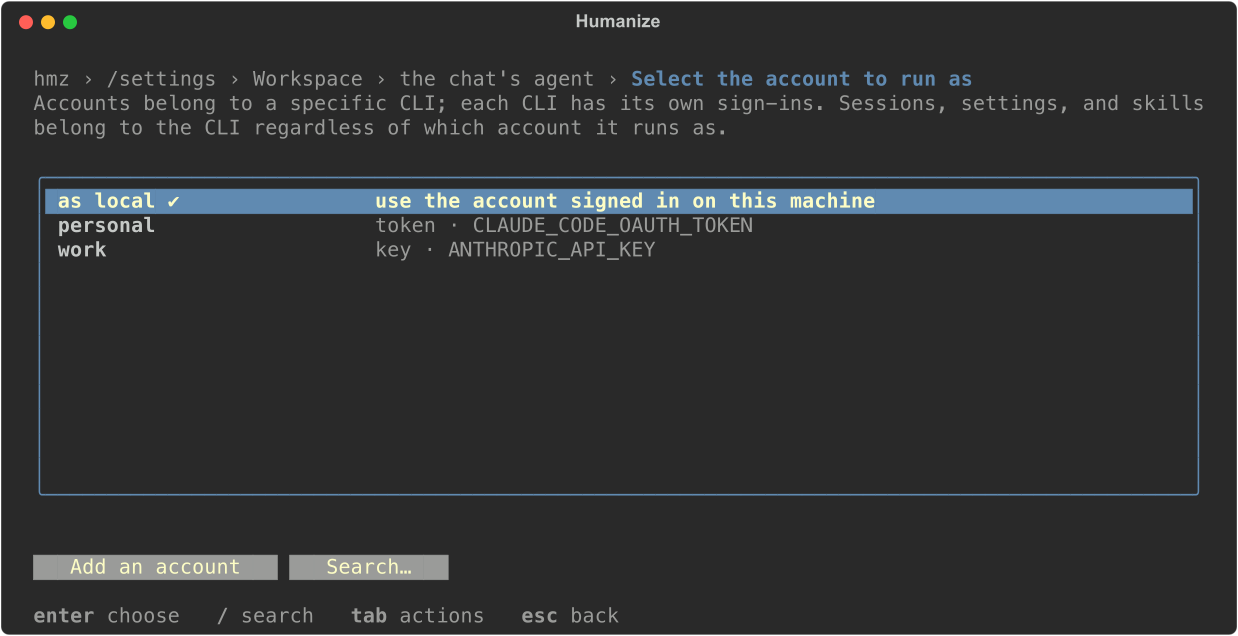
To create an account from here, press tab and choose Add an account. The form is for that CLI, so it has no cli row, and it selects the new account for the agent as soon as you choose Done.
Sign-in methods
Each CLI offers its own list of sign-in methods. The main kinds:
| Kind | Examples | What the account holds |
|---|---|---|
| The CLI's own sign-in | login, console, device | The files the CLI writes when you sign in. Terminal only. |
| API key or token | key, token, openai-key | One secret, usually kept as an environment variable. Codex and MiniMax Code hand it to their own sign-in, so theirs are terminal only. |
| Gateway | anthropic-gateway, openai-gateway, gemini-gateway | The address and key of an endpoint that speaks a vendor's API. |
| Cloud | bedrock, vertex, azure, foundry | The profile, project, region or key of your cloud account. |
| Variables of your own | env | Any variables, typed as NAME=VALUE lines in the terminal form. The app's form asks nothing for this kind, so an account made there sets no variables. |
| Through LiteLLM | litellm-openai-key and others | Credentials for a local LiteLLM gateway that the CLI is pointed at. |
See Agents and harnesses for the methods each CLI supports, and Gateways, LiteLLM and custom CLIs for gateway and LiteLLM setup.
Good to know
- Account names must start with a letter or digit and contain only letters, digits,
.,-, and_. Names must be unique within each CLI. - Accounts are stored in
~/.hmz/providers/<cli>/<name>/. - Running under an account swaps only the credentials. The CLI keeps its sessions, settings, and skills.
- During a turn under an account, Humanize unsets other credential variables from your shell, such as a stray
ANTHROPIC_API_KEY. - You can add a key account before installing its CLI. The account works once you install the CLI.
- On macOS, a turn or a sign-in under a named account fails for a CLI that stores credential files, which is every built-in CLI except
dsh,omp,qwenandlitellm. The error ishmz internal cred: nothing could supervise it: the tracer needs Linux. Use Local on macOS, or run on Linux. - To manage accounts from Python, see The Python SDK.