Snapshots and rewind
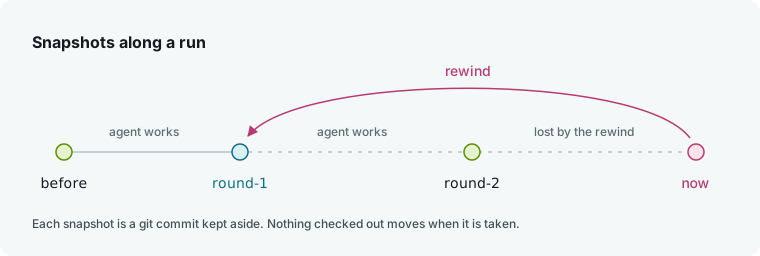
A snapshot records every file of an environment's git worktree at one moment. Flows take snapshots as they run, such as before each round, and rewinding restores the environment to a snapshot.
What a snapshot holds
Snapshots require git on the environment's machine, and the environment must be inside a git repository.
A flow takes a snapshot only where its code says so. A chat never takes one, and nothing takes them on a timer.
Each snapshot is a git commit stored under refs/hmz/snapshots/<name>. Taking one moves no branch and changes no file. It captures the whole worktree: tracked files, untracked files, staged changes, and the checked-out commit. It excludes git-ignored files and the workspace's .hmz/ folder, and a rewind leaves both untouched.
The flow names the snapshot, or defaults to a timestamp such as 20260314T091500.120000Z-a1f3. Reusing a name replaces the earlier snapshot.
In the app
- Open the environment: in an epic, click Open its environment under Environments in the Epic panel (with several, the link says how many, and you then pick one in the list); in a chat, click Changes.
- Select the Changes tab.
- Open Snapshots at the bottom of the list to see snapshots ordered oldest first.
- Click Rewind next to a snapshot, then click OK.
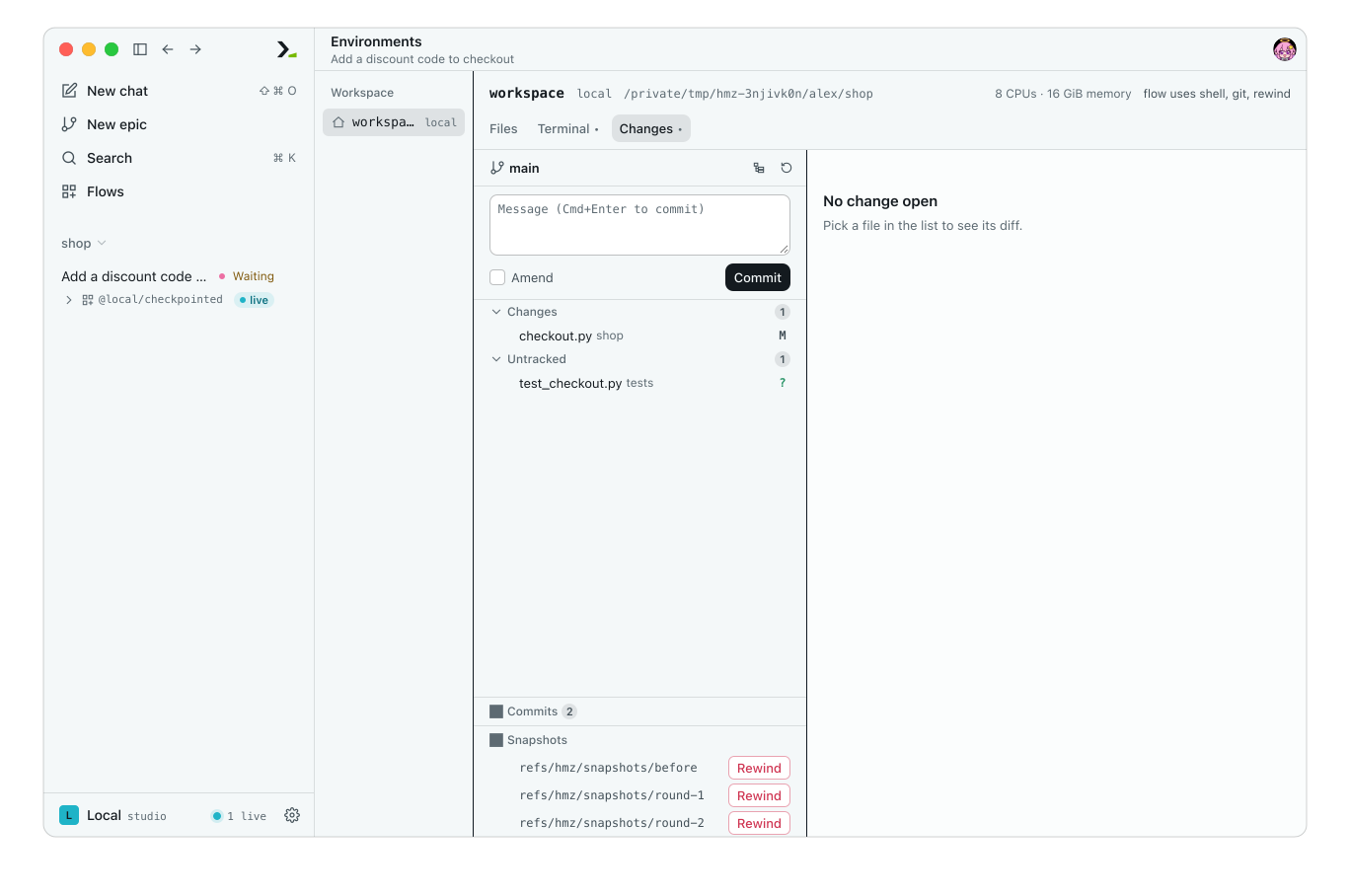
Drag the list wider or hover over a cut-off name to read the full name.
The change list updates to show the worktree as the snapshot had it.
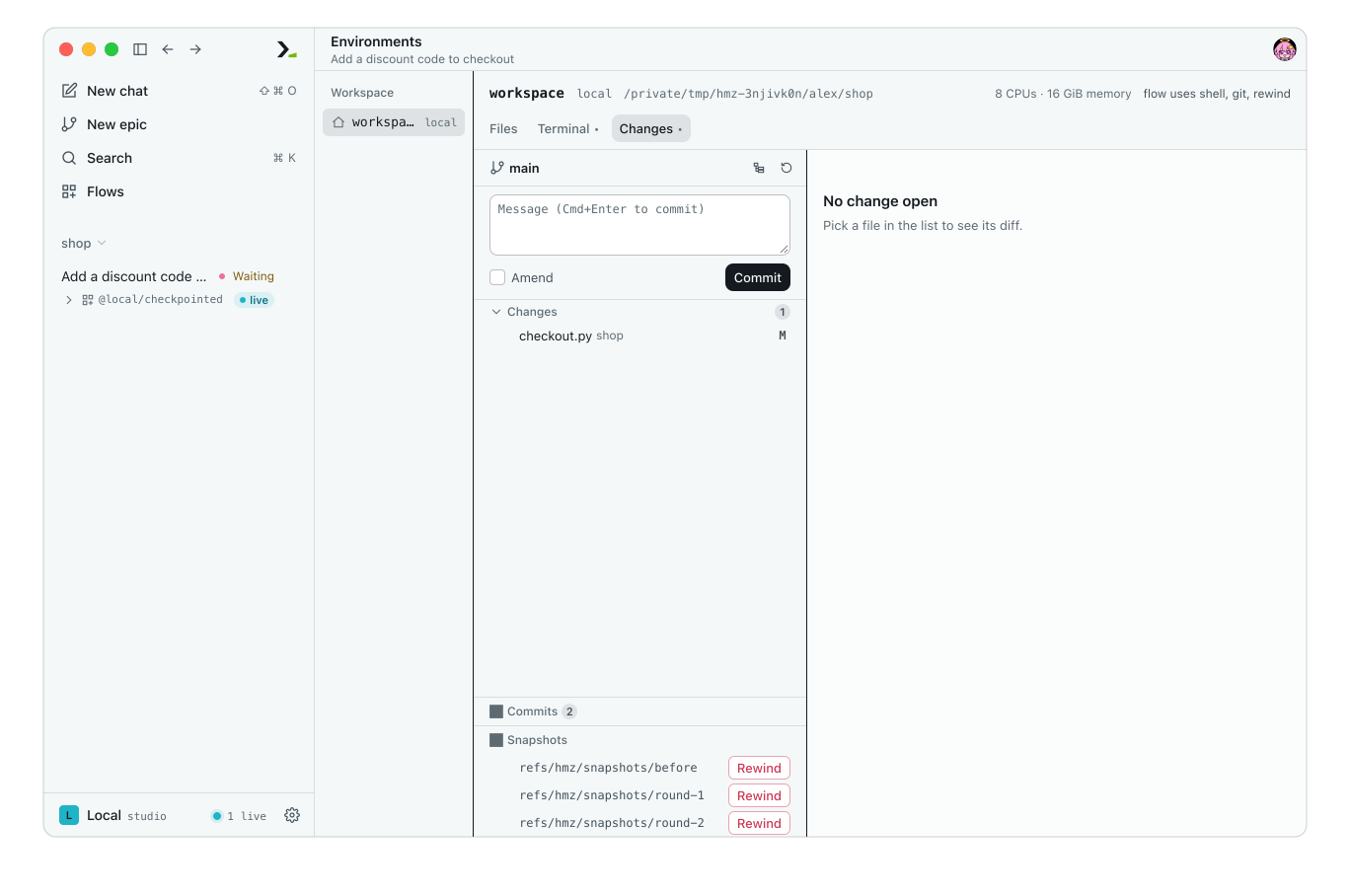
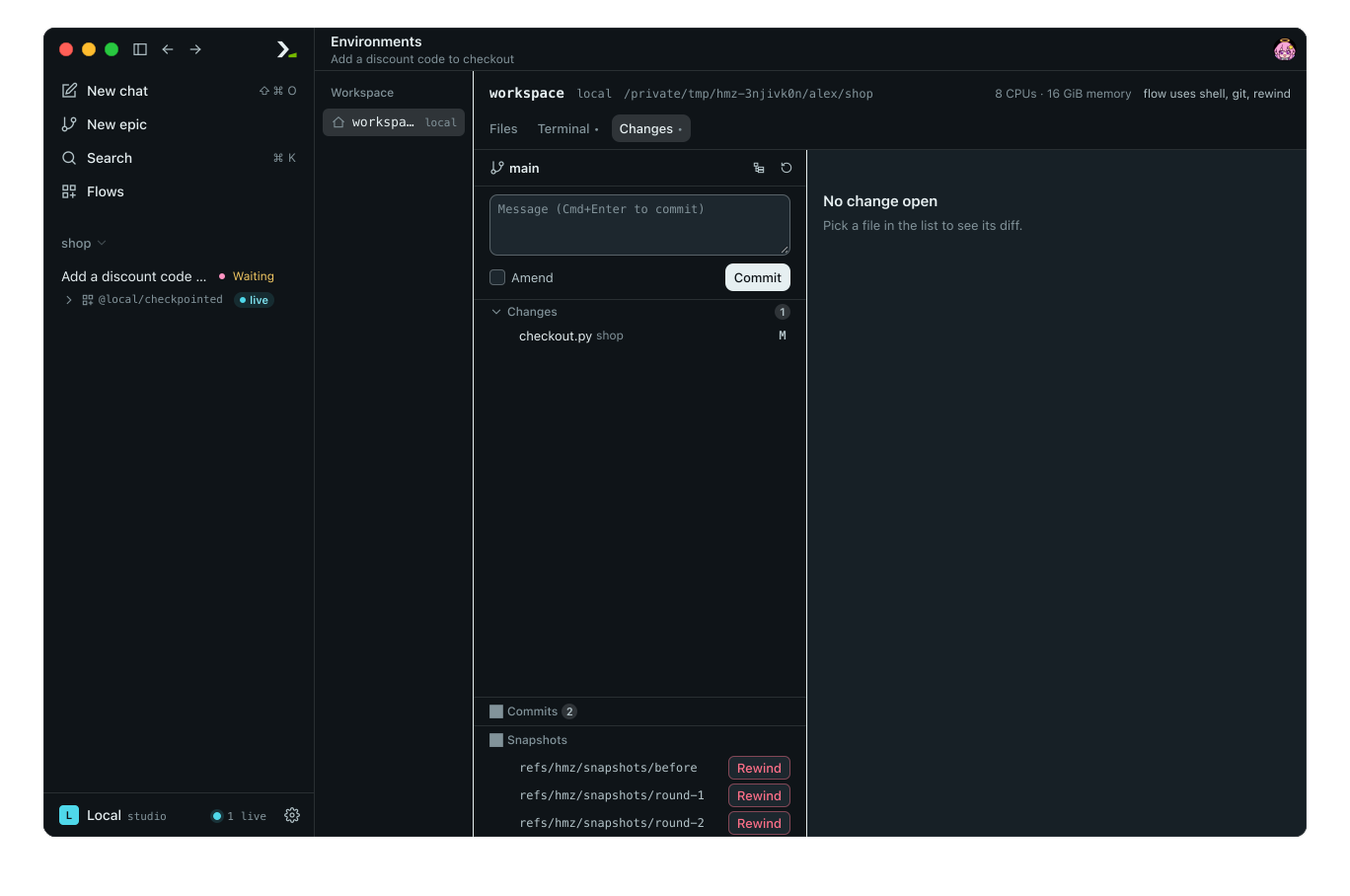
Above Snapshots, Commits shows the branch's last 50 commits (short hash, subject, author, and age) for reference; you can only rewind to snapshots.
With no snapshots, the section says No snapshots yet.; if a rewind is refused, it shows the reason. Once the environment has closed, the Rewind buttons are disabled. The section is hidden if the environment's machine has no git. For the rest of the tab, see Files, changes and terminal.
In the terminal
- Type
/envand press enter on an environment, or type/env workspaceto open theworkspacerole's environment directly. - Press shift+tab until the top line ends in
snapshots(tab cycles the other way through the Shell page, which hands the terminal to a shell). - Select a snapshot and press enter.
- In the
Rewind workspace to refs/hmz/snapshots/round-1?prompt, chooseRewind, or chooseCancelto keep everything as it is.
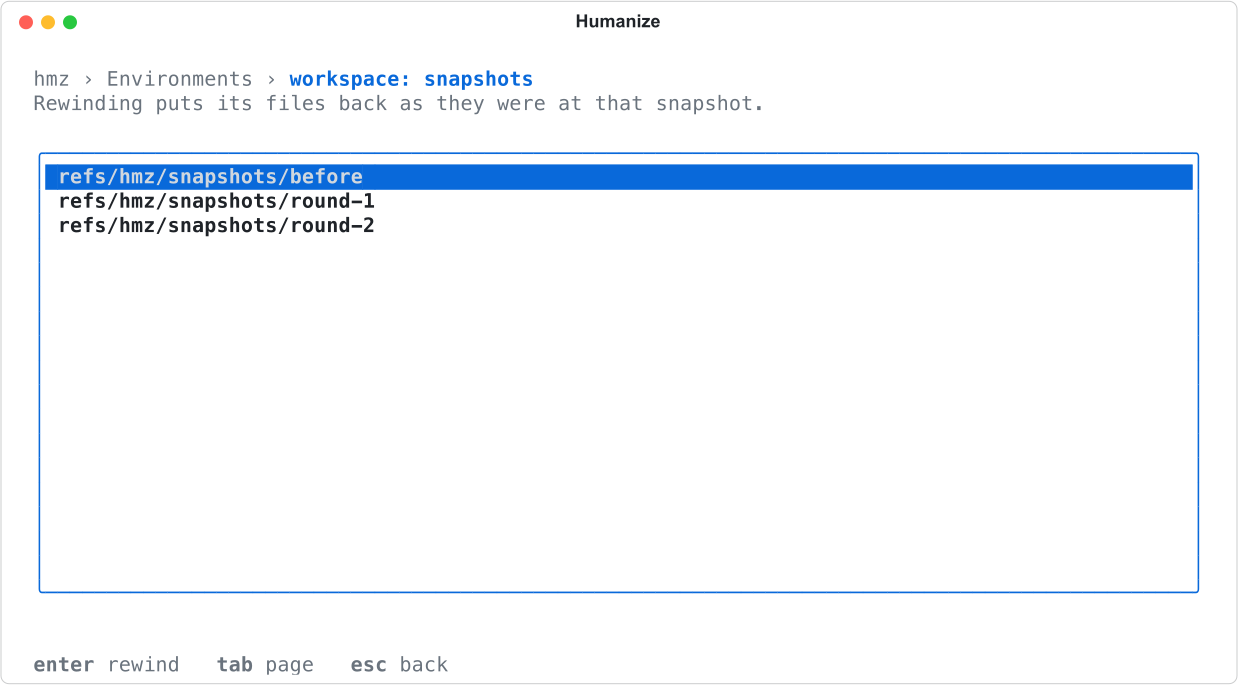
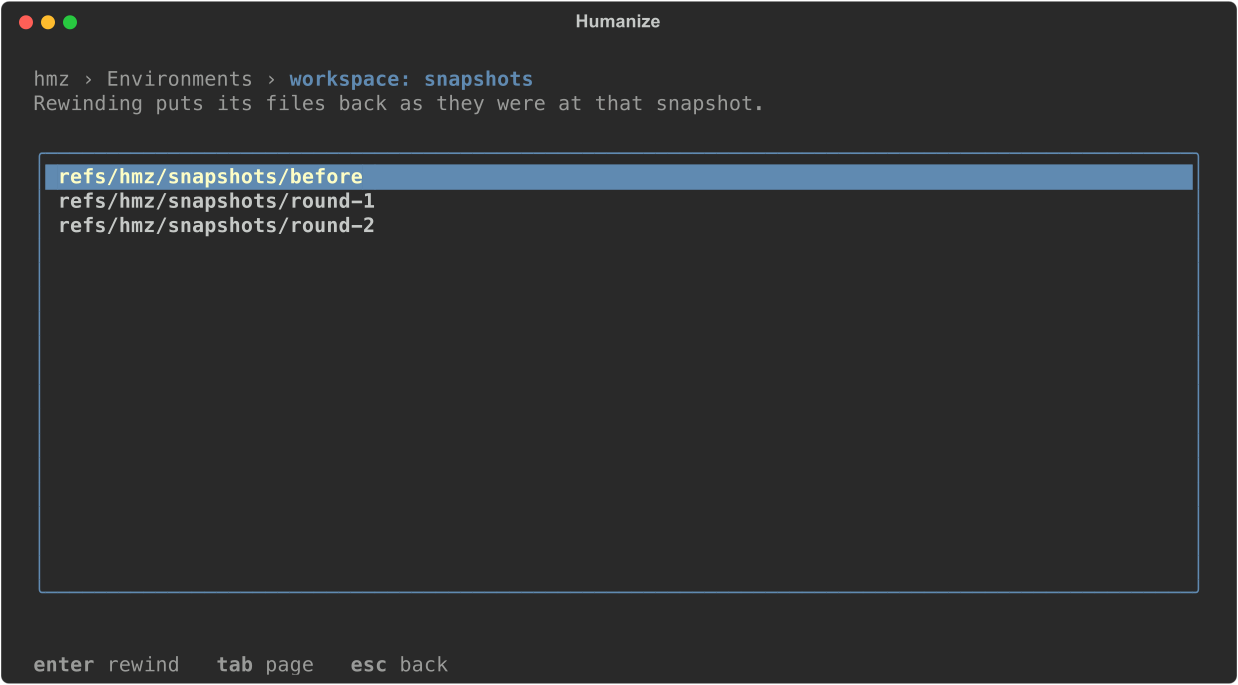
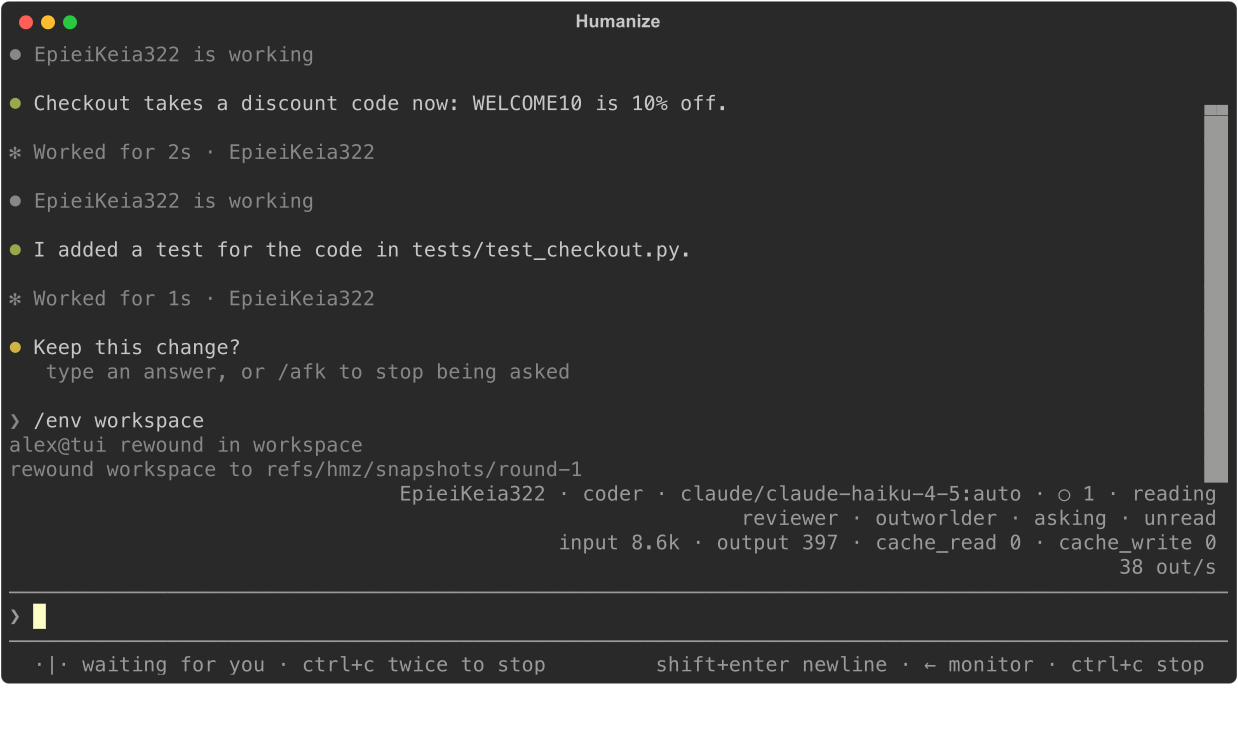
The page closes and the transcript prints rewound workspace to refs/hmz/snapshots/round-1; press esc to get back to it. If there are no snapshots, the page shows no snapshots yet; a refused rewind prints its reason under the list. An environment without git has no Snapshots page.
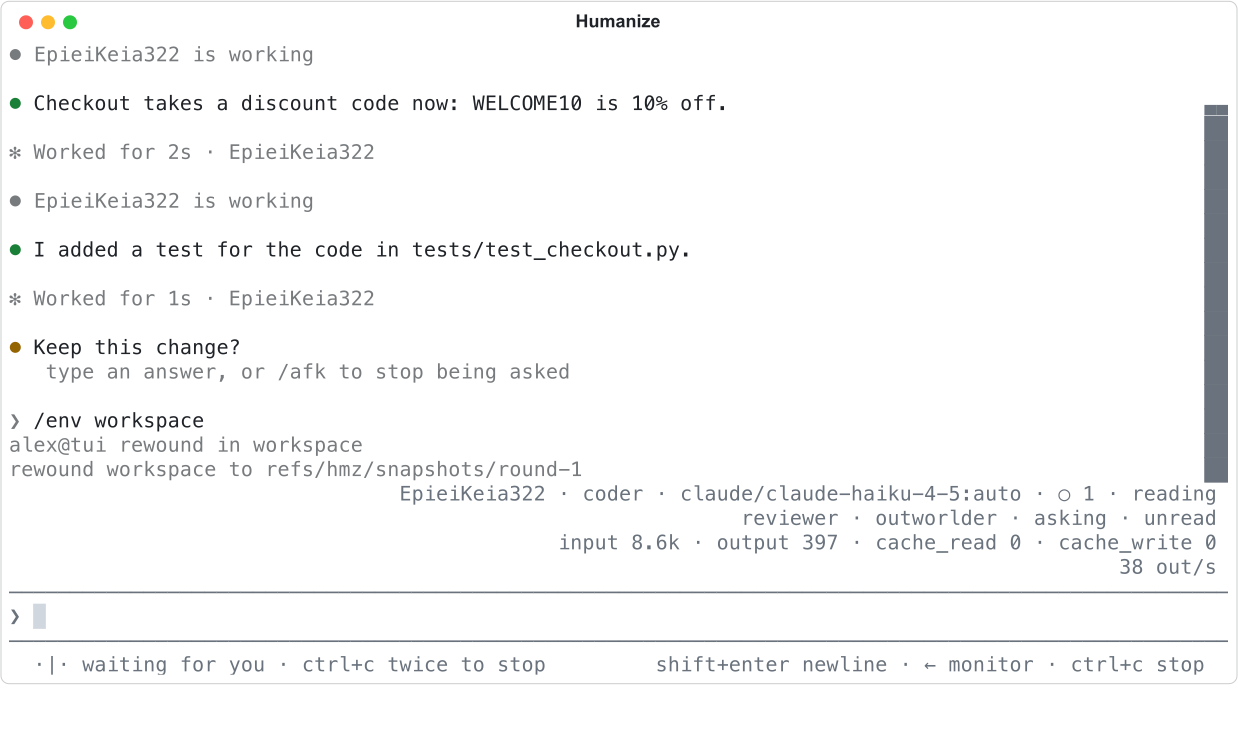
From the command line
No hmz command lists or rewinds snapshots. Because each snapshot is a git ref in the repository, use git directly:
git for-each-ref refs/hmz/snapshots

| To | Run |
|---|---|
| See what changed since a snapshot | git diff refs/hmz/snapshots/round-1 |
| Take one file back from a snapshot | git restore --source refs/hmz/snapshots/round-1 -- shop/checkout.py |
| Delete a snapshot | git update-ref -d refs/hmz/snapshots/round-1 |
From Python
Take and rewind snapshots in a flow through an environment whose role declares GitEnvMixin:
repo = envs["workspace"]
ref = await repo.snapshot("before")
said = await coder.run(task, session=session, env=repo)
if "failed" in said:
    await repo.rewind(ref)
See Worktrees, clones and scratch.
Good to know
WARNING
A rewind cannot be undone. Every committed or uncommitted change since the snapshot is lost: the branch resets to the snapshot's checked-out commit, and files added after the snapshot are deleted.
Rewinding is refused while an agent has an open turn in that environment. The error names the role and says stop it first; wait for the turn to end or stop the run.
A rewind changes files only and records an entry in the run's history. Agents keep their sessions and still remember what they did.
Snapshots belong to the repository, not to a single environment, so every environment and worktree in the repository lists the same snapshots. You can rewind an epic's environments only while the epic runs, but the snapshots stay in the repository afterwards: open a chat in the same folder and rewind from its Changes tab. Humanize never deletes snapshots; delete the ones you no longer need with git.