Files, changes and terminal
An environment is the folder and machine an agent works in. You can edit its files, review and commit its changes, and open a shell in it while the agent runs.
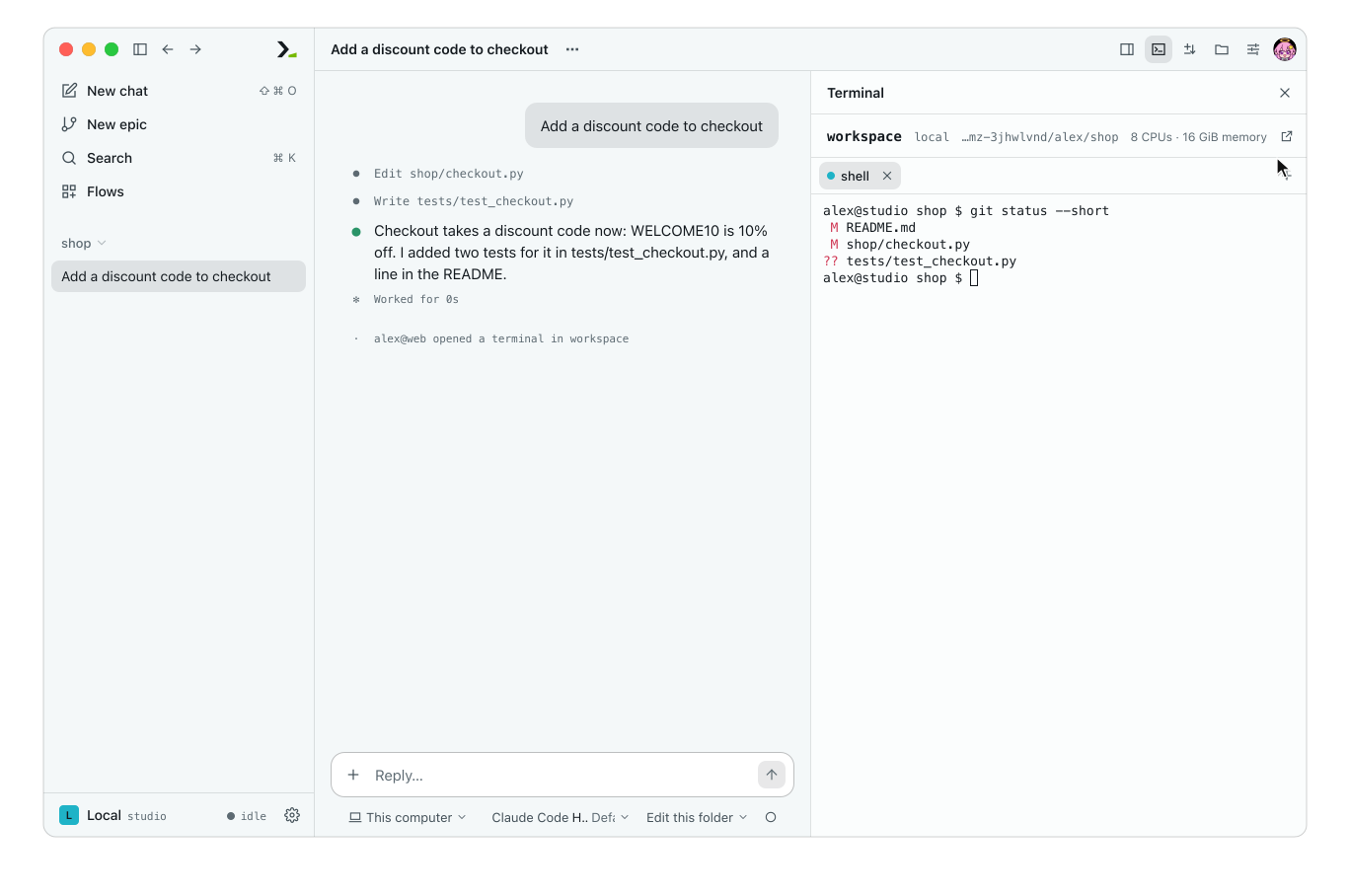
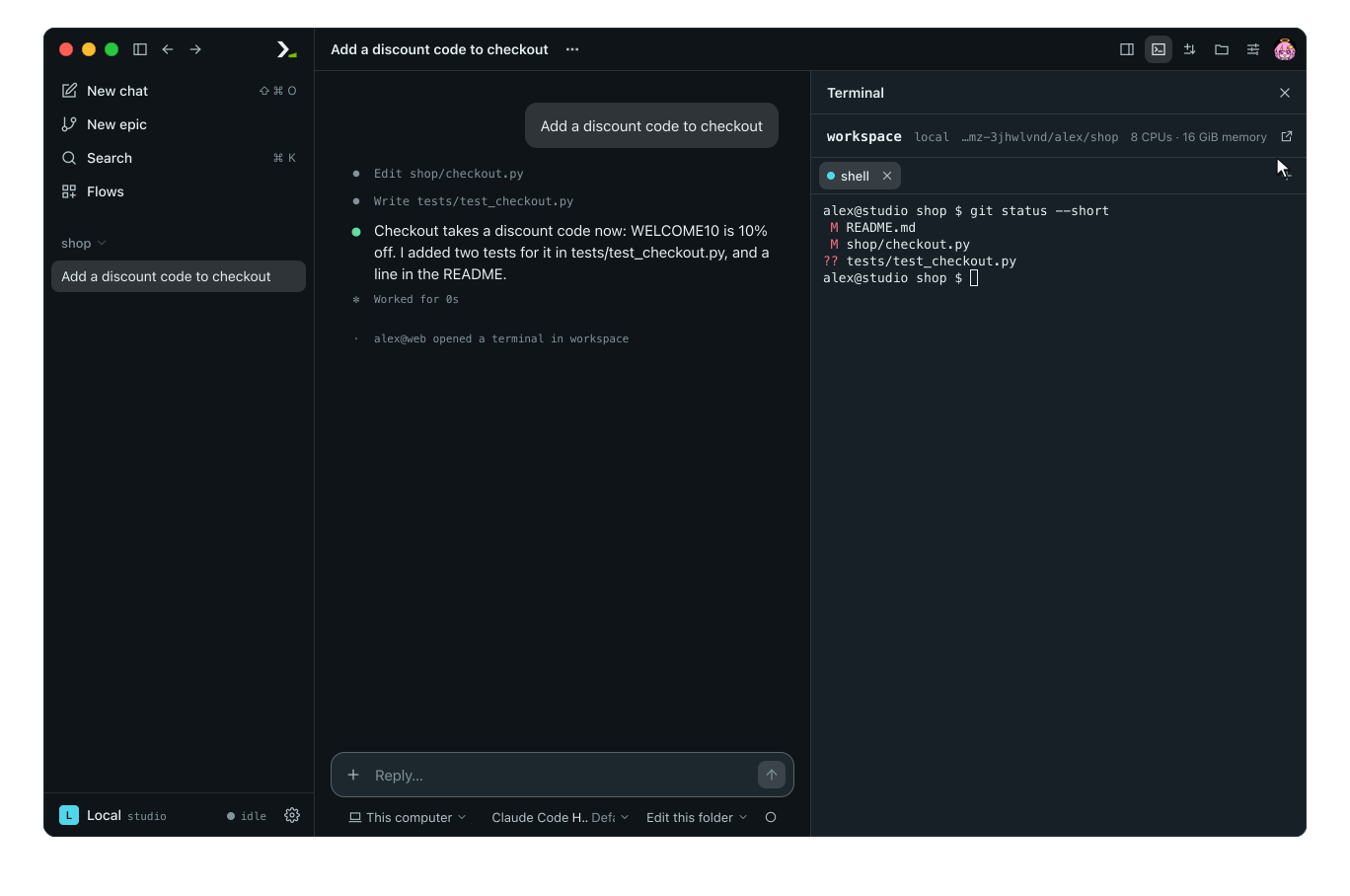
The three panes of a chat's environment.
An environment shows panels for the capabilities it has: files, a shell, and git. To choose where a chat or an epic works, see Environments.
In the app
Humanize Desktop and the web page have the same panels.
Open an environment
From a chat. Click Details, Terminal, Changes, or Files on the right of the chat bar to open that pane beside the conversation. Click the same button to close it, or open it from More options > Environment. Opening a pane brings up the folder even on old chats. A button is disabled when the environment has no shell, git repository, or files. Details shows chat info; see Chat. Click Open in its own view in the pane header to expand the environment to the full page.
From an epic. While the epic runs, open the Epic panel, find Environments, and click Open its environment (or Open its 3 environments when it has three), or click an entry in the list. The Environments view lists every environment in the epic. Derived environments, such as git worktrees, sit nested under their parent.
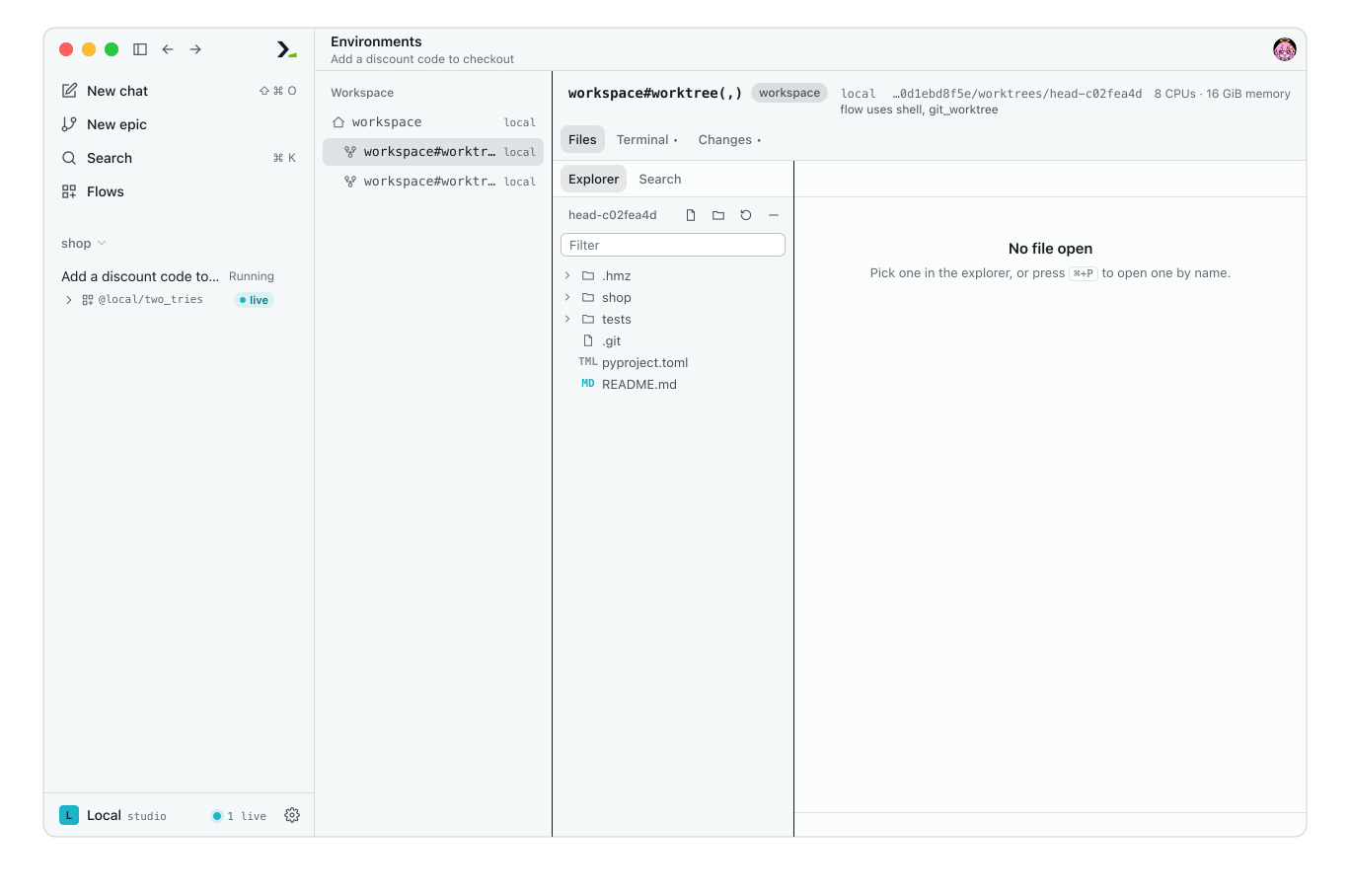
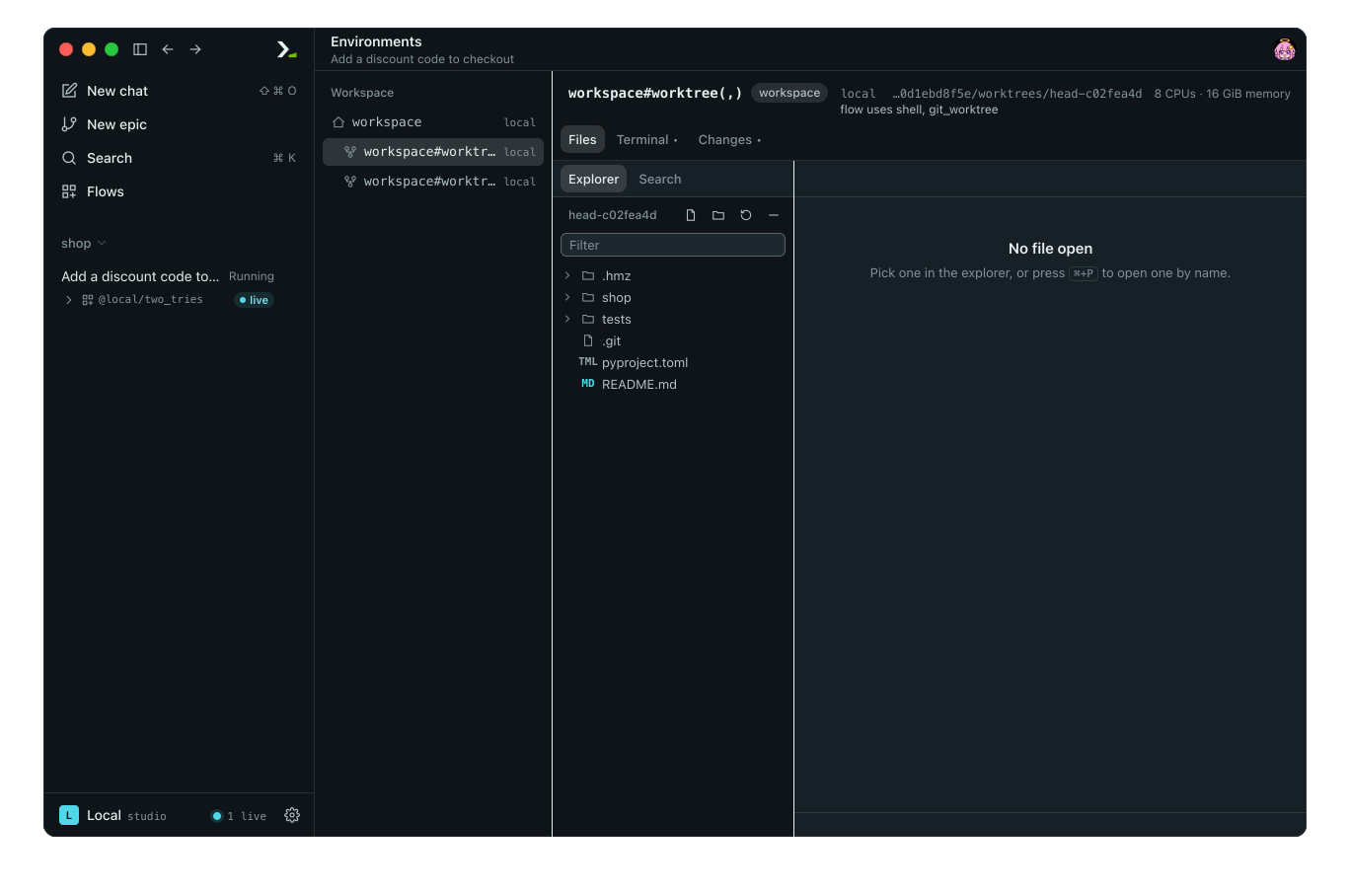
Select an environment to see its host, folder, CPUs, memory, and which capabilities (files, shell, git) the flow uses. A dot on a tab marks a panel the flow uses. Drag the divider beside a list to resize it; double-click the divider to reset it.
The view also works from the keyboard. In the environment list, Up, Down, Home, and End move, and Enter or Space picks. On the panel tabs, Left, Right, Home, and End switch panels. On a focused divider, Left and Right resize by 16 pixels, and Home and End go to the narrowest and widest.
Edit and search files
The Files panel is a code editor for the environment's folder.
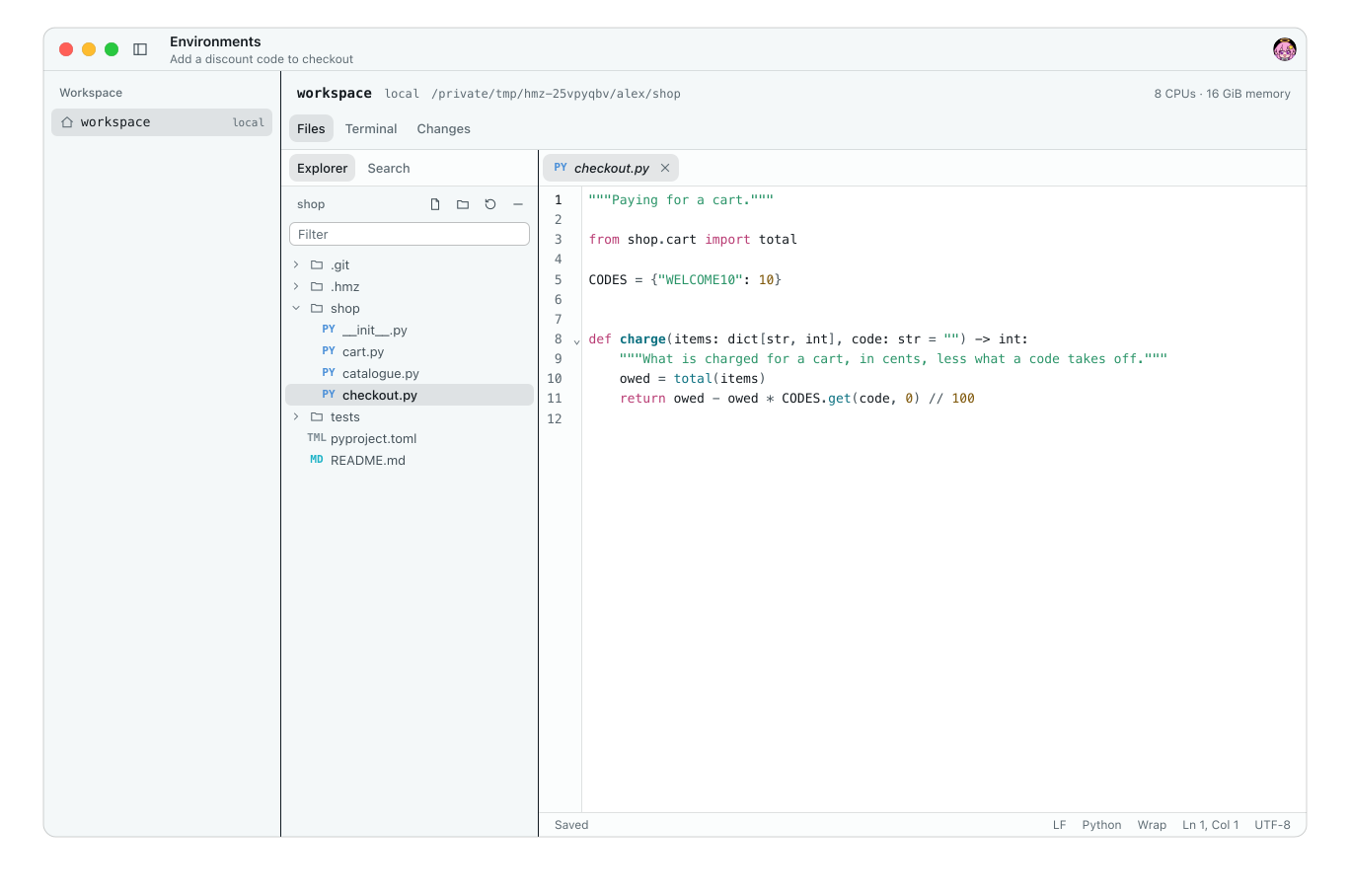
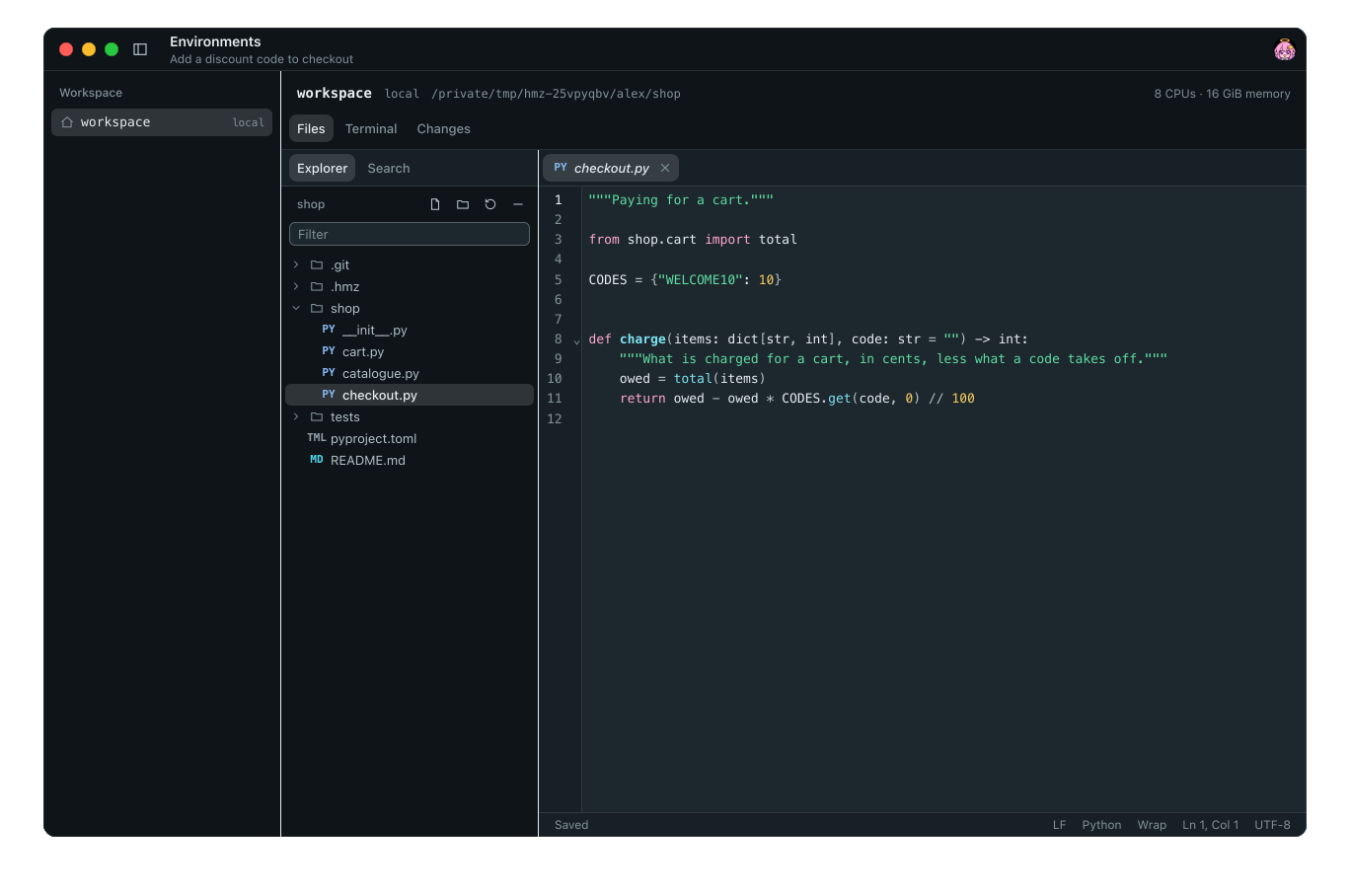
Explorer. Click a file to preview it; double-click to keep it open. Use the toolbar for New file, New folder, Refresh, Collapse all, and the Filter box. Right-click a row for Open, New file…, New folder…, Rename…, Delete, Copy path, and Copy relative path.
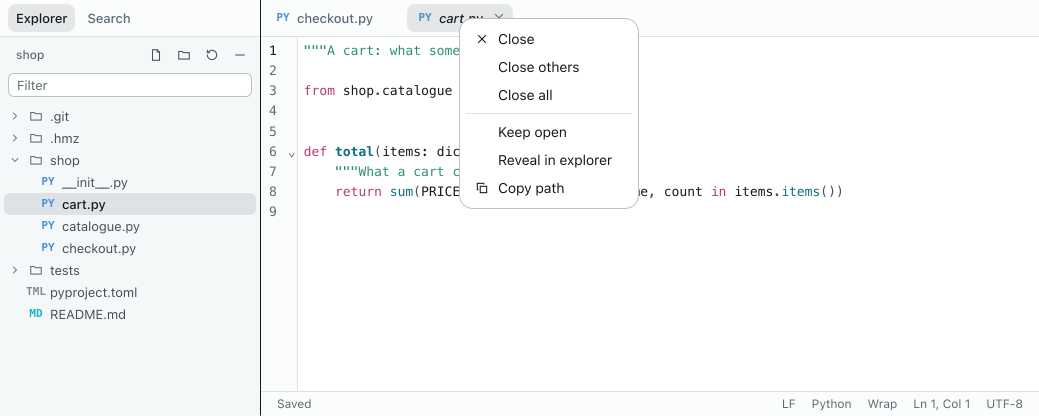
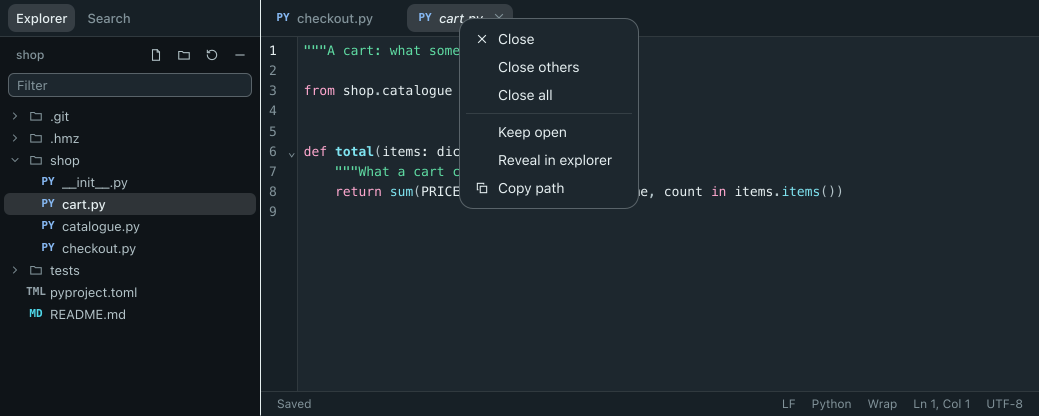
Editor. Every open file is a tab. A file you click once opens in a preview tab with an italic name; clicking another file replaces the preview. Double-click the file or its tab to keep it open. Drag tabs to reorder them.
Right-click a tab to choose Close, Close others, Close all, Keep open (on a preview tab), Reveal in explorer (to select the file in the explorer), or Copy path.
Edits save automatically shortly after you stop typing. Closing a tab writes its edits first; if they cannot be written, the editor asks before it drops them. Use the status bar to change line endings, wrapping, and the current line, or to check the save state: Saving…, Saved, Unsaved, Not saved, Conflict, or Read-only. If a save fails, a banner shows the reason and a Try again button. If the file is deleted in the environment, a banner notifies you, and saving recreates the file.
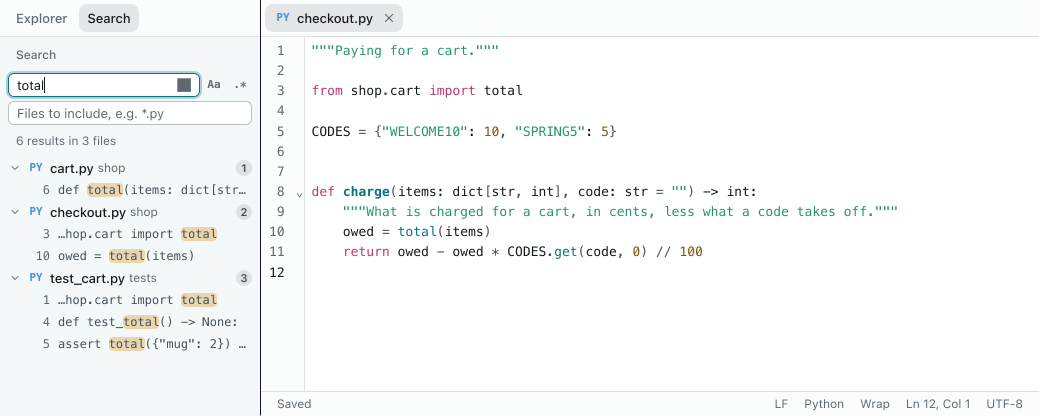
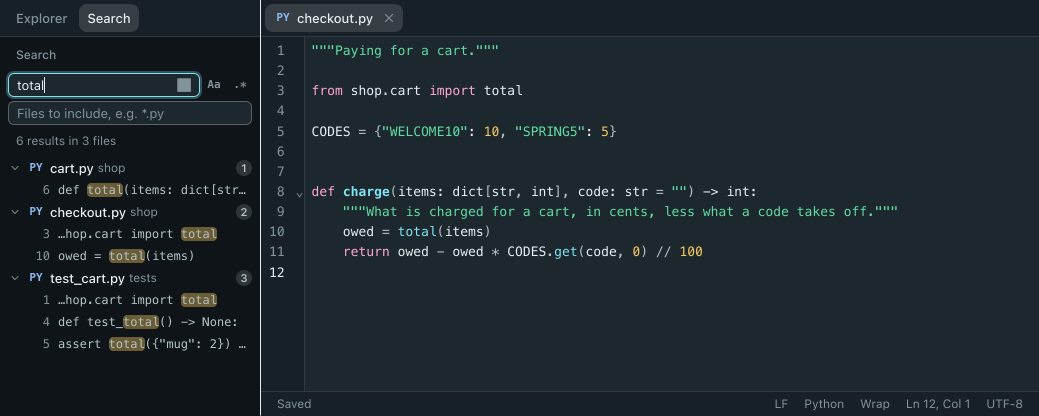
Search. Open the Search tab to search across all files with Match case, Use regular expression, and Files to include.
| Key | What it does |
|---|---|
| Cmd/Ctrl+P | Go to file by name, or path:line |
| Cmd/Ctrl+Shift+F | Search in files |
| Cmd/Ctrl+Shift+E | Back to the explorer, on the open file |
| Cmd/Ctrl+S | Save now |
| Cmd/Ctrl+F | Find and replace in the file |
| Cmd/Ctrl+G | Go to line |
| Cmd/Ctrl+W | Close the tab |
| Alt+Z | Wrap lines |
In the explorer, with a row selected:
| Key | What it does |
|---|---|
| Arrow keys, Home, End | Move; Right and Left open and close a folder |
| Enter | Open the file and keep it open |
| Space | Preview the file |
| F2 | Rename |
| Delete or Cmd/Ctrl+Backspace | Delete, after asking |
| Menu key or Shift+F10 | Open the row's menu |
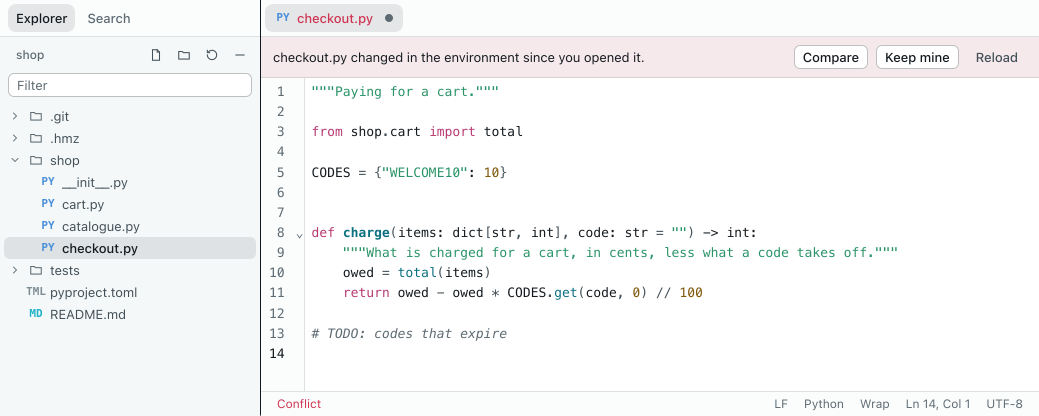
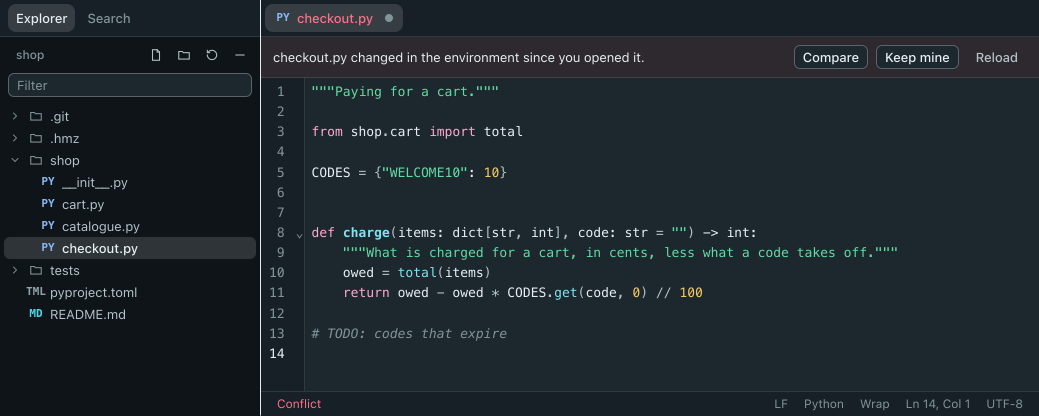
File conflicts. Saving never overwrites external changes. If the agent changes a file you are editing, a banner offers Compare, Keep mine, or Reload.
Review and commit changes
The Changes panel manages the environment's git repository. The header shows the branch and its ahead/behind count against upstream, with buttons for View as Tree (which becomes View as List) and Refresh. Files are grouped under Merge Changes, Staged Changes, Changes, and Untracked. The letter on a row is its status: M modified, A added, D deleted, R renamed, C copied, U conflict, ? untracked.
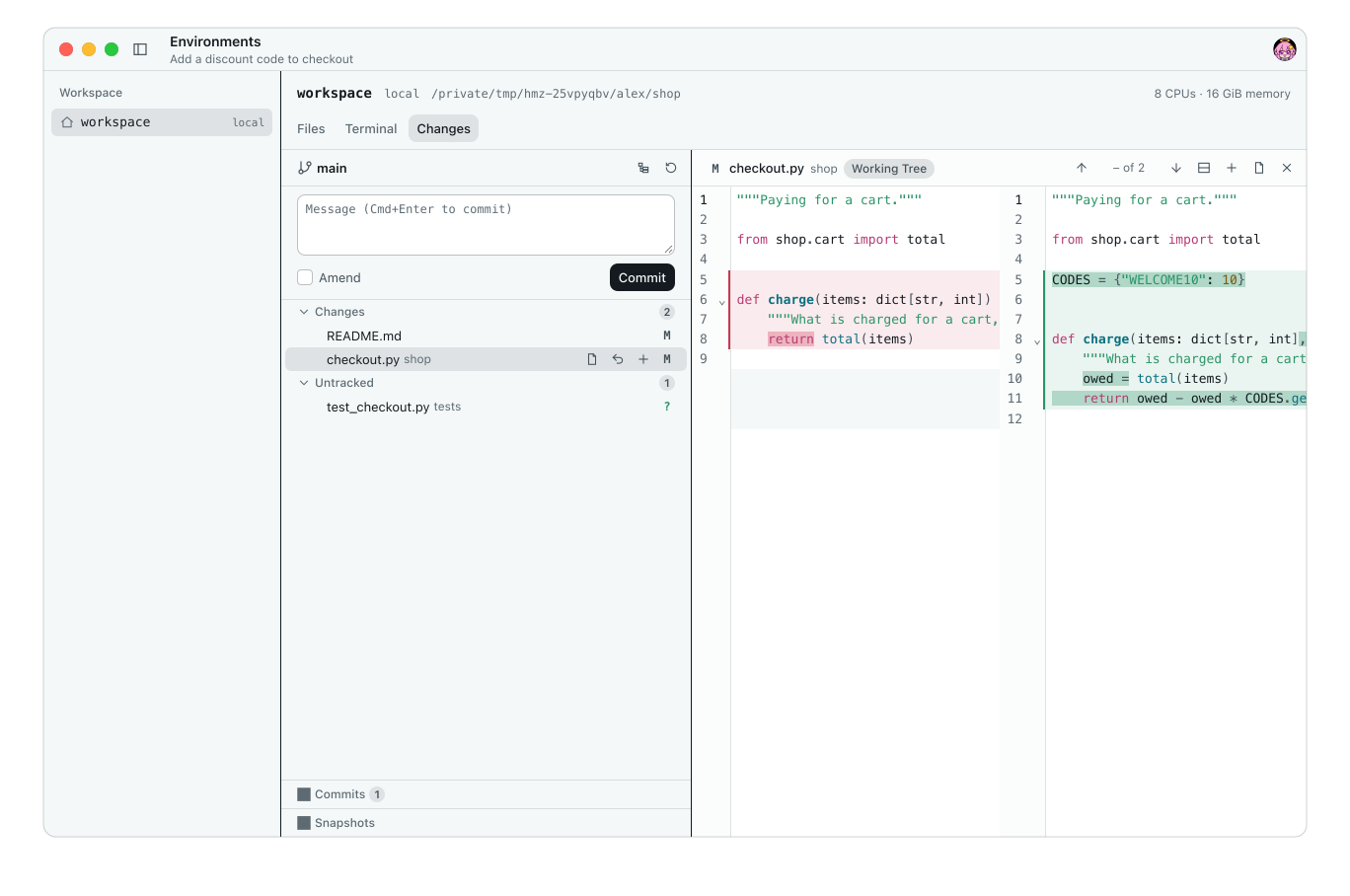
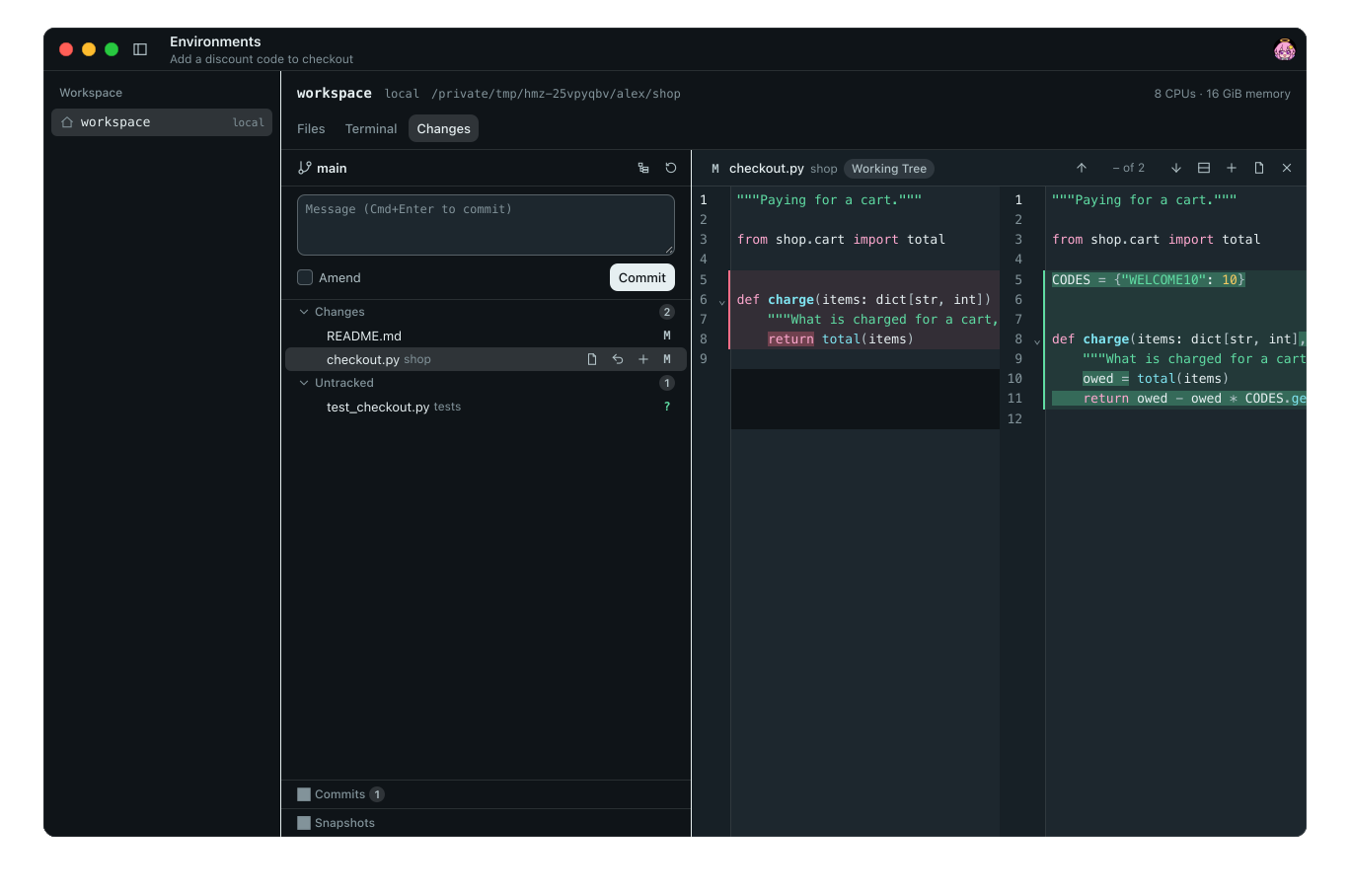
See a diff. Click a file to view its diff. Double-click it to open it in the Files panel instead. Staged diffs are labelled Index, and unstaged diffs are labelled Working Tree. Use the diff toolbar to switch between side-by-side and inline views, step through changes (F7, Shift+F7), Stage Changes or Unstage Changes, click Open File to edit in the Files panel, or Close the diff.
| Condition | Behavior |
|---|---|
| Pane narrower than 560 pixels | Draws the diff inline until you choose a view. |
| File over 2 MiB | Prompts before drawing; declining leaves a Show the diff button. |
| Binary file or file over 8 MiB | Shows only the size before and after. |
Stage, unstage, discard. Hover over or right-click a file for Stage Changes, Unstage Changes, and Discard Changes (Delete File for an untracked file). Use a group header to act on all its files: Stage All Changes, Unstage All Changes, Discard All Changes, or Delete All Untracked Files. Discarding prompts for confirmation.
Commit. Type a message and press Commit or Cmd/Ctrl+Enter. Check Amend to replace the last commit. A counter beside Amend tracks the first line's length and changes colour past 50 and 72 characters.
If nothing is staged, the panel offers to stage all changes and commit. The panel blocks commits with Write a commit message first. or There is nothing to commit.. If files are under Merge Changes, the Commit button is disabled and the panel displays Resolve the merge conflicts before committing..
Commits lists the last 50 commits. For Snapshots, see Snapshots and rewind.
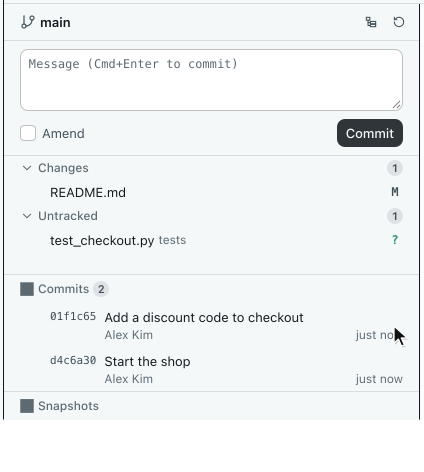
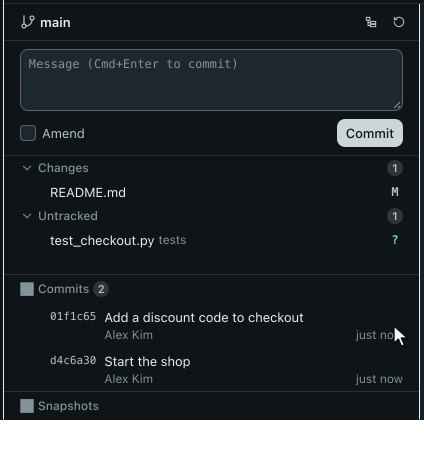
In the file list, press Space to stage or unstage, Enter to open the diff, and Delete or Cmd/Ctrl+Backspace to discard. Arrow keys, Home, End, PageUp, and PageDown move. Use Ctrl/Cmd-click and Shift-click to select multiple files, or Cmd/Ctrl+A to select all.
Run a shell
The Terminal panel opens login shells in the environment's folder on its host machine. Click New terminal (the plus icon) to open another tab.
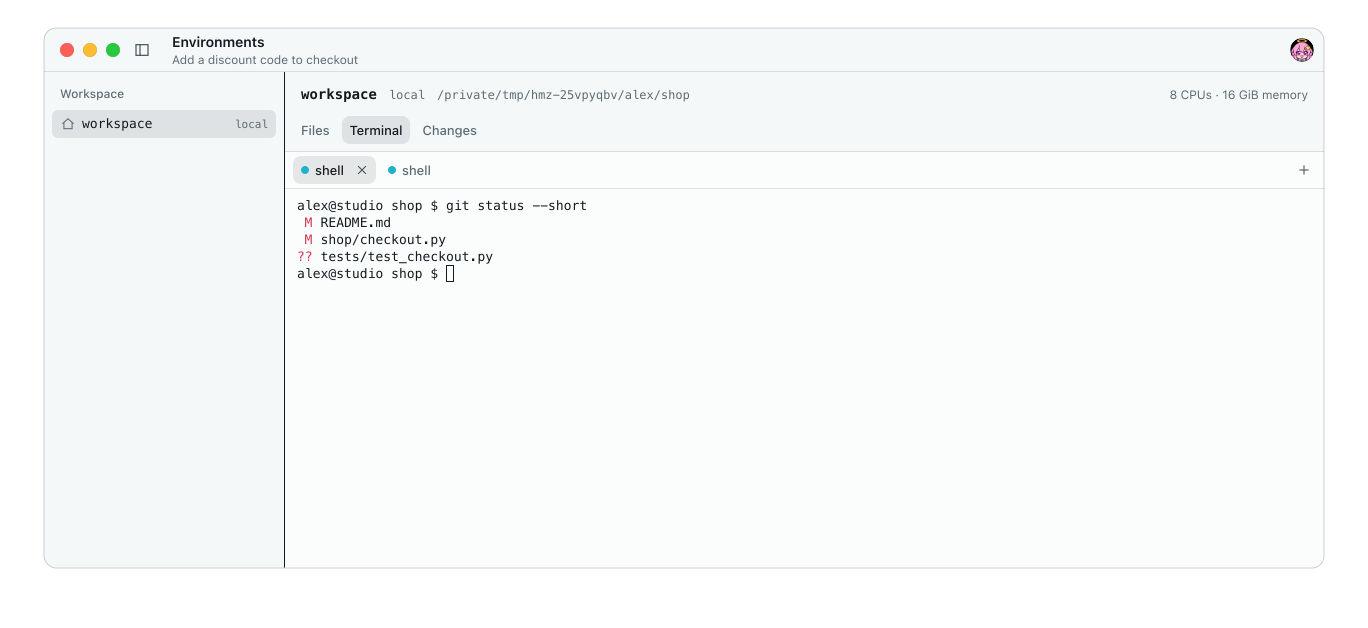
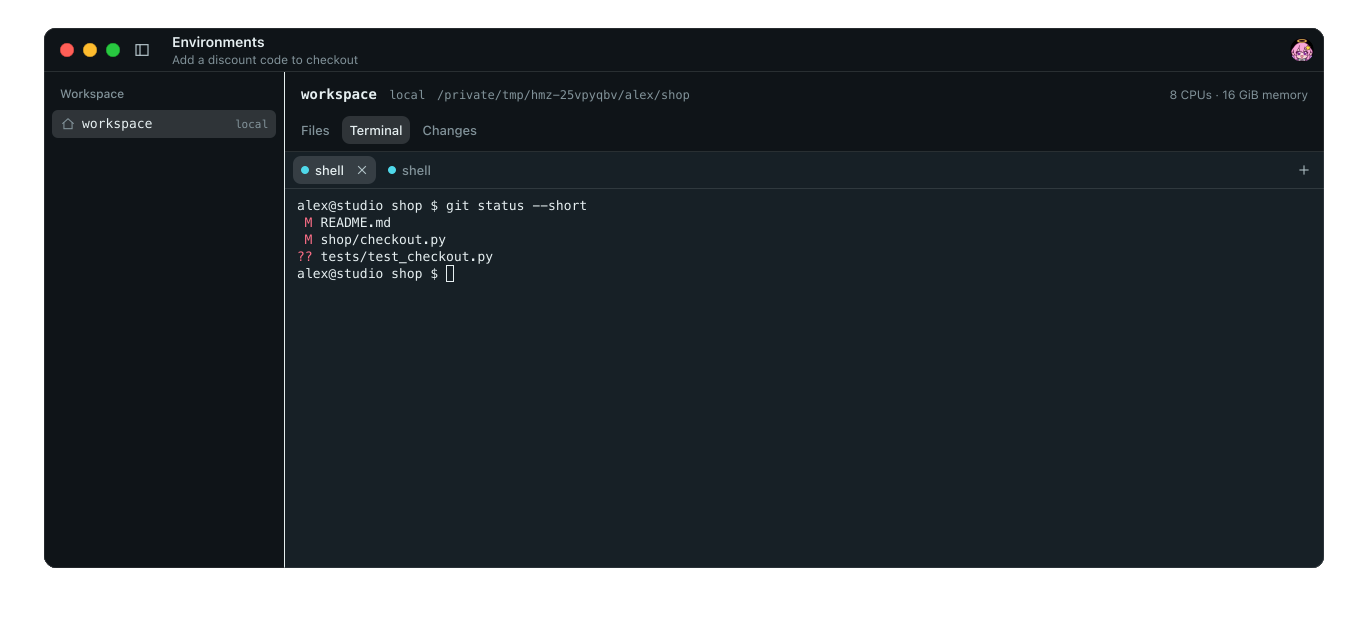
- Double-click a tab, or press F2 on it, to rename it. Left and Right move between tabs. Click Close terminal to end what runs in it; it asks first.
- Press Cmd/Ctrl+F to find text in the output, with Match case, Previous match, and Next match. Press Ctrl+Shift+C to copy and Ctrl+Shift+V to paste; Cmd/Ctrl+C also copies while text is selected.
- Terminals run on the host. They stay running when you close the page, replay their output when you reopen it, and show the same output to every viewer.
- When a shell exits, its tab shows the exit status and a Restart button.
In the terminal
In hmz, run /env to list the environments for the current chat or epic. Press enter to open one, or / to filter the list. Run /env coder to open the coder role's environment directly.
After you pick an earlier chat with /resume, /env works before you send a message: it brings the chat back up with nothing said, then opens the environments list, or the role you named. If no epic or chat environment is open, /env is refused with no environment is open here.
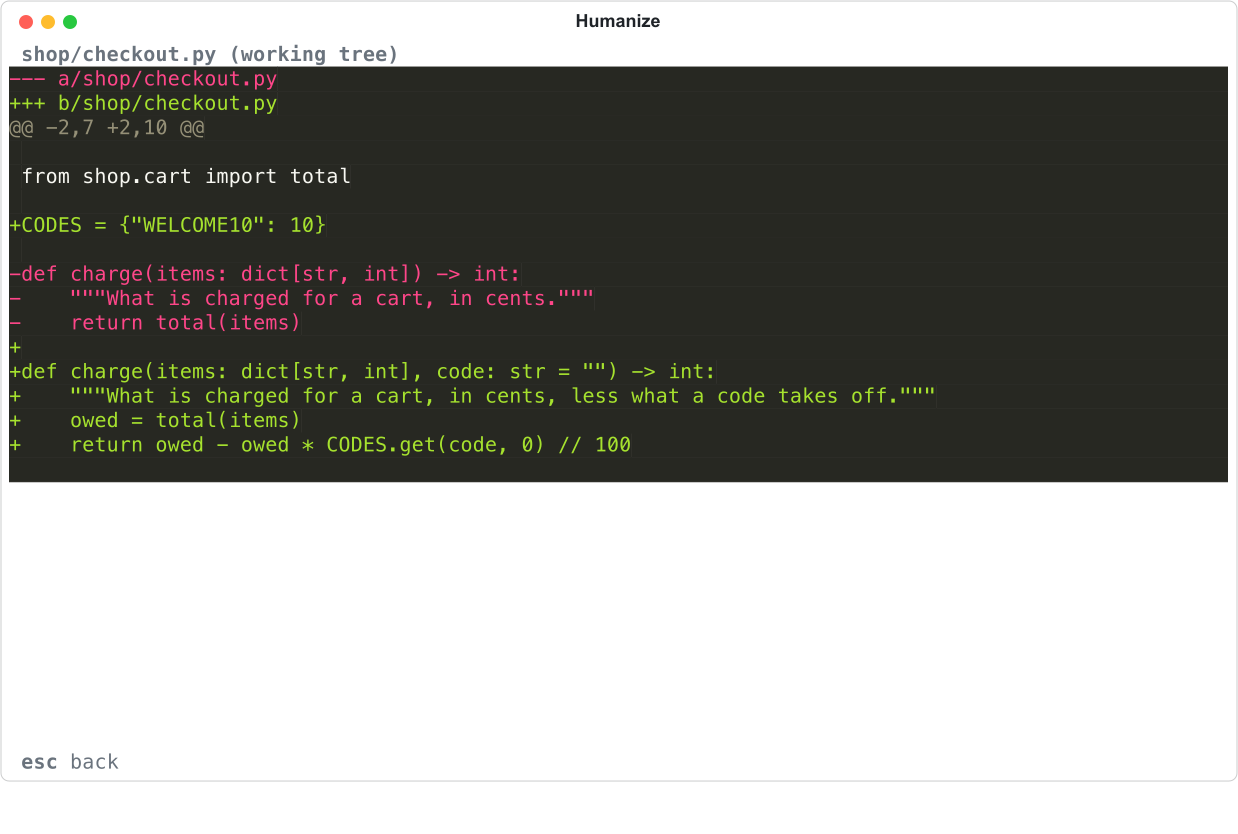
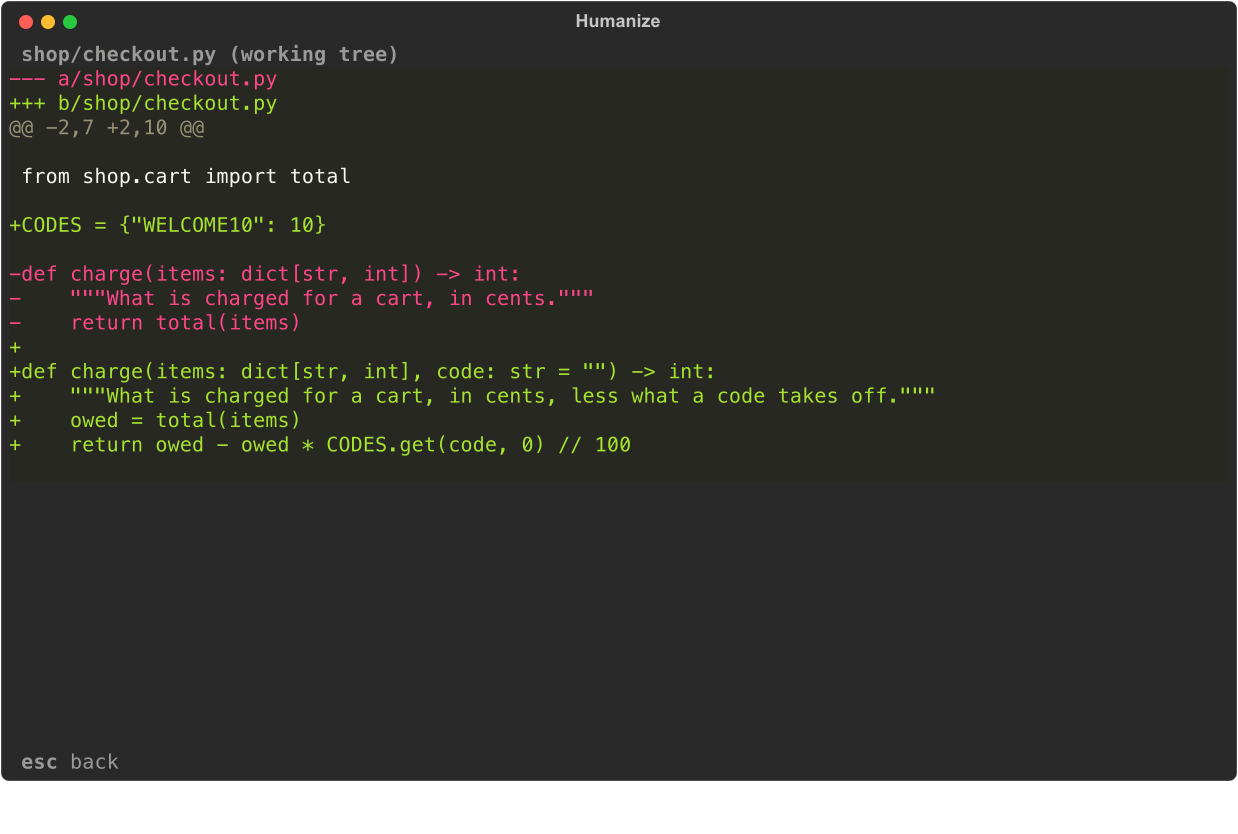
An environment has up to four pages: Files, Changes, Shell, and Snapshots. Press tab and shift+tab to switch pages, and esc to go back. For Snapshots, see Snapshots and rewind.
Edit and search files
| Key | What it does |
|---|---|
| enter | Open the folder, or the file in the built-in editor; a symbolic link opens what it leads to |
| backspace | Up one folder |
| n / N | New file / new folder |
| r | Rename |
| d | Delete, after asking |
| e | Open in your own editor: $VISUAL, else $EDITOR, else vi |
| ctrl+p | Open a file by name |
| ? or ctrl+shift+f | Search in files |
The built-in editor saves one second after you stop typing. Press ctrl+s to save immediately, or esc to save and close. If the file changes on disk while you edit, choose reload, keep mine, or show diff.
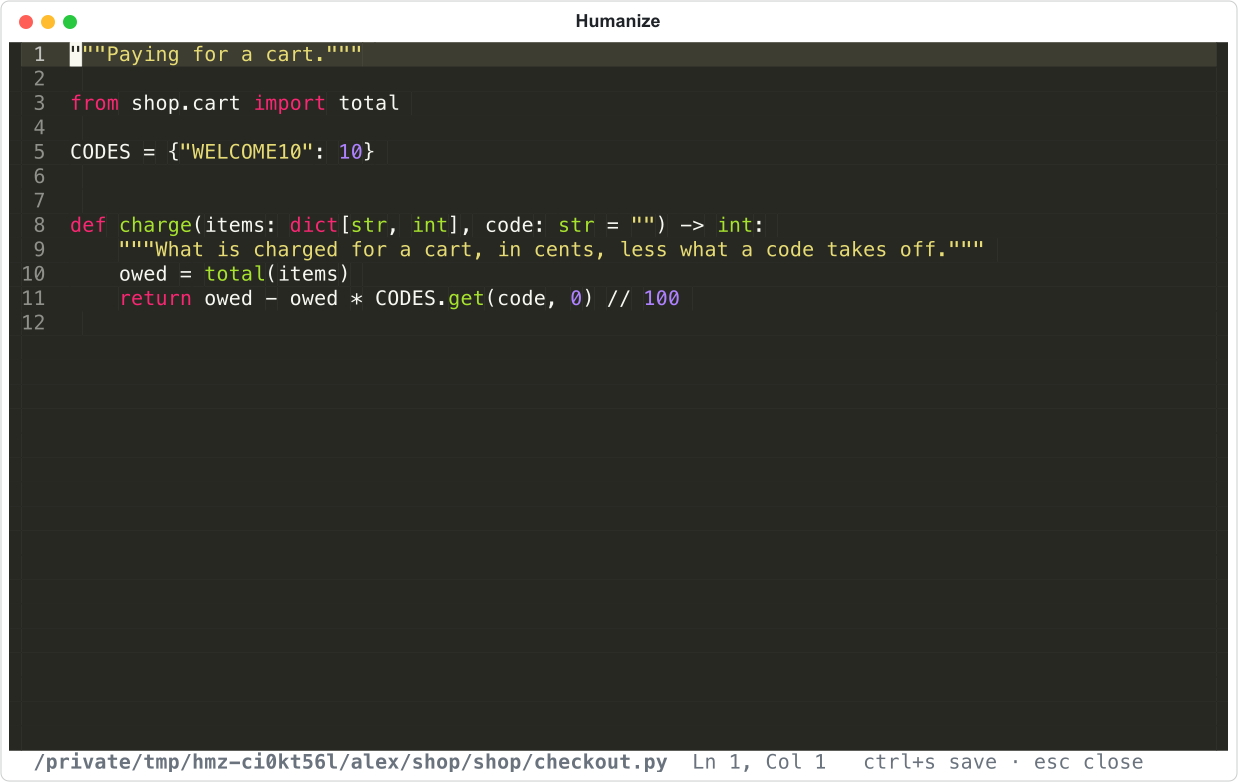
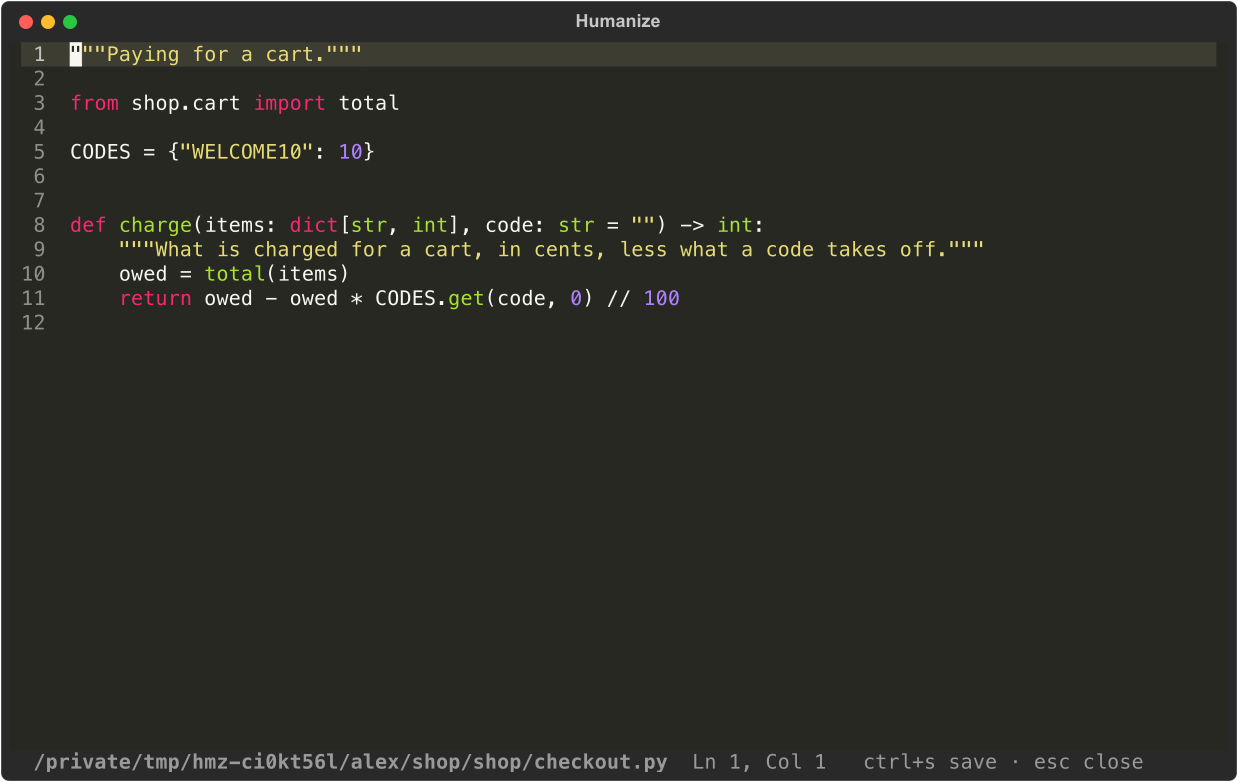
Review and commit changes
| Key | What it does |
|---|---|
| enter | Show the file's diff (esc or q goes back) |
| s | Stage |
| u | Unstage |
| x | Discard, after asking |
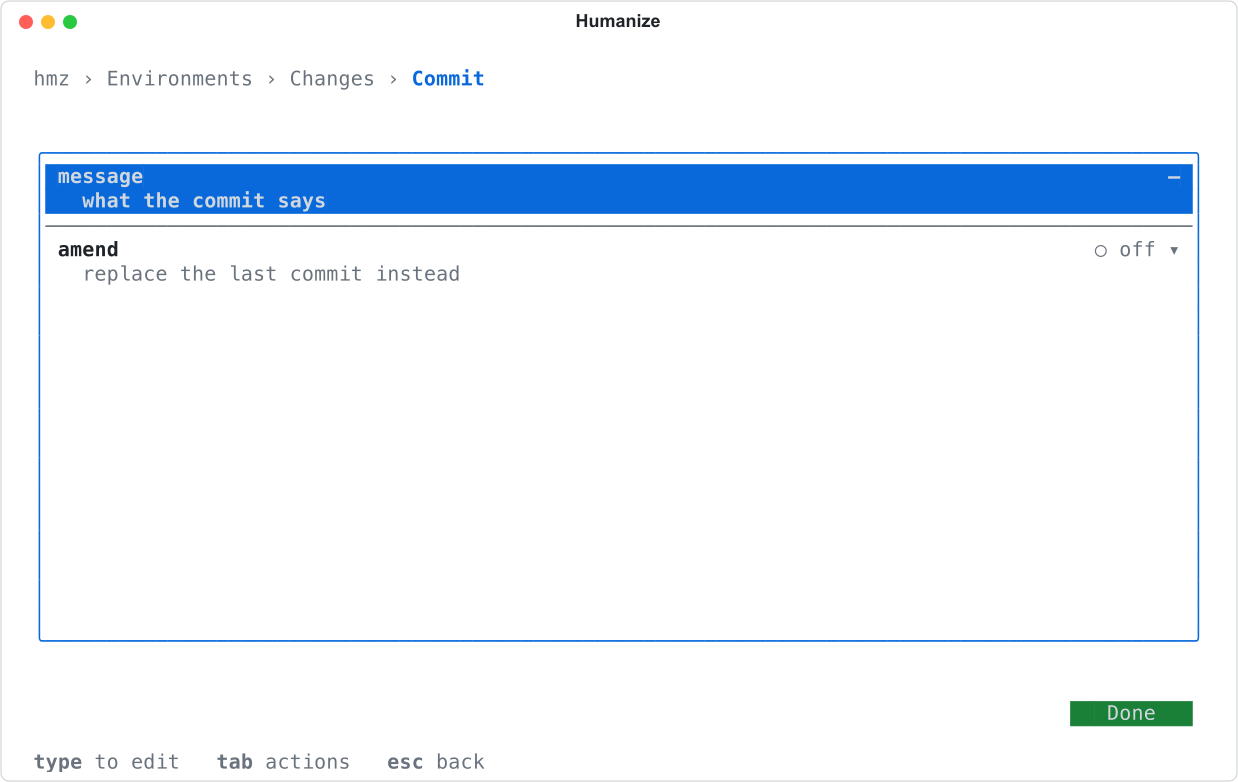
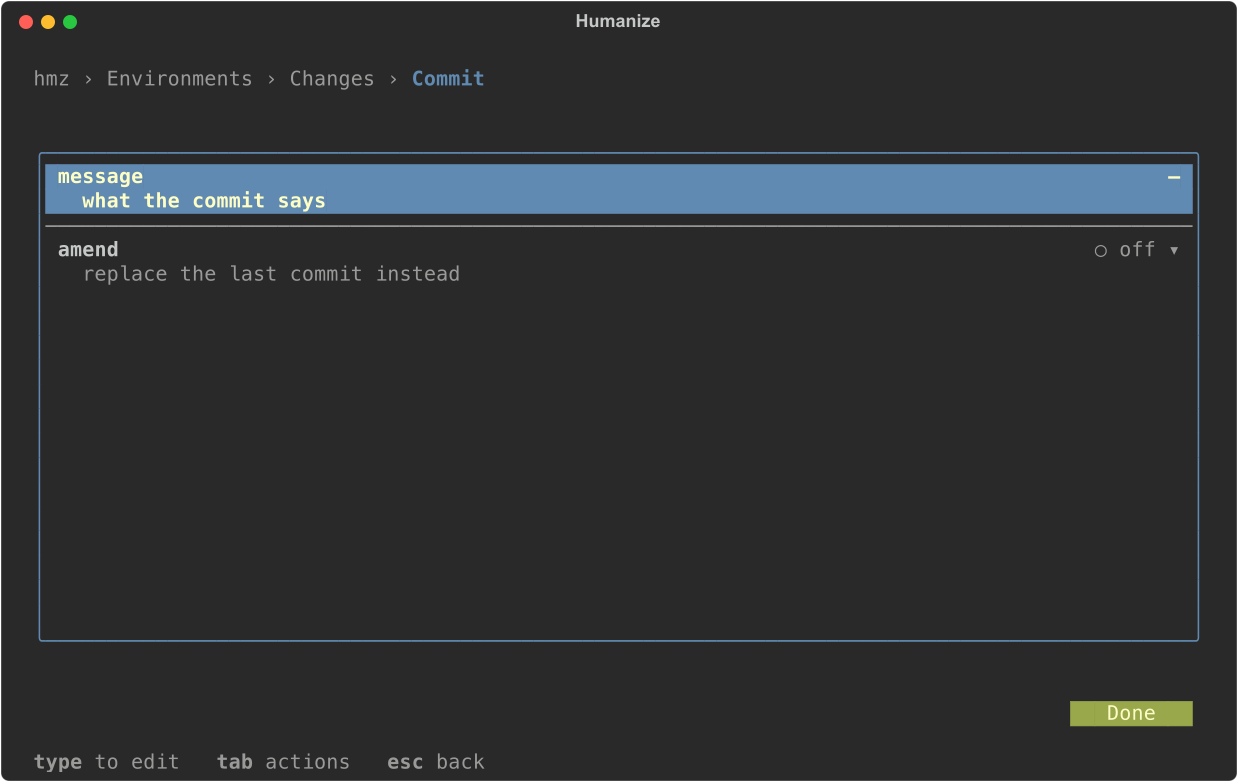
| c | Commit: a form with message and amend |
| r | Refresh |
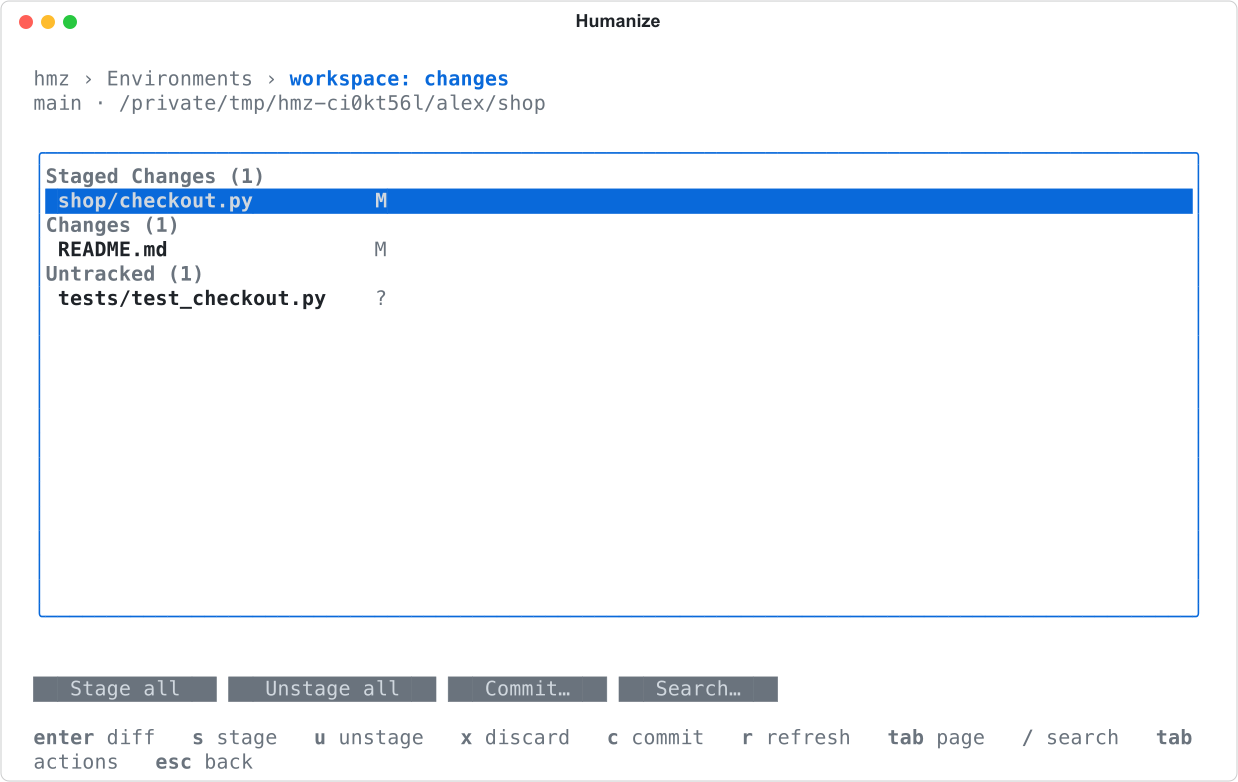
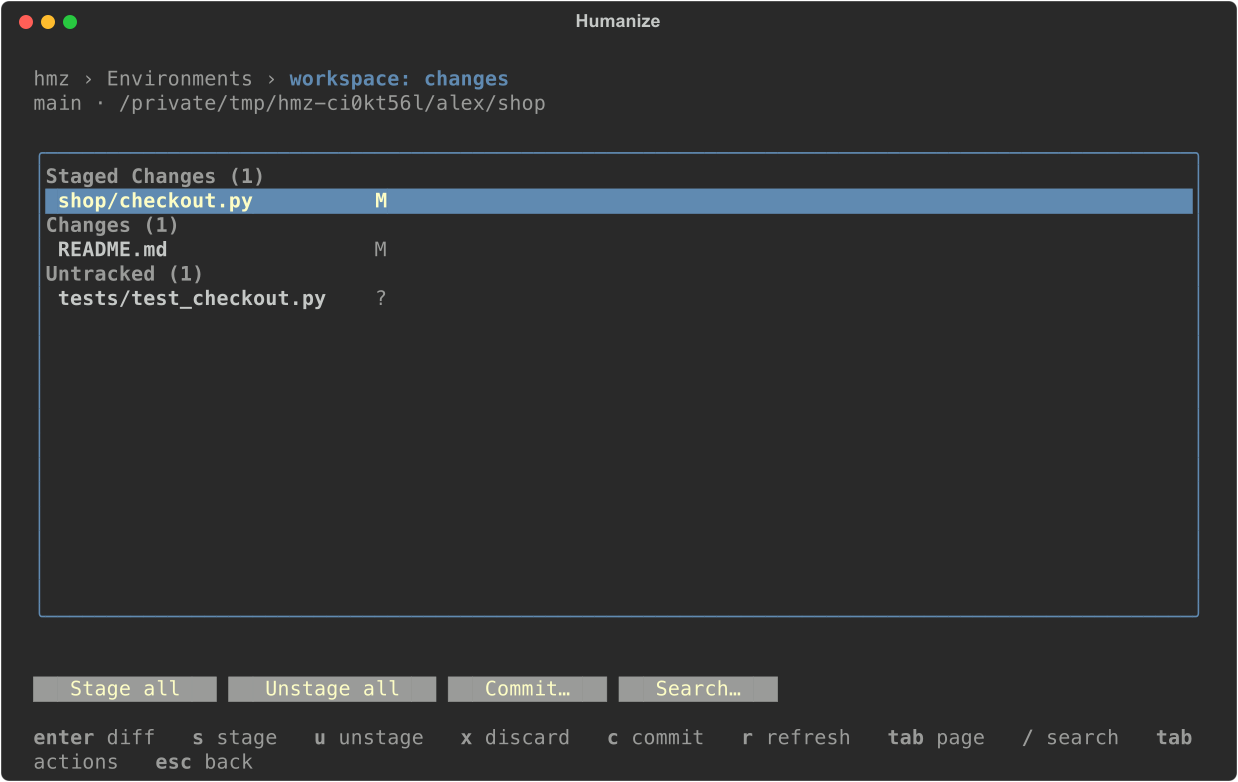
Use the buttons below the list to act on all files: Stage all, Unstage all, and Commit….
Run a shell
The Shell page hands your terminal over to a login shell in the environment. Exit the shell to return to hmz. Type ~. at the start of a line to return to hmz and leave the shell running; type ~~ to send a literal tilde. When you return to the page, choose a running shell or new shell.
Good to know
- Every action in an environment runs as the daemon's user on the environment's machine.
- An epic's environments are writable only while the epic runs. Closed environments are read-only.
- The run history records under your name every file write, stage, discard, commit, and opened terminal, but not what you type in a terminal.
- In the app, pictures open as images, files over 5 MiB or non-UTF-8 files open read-only, and files over 20 MiB do not open. In the terminal, the built-in editor refuses both; press e to open them in your external editor.
- An unwatched terminal closes after 600 seconds. All terminals close when their environment closes.
- Paired devices can open terminals only when the host machine sets
envs.paired_terminals: true. See Security.