Environments
An environment is the machine and directory where an agent runs commands and keeps files. Every chat has one, and every flow has one per declared environment role. By default, it is the starting folder on your computer.
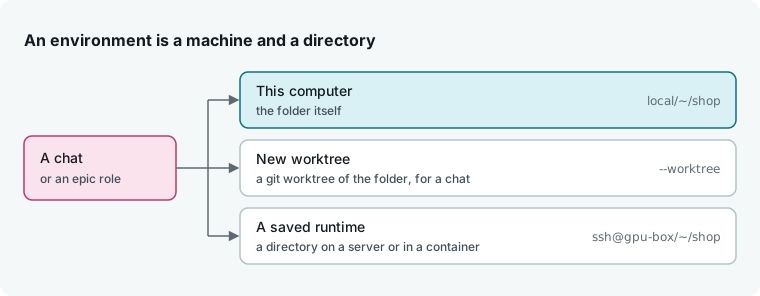
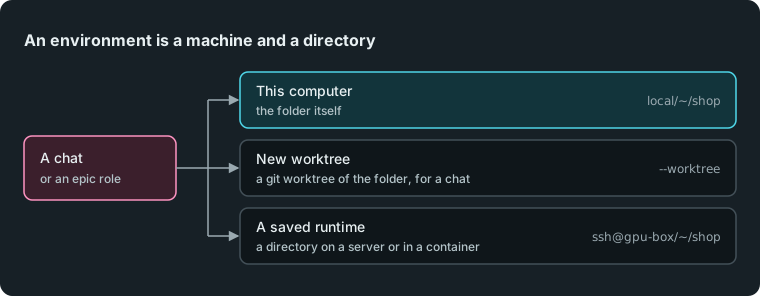
An environment is not a daemon. The daemon is the hmz instance your window connects to, while the environment is where a single chat or role works. To change the daemon, see Connect to other machines. To save a server, container, or cluster to pick here, see Runtimes.
In the app
Humanize Desktop and the web page work the same way.
Pick the folder
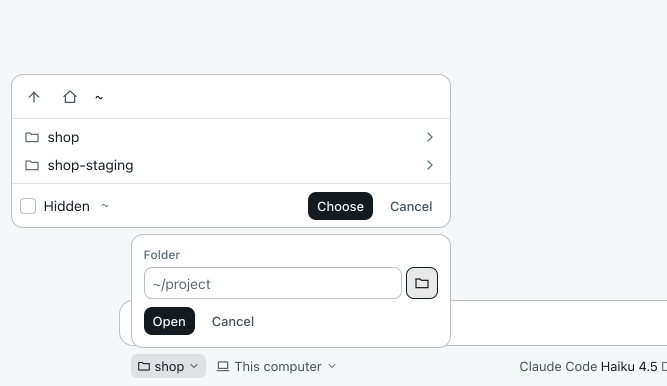
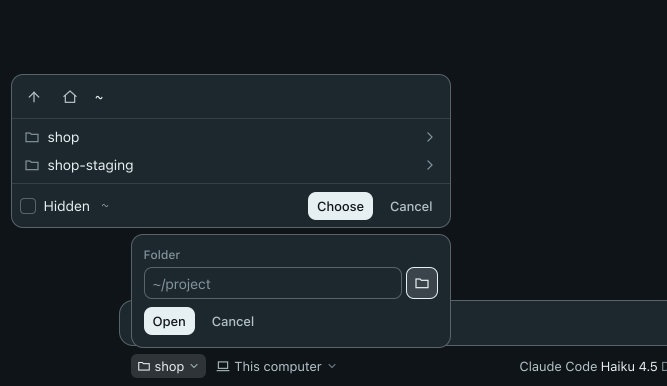
Click the folder chip under the message box on the New chat page, or use the Folder row on the New epic page, to assign a chat or epic to a folder.
| Choice | What it does |
|---|---|
| A folder in the list | Uses a folder this daemon knows. |
| No folder | Gives the chat or epic a directory of its own when it starts. Humanize keeps it until you delete the last chat or epic that used it. |
| Open folder… | Opens a form to type or browse to a directory. Click Open to add it as a folder. |
If a folder's directory is missing, it shows as shop (missing) and nothing can start in it.
Type or browse a path
Type a path in any directory field, which completes as you type for paths on the daemon's machine, or click the folder button next to the field to open the browse panel.
- Click a directory to enter it, or use Up and Home to navigate.
- Tick Hidden to show dot-files and dot-directories.
- Click Choose to select the directory.
Long listings end with a count of remaining items. You can browse directories on your computer and on saved SSH hosts. For other runtimes, type the path.
Pick where a new chat works
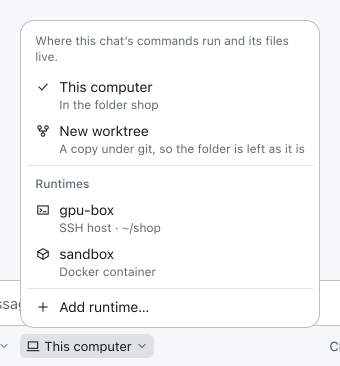
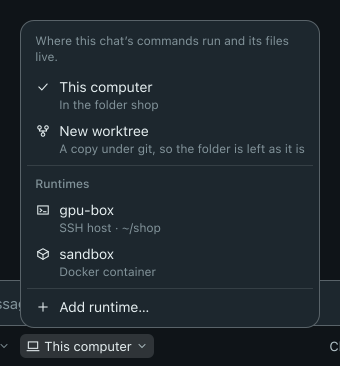
Click the environment chip under the message box. It defaults to This computer.
| Choice | Where the chat works |
|---|---|
| This computer | In the folder itself, or in a directory of its own if you chose No folder. |
| New worktree | In a new git worktree of the folder. |
| A runtime under Runtimes | In the runtime's saved directory. If none is saved, enter a path and click Use this directory. |
| Choose directory… | Changes the directory on the selected runtime. In a chat already begun, it also picks another directory on this computer. |
| Add runtime… | Opens Settings, Runtimes. |
If Humanize cannot reach the environment or run the agent's CLI for it, the chat refuses to start and shows the reason.
Start a chat in a new worktree
Pick New worktree to keep the agent's changes out of your checkout. Humanize creates a detached git worktree at the current commit inside its own home directory. The agent works there while your folder stays untouched.
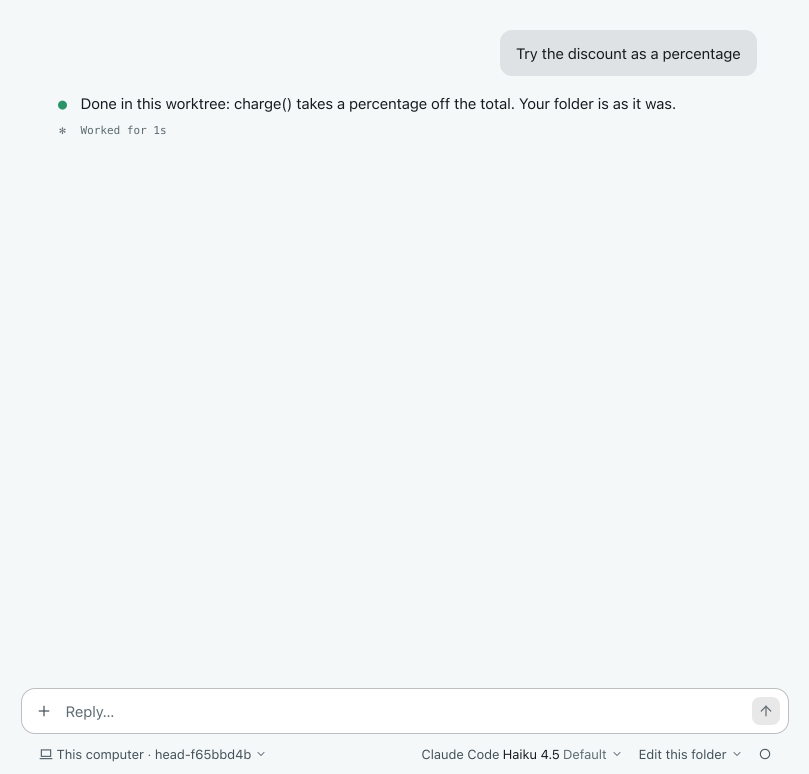
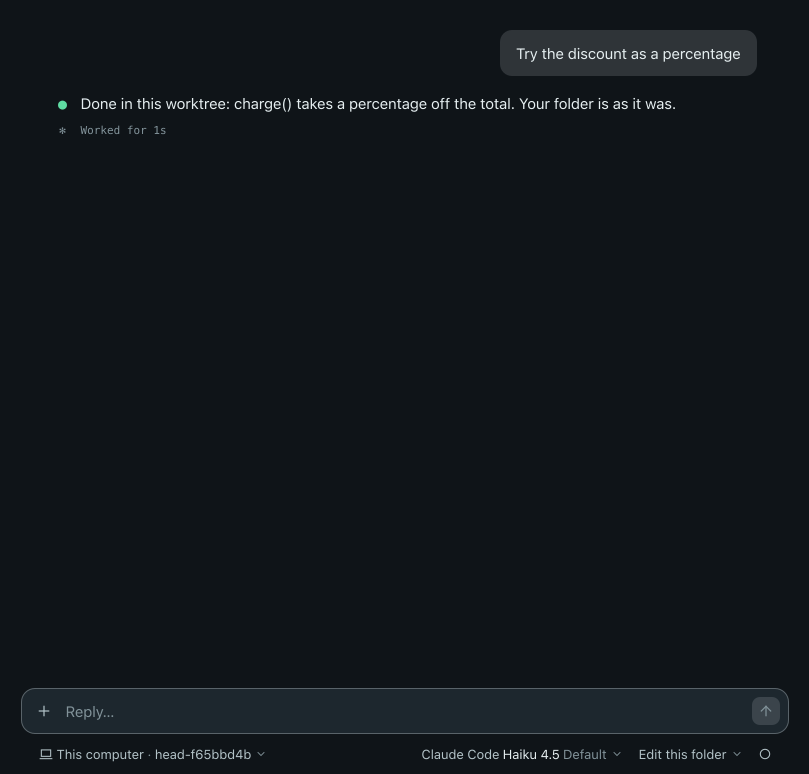
New worktree is available only when starting a new chat. It is disabled when you have no folder selected (A worktree needs a folder) or when the folder is not a git repository (This folder is not a git repository). When you resume the chat later, it continues in the same worktree.
WARNING
Humanize never deletes a worktree, even when you delete the chat. Remove it yourself with git worktree remove.
Move a chat between turns
Click the environment chip under the message box of an existing chat and pick This computer, a runtime, or Choose directory… to move the chat.
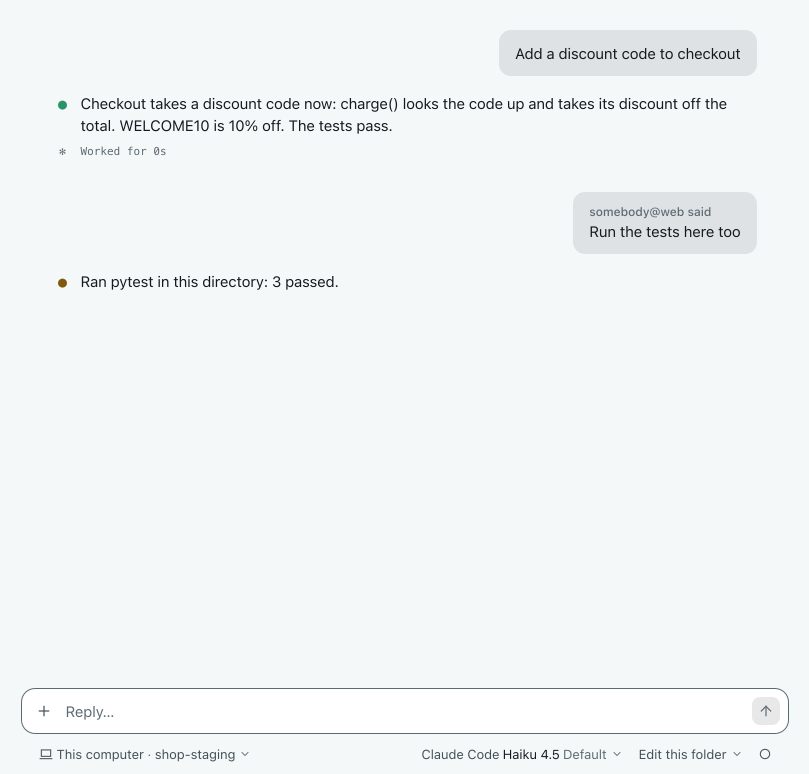
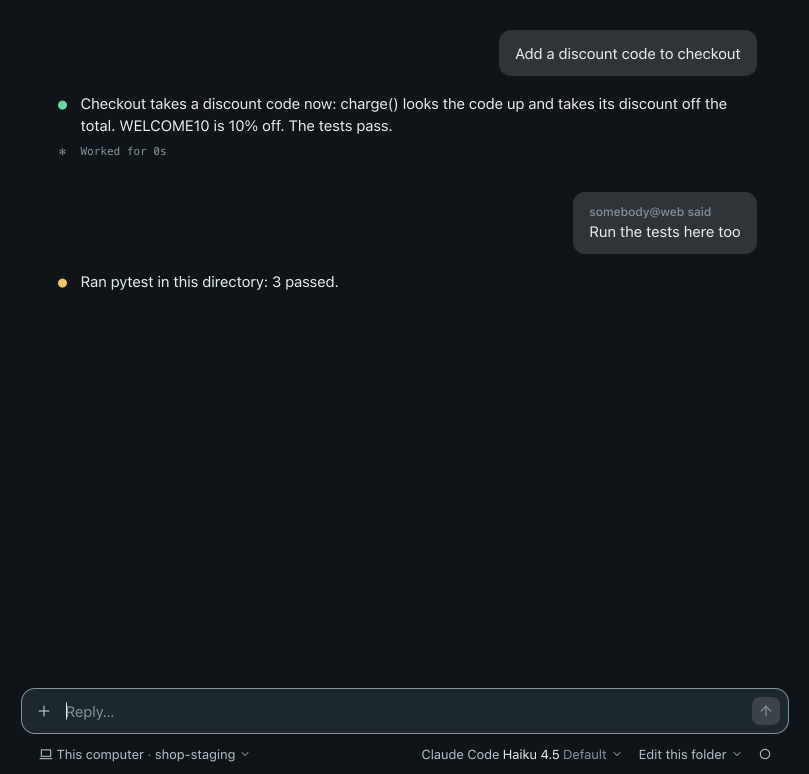
Humanize connects to the new environment and verifies the agent's CLI before moving. If the check fails, the chat stays put. After a move, the conversation continues if the CLI supports it; otherwise, the chat explains why and starts a new conversation. Moving a chat leaves all files in the previous environment untouched.
Choose environments for an epic
On the New epic page, the Environment group holds the Folder row and one row for each environment role declared by the flow. The role for the epic's starting folder has no row. The daemon has its own Daemon group above it.


| Field | What to pick |
|---|---|
| Backend | The machine type: This machine, SSH host, Docker container, Docker swarm, Apple container, or Slurm cluster. |
| Runtime | A saved runtime of that type. For SSH, pick Other host… to type a user@host. For the other types, This machine uses the one on this machine with no saved runtime. Add runtime… opens settings. The This machine backend has no runtime. |
| Directory | Where the role works. With the This machine backend, you can browse, and leaving it blank uses the folder. With any other backend, type the path, or leave it blank to use the runtime's saved directory. |
Each row displays the role's requirements, such as CPUs, memory, GPUs, or a container image. Humanize remembers your choices for that folder and flow. Before the flow starts, Humanize connects to every environment and verifies the requirements; if any check fails, the epic does not run. See Start an epic for the rest of the form.
In the terminal
In hmz, chats run in the directory where you launched hmz. Type /env to list the environments for the current chat or epic, with derived environments nested under their parent.
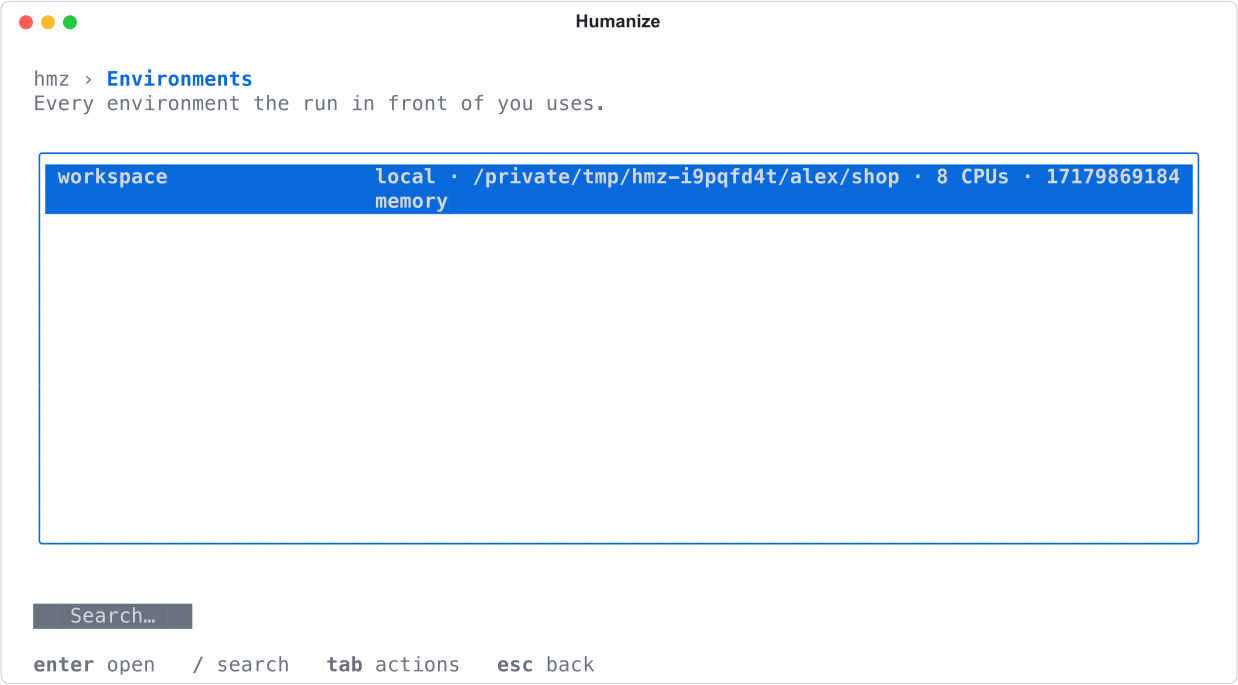
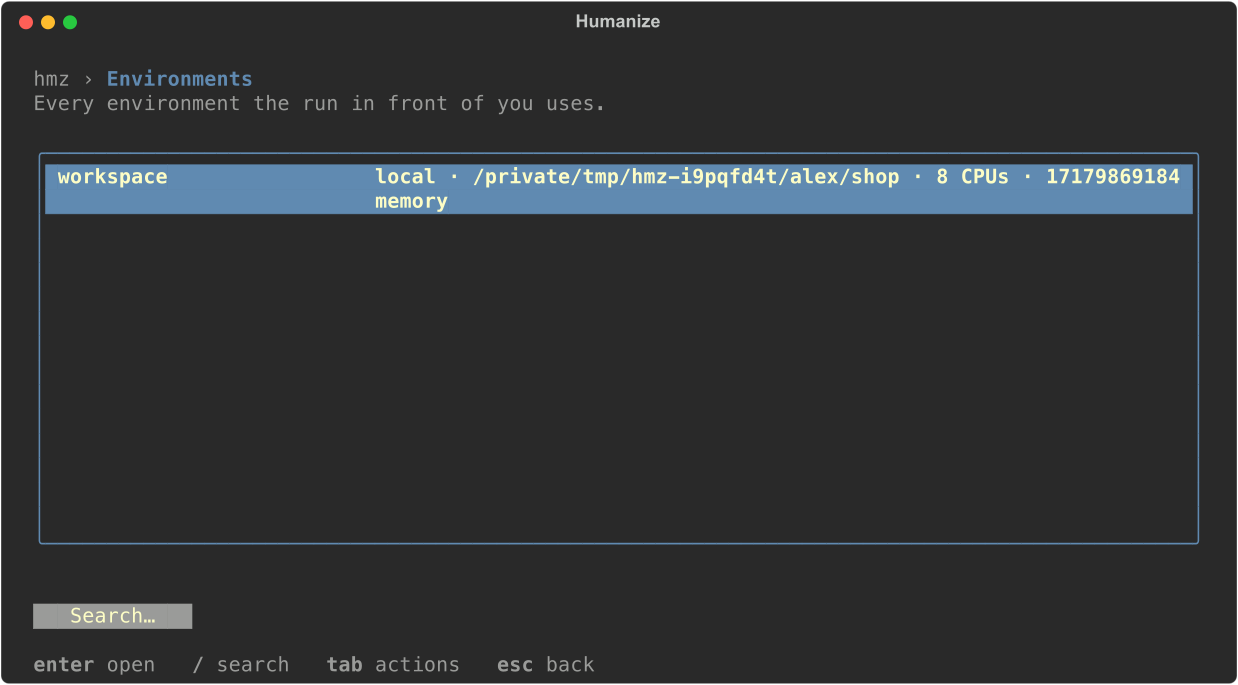
Press enter to open an environment, or type /env followed by a role name to open it directly. See Files, changes and terminal and Snapshots and rewind for what you can do inside an environment.
To set environments for an epic:
- Type
/flowand pick a flow. - Press enter on an environment role.
- Fill in the backend, machine, and working directory.
The bottom row shows the equivalent -e flag syntax. You can also type a full spec in the bottom row to fill the fields above it.
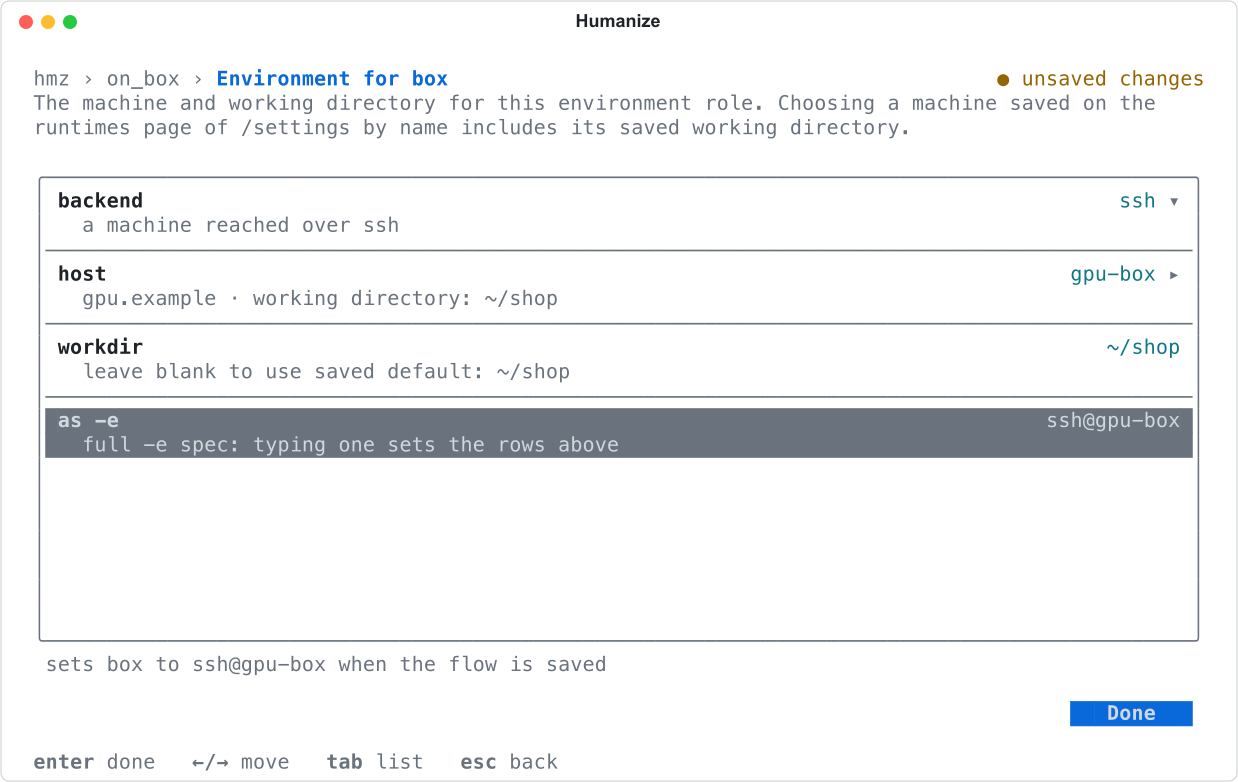
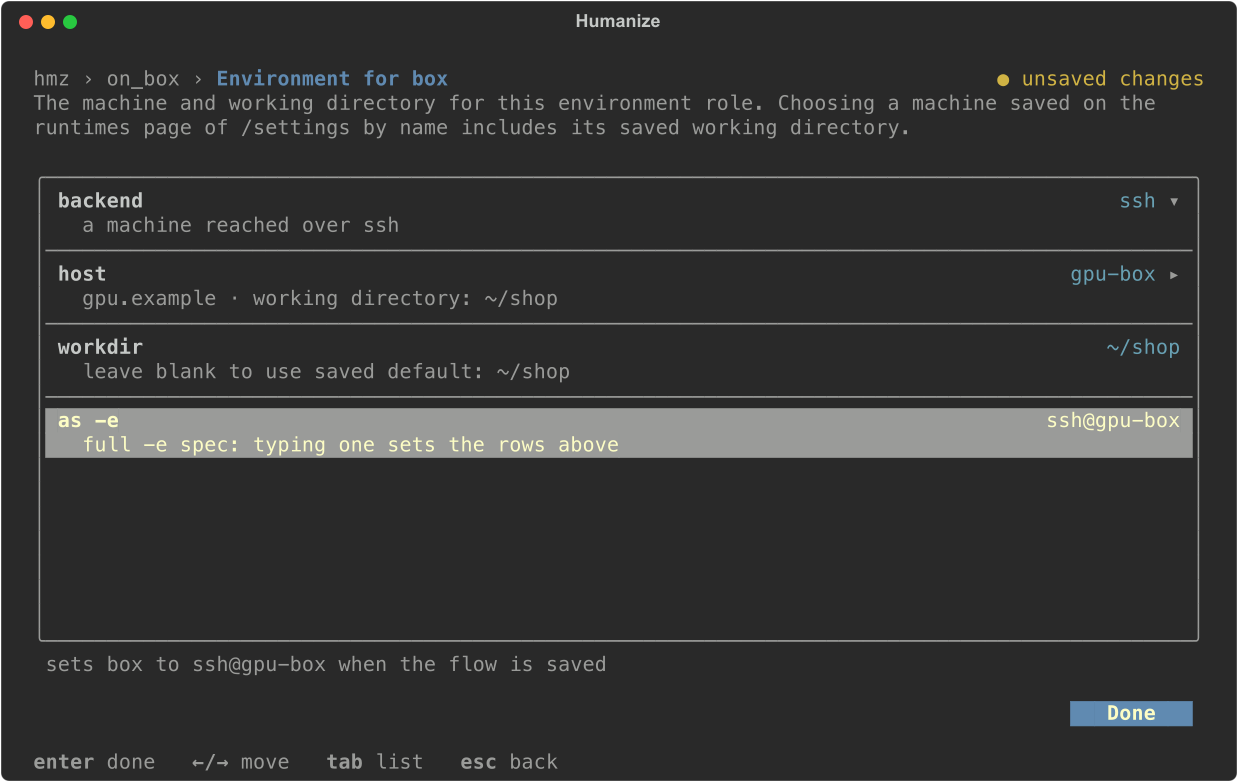
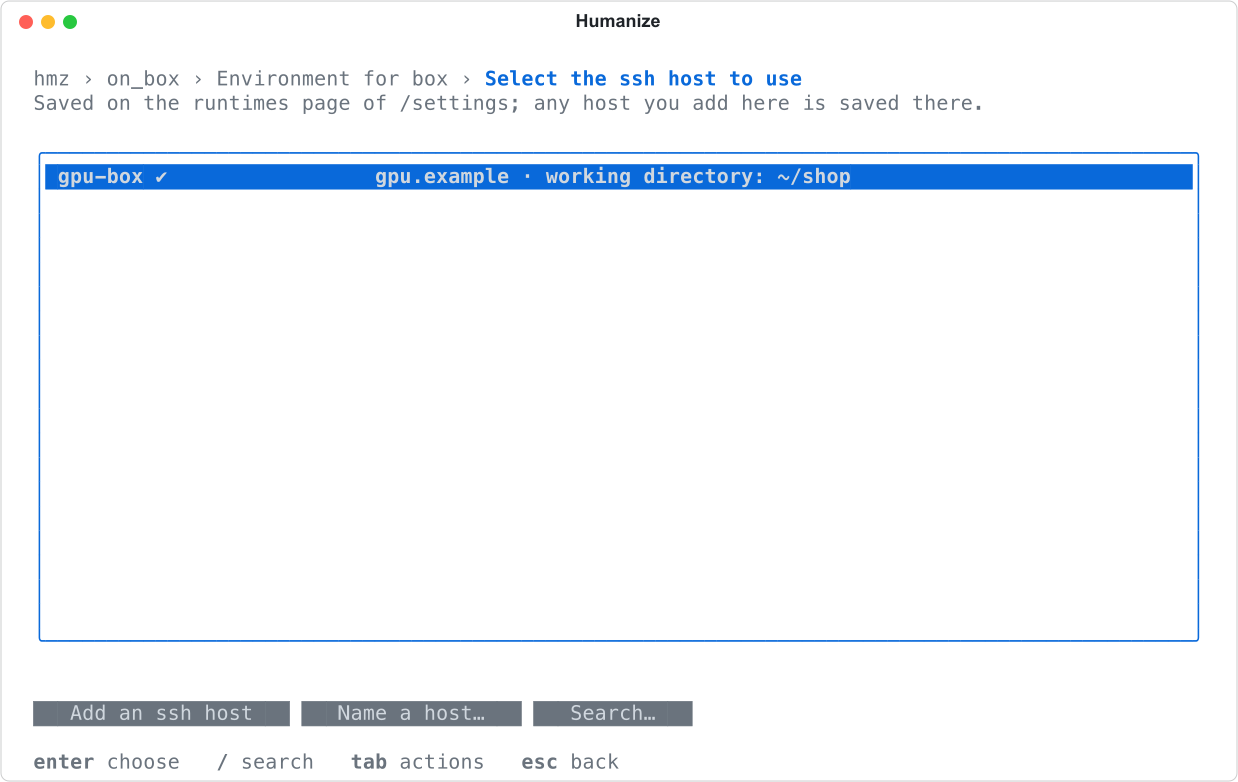
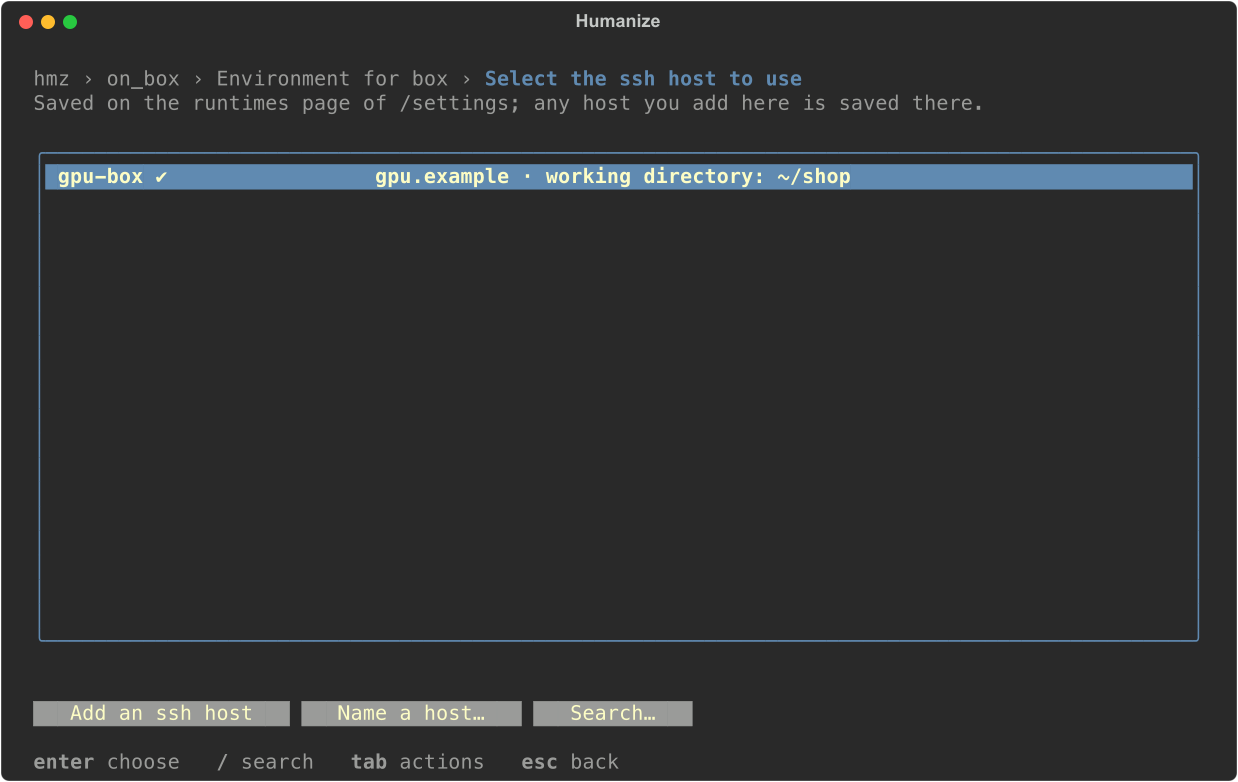
Press enter on the machine row to list that backend's saved runtimes. Choose Add an ssh host (or the button for your backend) to save a new runtime to /settings and select it. For ssh, choose Name a host… to enter an unsaved [user@]host[:port] or ssh config alias for this role only.
From the command line
hmz chat runs in the current directory by default.
| Option | What it does |
|---|---|
--worktree | Starts the chat in a new git worktree of the current directory. Cannot be combined with --resume, and is refused outside a git repository. |
-e ENV | Starts the chat in the specified environment, formatted as BACKEND[@RUNTIME][/DIRECTORY]. |
--resume CHAT -e ENV | Moves the chat to the specified environment and resumes it there. |
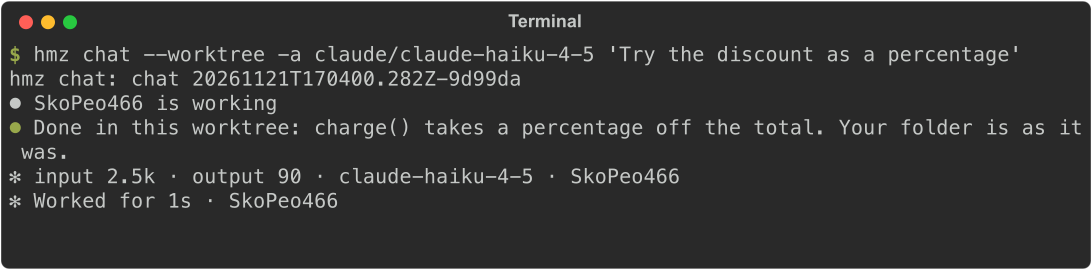
hmz chat --worktree -a claude/claude-haiku-4-5 "Try the discount as a percentage"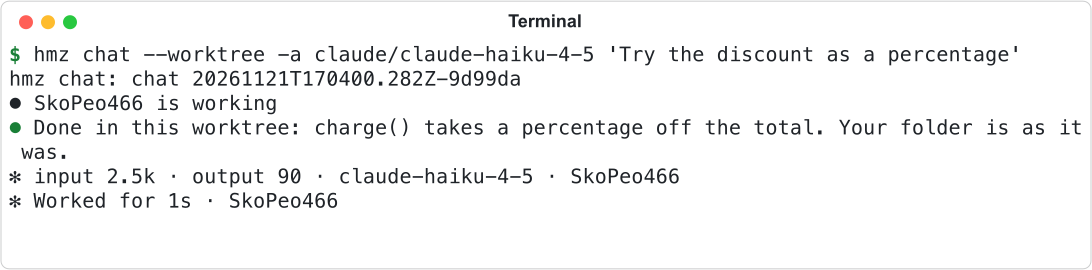
Git lists the worktree alongside your main checkout:


Pass the chat ID and the new environment to move a chat:
hmz chat --resume 20261117T100000.000Z-ab12cd -e ssh@gpu-box/srv/repo "go on there"For flows, pass -e ROLE=BACKEND[@PROVIDER][/WORKDIR] to hmz exec for each environment role, either as separate flags or comma-separated.
hmz exec -f @local/on_box -a builder=claude/claude-haiku-4-5 -e box=ssh@gpu-box/~/shop -p budget.duration=30m "Add a discount code to checkout"| Spec | Where the role works |
|---|---|
local/srv/project | /srv/project on this machine. |
local/~/project | A directory under your home directory. |
ssh@gpu-box/~/shop | A directory on the saved SSH runtime gpu-box. |
ssh@gpu-box | The default directory saved with gpu-box. |
ssh@[me@far.host:2222]/srv/x | An unsaved SSH host, enclosed in brackets. |
docker/srv/x | A container on this machine's Docker daemon. |
Valid backends are local, ssh, docker, swarm, apple-container, and slurm. See Environments and runtimes for the complete grammar.
Good to know
- A chat belongs to its starting folder regardless of where its environment moves.
- You cannot move a chat during an active turn (
A turn is open. Move the chat once it is done.). - Most agent CLIs cannot transfer conversation state across machines. With those, moving a chat to another machine starts a new conversation and says why.
- Ai-chan conversations are fixed to their starting environment and cannot move.
- The terminal interface (
hmz) cannot create worktree chats or move chats. Use the app orhmz chat. - The
localbackend takes no runtime name. Thesshbackend always requires one. - You cannot override an epic's starting folder role with
-e.